
基于Vite+TS初始项目 | 不断更新
1 创建项目
1.1 初始化项目
# 创建项目
pnpm create vite# 使用vue-ts模板创建项目
pnpm create vite xyz-vue-app-ts --template vue-ts
1.2 添加ts类型检查命令
添加 "type-check" 类型检查命令
{"name": "xyz-vue-app-ts-test","scripts": {"dev": "vite","build": "pnpm type-check && vite build","preview": "vite preview","type-check": "tsc --noEmit && vue-tsc --noEmit --skipLibCheck",},
}
1.3 node版本限制
修改package.josn,新增engines内容配置
参考:https://dev.nodejs.cn/learn/the-package-json-guide/#engines
{"name": "xyz-vue-app-ts-test","type": "module","engines": {"node": ">=18.20.3"},"scripts": {}
}
在项目根目录下(与package.json同级),创建 .npmrc 文件,
engine-strict=true
1.4 改造vite配置
这里按开发环境、生产打包环境来创建不同的配置文件。在项目跟目录下,创建build文件夹,在文件夹中创建如下文件:
vite.config.dev.ts // 开发环境配置
vite.config.prod.ts // 生产环境配置
如果需要在vite中.config.ts中使用 “console”,需要安装以下模块,否则vue-tsc进行打包的类型检查会报错。
# node环境中没有console,同时添加node的ts定义
pnpm i -D tslib @types/node
vite.config.dev.ts
开发环境配置
import { defineConfig } from 'vite'/*** vite开发环境配置* https://vite.dev/config/*/
export default (env: ImportMetaEnv) => {const { VITE_APP_BASE_API, VITE_APP_BASE_SERVER } = envreturn defineConfig({server: {host: '0.0.0.0', // 配置host,配置为'0.0.0.0'可以在局域网访问proxy: {},},})
}
vite.config.prod.ts
生产环境配置
import { defineConfig } from 'vite'/*** vite打包环境配置* https://vite.dev/config/*/
export default (env: ImportMetaEnv) => {console.log('env', env)return defineConfig({// 配置打包后使用相对路径base: './',build: {/** 打包后的输出目录,默认为 dist */outDir: './dist',/** 打包后的文件内容不进行压缩,方便阅读 */// minify: false,},})
}
vite.config.ts
vite配置入口:合并vite配置
import path from 'path'
import { defineConfig, loadEnv, UserConfig } from 'vite'
import vue from '@vitejs/plugin-vue'
import ViteConfigDev from './build/vite.config.dev'
import ViteConfigProd from './build/vite.config.prod'/** 根据是否为开发环境、生产打包环境,使用不同的vite配置 */
const EnvResolver: Record<'serve' | 'build', (env: ImportMetaEnv) => UserConfig> = {serve: (env: ImportMetaEnv) => ({ ...ViteConfigDev(env) }),build: (env: ImportMetaEnv) => {console.log('vite开始打包...')return { ...ViteConfigProd(env) }},
}/*** vite配置项,具体配置请到build目录下进行详细配置*/
export default defineConfig(({ command, mode }) => {console.log('command', command)// 获取到环境变量配置const env = loadEnv(mode, process.cwd()) as ImportMetaEnvconst { server, base, build, resolve = {}, plugins = [] } = EnvResolver[command](env)// 统一返回配置return {/** 开发阶段,vite动态打包服务器的配置 */server,/** 公共基础路径 */base,/** 打包构建阶段的配置 */build,resolve: {// 配置路径别名alias: {'@': path.resolve(__dirname, './src'),},...resolve,},plugins: [vue(),...plugins,],}
})
1.5 路径别名@
1 src别名配置
在开发项目的时候文件与文件关系可能很复杂,因此我们需要给src文件夹配置一个别名。
vite.config.js
import {defineConfig} from 'vite'
import vue from '@vitejs/plugin-vue'
import path from 'path'
export default defineConfig({plugins: [vue()],resolve: {alias: {"@": path.resolve("./src") // 相对路径别名配置,使用 @ 代替 src}}
})
TypeScript 编译配置:如果用的是ts,需要在tsconfig.json进行如下配置
{"compilerOptions": {"baseUrl": "./", // 解析非相对模块的基地址,默认是当前目录"paths": { //路径映射,相对于baseUrl"@/*": ["src/*"] }}
}
2 处理webstorm不识别问题
创建jsconfig.json文件,配置以下内容:
{"compilerOptions": {"baseUrl": ".","paths": {"@/*": ["./src/*"]}}
}
3 ESLint 9.x语法校验
学习参考博客:https://juejin.cn/post/7402696141495779363
ESLint 9.x需要 Node.js 17.x以上版本支持,因为 structuredClone 在 Node.js 17.0.0 中引入。否则会报如下错误。可以使用nvm工具进行版本管理。
ESLint: 9.15.0ConfigError: Config (unnamed): Key "rules": Key "constructor-super": structuredClone is not defined
3.1 初始化ES配置
3.1.1 从0到1生成
1、安装ESLint依赖
# 仅安装ESLint
pnpm i eslint@latest -D
2、配置ESLint校验命令
可以在命令中加入 --debug 进行输出调试日志。
{"name": "xyz-vue-app-ts","scripts": {"lint": "eslint","lint:fix": "eslint --fix",},
}
3、初始化eslint.confit.js配置文件
在工程的根目录下创建文件:eslint.confit.js。如果没有这个文件,ESLint 9.x会报错找不到配置文件。
从ESlint9.x开始,建议直接用eslint.config.js(ESNext)或者eslint.config.mjs(CommonJS)命名的配置文件。
因为我们的lint命令是没有指定目录或者指定文件类型的,默认eslit会去读取项目所有文件进行校验,所以我们需要在配置文件中使用ignores字段来告诉eslint排除哪些文件。创建后,在其中写入忽略的校验文件:
/** @type {import('eslint').Linter.Config[]} */
export default [{// 自定义的忽略文件需要放到最后,否则容器被前面的规则给覆盖了// 默认eslit会去读取项目所有文件进行校验,所以我们需要在配置文件中使用ignores字段来告诉eslint排除哪些文件// 这里排除第三方依赖、静态文件ignores: ['node_modules', 'dist', 'public', 'src/assets'],},
]
3.1.2 直接使用ESLint命令脚手架生成
1、安装依赖
# 初始化eslint配置,这里直接初始化配置,会提示安装要Eslint,选择yes即可。
npx eslint --init# 按以下配置初始化后继续安装
# vite-plugin-eslint:用于配置vite运行的时候自动检测eslint规范,报错时会在浏览器显示错误界面
pnpm install -D vite-plugin-eslint
# 不安装则报错:error when starting dev server: Error [ERR_MODULE_NOT_FOUND]: Cannot find package 'vite-plugin-eslint' imported from
2、初始化配置项
# 初始化配置,eslint同时可作为命令行工具使用,需要先执行命令安装eslint
./node_modules/.bin/eslint --init# window如果无法运行上述命令,可尝试
"node_modules/.bin/eslint" --init
√ How would you like to use ESLint? · problems # 选择To check syntax and find problems,检查并发现问题
√ What type of modules does your project use? · esm # 选择模块化的方式,这里一般选择ES6的import/export
√ Which framework does your project use? · vue # 按需选择,这里选择为vue工程
√ Does your project use TypeScript? · No / Yes # 按需选择是否为ts项目
√ Where does your code run? · browser, node  # 用空格选中 Browser 和 Node,高亮才是选中,选中后回车
√ What format do you want your config file to be in? · JavaScript
The config that you've selected requires the following dependencies:eslint-plugin-vue@latest
√ Would you like to install them now? · No / Yes
√ Which package manager do you want to use? · pnpm
3、初始化后的配置说明
// 导入了 `globals`全局变量的库模块,该模块提供了一组预定义的全局变量(如 window、document 等),这些变量通常在不同的环境(如浏览器、Node.js)中可用
// 在 ESLint 配置中,你可以使用这个模块来指定代码所运行的环境,从而定义全局变量。
import globals from 'globals'
// 针对 JavaScript 的 ESLint 配置和规则。保持 JavaScript 代码的一致性和质量
import pluginJs from '@eslint/js'
// 导入 `typescript-eslint` 插件( `typescript-eslint/parser` 和 `typescript-eslint/eslint-plugin`)。提供了对 TypeScript 的支持,包括 TS 的解析器和推荐的规则集,用于在 TypeScript 文件中进行 lint 检查。
import tseslint from 'typescript-eslint'
// 导入 `eslint-plugin-vue` 插件,提供了 Vue.js 特有 ESLint 规则。确保 Vue 文件(`.vue` 文件)中的代码符合 Vue.js 的最佳实践和代码风格指南
import pluginVue from 'eslint-plugin-vue'/** @type {import('eslint').Linter.Config[]} */
export default [// 文件匹配:`files` 属性指定了哪些文件类型(JavaScript、TypeScript、Vue 文件等)将应用这些规则{ files: ['**/*.{js,mjs,cjs,ts,vue}'] },// 全局变量:`languageOptions` 配置了浏览器环境下的全局变量。{ languageOptions: { globals: { ...globals.browser, ...globals.node } } },// `pluginJs.configs.recommended` 引入了 `@eslint/js` 插件的推荐规则。pluginJs.configs.recommended,// 引入 `typescript-eslint` 插件的推荐规则...tseslint.configs.recommended,// 引入`eslint-plugin-vue` 插件的基础规则...pluginVue.configs['flat/essential'],{// 针对 Vue 文件配置files: ['**/*.vue'],// 为 `.vue` 文件指定了 TypeScript 解析器languageOptions: { parserOptions: { parser: tseslint.parser } }}
]
3.2 从0到1的规则配置
(1)这里推荐每种规则都单独一个对象框起来,方便管理,因为有javascript、vue、typescript等规则。
(2)规则优先级问题:后面的规则会覆盖前面的规则,所以一般会把recommended(推荐的规则)写在最前面,然后后面再去关掉/启用一些其他规则。
3.2.1 校验忽略配置
配置 忽略的校验文件可以参考如下:
/** @type {import('eslint').Linter.Config[]} */
export default [{// 自定义的忽略文件需要放到最后,否则容器被前面的规则给覆盖了// 默认eslit会去读取项目所有文件进行校验,所以我们需要在配置文件中使用ignores字段来告诉eslint排除哪些文件// 这里排除第三方依赖、静态文件ignores: ['node_modules', 'dist', 'public', 'src/assets'],},
]
3.2.2 添加JavaScript规则
因为ESlint是默认支持解析JavaScript的,以及有内置一些规则,所以我们只需启用相对于的规则名称就可以了。比如,我们不想在调试代码时在控制台看到各个小伙伴五花八门的log日志,非常影响自己调试代码,那么可以添加一下规则:
/** @type {import('eslint').Linter.Config[]} */
export default [{rules: {'no-console': 'error'}},{// 自定义的忽略文件需要放到最后,否则容器被前面的规则给覆盖了// 默认eslit会去读取项目所有文件进行校验,所以我们需要在配置文件中使用ignores字段来告诉eslint排除哪些文件// 这里排除第三方依赖、静态文件ignores: ['node_modules', 'dist', 'public', 'src/assets'],},
]
规则可以是error、warn、off
需要注意的是在没有 添加其他插件的情况下,这个规则仅针对 js文件 生效,所以我们需要创建一个测试的js文件 test.js,在其中编写测试的代码(测试后先别删除,后续测试还用到):
console.log('🌟🌟🌟🌟🌟TEO', a)
使用ESLine提供的现成js规则
在项目中我们可以直接使用ESlint提供的现成的规则集,要用到@eslint/js这个依赖包。
1、安装依赖
pnpm i @eslint/js -D
2、配置使用规则
后面你会看到很多recommended,相信在旧的ESlint项目中你也会看到这些,这些一般都是相关开发者或者社区所推荐的规则,启用就对了。如果有些规则不是很符合你的项目需求,也可以off掉。
import eslint from '@eslint/js'/** @type {import('eslint').Linter.Config[]} */
export default [eslint.configs.recommended,{// 默认eslit会去读取项目所有文件进行校验,所以我们需要在配置文件中使用ignores字段来告诉eslint排除哪些文件// 这里排除第三方依赖、静态文件ignores: ['node_modules', 'dist', 'public', 'src/assets']}
]
以上配置之后,执行 pnpm lint 命令校验,在控制台会看到两个报错,这个是正常检查除了错误语法:
1:1 error 'console' is not defined no-undef1:30 error 'a' is not defined no-undef
因为eslint.configs.recommende中并没有推荐no-console,除非你用eslint.configs.all。另外如果我们想要,可以通过在后面自定义项目规则去覆盖前面的或添加新的规则,配置如下:
import eslint from '@eslint/js'/** @type {import('eslint').Linter.Config[]} */
export default [// JavaScript 推荐的规则eslint.configs.recommended,/*** JavaScript 自定义的规则*/{rules: {'no-console': 'warn'}}
]
推荐每种规则都单独一个对象框起来,方便管理,因为后面还有vue、typescript等规则。
3.2.3 启用全局变量规则
在上面的校验中,会提示 ‘console’ is not defined,这是因为eslint.configs.recommended 中启用了一条规则"no-undef": "error"。console是全局变量,默认就可以直接使用,对于eslint来说,任何变量都需要定义,不管是否全局变量。这也可避免我们在项目中使用一些真的不存在的变量时导致出现一些低级错误。
打个比方,你可以在任何浏览器环境执行alert(),但是你在nodejs环境中执行就会报错,nodejs中并没有该方法。
所以eslint一视同仁,对于任何可用的隐藏全局变量,都需要跟eslint打声招呼。于是,我们可以用一个依赖包来配置所有全局变量,那就是globals。
1、安装依赖
pnpm i globals -D
2、配置规则
import eslint from '@eslint/js'
import globals from 'globals'/** @type {import('eslint').Linter.Config[]} */
export default [/*** JavaScript 自定义的规则*/{rules: {'no-console': 'warn'}},/*** 配置全局变量*/{languageOptions: {globals: {...globals.browser,// 添加自定义的全局变量Cesium: true}}}
]
注意:
这里只是告知
eslint这些是全局变量,eslint便会去掉这些报错。而不是真的给你提供该变量,即便你欺骗eslintxxx是全局变量,然后你去使用这个xxx时,代码逻辑依旧会报错的。 这里还适合一些通过cdn引入的全局变量,可以在这里配置,使用时eslint就不会报错了。这种配置方法,可以解决的是第三方库没有npm依赖包的问题,他是通过在index.html入库文件中引入来使用的。
3.2.4 Vue规则
由于ESlint本身只支持识别JavaScript,所以对于vue文件,还需要一个插件:eslint-plugin-vue,假如你的项目也跟我一样用的是typescript,那么还需要另一个解析器:typescript-eslint
1、安装依赖
pnpm i -D eslint-plugin-vue typescript-eslint
2、配置规则
这里的配置需要整合下前面配置的规则,将前面的规则继承到这里。可以参考配置:https://eslint.vuejs.org/user-guide/
这里我们使用了eslintPluginVue.configs['flat/recommended']作为vue的推荐规则配置。同时,里面还包含了vue的ESlint插件,用于解析vue文件,这也是ESlint配置为什么要大改的问题,因为它让ESlint配置更加简单了。
如果是typescript项目,需要在languageOptions.parserOptions中配置解析器来支持typescript。
规则中的files属性则用于指定匹配的后缀文件或者目录用此规则或者解析器。如果不写files,则该规则配置对所有文件起作用。
Vue的更多规则配置参考:https://eslint.vuejs.org/rules/
import eslint from '@eslint/js'
import globals from 'globals'
import tseslint from 'typescript-eslint'
import eslintPluginVue from 'eslint-plugin-vue'/** @type {import('eslint').Linter.Config[]} */
export default [// 省略其他规则...// JavaScript 推荐的规则// eslint.configs.recommended,// Vue规则配置// ...eslintPluginVue.configs['flat/recommended'],// 省略其他规则.../*** 配置全局变量*/{languageOptions: {globals: {...globals.browser,// 添加自定义的全局变量Cesium: true,},},},/*** TypeScript、vue规则配置* 参考:https://eslint.vuejs.org/user-guide/*/{// 这里不进行继承,在vue文件中无法解析到全局(在types中)定义的ts类型extends: [// JavaScript 推荐的规则eslint.configs.recommended,// ts推荐配置...typescriptEslint.configs.recommended,// Vue规则配置...eslintPluginVue.configs['flat/recommended'],],files: ['**/*.{ts,tsx,vue}'],languageOptions: {ecmaVersion: 'latest',sourceType: 'module',// globals: globals.browser,parserOptions: {parser: typescriptEslint.parser,},},rules: {// ts规则配置'@typescript-eslint/no-explicit-any': 'off','@typescript-eslint/prefer-ts-expect-error': 'off',// 在这里追加 vue 规则'vue/no-mutating-props': ['error',{shallowOnly: true,},],},},
]
如果项目中还没删除 vite 的 vue-ts 模版创建的文件还没有删除,这里执行 pnpm lint 即可看到相关的错误。
# 省略其他,或者有其他差异
E:\Code\xuyizhuo\xyz-web-demo-template\xyz-vue-app-ts-test\src\App.vue6:1   warning  Expected indentation of 2 spaces but found 4 spaces   vue/html-indent7:1   warning  Expected indentation of 4 spaces but found 8 spaces   vue/html-indent7:36  warning  'target' should be on a new line                      vue/max-attributes-per-line
3.2.5 TypeScript规则
整合到前面的配置
在上面,我们安装了typescript-eslint 依赖,用于对vue-ts的支持,它是集成了typescript的recommended配置以及ESlint插件。
1、使用推荐和自定义配置
和vue的eslintPluginVue.configs['flat/recommended']一样,tseslint.configs.recommended也会在配置中自动添加插件和规则。即便你不是用在vue项目,也可以这样使用:
import eslint from '@eslint/js'
import globals from 'globals'
import tseslint from 'typescript-eslint'
import eslintPluginVue from 'eslint-plugin-vue'/** @type {import('eslint').Linter.Config[]} */
export default [// 省略其他配置...// JavaScript 推荐的规则// eslint.configs.recommended,// ts推荐配置// ...tseslint.configs.recommended,// Vue规则配置// ...eslintPluginVue.configs['flat/recommended'],// 省略其他配置.../*** vue规则*/{files: ['**/*.vue'],languageOptions: {parserOptions: {// typescript项目需要用到这个parser: tseslint.parser,ecmaVersion: 'latest',// 允许在.vue 文件中使用 JSXecmaFeatures: {jsx: true,},},},rules: {},},/*** typescript 规则*/{files: ['**/*.{ts,tsx,vue}'],rules: {},},
]
2、使用tseslint.config导出ESLint配置
这里我们既然用到了typescript-eslint这个插件,那么我们还可以用tseslint.config这个函数来导出ESLint的配置,让配置有文件有代码提示,避免写错。这里不是全部配置,主要是修改了导出的对象。
import eslint from '@eslint/js'
import globals from 'globals'
import tseslint from 'typescript-eslint'
import eslintPluginVue from 'eslint-plugin-vue'// /** @type {import('eslint').Linter.Config[]} */
// export default [ // 旧配置,直接导出一个数组,这样没有类型提示
export default tseslint.config( // 使用带有类型提示的eslint.config()方法,可以获得eslint的类型提示{// 默认eslit会去读取项目所有文件进行校验,所以我们需要在配置文件中使用ignores字段来告诉eslint排除哪些文件// 这里排除第三方依赖、静态文件ignores: ['node_modules', 'dist', 'public', 'src/assets'],},// JavaScript 推荐的规则eslint.configs.recommended,// ts推荐配置...tseslint.configs.recommended,// Vue规则配置...eslintPluginVue.configs['flat/recommended'],/*** typescript 规则*/{files: ['**/*.{ts,tsx,vue}'],rules: {},},
)
3.2.6 @别名支持
1、安装@别名支持插件
pnpm i -D eslint-import-resolver-aliaspnpm i -D eslint-plugin-import eslint-import-resolver-alias
3.2.7 import导入排序
# 目前无法集成
pnpm i -D eslint-plugin-import
pnpm i -D eslint-import-resolver-typescript
3.2.8 集成eslint-plugin-vue@latest插件
需要安装
pnpm install -D vite-plugin-eslint
使用插件
import { defineConfig } from 'vite'
import vue from '@vitejs/plugin-vue'
import path from 'path'
import eslintPlugin from 'vite-plugin-eslint' // 导入eslintPlugin// https://vitejs.dev/config/
export default defineConfig({plugins: [vue(),/** 增加eslint的vite插件,这样在程序运行时就能检查eslint规范 */eslintPlugin(),// 按前面配置后,这里不用配置要校验和要忽略的文件/** 增加eslint的vite插件,这样在程序运行时就能检查eslint规范 */eslintPlugin({// 需要被ESLint校验的文件// include: ['src/**/*.js', 'src/**/*.vue', 'src/*.js', 'src/*.vue'],// 配置忽略文件:忽略依赖文件、静态文件// exclude: ['node_modules/**', 'public/**', 'src/assets/**'],}),],resolve: {alias: {// 关键代码'@': path.resolve(__dirname, './src'),},},
})
3.3 一个良好的规则配置
import eslint from '@eslint/js'
import globals from 'globals'
import typescriptEslint from 'typescript-eslint'
import eslintPluginVue from 'eslint-plugin-vue'
import eslintPluginPrettierRecommended from 'eslint-plugin-prettier/recommended'/*** @type {import('eslint').Linter.Config[]}* @description 使用带有类型提示的 typescriptEslint.config()方法,可以获得eslint的类型提示*  */
export default typescriptEslint.config(/*** TypeScript、vue规则配置* 参考:https://eslint.vuejs.org/user-guide/*/{// 这里不进行继承,在vue文件中无法解析到全局(在types中)定义的ts类型extends: [// JavaScript 推荐的规则eslint.configs.recommended,// ts推荐配置...typescriptEslint.configs.recommended,// Vue规则配置...eslintPluginVue.configs['flat/recommended'],],files: ['**/*.{ts,tsx,vue}'],languageOptions: {ecmaVersion: 'latest',sourceType: 'module',// globals: globals.browser,parserOptions: {parser: typescriptEslint.parser,},},rules: {// ts规则配置'@typescript-eslint/no-explicit-any': 'off','@typescript-eslint/prefer-ts-expect-error': 'off',// 在这里追加 vue 规则'vue/no-mutating-props': ['error',{shallowOnly: true,},],},},/*** JavaScript 自定义的规则*/{rules: {// 'no-console': 'warn',},},/*** 配置全局变量*/{languageOptions: {globals: {...globals.browser,// 添加自定义的全局变量Cesium: true,},},},/*** prettier 配置* 会合并根目录下的prettier.config.js 文件* @see https://prettier.io/docs/en/options*/eslintPluginPrettierRecommended,{settings: {/** 配置别名 */'import/resolver': {alias: [['@', './src']],},},},{// 自定义的忽略文件需要放到最后,否则容器被前面的规则给覆盖了// 默认eslit会去读取项目所有文件进行校验,所以我们需要在配置文件中使用ignores字段来告诉eslint排除哪些文件// 这里排除第三方依赖、静态文件ignores: ['node_modules', 'dist', 'public', 'src/assets'],},
)
3.4 在开发工具中使用ESLint校验
3.4.1 在WebStorm中使用
3.4.2 在VScode中使用
在自动化部署时,运行pnpm lint来确认代码是否存在问题,或者在提交代码时,通过husky来阻止存在ESlint问题的代码提交。
而vscode中的ESlint,本质是在你开发时可以立马找到错误的代码位置进行改正修复。
1、安装ESLint插件
需要在vscode中安装ESlint扩展插件,安装完后可能要重启vscode来生效。
2、ESlint扩展配置
在项目根目录中创建一个.vscode目录,里面放置一个settings.json文件,这样vscode就会优先读取该设置:
{"eslint.validate": ["javascript","vue","vue-html","typescript","typescriptreact","html","css","scss","less","json","jsonc","json5","markdown"]
}
4 prettier代码格式化
4.1 集成Prettier
4.1.1 安装Prettier
pnpm install eslint-plugin-prettier prettier -D
4.1.2 添加格式化规则.prettierrc.json
prettier的配置文件格式参考:https://prettier.nodejs.cn/docs/en/configuration.html
在项目根目录下创建文件:prettier.config.js
/*** Prettier配置文件*/
export default {/** 使用单引号 */singleQuote: true,/** 行尾不需要有分号 */semi: false,/** 使用 4 个空格缩进 */tabWidth: 4,/** 不使用缩进符,而使用空格 */useTabs: false,/** 一行代码的最大字符数,这里为 120 字符 */printWidth: 120,/** 换行符使用 lf */endOfLine: 'lf',/** object对象中key值是否加引号(quoteProps: "<as-needed|consistent|preserve>")as-needed只有在需求要的情况下加引号,consistent是有一个需要引号就统一加,preserve是保留用户输入的引号 */quoteProps: 'as-needed',/** 尾部逗号设置,es5是尾部逗号兼容es5,none就是没有尾部逗号,all是末尾需要有逗号,需要node8和es2017以上的环境。 */trailingComma: 'all',/** 箭头函数只有一个参数的时候,也需要括号 */arrowParens: 'always',/** 在对象,数组括号与文字之间加空格 "{ foo: bar }" */bracketSpacing: true,/** html中的空格敏感性,ignore是对HTML全局空白不敏感 */htmlWhitespaceSensitivity: 'ignore',/** 不使用prettier格式化的文件填写在项目的.prettierignore文件中 */ignorePath: '.prettierignore',plugins: ['prettier-plugin-css-order', // Prettier 格式化CSS后的属性排序插件],
}
4.1.3 添加忽略文件.prettierignore
在项目根目录下创建文件:.prettierignore
/dist/*
/html/*
.local
/node_modules/**
# 忽略静态文件校验
/src/assets/**
**/*.svg
**/*.sh
/public/*
4.1.4 新增prettier代码格式化命令
在package.json中新增perttier代码格式化命令:
{"name": "xyz-vue-app-ts-test","scripts": {"format": "prettier --write \"./**/*.{css,scss,html,vue,ts,js,json,md}\""},
}
手动执行代码格式化,可以看到vue、ts等文件都被格式化好了。
pnpm format
4.2 与ESLint集成
Prettier工作方式:prettier扩展会读取项目根目录中的.prettierrc、.prettierrc.js之类的配置文件,然后在使用prettier执行格式化时,会根据配置文件的要求对代码进行格式化。
但是在ESLint不仅仅提供代码的语法校验,还提供了代码格式化配置,并且ESLint与Prettier的要求是不一样的。比如ESlint要求这个属性要换行,prettier要求这个属性不换行。好了,你代码是格式化的漂漂亮亮了,但是ESlint不乐意啊,它就给你报红。
解决Prettier跟ESlint冲突
为了解决两者的冲突,我们要使用另一个ESlint插件eslint-plugin-prettier。这个插件不仅提供文件解析,代码fix,也顺带提供了一些规则配置,比如它会把跟prettier冲突的ESlint规则给off掉,并使用自己的规则,也就是说,二选一,让你选prettier。为什么是prettier呢,prettier其实只是提供代码风格的规范,也是目前主流的一个风格规范,那我们就跟着主流呗。其他代码逻辑的规范,就交给ESlint。
1、安装插件
pnpm i eslint-plugin-prettier eslint-config-prettier -D
2、添加插件的ESLint配置
这里仅仅是添加eslint-plugin-prettier/recommended,它的作用是关闭与它冲突的ESlint规则,并且启用自己的Recommended规则,并且它会自动合并到Prettier配置
import eslint from '@eslint/js'
import globals from 'globals'
import tseslint from 'typescript-eslint'
import eslintPluginVue from 'eslint-plugin-vue'
import eslintPluginPrettierRecommended from 'eslint-plugin-prettier/recommended'// 使用带有类型提示的eslint.config()方法,可以获得eslint的类型提示
export default tseslint.config(/*** typescript 规则*/{files: ['**/*.{ts,tsx,vue}'],rules: {},},/*** prettier 配置* 会合并根目录下的prettier.config.js 文件* @see https://prettier.io/docs/en/options*/eslintPluginPrettierRecommended,
)
配置了之后,重新执行pnpm lint语法校验发现错误少了很多。
4.3 CSS样式排序
需要使用 prettier-plugin-css-order 插件。
安装插件
pnpm i -D prettier-plugin-css-order
新增配置
/*** Prettier配置文件*/
export default {singleQuote: true,// 其他的配置plugins: ['prettier-plugin-css-order', // Prettier 格式化CSS后的属性排序插件],
}
5 stylelint样式校验(暂不使用)
StyleLint 是一个用于检查和维护 CSS、SCSS 等样式表的工具。它的主要功能是确保代码风格的一致性,并检查样式表是否符合预设的规范。
stylelint 16 推荐使用 v18.20.3+ 或者 v20.13.1+。测试 node v18.20.5 可用
参考:https://blog.csdn.net/2301_78152384/article/details/136671101
5.1 基于scss集成
stylelint命令:
# --fix 自动修复问题,如果无法执行修复问题,请检查stylelint与node的版本对应关系
# --cache 选项 提高性能
# --formatter 选项 自定义输出
npx stylelint "**/*.css" --fix
5.1.1 安装依赖包
stylelint:StyleLint 的核心模块
stylelint-config-standard:StyleLint 官方推荐的配置规则
stylelint-config-prettier:该配置用于解决 StyleLint 和 Prettier 之间的规则冲突问题。将其放在 extends 数组的最后位置,可以确保覆盖 Prettier 的配置
stylelint-scss:该插件是 StyleLint 的 SCSS 扩展,增加了对 SCSS 语法的支持,允许检查和验证 SCSS 文件
stylelint-config-recess-order:css属性排序规则,另外有一个 stylelint-order插件,需要自己配置排序规则
# 仅针对css
pnpm install -D stylelint stylelint-config-standard stylelint-order# 针对scss,包含css
pnpm install -D stylelint stylelint-order stylelint-config-standard stylelint-config-standard-scss stylelint-config-sass-guidelines stylelint-scss# 在 HTML/Vue 中使用
pnpm install -D postcss-html# 使用
pnpm install -D stylelint stylelint-config-standard stylelint-config-standard-scss stylelint-config-sass-guidelines stylelint-config-recess-order stylelint-scss postcss-htmlpnpm install -D stylelint stylelint-config-standard-scsspnpm install -D stylelint stylelint-config-standard-scss stylelint-config-prettier
项目中使用scss作为预处理器,安装以下依赖:
pnpm i -D sass sass-loader stylelint postcss postcss-scss postcss-html stylelint-config-prettier stylelint-config-recess-order stylelint-config-recommended-scss stylelint-config-standard stylelint-config-standard-vue stylelint-scss stylelint-order stylelint-config-standard-scss
5.1.2 配置文件.stylelintrc.cjs
官网:https://stylelint.bootcss.com/
// @see https://stylelint.bootcss.com/module.exports = {extends: ['stylelint-config-standard', // 配置stylelint拓展插件'stylelint-config-html/vue', // 配置 vue 中 template 样式格式化'stylelint-config-standard-scss', // 配置stylelint scss插件'stylelint-config-recommended-vue/scss', // 配置 vue 中 scss 样式格式化'stylelint-config-recess-order', // 配置stylelint css属性书写顺序插件,'stylelint-config-prettier' // 配置stylelint和prettier兼容],overrides: [{files: ['**/*.(scss|css|vue|html)'],customSyntax: 'postcss-scss'},{files: ['**/*.(html|vue)'],customSyntax: 'postcss-html'}],ignoreFiles: ['**/*.js','**/*.jsx','**/*.tsx','**/*.ts','**/*.json','**/*.md','**/*.yaml'],/*** null  => 关闭该规则* always => 必须*/rules: {'value-keyword-case': null, // 在 css 中使用 v-bind,不报错'no-descending-specificity': null, // 禁止在具有较高优先级的选择器后出现被其覆盖的较低优先级的选择器'function-url-quotes': 'always', // 要求或禁止 URL 的引号 "always(必须加上引号)"|"never(没有引号)"'no-empty-source': null, // 关闭禁止空源码'selector-class-pattern': null, // 关闭强制选择器类名的格式'property-no-unknown': null, // 禁止未知的属性(true 为不允许)'block-opening-brace-space-before': 'always', //大括号之前必须有一个空格或不能有空白符'value-no-vendor-prefix': null, // 关闭 属性值前缀 --webkit-box'property-no-vendor-prefix': null, // 关闭 属性前缀 -webkit-mask'selector-pseudo-class-no-unknown': [// 不允许未知的选择器true,{ignorePseudoClasses: ['global', 'v-deep', 'deep'] // 忽略属性,修改element默认样式的时候能使用到}]}
}
5.1.3 配置忽略文件.stylelintignore
在项目根目录下创建文件:.stylelintignore
/node_modules/*
/dist/*
/html/*
/public/*
5.1.4 配置运行脚本package.json
{"scripts": {"lint:style": "stylelint src/**/*.{css,scss,vue} --cache --fix"}
}
最后配置统一的prettier来格式化我们的js和css,html代码
{"scripts": {"dev": "vite --open","build": "vue-tsc && vite build","preview": "vite preview","lint": "eslint src","fix": "eslint src --fix","format": "prettier --write \"./**/*.{html,vue,ts,js,json,md}\"","lint:eslint": "eslint src/**/*.{ts,vue} --cache --fix","lint:style": "stylelint src/**/*.{css,scss,vue} --cache --fix"}
}
当我们运行pnpm run format的时候,会把代码直接格式化
5.2 基于less集成
6 husky git钩子
在上面我们已经集成好了我们代码校验工具,但是需要每次手动的去执行命令才会格式化我们的代码。如果有人没有格式化就提交了远程仓库中,那这个规范就没什么用。所以我们需要强制让开发人员按照代码规范来提交。
要做到这件事情,就需要利用husky在代码提交之前触发git hook(git在客户端的钩子),然后执行pnpm run format来自动的格式化我们的代码。
6.1 初始化代码提交配置
6.1.1 安装依赖
# 安装husky
pnpm install -D husky# 初始化husky,注意执行初始化命令之前,项目必须是已经是.git仓库。如果执行错误需要删除package.json中的一些错误信息。比如"prepare": "husky install"配置选项
npx husky-init
6.1.2 配置规则pre-commit
执行npx husky-init命令执行成功后会在根目录下生成个一个.husky目录,在这个目录下面会有一个pre-commit文件,这个文件里面的命令在我们执行代码提交commit的之前就会执行。
在.husky/pre-commit文件添加如下命令:
#!/usr/bin/env sh
. "$(dirname -- "$0")/_/husky.sh"# 在代码执行之前
# (1)执行ts语法检查
# (2)执行ESLint校验和Prettier代码格式化,lint-staged是可以拿到git暂存文件上运行linters的工具
pnpm type-check && npx --no-install lint-staged
当我们对代码进行commit操作的时候,就会执行命令,对代码进行格式化,然后再提交。
6.2 集成lint-staged
lint-staged 可以让你在 Git 暂存(staged)区域中的文件上运行脚本,通常用于在提交前对代码进行格式化、静态检查等操作。
在项目中使用 lint-staged 配合 husky 钩子来执行针对暂存文件的脚本。具体的使用步骤如下:
6.2.1 安装依赖
pnpm install -D lint-staged
6.2.2 配置使用
修改 package.json配置文件,在根配置下,新增 lint-staged 配置:
{"name": "xyz-vue-app-ts-test","scripts": {"dev": "vite",},"lint-staged": {"*.{css,scss,html,vue,ts,js,json,md}": ["eslint --fix","prettier --write"]},
}
lint-staged 的配置项可以配置多个类型执行不同的命令,也对不同的文件类型配置不同的命令。
7 commitlint git提交规范
对于我们的commit信息,也是有统一规范的,不能随便写,要让每个人都按照统一的标准来执行,我们可以利用commitlint来实现。
7.1 安装依赖
pnpm i -D @commitlint/config-conventional @commitlint/cli
7.2 添加配置文件commitlint.config.cjs
添加配置文件,新建commitlint.config.cjs(注意是cjs),然后添加下面的代码:
module.exports = {extends: ['@commitlint/config-conventional'],// 校验规则rules: {'type-enum': [2,'always',['feat','fix','docs','style','refactor','perf','test','chore','revert','build']],'type-case': [0],'type-empty': [0],'scope-empty': [0],'scope-case': [0],'subject-full-stop': [0, 'never'],'subject-case': [0, 'never'],'header-max-length': [0, 'always', 72]}
}
7.3 配置执行脚本package.json
在package.json中添加如下命令
{"scripts": {"commitlint": "commitlint --config commitlint.config.cjs -e -V"},
}
配置结束,现在当我们填写commit信息的时候,前面就需要带着下面的subject
'feat', // 新特性、新功能
'fix', // 修改bug
'docs', // 文档修改
'style', // 代码格式修改, 注意不是 css 修改
'refactor', // 代码重构
'perf', // 优化相关,比如提升性能、体验
'test', // 测试用例修改
'chore', // 其他修改, 比如改变构建流程、或者增加依赖库、工具等
'revert', // 回滚到上一个版本
'build', // 编译相关的修改,例如发布版本、对项目构建或者依赖的改动
7.4 配置husky
在.husky中生成commit-msg命令文件
npx husky add .husky/commit-msg
在生成的commit-msg文件中添加下面的命令
#!/usr/bin/env sh
. "$(dirname -- "$0")/_/husky.sh"pnpm commitlint
当我们 commit 提交信息时,就不能再随意写了,必须是 git commit -m ‘fix: xxx’ 符合类型的才可以,需要注意的是类型的后面需要用英文的冒号(“:”),并且冒号后面是需要空一格的,这个是不能省略的
feat: 支持git提交信息规范校验
8 强制使用pnpm包管理器
团队开发项目的时候,需要统一包管理器工具,因为不同包管理器工具下载同一个依赖,可能版本不一样,导致项目出现bug问题,因此包管理器工具需要统一管理!!!
当我们使用npm或者yarn来安装包的时候,就会报错了。原理就是在install的时候会触发preinstall(npm提供的生命周期钩子)这个文件里面的代码。
npm生命周期:https://docs.npmjs.com/cli/v10/using-npm/scripts#npm-install
教程参考:https://www.mulingyuer.com/archives/962/
8.1 自定义按照脚本(不使用插件)
8.1.1 创建配置文件scripts/preinstall.js
在根目录创建scripts/preinstall.js文件,添加下面的内容:
// 配置必须使用pnpm包管理器
if (!/pnpm/.test(process.env.npm_execpath || '')) {console.warn(`\u001b[33mThis repository must using pnpm as the package manager ` +` for scripts to work properly.\u001b[39m\n`,)process.exit(1)
}
8.1.2 配置命令package.json
目前使用好像无效:执行npm命令下载包之前不会报错。
{"scripts": {"preinstall": "node ./scripts/preinstall.js"}
}
8.2 使用only-allow插件的方式
按照插件
pnpm i -D only-allow
配置 preinstall 脚本
{"name": "xyz-vue-app-ts-test","scripts": {"dev": "vite","preinstall": "npx only-allow pnpm"},
}
9 环境变量配置
项目开发过程中,一般会经历开发环境、测试环境和生产环境(即正式环境)三个阶段。不同阶段请求的状态(如接口地址等)不尽相同,若手动切换接口地址是相当繁琐且易出错的。于是环境变量配置的需求就应运而生,我们只需做简单的配置,把环境状态切换的工作交给代码。
开发环境(development):顾名思义,开发使用的环境,每位开发人员在自己的dev分支上干活,开发到一定程度,同事会合并代码,进行联调。
测试环境(testing):测试同事干活的环境啦,一般会由测试同事自己来部署,然后在此环境进行测试。
生产环境(production):生产环境是指正式提供对外服务的,一般会关掉错误报告,打开错误日志。(正式提供给客户使用的环境)
注意:一般情况下,一个环境对应一台服务器,也有的公司开发与测试环境是一台服务器。
配置成功后可以通过import.meta.env获取环境变量
9.1 添加配置文件
项目根目录分别添加 开发、生产和测试环境的文件:
# 基本环境
.env
# 开发环境
.env.development
# 测试环境
.env.test
# 生产环境
.env.production
9.2 定义环境变量类型
配置env.d.ts文件
在types目录 index.d.ts 全局变量定义中添加以下代码,可以在在代码中获取用户自定义环境变量的 TypeScript 智能提示:
/** 环境变量参数 */
interface ImportMetaEnv {/** 应用的名称 */readonly VITE_APP_TITLE: string/** 基本的API的请求地址 */readonly VITE_APP_BASE_API: string/** 基本的服务器地址 */readonly VITE_APP_BASE_SERVER: string// 更多环境变量...
}
9.3 配置对应环境的内容
.env
# 基础配置,变量必须以 VITE_ 为前缀才能暴露给外部读取
VITE_APP_TITLE=xyz-vue-dev
.env.development
# 开发环境,变量必须以 VITE_ 为前缀才能暴露给外部读取
NODE_ENV=development
VITE_APP_BASE_API=./data
VITE_APP_BASE_Server=https://dev.xyz.com
.env.production
# 生产环境,变量必须以 VITE_ 为前缀才能暴露给外部读取
NODE_ENV=production
VITE_APP_BASE_API=/pro-api
VITE_APP_BASE_Server=https://pro.xyz.com
.env.test
# 测试环境,变量必须以 VITE_ 为前缀才能暴露给外部读取
NODE_ENV=test
VITE_APP_BASE_API=/test-api
VITE_APP_BASE_Server=https://test.xyz.com
9.4 配置运行时命令时使用的环境内容
在package.json配置 --mode 参数,默认读取的是 --mode 默认参数是 development
{"scripts": {"dev": "vite --open", // 未指定模式的默认取 .env.development 文件中的配置"dev:test": "vite --mode test", // 读取 .env.test文件中的配置"build": "pnpm type-check && vite build --mode production", // 读取 .env.production文件中的配置"preview": "vite preview"}
}
9.5 获取环境变量
配置成功后可以通过import.meta.env获取环境变量
<script setup lang="ts">
// 获取环境变量信息
console.log('import.meta.env', import.meta.env)
console.log('import.meta.env.VITE_APP_BASE_API', import.meta.env.VITE_APP_BASE_API)
</script>
9.6 在vite.config.ts中获取到环境变量
vite提供了 loadEnv() 方法用来获取当前的环境变量。
vite.config.ts
import path from 'path'
import { defineConfig, loadEnv, UserConfig } from 'vite'
import vue from '@vitejs/plugin-vue'
import ViteConfigDev from './build/vite.config.dev'
import ViteConfigProd from './build/vite.config.prod'/** 根据是否为开发环境、生产打包环境,使用不同的vite配置 */
const EnvResolver: Record<'serve' | 'build', (env: ImportMetaEnv) => UserConfig> = {serve: (env: ImportMetaEnv) => ({ ...ViteConfigDev(env) }),build: (env: ImportMetaEnv) => {console.log('vite开始打包...', env)return { ...ViteConfigProd }},
}/*** vite配置项,具体配置请到build目录下进行详细配置*/
export default defineConfig(({ command, mode }) => {console.log('command', command)// 获取到环境变量配置const env = loadEnv(mode, process.cwd()) as ImportMetaEnvconst { server, base, build, resolve = {}, plugins = [] } = EnvResolver[command](env)// 统一返回配置:省略其他配置return {plugins: [ vue() ],}
})
10 Vite相关的配置
10.1 打包结果的文件类型分类
import { defineConfig } from 'vite'/*** vite打包环境配置* https://vite.dev/config/*/
export default (env: ImportMetaEnv) => {console.log('env', env)return defineConfig({// 配置打包后使用相对路径base: './',build: {/** 打包后的输出目录,默认为 dist */outDir: './dist',rollupOptions: {output: {chunkFileNames: 'static/js/[name]-[hash].js',entryFileNames: 'static/js/[name]-[hash].js',assetFileNames: 'static/[ext]/[name]-[hash].[ext]',},},},})
}
10.3 分包策略
在项目中,对于第三方库来说,一般不会进行版本的变更(比较稳定);而需要进行项目打包基本上是我们的业务代码变更了才需要进行重新打包部署的(不稳定的模块)。
一般的打包中,默认是将所有库都打包到一个js中,打包的结果文件名一般会带上文件指纹(一般为:文件名 + 哈希值)。在不分包的情况下,如果我们的业务代码发生变化时,就会导致打包出来的结果文件名(哈希值)发生了变化。这种情况下,浏览器发现请求的文件发生变化了,就不会使用缓存,而是需要到远程的服务器去加载内容。在这里产生了需要优化的控件,我们就需要对内容进行分包处理。
从Vite 2.9 起,默认是不会自动分包的(参考自:https://vitejs.cn/vite3-cn/guide/build.html#customizing-the-build)。Vite给我们提供了Rollup的打包的 manualChunks 配置项进行分包的设置。
另外:可以安装 lodash 库进行验证分包策略,也可以使用 vite官方提供的 splitVendorChunkPlugin() 插件进行分包
import { defineConfig } from 'vite'/*** vite打包环境配置* https://vite.dev/config/*/
export default (env: ImportMetaEnv) => {console.log('env', env)return defineConfig({build: {/** 打包后的文件内容不进行压缩,方便阅读 */// minify: false,rollupOptions: {output: {// 其他配置项/*** 打包分块* @param {string} id 资源的id,就是文件的路径* @return {string | void} 分块名称,如果什么都不返回则使用默认值*/manualChunks: (id) => {// console.log('id', id)// 将所有的第三方库都打包到 vendor 分块中if (id.includes('node_modules')) {return 'vendor'}},},},},})
}
10.4 打包压缩
插件地址:https://github.com/nonzzz/vite-plugin-compression
安装插件
pnpm install -D vite-plugin-compression2
使用插件
修改vite.config.prod.ts配置,增加压缩插件支持
import { defineConfig } from 'vite'
import { compression } from 'vite-plugin-compression2' // 打包压缩/*** vite打包环境配置* https://vite.dev/config/*/
export default (env: ImportMetaEnv) => {console.log('env', env)return defineConfig({// 其他配置内容plugins: [// 打包压缩支持compression({threshold: 10240, // 对 10kb 以上的文件进行压缩}),],})
}
10.5 文件拷贝
import { defineConfig } from 'vite'
import copyPlugin from 'rollup-plugin-copy'/*** vite打包环境配置* https://vite.dev/config/*/
export default (env: ImportMetaEnv) => {console.log('env', env)return defineConfig({// 配置打包后使用相对路径base: './',build: {/** 打包后的输出目录,默认为 dist */outDir: './dist',rollupOptions: {plugins: [// 使用拷贝插件copyPlugin({targets: [{ src: 'src/assets/systemComponents/*', dest: 'dist/systemComponents' }],hook: 'writeBundle',}),],},},})
}
11 API集成
10.1 axios二次封装
10.1.1 安装axios
pnpm install axios
10.1.2 二次封装
在开发项目的时候避免不了与后端进行交互,因此我们需要使用axios插件实现发送网络请求。在开发项目的时候我们经常会把axios进行二次封装。
目的:
1、使用请求拦截器,可以在请求拦截器中处理一些业务(开始进度条、请求头携带公共参数)
2、使用响应拦截器,可以在响应拦截器中处理一些业务(进度条结束、简化服务器返回的数据、处理http网络错误)
在根目录下创建utils/request.ts
import axios from "axios";
import { ElMessage } from "element-plus";
//创建axios实例
let request = axios.create({baseURL: import.meta.env.VITE_APP_BASE_API,timeout: 5000
})
//请求拦截器
request.interceptors.request.use(config => {return config;
});
//响应拦截器
request.interceptors.response.use((response) => {return response.data;
}, (error) => {//处理网络错误let msg = '';let status = error.response.status;switch (status) {case 401:msg = "token过期";break;case 403:msg = '无权访问';break;case 404:msg = "请求地址错误";break;case 500:msg = "服务器出现问题";break;default:msg = "无网络";}console.error({type: 'error',message: msg,})return Promise.reject(error);
});
export default request;
10.2 声明全局的响应接口
在全局类型申明 types/index.d.ts 下增加响应接口定义。这样我们就可以在全局不用导入就可以使用了。
/** Record<string, any> */
type AnyObject = Record<string, any>/*** 接口返回的数据格式*/
interface ResponseData<T> {code: numberdata: Tmessage: string
}
10.3 定义接口
在开发项目的时候,接口可能很多需要统一管理。在src目录下去创建api文件夹去统一管理项目的接口。
import request from '@/utils/request'/*** 获取用户的菜单列表* @returns {Promise<ResponseData<any>>}*/
export function getUserMenusApi(): Promise<ResponseData<any>> {return request.get('/menus.json')
}
在public/data/menus.json下创建临时测试数据
{"code": 0,"message": "查询用户菜单列表成功","data": [{"id": "1","code": "index"}]
}
10.4 调用接口
在 App.vue 中导入接口并测试调用
import { getUserMenusApi } from '@/api/rbac'getUserMenusApi().then((result) => {console.log('用户菜单列表', result)
})
12 样式集成
SCSS、Less一般选择一个即可,unocss、tailwindcss一般也选择一个即可。
12.1 normalize 样式重置
Normalize.css 只是一个很小的CSS文件,但它在默认的HTML元素样式上提供了跨浏览器的高度一致性(解决不同浏览器之间的样式差异)。
1、安装
pnpm i normalize.css
2、mian.ts中使用
import 'normalize.css' // 引入重置样式的库
12.2 集成SCSS与全局样式
12.2.1 集成SCSS
1、安装scss
pnpm i -D sass-loader sass
2、vue文件使用
<style scoped lang="scss"></style>
12.2.2 全局变量
1、定义全局变量
创建文件全局变量样式定义:src/styles/variables.scss
// 要用的公共的变量
$vw: 19.2vw;
$vh: 10.8vh;// 字体大小
$app-font-size: 14px;// 主题色
$app-bg-color: #f5f5f5;
// 主题高亮色
$app-bg-height-color: #666666;
// 字体色
$app-font-color: #222222;
// 字体高亮色
$app-font-height-color: #ffff43;
2、在文件中引入全局变量
我们定义的全局变量文件,一般需要在全局中都使用的,所以我们可以通过vite进行全局的样式注入。
在vite.config.ts文件中进行如下配置:
/*** vite配置项,具体配置请到build目录下进行详细配置*/
export default defineConfig(({ command, mode }) => {console.log('command', command)// 获取到环境变量配置const env = loadEnv(mode, process.cwd()) as ImportMetaEnvconst { server, base, build, resolve = {}, plugins = [] } = EnvResolver[command](env)// 统一返回配置return {// 其他配置/** 样式处理配置 */css: {preprocessorOptions: {scss: {javascriptEnabled: true,additionalData: '@import "./src/styles/variables.scss";\n',},},},}
})
配置完毕你会发现scss提供这些全局变量可以在组件样式中使用了。
.message {width: 200px;color: $app-font-color;
}
12.2.3 公共样式
1、common.scss 公共样式文件
这里的样式需要依赖前面定义的全局变量 variables.scss
// 全局公共样式定义* {// 从边框开始计算box-sizing: border-box;// 去除边距margin: 0;padding: 0;
}html {height: 100%;font-size: $app-font-size;
}body {min-width: 1240px;height: 100%;color: $app-font-color;font:$app-font-size 'Microsoft Yahei','PingFang SC','Avenir','Segoe UI','Hiragino Sans GB','STHeiti','Microsoft Sans Serif','WenQuanYi Micro Hei',sans-serif;
}a {outline: none;color: $app-font-color;text-decoration: none;
}i {font-style: normal;
}// input的样式
input[type='text'],
input[type='search'],
input[type='password'],
input[type='checkbox'] {-webkit-appearance: none;outline: none;border: none;padding: 0;&::placeholder {color: $app-font-color;}
}img {vertical-align: middle;max-width: 100%;max-height: 100%;
}ul {list-style: none;
}#app {// 默认背景色background: $app-bg-color;width: 100%;height: 100%;// 内容不能被选中user-select: none;
}.container {position: relative;margin: 0 auto;width: 1240px;
}.ellipsis {overflow: hidden;text-overflow: ellipsis;white-space: nowrap;
}.ellipsis-2 {display: -webkit-box;text-overflow: ellipsis;word-break: break-all;-webkit-box-orient: vertical;-webkit-line-clamp: 2;overflow: hidden;
}// 左浮动
.fl {float: left;
}// 右浮动
.fr {float: right;
}// 清除浮动
.clearfix:after {display: block;clear: both;visibility: hidden;height: 0;content: '.';line-height: 0;
}// 定义滚动条高宽及背景:高宽分别对应横竖滚动条的尺寸
::-webkit-scrollbar {border-radius: 4px;background-color: transparent;width: 4px;height: 4px;
}// 定义滚动条轨道:内阴影+圆角
::-webkit-scrollbar-track {background-color: transparent;
}// 定义滑块:内阴影+圆角
::-webkit-scrollbar-thumb {border-radius: 4px;background-color: transparent;
}// 定义滑块:正常样式不显示滚动条,移入时显示
:hover::-webkit-scrollbar-thumb {background-color: #dddddd;
}
2、使用全局样式
在src/styles目录下创建一个index.scss文件,在index.scss引入common.scss
@import './common.scss'; // 全局公共样式// 灰色模式
.html-grey {filter: grayscale(100%);
}// 色弱模式
.html-weakness {filter: invert(80%);
}
在项目入口文件(main.ts)引入样式入口文件(index.css)
import { createApp } from 'vue'
import 'normalize.css'
import '@/styles/index.scss' // 全局的样式定义
import App from './App.vue'createApp(App).mount('#app')
12.3 集成Less与全局样式
12.3.1 集成Less
1、安装Less
pnpm i less-loader less --save-dev
12.3.2 全局变量
1、定义全局变量
创建文件全局变量样式定义:src/styles/variables.less
// 要用的公共的变量
@vw: 19.2vw;// 字体大小
@app-font-size: (20/@vw);// 主题色
@app-bg-color: #f5f5f5;
// 主题高亮色
@app-bg-height-color: #666666;
// 字体色
@app-font-color: #222222;
// 字体高亮色
@app-font-height-color: #ffff43;
2、vite.config.js
import {defineConfig} from "vite";
import vue from "@vitejs/plugin-vue";// https://vitejs.dev/config/
export default defineConfig({plugins: [vue()],// 以下部分是配置公用less的代码css: {preprocessorOptions: {less: {additionalData: `@import './src/assets/styles/variables.less';`}}}
});
12.3.3 公共样式
依赖于前面定义的公共变量
1、common.less公共样式文件
// 重置样式* {// 从边框开始计算box-sizing: border-box;// 去除边距margin: 0;padding: 0;
}html {height: 100%;font-size: @app-font-size;
}body {height: 100%;color: @app-font-color;min-width: 1240px;font: @app-font-size 'Microsoft Yahei', 'PingFang SC', 'Avenir', 'Segoe UI', 'Hiragino Sans GB', 'STHeiti', 'Microsoft Sans Serif', 'WenQuanYi Micro Hei', sans-serif
}a {text-decoration: none;color: @app-font-color;outline: none;
}i {font-style: normal;
}// input的样式
input[type="text"],
input[type="search"],
input[type="password"],
input[type="checkbox"] {padding: 0;outline: none;border: none;-webkit-appearance: none;&::placeholder {color: @app-font-color;}
}img {max-width: 100%;max-height: 100%;vertical-align: middle;
}ul {list-style: none;
}#app {// 默认背景色background: @app-bg-color;//不能被选中user-select: none;width: 100%;height: 100%;
}.container {width: 1240px;margin: 0 auto;position: relative;
}.ellipsis {white-space: nowrap;text-overflow: ellipsis;overflow: hidden;
}.ellipsis-2 {word-break: break-all;text-overflow: ellipsis;display: -webkit-box;-webkit-box-orient: vertical;-webkit-line-clamp: 2;overflow: hidden;
}// 左浮动
.fl {float: left;
}// 右浮动
.fr {float: right;
}// 清除浮动
.clearfix:after {content: ".";display: block;visibility: hidden;height: 0;line-height: 0;clear: both;
}// 定义滚动条轨道:内阴影+圆角
::-webkit-scrollbar-track {background-color: transparent;
}// 定义滑块:内阴影+圆角
::-webkit-scrollbar-thumb {border-radius: 4px;background-color: transparent;
}// 定义滑块:正常样式不显示滚动条,移入时显示
:hover::-webkit-scrollbar-thumb {background-color: #dddddd;
}
2、使用全局样式
在src/styles目录下创建一个index.scss文件,在index.scss引入common.scss
// 引入项目的重置样式和公用样式
import "./common.less";
在项目入口文件(main.ts)引入样式入口文件(index.css)
import { createApp } from 'vue'
import 'normalize.css'
import '@/styles/index.less' // 全局的样式定义
import App from './App.vue'createApp(App).mount('#app')
12.4 unocss
1、安装
pnpm i -D unocss
2、vite集成
import path from 'path'
import { defineConfig, loadEnv, UserConfig } from 'vite'
import vue from '@vitejs/plugin-vue'
import UnoCSS from 'unocss/vite'/*** vite配置项,具体配置请到build目录下进行详细配置*/
export default defineConfig(({ command, mode }) => {console.log('command', command)// 获取到环境变量配置const env = loadEnv(mode, process.cwd()) as ImportMetaEnvconst { server, base, build, resolve = {}, plugins = [] } = EnvResolver[command](env)// 统一返回配置return {plugins: [vue(),UnoCSS(),...plugins,],}
})
3、配置文件
在根目录中创建uno.config.ts配置文件
import { defineConfig } from 'unocss'/*** UnoCSS 配置*/
export default defineConfig({// ...UnoCSS options
})
4、在main.ts引入
import 'virtual:uno.css'
12.5 tailwindcss
12.5.1 安装并使用tailwindcss
1、安装
使用 Using PostCSS 的方式集成 tailwindcss
pnpm install -D tailwindcss postcss autoprefixer
2、初始化配置文件
执行命令后,会在项目根目录下生成两个文件:postcss.config.js 、tailwind.config.js
npx tailwindcss init -p
3、配置tailwind
修改tailwind.config.js
/** @type {import('tailwindcss').Config} */
export default {darkMode: 'class',corePlugins: {preflight: false,},content: ['./index.html', './src/**/*.{vue,js,ts,jsx,tsx}'],theme: {extend: {// colors: {//     'bg-color': 'var(--el-bg-color)',//     primary: 'var(--el-color-primary)',//     'primary-light-9': 'var(--el-color-primary-light-9)',//     'text-color-primary': 'var(--el-text-color-primary)',//     'text-color-regular': 'var(--el-text-color-regular)',//     'text-color-disabled': 'var(--el-text-color-disabled)',// },},},
}
修改postcss.config.js
export default {plugins: {'postcss-import': {},tailwindcss: {},autoprefixer: {},...(process.env.NODE_ENV === 'production' ? { cssnano: {} } : {}),},
}
4、导入tailwind 样式
在 src/styles 下新建 tailwind.scss 文件
// tailwind 样式
// @tailwind base;
@tailwind components;
@tailwind utilities;
导入tailwind.scss,在 src/styles/index中导入tailwind.scss
// 全局公共样式
@import './common.scss';
// 引入 tailwind 样式
@import './tailwind.scss';
配置完成后,可能需要vite开发服务器才会看到效果。
12.5.2 Prettier配置支持
1、安装插件
pnpm install -D prettier-plugin-tailwindcss
2、配置
在 prettier.config.js 配置中,新增 “prettier-plugin-tailwindcss” 配置
/*** Prettier配置文件*/
export default {plugins: ['prettier-plugin-tailwindcss', // Prettier 对 Tailwind CSS 格式化支持],
}
3、测试
可以编写样式 w-full ml-3 bg-amber-200 font-normal 进行测试,会变成 ml-3 w-full bg-amber-200 font-normal
<div class="w-full ml-3 bg-amber-200 font-normal"><a href="https://vite.dev" target="_blank"><img alt="Vite logo" class="logo" src="/vite.svg" /></a><a href="https://vuejs.org/" target="_blank"><img alt="Vue logo" class="logo vue" src="./assets/vue.svg" /></a>
</div>
13 集成iconfont、svg图标
13.1 iconfont图标支持
将从阿里巴巴iconfont中下载的资源,解压后并命名为 iconfont,将文件夹拷贝到 src/assets 下。
13.1.1 使用iconfont图标
1、导入iconfont
在main.ts中导入iconfont
import '@/styles/index.scss' // 全局的样式定义
import '@/assets/iconfont/iconfont.js' // 导入iconfont图层
2、测试使用iconfont
注意:需要将 icon-xxx 中的 xxx 替换为真实的图标名称
<!--测试用iconfont-->
<svg aria-hidden="true" class="icon"><use xlink:href="#icon-xxx"></use>
</svg>
13.1.2 全局iconfont图标组件定义
1、获取项目图标工具列表
在src/utils下创建icon.ts图标工具,用来获取图标列表。
/*** @ClassName icon* @Description 图标工具类* @Author xuyizhuo* @Date 2024/12/8 22:02*/
// import * as ElementPlusIconsVue from '@element-plus/icons-vue'
import { glyphs } from '@/assets/iconfont/iconfont.json'const ElementPlusIconsVue = {} // 还没导入Element plus图标,先临时这么处理/** Element plus 图标列表 */
export const elIconNames = Object.keys(ElementPlusIconsVue)// 获取所有的iconfont图标
const iconNameList = []
for (let i = 0, length = glyphs.length; i < length; i++) {iconNameList.push(glyphs[i].font_class)
}/** iconfont 图标列表 */
export const iconfonts = iconNameList // iconfont图标/** iconfont、element plus 的图标列表 */
export const AllIconNames = [...elIconNames, ...iconNameList] // el、iconfont图标
2、封装全局图标组件
在components下创建 BaseComponents文件夹用于存放基础的公共组件。
在 components/BaseComponents文件夹中创建 BaseIcon.vue文件,用于封装对iconfont等图标的支持
<script lang="ts" setup>
/*** @ClassName BaseIcon* @Description 基础图标,支持el-icon图标库组件、iconfont等图标* @Author xuyizhuo* @Date 2024/12/8 22:01* @example*      <BaseIcon name="icon_calendar" />*      <BaseIcon name="图标名称" size="20" />*/
import { elIconNames } from '@/utils/icon'
import type { Component } from 'vue'/** 图标组件参数 */
export interface IconProps {/** 图标的颜色 */color?: string/** 图标的大小 */size?: string | number/** 所使用的图标名称 */name: string | Component/** 图标的样式 */style?: Record<string, any> // AnyObject // Record<string, any>
}withDefaults(defineProps<IconProps>(), {size: 16,color: '',style: () => ({}),
})
</script><template><el-iconv-if="elIconNames.includes(name as string)":color="color":size="Number(size)":style="{...(style || {}),}"class="base-icon"><component :is="name" /></el-icon><iv-else-if="typeof name === 'string'":style="{fontSize: (size || 16) + 'px',...(style || {}),}"class="base-icon"><svg:style="{color,}"><use :xlink:href="`#icon-${name}`" /></svg></i><iv-else:style="{fontSize: (size || 16) + 'px',...(style || {}),}"class="base-icon"><component:is="name":style="{color,}"/></i>
</template><style lang="scss" scoped>
.base-icon {display: inline-flex;position: relative;justify-content: center;align-items: center;width: 1em;height: 1em;line-height: 1em;fill: currentColor;svg {width: 1em;height: 1em;}
}
</style>
3、统一导出全局组件
在 components/BaseComponents文件夹中创建 baseComponents.ts文件
/*** @description: 公共组件*/
import type { App, Component } from 'vue'
import BaseIcon from './BaseIcon.vue'type Components = {[propName: string]: Component
}// 组件列表
const components: Components = {BaseIcon,
}
/*** @ClassName common* @Description 批量导出组件,用于注册全局组件* @Author xuyizhuo* @Date 2024/12/8 22:36*/
export default {/*** 全局注册组件,用Vue变量名在webstorm可以识别到组件已经注册,用其他名称无法识别。暂不清楚具体原因* @param {App} Vue*/install: (Vue: App) => {for (const componentName in components) {// 在app上进行扩展,app提供 component directive 函数// 如果要挂载原型 app.config.globalProperties 方式Vue.component(componentName, components[componentName])}},
}
4、全局注册组件
在main.ts中全局注册组件
import { createApp } from 'vue'
import baseComponents from '@/components/BaseComponents/baseComponents' // 导入基础组件
import App from './App.vue'createApp(App).use(baseComponents).mount('#app')
5、使用图标
在上面全局注册后就可以全局使用组件了。
<BaseIcon name="icon_calendar" size="20" />
13.2 SVG图标支持
在开发项目的时候经常会用到svg矢量图,而且我们使用SVG以后,页面上加载的不再是图片资源,这对页面性能来说是个很大的提升,而且我们SVG文件比img要小的很多,放在项目中几乎不占用资源。
建议使用iconfont,这里的集成设置不来颜色
13.2.1 安装SVG依赖插件
pnpm install -D vite-plugin-svg-icons# 另外一个插件,这里
pnpm install -D vite-svg-loader
13.2.2 配置插件vite.config.ts
统一将svg文件放到 src/assets/svg 下。
在vite.config.ts中配置插件
import {createSvgIconsPlugin} from 'vite-plugin-svg-icons'
import path from 'path'// https://vitejs.dev/config/
export default defineConfig({plugins: [vue(),createSvgIconsPlugin({// 指定要缓存的图标文件夹iconDirs: [path.resolve(process.cwd(), 'src/assets/svg')],// 指定符号ID格式symbolId: 'icon-[dir]-[name]',}),],
})
13.2.3 导入插件
在根目录src/main.ts中导入
import 'virtual:svg-icons-register'
13.2.4 将svg封装为全局组件
直接使用iconfont中定义的全局组件即可支持加载图标
1、svg组件
因为项目很多模块需要使用svg图标,因此把它封装为全局组件,在src/components目录下创建一个SvgIcon组件:
<script setup lang="ts">
defineProps({//xlink:href属性值的前缀prefix: {type: String,default: '#icon-',},//svg矢量图的名称name: String,//svg图标的颜色color: {type: String,default: '',},//svg图标的宽度width: {type: String,default: '16px',},//svg图标的高度height: {type: String,default: '16px',},
})
</script><template><div><svg :style="{ width: width, height: height }"><use :xlink:href="prefix + name" :fill="color"></use></svg></div>
</template><style scoped></style>
2、注册为全局组件
在src/components文件夹目录下创建一个index.ts文件:用于注册components文件夹内部全部全局组件。
src/components/index.ts
import SvgIcon from './SvgIcon.vue'
import type {App, Component} from 'vue'const components: { [name: string]: Component } = {SvgIcon}
// 注册组件
export default {install(app: App) {Object.keys(components).forEach((key: string) => {app.component(key, components[key])})},
}
在项目的入口文件引入src/main.ts文件,通过app.use()方法安装自定义插件
import {createApp} from 'vue'
import App from './App.vue'
import 'virtual:svg-icons-register'
import gloableComponent from './components/index.ts'const app = createApp(App)
app.use(gloableComponent)
app.mount('#app')
使用svg
<BaseIcon name="add" size="20" />
<BaseIcon name="data" size="10" />
<BaseIcon name="clear-range" size="20" />
14 router路由导航
在设置导航前,先清除掉构建工程、前面测试的示例代码,比如HelloWorld.vue
14.1 路由初始化
14.1.1 安装路由
pnpm install vue-router
14.1.2 初始化路由配置
14.1.2.1 准备工作
创建 views用于存放界面
1、appHome.vue
views/appHome.vue
应用首页
<script lang="ts" setup>
/*** @ClassName appHome* @Description 应用首页* @Author xuyizhuo* @Date 2024/12/10 20:22*/
</script><template><div class="app-home"><h1>首页</h1><router-link to="/login">退出登录</router-link></div>
</template><style lang="scss" scoped>
.app-home {font-size: 20px;
}
</style>
2、appLogin.vue
views/appLogin.vue
app的登录页
<script lang="ts" setup>
/*** @ClassName app-login* @Description 用户登录* @Author xuyizhuo* @Date 2024/12/10 20:24*/
</script><template><div class="app-login"><h3>用户登录</h3><router-link to="/">登录</router-link></div>
</template><style lang="scss" scoped>
.app-login {font-size: 20px;
}
</style>
3、errorPage404.vue
<template><div class="error-page-404">404错误界面</div>
</template><script lang="ts" setup>
/*** @ClassName errorPage404.vue* @Description 404错误界面* @Author xuyizhuo* @Date 2024/12/10 20:49*/
</script><style lang="scss" scoped>
.error-page-404 {color: red;
}
</style>
14.1.2.2 全局路由配置
在src下创建一个 router 文件夹,用于存放所有的路由配置,在其中创建:
(1)modules:用于存放各模块的路由配置
(2)index.ts:存放根路由配置
index.ts创建路由
import { createRouter, createWebHistory } from 'vue-router'
import appHome from '@/views/home/appHome.vue'
import appLogin from '@/views/login/appLogin.vue'const HomePage = appHome // 首页路由
const ErrorPage404 = () => import('@/views/error/errorPage404.vue') // 错误路由const routes = [{ path: '/', component: HomePage }, // 首页{ path: '/login', component: appLogin }, // 登录页{ path: '/:pathMatch(.*)*', component: ErrorPage404 }, // 未匹配到路径跳转404
]const router = createRouter({history: createWebHistory(),routes,
})export default router
14.1.2.5 使用路由
1、main.ts
挂载路由
import router from '@/router' // 导入路由
import App from './App.vue'// use(router) // 挂载路由
createApp(App).use(router).mount('#app')
2、App.vue
主界面,放置根路由
<script lang="ts" setup></script><template><!--路由--><router-view />
</template><style lang="scss" scoped></style>
14.2 路由动画
修改App.vue,添加类,并设置样式
<script lang="ts" setup></script><template><!--路由--><router-view v-slot="{ Component }"><transition name="fade"><component :is="Component" /></transition></router-view>
</template><style lang="scss" scoped>
// 路由切换时的动画效果
// 进入时的透明度为0 和 刚开始进入时的原始位置通过active透明度渐渐变为1
.fade-enter-from {transform: translateX(-100%);opacity: 0;
}// 进入完成后的位置 和 透明度
.fade-enter-to {transform: translateX(0%);opacity: 1;
}.fade-leave-active,
.fade-enter-active {transition: all 300ms ease-out;
}// 页面离开时一开始的css样式,离开后为leave-to,经过active渐渐透明
.fade-leave-from {transform: translateX(0%);opacity: 1;
}// 离开后的透明度通过下面的active阶段渐渐变为0
.fade-leave-to {transform: translateX(100%);opacity: 0;
}
</style>
14.3 路由跳转进度条
14.3.1 安装进度条插件nprogress
# 安装nprogress
pnpm i nprogress
# 安装ts依赖支撑
pnpm i -D @types/nprogress
14.3.2 封装进度条工具类
在src/utils中创建 progress.ts 工具类
import NProgress from 'nprogress'
import 'nprogress/nprogress.css'// 全局进度条的配置
NProgress.configure({easing: 'ease', // 动画方式speed: 500, // 递增进度条的速度showSpinner: false, // 是否显示加载icotrickleSpeed: 200, // 自动递增间隔minimum: 0.3, // 更改启动时使用的最小百分比parent: 'body', //指定进度条的父容器
})/*** @ClassName progress* @Description 进度条支持* @Author xuyizhuo* @Date 2024/12/11 20:40*/
export default class Progress {/*** 开启进度条*/static start() {NProgress.start()}/*** 关闭进度条*/static close() {NProgress.done()}
}
14.3.3 在路由跳转中使用进度条
import Progress from '@/utils/progress'/*** 全局的前置守卫*/
router.beforeEach(async (to, from, next) => {// 开启进度条Progress.start()// 省略其他代码,这里直接泛型路由next()
})/*** 路由后置守卫*/
router.afterEach(() => {// 结束进度条Progress.close()
})
14.4 路由缓存
15 pinia数据存储
https://pinia.vuejs.org/zh/
15.1 安装pinia
# 安装
pnpm install pinia# 卸载
pnpm un pinia
15.2 初始化pinal
15.2.1 index.ts
在 src/store下创建index.ts用于初始化 pinal
/*** @Description store index* @Author xuyizhuo* @Date 2022/11/19*/
// 导入依赖
import {createPinia} from "pinia";// 创建Pinia store
const store = createPinia();export default store;
15.2.2 main.ts
import { createApp } from 'vue'
import router from '@/router' // 导入路由
import store from '@/store' // 导入pinia
import App from './App.vue'createApp(App).use(router).use(store).mount('#app')
15.3 模块化store
15.3.1 存储各模块store key
在创建 store 下创建 constant.ts,用于存储常量信息。
/*** @ClassName SystemInfo* @Description 系统信息存储* @Author xuyizhuo* @Date 2024/12/11 22:03*/
export class SystemInfo {/** 系统名称 */static readonly NAME = import.meta.env.VITE_APP_TITLE
}/*** 各模块的存储key* @type {{USER_INFO: string, MENU_INFO: string, ROUTER_INFO: string}}*/
export class ModuleStoreKeys {/** 用户模块 */static readonly USER = 'userStore'
}
15.3.2 用户模块信息存储
在 store/modules 下创建 userStore.ts
user模块数据存储
import { defineStore } from 'pinia'
import { ref } from 'vue'
import { ModuleStoreKeys } from '@/store/constant'/*** @ClassName userStore* @Description 用户相关信息存储* @Author xuyizhuo* @Date 2024/12/11 22:00*/
export default defineStore(ModuleStoreKeys.USER, () => {const token = ref('')const userInfo = ref({uname: 'xuyizhuo',})const updateUserInfo = () => {userInfo.value.uname = 'XyzGIS'}return { userInfo, token, updateUserInfo }
})
15.3.3 使用用户模块中的数据
在router/index.js使用
<script lang="ts" setup>
/*** @ClassName appHome* @Description 应用首页* @Author xuyizhuo* @Date 2024/12/10 20:22*/
import userStore from '@/store/modules/userStore'// 如果模块的store中出现 ...toRefs()解构,需要使用pinia的storeToRefs() 解构才能获取到响应式的数据
const { userInfo, updateUserInfo } = userStore()const onUpdate = () => {updateUserInfo()
}
</script><template><div class="app-home"><h1>首页</h1><div>用户名:{{ userInfo.uname }}</div><button @click="onUpdate()">修改用户名</button><router-link to="/login">退出登录</router-link></div>
</template><style lang="scss" scoped>
.app-home {font-size: 20px;
}
</style>
15.4 数据持久化存储
15.4.1 安装插件
# 使用此插件即可
pnpm i pinia-plugin-persistedstate
pnpm uninstall pinia-plugin-persistedstate# 此插件坑比较多
pnpm i pinia-plugin-persist --save
15.4.2 注册插件
/*** @Description store index* @Author xuyizhuo* @Date 2022/11/19*/
// 导入依赖
import {createPinia} from "pinia";
import piniaPluginPersistedstate from "pinia-plugin-persistedstate"; // 导入数据存储插件// 创建Pinia store
const pinia = createPinia();pinia.use(piniaPluginPersistedstate);  // 注册存储插件到Piniaexport default pinia;
15.4.3 验证存储
修改token,验证存储。
如果只是获取数据,这是看不到 持久化存储 的效果的。
import {useRouter} from "vue-router"; // 路由
import useUserStore from "@/stores/user"; // 导入User storeconst router = useRouter();
const store = useUserStore();/*** 登录*/
function login(){const login = userLogin();login.then(result => {// 登录成功console.log("store", store);store.token = "xuasdjfowerohskfjaslfjp[sarjpwerpskgpasipfsf";router.push("/"); // 路由跳转});
}
15.5 简单store
来源pinia官网
你可能会认为可以通过一行简单的 export const state = reactive({}) 来共享一个全局状态。
16 工具库集成
16.1 dayjs
16.1.1 集成dayjs
参考:https://dayjs.fenxianglu.cn/category/#typescript
安装
pnpm i dayjs
基本使用
main.ts
import dayjs from 'dayjs'
import 'dayjs/locale/zh-cn' // 导入本地化语言dayjs.locale('zh-cn') // 使用本地化语言
appHome.vue
import dayjs from 'dayjs'console.log('dayjs().format()', dayjs().format('YYYY-MM-DD HH:mm:ss:SSS'))
16.1.2 数据格式化
dataFormat.ts
在utils下创建数据格式化工具类:dataFormat.ts
import { at, isArray, isString } from 'lodash-es'
import dayjs from 'dayjs'/*** @ClassName DataFormat* @Description 数据格式化* @Author xuyizhuo* @Date 2024/12/15 18:43*/
export default class DataFormat {/** 数据为空时的默认值 */static readonly DEFAULT_VALUE = '-' // 默认值/** 日期格式:精确到分钟 */static readonly DATE_FORMAT = 'YYYY-MM-DD'/** 时间格式:精确到分钟 */static readonly DATE_TIME_FORMAT = 'YYYY-MM-DD HH:mm'/** 时间格式:精确到毫秒数 */static readonly DATE_TIME_FULL_FORMAT = 'YYYY-MM-DD HH:mm:ss.SSS'/*** 获取一个默认值,如果值为空,则返回默认值* @param value 值* @param {any} defaultValue 默认值* @returns {any}*/static getDefaultValue(value: any, defaultValue = this.DEFAULT_VALUE) {if ((!value && value !== 0) || (isArray(value) && value?.length < 1) || value === 'Invalid Date') {return defaultValue}return value}/*** 获取一个对象某个属性的默认值* @param obj 对象* @param key 需要获取值的属性,支持lodash的at行数写法。参考:https://www.lodashjs.com/docs/lodash.at/* @param defaultValue 默认值* @returns {any}* @example*      const object = { 'a': [{ 'b': { 'c': 3 } }, 4] };*      DataFormat.getObjectDefaultValue(object, 'a[0].b.c') // 3*/static getObjectDefaultValue(obj: AnyObject, key: string, defaultValue = this.DEFAULT_VALUE) {return this.getDefaultValue(at(obj, key)?.[0], defaultValue)}/*** 时间数据格式化* @param {string} time 时间* @param {string} format 时间的格式* @param defaultValue 默认值*/static timeFormat(time: string | number | Date | dayjs.Dayjs | null | undefined,format = this.DATE_TIME_FORMAT,defaultValue = this.DEFAULT_VALUE,) {if (!time || (isString(time) && time?.trim().length < 1)) {return defaultValue}return dayjs(time).format(format)}/*** 千分符* @param {string} num* @param {string} format* @returns {string}*/static numGroupSeparator(num: number | string) {num = String(num)if (!num.includes('.')) num += '.'return num.replace(/(\d)(?=(\d{3})+\.)/g, ($0, $1) => {return `${$1},`}).replace(/\.$/, '')}/*** 将数字取整为10的倍数,如将 2345 可以处理为 2300 | 2400 | 3000 | 2000* @param num 需要取整的值* @param prec 需要用0占位的数量,默认(负数)为取长度-1* @param ceil 是否向上取整* @returns {number}*/static formatRoundNum(num: number, prec = -1, ceil = true) {if (num < 10) {return 10}if (prec <= 0) {prec = String(num).length - 1}const mult = 10 ** precreturn ceil ? Math.ceil(num / mult) * mult : Math.floor(num / mult) * mult}/*** 字符串长度补全。默认处理数字的位数补全,不足位数填充0。比如 1 => 01* @param {number} num* @param bit 补充0的位数,默认为2,如果小于或等于0,则不填充* @param padStr 补足的字符,默认为0* @returns {string}*/static dataPadStart(num: number | string, bit = 2, padStr = '0') {if (!num) {return ''}if (bit <= 0) {return num}return String(num).padStart(bit, padStr)}
}
测试
import dayjs from 'dayjs'
import DataFormat from '@/utils/DataFormat'const object = { a: [{ b: { c: 3 } }, 4] }
console.log('ObjectDefaultValue', DataFormat.getObjectDefaultValue(object, 'a[0].b.c')) // 结果:3
console.log('ObjectDefaultValue', DataFormat.getObjectDefaultValue(object, 'a')) // 获取a属性的值
console.log('now day = ', DataFormat.timeFormat(dayjs())) // now day =  2024-12-15 19:03
16.2 lodash
安装
pnpm i lodash-es# ts依赖
pnpm i -D @types/lodash-es
16.3 Echarts
安装
封装Echarts基础组件
17 Vue组件库集成
17.1 集成element-plus
(1)el-select元素的调试方法:属性点击下拉后,用鼠标右键点击下拉框,然后移动到元素选择按钮上,用左键点击,即可选择到元素
(2)一般的弹窗会被传送到body外部。
快一点的 Element-Plus 组件说明文档:https://element-plus.midfar.com/zh-CN/component/overview.html
17.1.1 安装element-plus
17.1.1.1 安装
# 安装
pnpm install element-plus# 按需导入插件
pnpm install -D unplugin-vue-components unplugin-auto-import
17.1.1.2 声明类型定义
修改 types/module.d.ts 或 src/vite-env.d.ts,在其中加入类型声明
// declare module '*.vue' {} // 省略其他...// 解决ts找不到声明错误:在src/vite-env.d.ts中新增如下声明
declare module '*.mjs'
17.1.1.3 使用自动导入
修改vite.config.js,添加自动导入插件配置
import { defineConfig } from "vite"
// element-plus 按需导入插件
import AutoImport from "unplugin-auto-import/vite";
import Components from "unplugin-vue-components/vite";
import {ElementPlusResolver} from "unplugin-vue-components/resolvers";export default defineConfig({plugins: [vue(),// element-plus 按需导入插件AutoImport({resolvers: [ElementPlusResolver()]}),Components({resolvers: [ElementPlusResolver()]})]
})
17.1.1.4 导入Element样式
在 src/index.scss下导入element plus 样式
// element-plus 样式
@import 'element-plus/dist/index.css';
17.1.2 集成element-plus-icon
17.1.1.1 安装
# 集成icon
pnpm install @element-plus/icons-vue
17.1.1.2 全局注册图标组件
直接在main.ts中注册:在main.ts中加入如下代码
import * as ElementPlusIconsVue from '@element-plus/icons-vue'const app = createApp(App)
// 全局注册图标组件
for (const [key, component] of Object.entries(ElementPlusIconsVue)) {app.component(key, component)
}
或是在基础组件中注册:baseComponents.ts
import type { App, Component } from 'vue'
import * as ElementPlusIconsVue from '@element-plus/icons-vue'/*** ElementPlus图标注册* @type {{install: (Vue: App) => void}}*/
export const ElementPlusIcons = {install: (Vue: App) => {Object.keys(ElementPlusIconsVue).forEach((key) => {Vue.component(key, ElementPlusIconsVue[key as keyof typeof ElementPlusIconsVue])})},
}// main.ts
// import baseComponents, { ElementPlusIcons } from '@/components/BaseComponents/baseComponents' // 导入基础组件
// createApp(App).use(router).use(store).use(baseComponents).use(ElementPlusIcons).mount('#app')
17.1.1.3 在BaseIcon中集成
修改utils/icon.ts,主要是导入:import * as ElementPlusIconsVue from ‘@element-plus/icons-vue’
BaseIcon.vue前面已经集成,无需修改。
/*** @ClassName icon* @Description 图标工具类* @Author xuyizhuo* @Date 2024/12/8 22:02*/
import * as ElementPlusIconsVue from '@element-plus/icons-vue' // element-plus图标
import { glyphs } from '@/assets/iconfont/iconfont.json'/** Element plus 图标列表 */
export const elIconNames = Object.keys(ElementPlusIconsVue)// 获取所有的iconfont图标
const iconNameList = []
for (let i = 0, length = glyphs.length; i < length; i++) {iconNameList.push(glyphs[i].font_class)
}/** iconfont 图标列表 */
export const iconfonts = iconNameList // iconfont图标/** iconfont、element plus 的图标列表 */
export const AllIconNames = [...elIconNames, ...iconNameList] // el、iconfont图标
4、图标使用
<!--统一封装的图标组件。注意:需要使用大驼峰命名,区分大小写-->
<BaseIcon name="AlarmClock" />
<BaseIcon color="red" name="AlarmClock" /><!--原生的图标组件-->
<el-icon><Search />
</el-icon>
17.1.3 汉化
修改App.vue 项目跟组件,加入 <el-config-provider> 组价支持
<script lang="ts" setup>
import zhCn from 'element-plus/es/locale/lang/zh-cn'
</script><template><el-config-provider :locale="zhCn"><!--路由--><router-view v-slot="{ Component }"><transition name="fade"><component :is="Component" /></transition></router-view></el-config-provider>
</template>
17.1.4 消息工具类
import { ElMessage, ElNotification } from 'element-plus'/** 消息类型列表 */
export type MessageType = 'error' | 'success' | 'warning' | 'info'/*** @ClassName MessageUtil* @Description 消息工具类* @Author xuyizhuo* @Date 2024/12/15 19:57*/
export default class MessageUtil {/*** 显示普通消息* @param {string} message* @param {MessageType} type*/static message(message: string, type: MessageType = 'info') {// 关闭已有的消息框ElMessage.closeAll()// 弹出新的消息框ElMessage({message,type,} as any)}/*** 显示警告消息* @param {string} message*/static messageWarning(message: string) {this.message(message, 'warning')}/*** 显示错误消息* @param {string} message*/static messageError(message: string) {this.message(message, 'error')}/*** 显示普通通知* @param {string} message 通知消息* @param {string} title 通知标题* @param {MessageType} type  通知类型*/static notification(message: string, title: string = '', type: MessageType = 'info') {// 关闭已有通知框ElNotification.closeAll()// 弹窗新的通知框ElNotification({title,message,type,} as any)}/*** 显示警告通知* @param {string} message 通知消息* @param {string} title 通知标题*/static notificationWarning(message: string, title: string = '') {this.notification(message, title, 'warning')}/*** 显示错误通知* @param {string} message 通知消息* @param {string} title 通知标题*/static notificationError(message: string, title: string = '') {this.notification(message, title, 'error')}
}
使用消息弹窗
const onUpdate = () => {// 显示一个带标题的通知窗MessageUtil.notification('查询用户信息成功', '成功')// 显示一个消息MessageUtil.messageError('查询用户列表失败')setTimeout(() => {// 显示一个没有标题的通知窗MessageUtil.notificationWarning('查询用户信息成功')}, 200)
}
17.2 集成Ant-Design
17.2.1 安装
https://www.antdv.com/components/overview-cn
pnpm i --save ant-design-vue
配置自动导入
pnpm install unplugin-vue-components -D
pnpm install --save @ant-design/icons-vue
只用组件
<template><div class="home"><a-button type="primary">Primary Button</a-button><a-button>Default Button</a-button><a-button type="dashed">Dashed Button</a-button><a-button type="text">Text Button</a-button><a-button type="link">Link Button</a-button></div>
</template>
18 常用指令
在项目开发中,我们有时候会自定义一些全局的指令,我们统一将他放置在 src/directive 目录中,在其中创建index.ts,用于统一注册指令。
定义指令的类型(无法实现)
全局定义的指令,我们在ts的全局模块声明中去定义。修改 module.d.ts,增加类型定义。
在webstorm可以校验到指令的参数,但是无法做到 Element Plus 的 v-loading 指令的类型校验。
/** 扩展Vue的类型声明 */
declare module 'vue' {interface WindowSize {width: numberheight: number}type ResizeBinding = (event: WindowSize) => void/** 定义指令的类型 */export interface ComponentCustomProperties {/** 窗口大小变化监听指令 */vResize: Directive<any, ResizeBinding>/** 容器拖拽指令 */vDraggable: Directive<any, string | undefined>}
}
18.1 拖拽指令
18.1.1 实现拖拽指令
在 src/directive 目录中创建 draggable.ts
import { Directive, DirectiveBinding } from 'vue'/*** @ClassName draggable* @Description 拖拽指令,使用:v-draggable* @Author xuyizhuo* @Date 2024/12/15 22:45* @example <MyComponent v-draggable>123</MyComponent>*/
const draggable: Directive = {/*** @param {HTMLElement} el 绑定指令的元素* @param {DirectiveBinding} binding 绑定的参数*/mounted(el: HTMLElement, binding: DirectiveBinding) {//console.log('binding', binding)const parentElement = el.parentElement // 获取父节点let controllerElement: string | undefinedlet move:| string| ((event: MouseEvent,position: {x: numbery: number},el: HTMLElement,) => void)| undefinedif (typeof binding.value === 'string') {controllerElement = binding.value} else if (typeof binding.value === 'function') {move = binding.value} else if (binding.value) {controllerElement = binding.value.selfmove = binding.value.move}// 设置元素使用相对定位if (controllerElement === 'father' && parentElement) {parentElement.style.position = 'absolute'} else {el.style.position = 'absolute'}el.style.cursor = 'move' // 鼠标移动到元素上,显示为移动样式el.onmousedown = function (e) {let disX = e.pageX - el.offsetLeftlet disY = e.pageY - el.offsetTopif (controllerElement === 'father') {disX = e.pageX - (parentElement?.offsetLeft || 0)disY = e.pageY - (parentElement?.offsetTop || 0)} else {disX = e.pageX - el.offsetLeftdisY = e.pageY - el.offsetTop}document.onmousemove = function (e) {if (typeof move === 'function') {move(e, { x: disX, y: disY }, el)} else {let x = e.pageX - disXlet y = e.pageY - disYlet maxX = 0let maxY = 0if (parentElement) {if (controllerElement === 'father') {maxX = (parentElement.parentElement?.offsetWidth || 0) - parentElement.offsetWidthmaxY = (parentElement.parentElement?.offsetHeight || 0) - parentElement.offsetHeight} else {maxX = parentElement.offsetWidth - el.offsetWidthmaxY = parentElement.offsetHeight - el.offsetHeight}}// 限制拖拽范围if (x < 0) {x = 0} else if (x > maxX) {x = maxX}if (y < 0) {y = 0} else if (y > maxY) {y = maxY}if (controllerElement === 'father' && parentElement) {parentElement.style.left = x + 'px'parentElement.style.top = y + 'px'parentElement.style.right = 'unset'parentElement.style.bottom = 'unset'} else {el.style.left = x + 'px'el.style.top = y + 'px'el.style.right = 'unset'el.style.bottom = 'unset'}}}document.onmouseup = function () {document.onmousemove = document.onmouseup = null}}},// unmounted(el) {//     el.removeEventListener('mousedown', handleMouseDown)// },
}export default draggable
18.1.2 加入全局导出的指令列表
在 directive 目录中,在其中创建 directive.ts
import { App, Directive } from 'vue'
import draggable from './draggable'type Directives = {[propName: string]: Directive
}/** 指令列表 */
const directives: Directives = { draggable }/*** @ClassName directive* @Description 自定义的指令注册* @Author xuyizhuo* @Date 2024/5/24 12:27*/
export default {/*** 全局注册组件,用Vue变量名在webstorm可以识别到组件已经注册,用其他名称无法识别。暂不清楚具体原因* @param {App} Vue*/install: (Vue: App) => {//console.log('app', app)Object.keys(directives).forEach((key) => {//console.log('key', key)// 注册指令到appVue.directive(key, directives[key])})},
}
18.1.2 注册到Vue
修改main.ts,导入指令并注册
import directive from '@/directive/directive' // 全局指令
import App from './App.vue'createApp(App).use(directive).mount('#app')
18.1.3 使用
使用指令: <div v-draggable>123430912301923</div>
<script lang="ts" setup></script><template><div class="app-home"><div v-draggable>123430912301923</div></div>
</template><style lang="scss" scoped>
.app-home {width: 100%;height: 100%;font-size: 20px;
}
</style>
18.2 窗口变化监听指令
18.2.1 实现拖拽指令
在 src/directive 目录中创建 resize.ts
import { Directive } from 'vue'// 1 创建一个被观察对象的集合
const map = new WeakMap()// 2 创建一个响应式的元素观察器:当变化时执行回调
const ob = new ResizeObserver((entries) => {// console.log('ResizeObserver', entries)for (const entry of entries) {// console.log('entry', entry)const handler = map.get(entry.target)handler?.({width: entry.borderBoxSize[0].inlineSize,height: entry.borderBoxSize[0].blockSize,})}
})/*** @ClassName resize* @Description resize指令:窗口大小变化监听* @Author xuyizhuo* @Date 2024/5/24 12:26*/
const resize: Directive = {// 3 元素挂载完成:(1)绑定观察的对象;(2)存储观察的元素mounted(el, binding) {//console.log('mounted el, binding', el, binding)//console.log('binding.value', binding.value)ob.observe(el)map.set(el, binding.value)},// 4 元素卸载完成:(1)移除观察的对象;(2)被观察的列表中移除元素unmounted(el) {// console.log('unmounted el', el)ob.unobserve(el)map.delete(el)},
}export default resize
18.2.2 加入全局导出的指令列表
修改 directive/directive.ts ,在其中加入resize指令。
注意:如果没有前面的指令,还需要注册到vue实例中。
import { App, Directive } from 'vue'
import draggable from './draggable'
import resize from './resize'// 省略其他代码。。。/** 指令列表 */
const directives: Directives = { draggable, resize }
18.2.3 使用
使用指令: <div v-resize="onWindowSizeUpdate">123430912301923</div>
<script lang="ts" setup>
/*** @ClassName appHome* @Description 应用首页* @Author xuyizhuo* @Date 2024/12/10 20:22*//*** 窗口大小变化处理* @param {{width: number, height: number}} event*/
const onWindowSizeUpdate = (event: { width: number; height: number }) => {console.log('窗口尺寸变化了', event)
}
</script><template><div class="app-home"><div v-resize="onWindowSizeUpdate">123430912301923</div></div>
</template><style lang="scss" scoped>
.app-home {width: 100%;height: 100%;font-size: 20px;
}
</style>
18.3 加载中指令
目前Element Plus已经提供了 v-loading 指令,一般直接使用即可。
<!--加载中指令-->
<div v-loading="true">123430912301923</div>
使用命令式加载中
import { ElLoading } from 'element-plus'// 开启登录加载,在2s后关闭
const loading = ElLoading.service({ fullscreen: true, text: '转一转' })
setTimeout(() => {loading.close()
}, 2000)
封装loading状态
参考:https://blogweb.cn/article/1943527391710
相关文章:

基于Vite+TS初始项目 | 不断更新
1 创建项目 1.1 初始化项目 # 创建项目 pnpm create vite# 使用vue-ts模板创建项目 pnpm create vite xyz-vue-app-ts --template vue-ts1.2 添加ts类型检查命令 添加 "type-check" 类型检查命令 {"name": "xyz-vue-app-ts-test","scri…...

R语言装环境Gcc报错以及scater包的安装
error: ‘timespec_get’ has not been declared in ‘::’ 80 | using ::timespec_get; 在conda 的虚拟环境中升级gcc的版本 conda install -c conda-forge gcc11 gxx11终极方法,在R的最新版本和环境下装啥都能成功!! 比如beyondcell的方法…...

关于量子神经网络的思考
其实在写这篇文章之前想了很多,主要是想法太超前,有可能颠覆未来机器智能行业甚至是影响世界。 1、计算机的历史 计算机的历史可以追溯到20世纪中叶,最早的电子计算机如ENIAC和EDVAC采用了冯诺依曼架构(John von Neumann Archit…...

注册中心如何选型?Eureka、Zookeeper、Nacos怎么选
这是小卷对分布式系统架构学习的第9篇文章,第8篇时只回答了注册中心的工作原理的内容,面试官的第二个问题还没回答,今天再来讲讲各个注册中心的原理,以及区别,最后如何进行选型 上一篇文章:如何设计一个注册…...

使用 Conda创建新的环境遇到的问题
下载速度很慢 1、更新 conda update -n base -c defaults conda2、清理缓存 conda clean --all解决方法 方法 1:关闭严格的渠道优先级 检查是否开启了严格渠道优先级: conda config --show channel_priority 如果返回 strict,说明启用了严…...

Flutter项目开发模版,开箱即用(Plus版本)
前言 当前案例 Flutter SDK版本:3.22.2 本文,是由这两篇文章 结合产出,所以非常建议大家,先看完这两篇: Flutter项目开发模版: 主要内容:MVVM设计模式及内存泄漏处理,涉及Model、…...

Spring Boot + Jasypt 实现application.yml 属性加密的快速示例
Jasypt(Java Simplified Encryption)是一个专为Java应用程序设计的开源加密库,旨在简化加密和解密流程,保护敏感数据如密码、API密钥等。 jasypt-spring-boot-starter允许开发者在Spring Boot应用中轻松地实现加密和解密功能。 本篇介绍使用 jasypt-spring-boot-starter 以…...

arcgisPro加载CGCS2000天地图后,如何转成米单位
1、导入加载的天地图影像服务,一开始是经纬度显示的。 2、右键地图,选择需要调整的投影坐标,这里选择坐标如下: 3、点击确定后,就可以调整成米单位的了。 4、切换后结果如下: 如有需要,可调整成…...

多模态论文笔记——GLIDE(DALL·E 2模型核心部件)
大家好,这里是好评笔记,公主号:Goodnote,专栏文章私信限时Free。本文详细介绍了OpenAI的DALLE 2模型中重要的组成部分,用于图像生成的GLIDE模型及其论文。 文章目录 论文背景扩散模型(Diffusion Models&…...
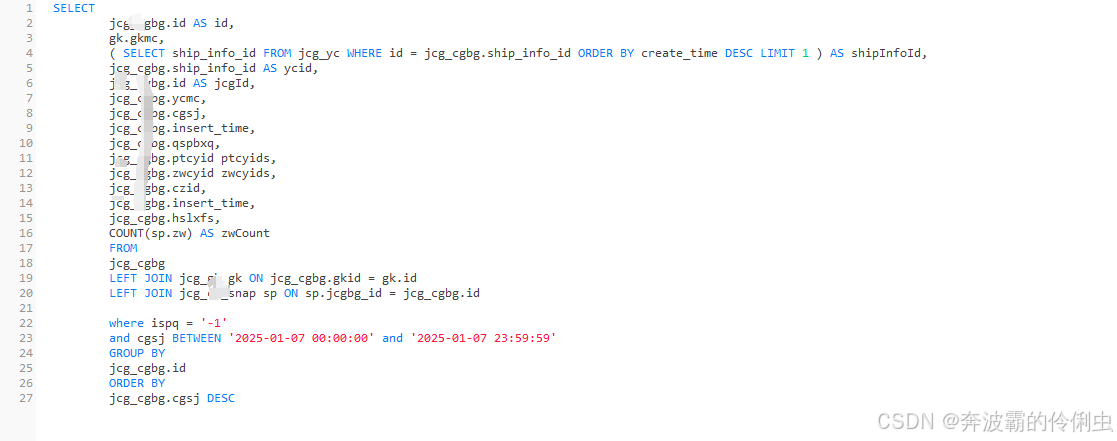
mybatisPlus动态sql语句 ${ew.sqlSegment}
mybatis-plus的${ew.sqlSegment},${ew.sqlSelect},${ew.customSqlSegment} ew是mapper方法里的Param(Constants.WRAPPER) Wrapper queryWrapper对象 简答介绍: ${ew.sqlSelect}:拼接select SQL主体 Select("select ${ew.…...

【工具】HTML自动识别用户正在讲话 以及停止讲话
【工具】HTML自动识别用户正在讲话 以及停止讲话 <!DOCTYPE html> <html lang"zh"> <head><meta charset"UTF-8"><meta name"viewport" content"widthdevice-width, initial-scale1.0"><title>语…...

小程序与内嵌网页的数据通信
小程序与内嵌网页的数据通信 前言 微信小程序提供了web-view组件,允许开发者在小程序中嵌入网页。然而,由于小程序和网页运行在不同的环境中,它们之间的通信就需要依赖特定的机制来实现。然而我们日常的需求中,很多的时候都涉及…...

Android - NDK:编译可执行程序在android设备上运行
在android开发中,调试时会把C代码直接编译成可执行程序,运行在android设备上以确认其功能是否正常。 1、基于NDK编译可执行文件 2、push到 /data/local/tmp目录下 3、设置权限,执行。 ndk工程中build.gradle设置 groovy plugins {id com.a…...

快速上手:采用Let‘sEncrypt免费SSL证书配置网站Https (示例环境:Centos7.9+Nginx+Let‘sEncrypt)
1 关于Let’s Encrypt与Cerbot DNS验证 Let’s Encrypt 是一个提供 免费证书 的 认证机构。 Cerbot 是 Let’s Encrypt 提供的一个工具,用于自动化生成、验证和续订证书。 DNS验证是 Cerbot 支持的验证方式之一。相比 HTTP 验证或 TLS-ALPN 验证,DNS …...

shell技能树-扩展变量
扩展变量是指在shell脚本中用于实现条件判断和变量操作的特殊语法。 表格总结: 前三个 存在或者非空时,优先使用待测变量,否则使用默认值(或报错)。 最后一个 存在或者非空时,优先使用默认值,…...

基于RedHat9部署WordPress+WooCommerce架设购物网站
系统版本信息:Red Hat Enterprise Linux release 9.2 (Plow) WordPress版本信息:wordpress-6.6.2-zh_CN WooCommerce版本信息:woocommerce.9.5.1 环境架构:LNMP(RedHat9nginx1.20.1PHP 8.0.27MySQL8.0.30) …...

LabVIEW瞬变电磁接收系统
利用LabVIEW软件与USB4432采集卡开发瞬变电磁接收系统。系统通过改进硬件配置与软件编程,解决了传统仪器在信噪比低和抗干扰能力差的问题,实现了高精度的数据采集和处理,特别适用于地质勘探等领域。 项目背景: 瞬变电磁法是探…...

Docker入门篇[SpringBoot之Docker实战系列] - 第534篇
历史文章(文章累计530) 《国内最全的Spring Boot系列之一》 《国内最全的Spring Boot系列之二》 《国内最全的Spring Boot系列之三》 《国内最全的Spring Boot系列之四》 《国内最全的Spring Boot系列之五》 《国内最全的Spring Boot系列之六》 《…...
 文件系统空间)
Linux系统扩容根 (/) 文件系统空间
[rootlocalhost ~]# df -Th / # 查看当前根文件系统使用情况 [rootlocalhost ~]# lsblk # 查看设备的挂载情况 [rootlocalhost ~]# lvdisplay # 查看逻辑卷使用情况 # 操作磁盘分区表 [rootlocalhost ~]# fdisk /dev/nvme0n1 欢迎使用 fdisk (util-linux 2.37.4…...
JavaScript之JQuery
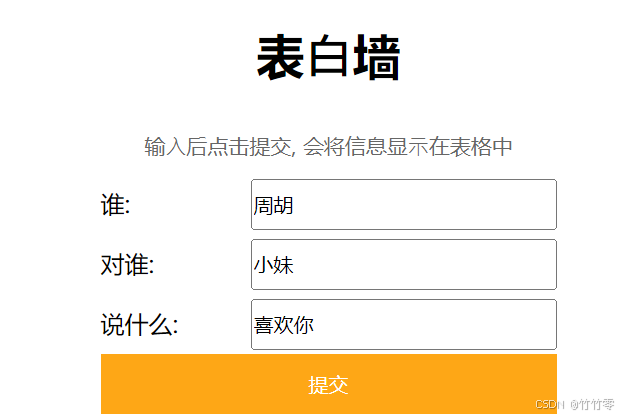
JQuery W3C 标准给我们提供了⼀系列的函数, 让我们可以操作: jQuery是⼀个快速、简洁且功能丰富的JavaScript框架,原⽣的JavaScript提供的API操作DOM元素时, 代码⽐较繁琐, 冗⻓. 我们学习使⽤JQuery来操作⻚⾯对象,如 • ⽹⻚内容 • ⽹⻚结构 …...

为什么92%的AI原生应用无法精准归因故障?曝光3个被忽视的OpenTelemetry SDK陷阱、2个LLM Token级Span拆分反模式
第一章:AI原生软件研发链路追踪系统搭建 2026奇点智能技术大会(https://ml-summit.org) AI原生软件的研发过程高度依赖模型版本、数据集快照、训练参数、推理服务部署状态及用户反馈信号的强关联性。传统APM工具难以刻画从Prompt工程→微调训练→RAG索引更新→LLM网…...

【LLM工程化生死线】:A/B测试未通过=模型不可上线——某金融大模型因跳过这3步合规验证被监管叫停的完整复盘报告
第一章:大模型工程化中的A/B测试实践 2026奇点智能技术大会(https://ml-summit.org) 在大模型落地场景中,A/B测试不再仅是推荐系统或前端UI的验证手段,而是保障推理质量、响应延迟、成本效率与用户满意度协同演进的核心工程闭环。当多个LLM服…...

终极指南:如何使用Sony-PMCA-RE解锁索尼相机的隐藏功能
终极指南:如何使用Sony-PMCA-RE解锁索尼相机的隐藏功能 【免费下载链接】Sony-PMCA-RE Reverse Engineering Sony Digital Cameras 项目地址: https://gitcode.com/gh_mirrors/so/Sony-PMCA-RE Sony-PMCA-RE是一款强大的索尼相机逆向工程工具,通过…...

ExplorerPatcher终极指南:Windows界面定制的完整专业解决方案
ExplorerPatcher终极指南:Windows界面定制的完整专业解决方案 【免费下载链接】ExplorerPatcher This project aims to enhance the working environment on Windows 项目地址: https://gitcode.com/GitHub_Trending/ex/ExplorerPatcher Windows界面定制工具…...

Windows效率神器PowerToys终极指南:30+免费工具快速提升工作效率
Windows效率神器PowerToys终极指南:30免费工具快速提升工作效率 【免费下载链接】PowerToys Microsoft PowerToys is a collection of utilities that supercharge productivity and customization on Windows 项目地址: https://gitcode.com/GitHub_Trending/po/…...
)
C语言期末突击:手把手教你搞定吉林大学计算机系高频考题(附完整代码)
C语言期末突击:吉林大学计算机系高频考题深度解析与实战指南 期末考试临近,对于吉林大学计算机系的同学们来说,C语言程序设计无疑是重点科目之一。面对复杂的指针操作、链表处理和递归算法,很多同学感到无从下手。本文将从历年高频…...

为什么 Rust 开发的 glTF 查看器是 3D 开发者的新宠?
为什么 Rust 开发的 glTF 查看器是 3D 开发者的新宠? 【免费下载链接】gltf-viewer glTF 2.0 Viewer written in Rust 项目地址: https://gitcode.com/gh_mirrors/gl/gltf-viewer 在 3D 图形开发领域,glTF 已经成为事实上的标准格式,而…...
漏洞修复后为何扫描仍报警?UFW防火墙配置详解)
避坑指南:统信UOS(debian10)漏洞修复后为何扫描仍报警?UFW防火墙配置详解
统信UOS漏洞修复后仍报警?UFW防火墙配置全解析与实战避坑指南 当你按照标准流程修复了统信UOS(Debian 10)上的CVE漏洞,却发现安全扫描器依然固执地亮起红灯,这种挫败感我太熟悉了。去年我们数据中心迁移时,就曾因为这类"假阳…...

Ostrakon-VL在Qt桌面应用中的集成:开发跨平台视觉工具
Ostrakon-VL在Qt桌面应用中的集成:开发跨平台视觉工具 1. 为什么选择QtOstrakon-VL组合 在开发跨平台视觉分析工具时,Qt框架和Ostrakon-VL模型的组合提供了独特优势。Qt作为成熟的跨平台GUI框架,可以轻松构建Windows、Linux和macOS上的原生…...

OpenResty终极优化:引入L1本地缓存,实现微秒级响应
在上一篇文章中,我们实现了OpenResty查询Redis的架构。虽然Redis很快,但它毕竟是一个远程服务,每次查询都需要经过网络I/O(即使是本地回环网络,也有协议解析和上下文切换的开销)。在超高并发场景下…...