
Qt学习(六) 软件启动界面 ,注册表使用 ,QT绘图, 视图和窗口绘图,Graphics View绘图框架:简易CAD
一 软件启动界面 注册表使用

- 知识点1:这样创建的界面是不可以拖动的,需要手动创建函数来进行拖动,以下的3个函数是从父类继承过来的函数
virtual void mousePressEvent(QMouseEvent *event);virtual void mouseReleaseEvent(QMouseEvent *event);virtual void mouseMoveEvent(QMouseEvent *event);
步骤1:新建Qt设计师类,进行界面设计

- 添加背景图片,label标签,
pixmap可以直接在标签所在位置插入图片


- 对于确认和取消按钮里面的图片,在如下所示地方插入即可

步骤2:main.cpp文件中,添加对话框
#include "mainwindow.h"
#include <QApplication>
#include "dialoglogin.h"
int main(int argc, char *argv[])
{QApplication a(argc, argv);DialogLogin *login = new DialogLogin();if(login->exec() != QDialog::Accepted){return 0;}MainWindow w;w.show();return a.exec();
}
步骤3:代码
dialoglogin.h
#ifndef DIALOGLOGIN_H
#define DIALOGLOGIN_H
#include <QDialog>
namespace Ui {
class DialogLogin;
}
class DialogLogin : public QDialog
{Q_OBJECT
public:explicit DialogLogin(QWidget *parent = nullptr);~DialogLogin();
private slots:void on_pushButtonCancle_clicked();void on_pushButtonLog_clicked();
private:Ui::DialogLogin *ui;void loadSetting(); //读取本地的配置void saveSetting();QString m_user;QString m_pwd;int m_count = 0;QString Encrypt(const QString &str); //对密码加密bool m_moving= false;QPoint m_lastPosition;virtual void mousePressEvent(QMouseEvent *event);virtual void mouseReleaseEvent(QMouseEvent *event);virtual void mouseMoveEvent(QMouseEvent *event);
};#endif // DIALOGLOGIN_H
dialoglogin.cpp
#include "dialoglogin.h"
#include "ui_dialoglogin.h"
#include <QSettings>
#include <QCryptographicHash>
#include <QMessageBox>
#include <QMouseEvent>DialogLogin::DialogLogin(QWidget *parent) :QDialog(parent),ui(new Ui::DialogLogin)
{ui->setupUi(this);//设置密码ui->lineEditNameCode->setEchoMode(QLineEdit::Password);this->setAttribute(Qt::WA_DeleteOnClose);//去掉登录窗口的左上角的标题this->setWindowFlags(Qt::FramelessWindowHint);  //任务栏中会显示标题//this->setWindowFlag(Qt::SplashScreen); //任务栏中也不会显示标题//读取本地电脑存储的用户名和密码,演示注册表的使用loadSetting();
}DialogLogin::~DialogLogin()
{delete ui;
}void DialogLogin::on_pushButtonCancle_clicked()
{this->reject();
}void DialogLogin::on_pushButtonLog_clicked()
{QString useName = ui->lineEditName->text().trimmed();  //trimmed去掉首位空格QString pwd = ui->lineEditNameCode->text().trimmed();if(useName == m_user && Encrypt(pwd) == m_pwd){//保存注册表saveSetting();this->accept();}else{m_count ++;if(m_count > 3){QMessageBox::critical(this,"错误","用户名和密码错误次数太多");this->reject();}else{QMessageBox::warning(this,"错误","用户名和密码错误");}}}void DialogLogin::loadSetting()
{QSettings setting("WD","IMAGE PROCESSING");  //公司名字 当前软件名字m_user = setting.value("user_name", "rook").toString();   //读默认值m_pwd = setting.value("pwd", Encrypt("123456")).toString();bool saved = setting.value("saved",false).toBool(); //默认保存if(saved){ui->lineEditName->setText(m_user);ui->checkBox->setChecked(saved);}
}void DialogLogin::saveSetting()
{QSettings setting("WD","IMAGE PROCESSING");setting.setValue("user_name", m_user);setting.setValue("pwd", m_pwd);setting.setValue("saved", ui->checkBox->isChecked());
}QString DialogLogin::Encrypt(const QString &str)
{//MD5加密QByteArray array;array.append(str);QCryptographicHash hash(QCryptographicHash::Md5); //设置加密算法hash.addData(array);QByteArray result = hash.result();QString md5 = result.toHex();return md5;
}void DialogLogin::mousePressEvent(QMouseEvent *event)
{if(event->button() ==Qt::LeftButton){m_moving = true;m_lastPosition = event->globalPos() - this->pos();}return QDialog::mousePressEvent(event);
}void DialogLogin::mouseReleaseEvent(QMouseEvent *event)
{m_moving = false;
}void DialogLogin::mouseMoveEvent(QMouseEvent *event)
{if(m_moving){move(event->globalPos() - m_lastPosition);m_lastPosition = event->globalPos()- this->pos();}return QDialog::mouseMoveEvent(event);
}
mainwindow.cpp和mainwindow.h文件没有任何改变和代码添加
二 QT绘图


2.1 矩形
- 知识点:需要重写父类的
virtual void paintEvent(QPaintEvent *event);


- widget.h
#ifndef WIDGET_H
#define WIDGET_H#include <QWidget>QT_BEGIN_NAMESPACE
namespace Ui { class Widget; }
QT_END_NAMESPACEclass Widget : public QWidget
{Q_OBJECTpublic:Widget(QWidget *parent = nullptr);~Widget();private:Ui::Widget *ui;virtual void paintEvent(QPaintEvent *event);
};
#endif // WIDGET_H
- widget.cpp
#include "widget.h"
#include "ui_widget.h"
#include <QPainter>Widget::Widget(QWidget *parent): QWidget(parent), ui(new Ui::Widget)
{ui->setupUi(this);
}Widget::~Widget()
{delete ui;
}void Widget::paintEvent(QPaintEvent *event)
{QPainter painter(this);QPen pen;pen.setWidth(4);  //线宽pen.setColor(Qt::red);painter.setPen(pen);//使用刷子进行填充QBrush brush;brush.setColor(Qt::green);brush.setStyle(Qt::SolidPattern);painter.setBrush(brush);QRect rect(50,50,200,200);  //左上角坐标(x,y,宽度,高度)painter.drawRect(rect);}
2.1.1
- 圆角矩形:将2.1 函数
void Widget::paintEvent(QPaintEvent *event)中painter.drawRect(rect);代码修改为painter.drawRoundedRect(rect,20,20); - 椭圆:
painter.drawEllipse(rect); - 圆弧:
//绘制圆弧 绘制0~90度 painter.drawArc(rect,0,90*16);,Qt最小度单位不是1度,是1/16度 - 弦长:
painter.drawChord(rect, 0,*16,90*16) - 多边形:
QPainter painter(this);
QPen
pen;
pen.setWidth(4); //线宽
pen.setColor(Qt::red); //划线颜色
painter.setPen(pen);
//注意,点的顺序,就是绘制的顺序
QPoint points[5] = {
{50, 100},
{100, 50},
{500, 160},
{200, 200},
{110, 400}};
painter.drawPolygon(
points,
5); //表示有几个点
- 图片
void Widget::paintEvent(QPaintEvent *event)
{
QPainter painter(this);
QRect rect(10, 10, 400, 300);
//QImage image(":image/bg.png");
QPixmap pixmap(":image/bg.png");
//会自动在 rect 区域进行缩放
//painter.drawImage(rect, image);
painter.drawPixmap(rect, pixmap);
}
- 直线
void Widget::paintEvent(QPaintEvent *event)
{
QPainter painter(this);
QPen
pen;
pen.setWidth(4); //线宽
pen.setColor(Qt::red); //划线颜色
painter.setPen(pen);
QLine line(50, 50, 400, 400);
painter.drawLine(line);
}
- 多条直线
void Widget::paintEvent(QPaintEvent *event)
{
QPainter painter(this);
QPen
pen;
pen.setWidth(4); //线宽
pen.setColor(Qt::red); //划线颜色
painter.setPen(pen);
QRect rect(50, 50, 400, 300);
QVector<QLine>lines;
lines.append(QLine(rect.topLeft(), rect.bottomRight()));
lines.append(QLine(rect.bottomLeft(), rect.topRight()));
lines.append(QLine(rect.topLeft(), rect.bottomLeft()));
painter.drawLines(lines);
}
- 绘制多条连接的直线
void Widget::paintEvent(QPaintEvent *event)
{
QPainter painter(this);
QPen
pen;
pen.setWidth(4); //线宽
pen.setColor(Qt::red); //划线颜色
painter.setPen(pen);
//注意,点的顺序,就是绘制的顺序
QPoint points[5] = {
{50, 100},
{100, 50},
{500, 160},
{200, 200},
{110, 400}};
painter.drawPolyline(points, 5);
}
- 绘制线路径
void Widget::paintEvent(QPaintEvent *event)
{
QPainter painter(this);
QPen
pen;
pen.setWidth(4); //线宽
pen.setColor(Qt::red); //划线颜色
painter.setPen(pen);
QRect rect(50, 50, 400, 300);
//绘制由 QPaintPath 对象定义的路线
QPainterPath path;
path.addEllipse(rect); //在 rect 内的内接椭圆
path.addRect(rect);
painter.drawPath(path);
}

- 绘制扇形

- 画点

- 绘制文本

- 擦除指定区域

- 填充指定位置


三 坐标变换
3.1 平移
- 知识点:依然是需要继承父类的
void Widget::paintEvent(QPaintEvent *event)函数,在改函数内进行相应的实现


3.2 旋转

3.3 扭转

3.4 放大缩小
void Widget::paintEvent(QPaintEvent *event)
{QPainter painter(this);QImage img(":/images/bg.png");QRect rect(0,0,200,150);painter.drawImage(rect,img);QRect rect2(200,200,200,150);painter.scale(2.0,1.0);painter.drawImage(rect2,img);}
3.5 案例展示

void Widget::paintEvent(QPaintEvent *event)
{QPainter painter(this);painter.setRenderHint(QPainter::Antialiasing); //使得图行没有锯齿QPen  pen;pen.setWidth(4);pen.setColor(Qt::red);painter.setPen(pen);QFont font;font.setPointSize(20);painter.setFont(font);qreal r = 200;  //qreal其实就是doubleqreal unit = 72*3.141596/180;QPoint points[5] = {QPoint(r,0),QPoint(r*cos(unit),r*sin(unit)),QPoint(r*cos(2*unit),r*sin(2*unit)),QPoint(r*cos(3*unit),r*sin(3*unit)),QPoint(r*cos(4*unit),r*sin(4*unit))};QPainterPath path;path.moveTo(points[0]);  //把画笔移动到该位置path.lineTo(points[2]);path.lineTo(points[4]);path.lineTo(points[1]);path.lineTo(points[3]);path.closeSubpath();path.addText(points[0],font,"0");path.addText(points[1],font,"1");path.addText(points[2],font,"2");path.addText(points[3],font,"3");path.addText(points[4],font,"4");//保存此时坐标painter.save();painter.translate(250,210);painter.rotate(-18);painter.drawPath(path);painter.restore();}
四 视图和窗口绘图
- 功能,能使得建立的图片,随着窗口的大小变化而变化
- 知识点:需要重写
void paintEvent( QPaintEvent *event); - 知识点:也就是说,
painter.setWindow是重定义视口的原点的逻辑大小
案例1:
void Widget::paintEvent(QPaintEvent *event)
{Q_UNUSED(event);//设计一个视口,也即是绘图窗口QPainter painter(this);painter.drawRect(QRect(200,0,200,200));painter.setViewport(200,0,    //视口区域的左上角坐标,实际大小200,200); //视口区域的左上角宽度和高度,实际大小//设置视口后,一定要设置对应的窗口坐标//否则会使用默认的窗口坐标,导致绘制效果不是预期的//如下代码表示在当前的视口区域内,设置一个窗口坐标,//在这个窗口坐标下,视口的左上角坐标是(-50, -50),//视口的宽度是 100 个逻辑大小,视口的高度是 100 个逻辑大小painter.setWindow(-50,-50,  //在这个窗口坐标系下,视口左上角的坐标100, //在这个窗口坐标系下,视图区域的宽度大小,逻辑大小,不是实际大小100);//在这个窗口坐标系下,视图区域的高度大小,逻辑大小,不是实际大小QPen pen;pen.setColor(Qt::red);painter.setPen(pen);painter.drawRect(QRect(0,0,50,50));
}
案例2:
void Widget::paintEvent(QPaintEvent *event)
{Q_UNUSED(event);//设计一个视口,也即是绘图窗口QPainter painter(this);painter.setRenderHint(QPainter::Antialiasing);int w= qMin(this->width(), this->height());QRect rect((this->width() - w)/2,(this->height() - w)/2,w,w);painter.drawRect(rect);//设置视口区域painter.setViewport(rect);//设置视口的窗口坐标系painter.setWindow(-100,-100,200,200);QPen pen;pen.setColor(Qt::red);pen.setWidth(1);pen.setStyle(Qt::SolidLine);painter.setPen(pen);int count = 10;for(int i =0; i< count ;i ++){painter.drawEllipse(QPoint(50,0),50,50);painter.rotate(360/count);}
}
五 Graphics View绘图框架


5.1 案例1 视图,场景,图形项之间的关系
- 知识点1:
scene->addItem(item3);默认父节点是场景,如果要设置其他的图形项是当前图i图形项目的父节点,需要使用函数`item->setParentItem(item2) - 知识点2:设置item可拖动
item2->setFlags(QGraphicsItem::ItemIsSelectable |QGraphicsItem::ItemIsMovable |QGraphicsItem::ItemIsFocusable);


MainWindow::MainWindow(QWidget *parent): QMainWindow(parent), ui(new Ui::MainWindow)
{ui->setupUi(this);//创建场景,当前的原点创建在了场景的中心scene =  new QGraphicsScene(-200,-100,   //场景区域的左上角在场景坐标下的坐标,也就是原点被设置成矩形框的正中心400,200);  //场景的宽度,场景的高度ui->graphicsView->setScene(scene);//图形项 当前创建了和场景一样大小的图形项QGraphicsRectItem *item = new QGraphicsRectItem(-200,-100,  //矩形图形项的左上角在图像项内部的坐标系下的坐标400,200);//设置图形项的原点,在场景坐标系下的位置item->setPos(0,0);//设置图形项的画笔QPen pen;pen.setColor(Qt::blue);pen.setWidth(2);item->setPen(pen);scene->addItem(item);//图形项2 当前创建了和场景一样大小的图形项QGraphicsRectItem *item2 = new QGraphicsRectItem(0,0,  //矩形图形项的左上角在图像项内部的坐标系下的坐标,也就是原点被设置成左上角200,100);//设置图形项的原点,在场景坐标系下的位置item2->setPos(-200,-100);item2->setBrush(QBrush(Qt::red));scene->addItem(item2);//图形项2 当前创建了和场景一样大小的图形项QGraphicsRectItem *item3 = new QGraphicsRectItem(-100,-50,  //矩形图形项的左上角在图像项内部的坐标系下的坐标,也就是原点被设置图形项的正中心200,100);//设置图形项的原点,在场景坐标系下的位置,item3->setPos(0,0);item3->setBrush(QBrush(Qt::yellow));scene->addItem(item3);默认父节点是场景
}
5.1 案例2: 拖动鼠标或者图形项,显示鼠标当前所在位置的,对应的视图,场景以及图形项中的坐标
- 也是图形项发出信号

- mainwindow
#ifndef MAINWINDOW_H
#define MAINWINDOW_H#include <QMainWindow>
#include <QGraphicsScene>
#include "mygraphicview.h"QT_BEGIN_NAMESPACE
namespace Ui { class MainWindow; }
QT_END_NAMESPACEclass MainWindow : public QMainWindow
{Q_OBJECTpublic:MainWindow(QWidget *parent = nullptr);~MainWindow();private:Ui::MainWindow *ui;QGraphicsScene *scene;private slots:void on_graphicsView_mousePress(QPoint point);void on_graphicsView_mouseMove(QPoint point);
};
#endif // MAINWINDOW_H#######################################################################################
#######################################################################################
#######################################################################################
#include "mainwindow.h"
#include "ui_mainwindow.h"
#include <QGraphicsRectItem>MainWindow::MainWindow(QWidget *parent): QMainWindow(parent), ui(new Ui::MainWindow)
{ui->setupUi(this);//创建场景,当前的原点创建在了场景的中心scene =  new QGraphicsScene(-200,-100,   //场景区域的左上角在场景坐标下的坐标,也就是原点被设置成矩形框的正中心400,200);  //场景的宽度,场景的高度ui->graphicsView->setScene(scene);//图形项 当前创建了和场景一样大小的图形项QGraphicsRectItem *item = new QGraphicsRectItem(-200,-100,  //矩形图形项的左上角在图像项内部的坐标系下的坐标400,200);//设置图形项的原点,在场景坐标系下的位置item->setPos(0,0);//设置图形项的画笔QPen pen;pen.setColor(Qt::blue);pen.setWidth(2);item->setPen(pen);scene->addItem(item);//图形项2 当前创建了和场景一样大小的图形项QGraphicsRectItem *item2 = new QGraphicsRectItem(0,0,  //矩形图形项的左上角在图像项内部的坐标系下的坐标,也就是原点被设置成左上角200,100);//设置图形项的原点,在场景坐标系下的位置item2->setPos(-200,-100);item2->setBrush(QBrush(Qt::red));scene->addItem(item2);item2->setFlags(QGraphicsItem::ItemIsSelectable |QGraphicsItem::ItemIsMovable |QGraphicsItem::ItemIsFocusable);//图形项2 当前创建了和场景一样大小的图形项QGraphicsRectItem *item3 = new QGraphicsRectItem(-100,-50,  //矩形图形项的左上角在图像项内部的坐标系下的坐标,也就是原点被设置图形项的正中心200,100);//设置图形项的原点,在场景坐标系下的位置,item3->setPos(0,0);item3->setBrush(QBrush(Qt::yellow));scene->addItem(item3);}MainWindow::~MainWindow()
{delete ui;
}void MainWindow::on_graphicsView_mousePress(QPoint point)
{//把视图坐标转换成场景坐标QPointF pointSence =ui->graphicsView->mapToScene(point);//判断当前按下了哪个图形项QGraphicsItem *item = scene->itemAt(pointSence,ui->graphicsView->transform());if(item){//把场景坐标,进一步转换成对应的图形项的坐标QPointF pointItem = item->mapFromScene(pointSence);ui->labelGraph->setText(QString::asprintf("item坐标:%.0f, %.0f",pointItem.x(),pointItem.y() ));}
}void MainWindow::on_graphicsView_mouseMove(QPoint point)
{ui->labelView->setText(QString::asprintf("视图坐标:%d, %d",point.x(),point.y() ));QPointF pointSence =ui->graphicsView->mapToScene(point);ui->labelSence->setText(QString::asprintf("场景坐标:%.0f, %.0f",pointSence.x(),pointSence.y() ));
}
- MyGraphicView
#ifndef MYGRAPHICVIEW_H
#define MYGRAPHICVIEW_H#include <QObject>
#include <QGraphicsView>class MyGraphicView : public QGraphicsView
{Q_OBJECT
public:explicit MyGraphicView(QObject *parent = nullptr);signals://这里是自己定义的,不是查的void mousePress(QPoint point);void mouseMove(QPoint point);
private://重载父类QGraphicsView鼠标事件void mousePressEvent(QMouseEvent *event) override;void mouseMoveEvent(QMouseEvent *event) override;
};#endif // MYGRAPHICVIEW_H#######################################################################################
#######################################################################################
#######################################################################################
#include "mygraphicview.h"
#include <QMouseEvent>
MyGraphicView::MyGraphicView(QObject *parent)
{setMouseTracking(true); //直接拖动鼠标,也能显示坐标的改变
}void MyGraphicView::mousePressEvent(QMouseEvent *event)
{if(event->button() == Qt::LeftButton){QPoint point = event->pos();emit mousePress(point);}QGraphicsView::mousePressEvent(event); //调用父类的mousePressEvent
}void MyGraphicView::mouseMoveEvent(QMouseEvent *event)
{QPoint point = event->pos();emit mouseMove(point);QGraphicsView::mouseMoveEvent(event); //调用父类的mouseMoveEvent
}
5.1.1 创建项目的步骤
-Graphics View组件对应的类对象是QGraphicsView,是标准类对象,无法进行修改,需要自定义一个视图,去重载该类的鼠标事件
步骤1:自定义视图类
- add new->c++ class->QObject
选项里面并没有我们要继承的QGraphicsView类,所以可以随便选一个要继承的类,在代码里进行修改即可

步骤2:修改自定义视图类,使其继承QGraphicsView,在QGraphicsView中寻找到鼠标相关时事件,在自定义视图类中重写。由于本身本没有信号,但是要实现鼠标移动或单击时发送信号,因此要MyGraphicView中定义信号,在mianwindow中定义槽函数
`MyGraphicView`signals://这里是自己定义的,不是查的void mousePress(QPoint point);void mouseMove(QPoint point);
private://重载父类QGraphicsView鼠标事件void mousePressEvent(QMouseEvent *event) override;void mouseMoveEvent(QMouseEvent *event) override;
mainwindowprivate slots:void on_graphicsView_mousePress(QPoint point);void on_graphicsView_mouseMove(QPoint point);


步骤3:选中graphics View组件,右键单击,选择提升为,


6 案例2 简易版CAD项目

- 知识点:如何添加侧面的toolbox

6.1 创建界面
- 定义界面

2.自定义mygraphicsview.h``,Add new->c++->c++ class ->父类选择Qobject, 步骤同5中的创建步骤,新定义的继承QObject类的来要修改成继承QGraphicsView`

6.2 代码
mainWindow.h
#ifndef MAINWINDOW_H
#define MAINWINDOW_H#include <QMainWindow>
#include <QGraphicsScene>
#include <QLabel>
QT_BEGIN_NAMESPACE
namespace Ui { class MainWindow; }
QT_END_NAMESPACEclass MainWindow : public QMainWindow
{Q_OBJECTpublic:MainWindow(QWidget *parent = nullptr);~MainWindow();private:Ui::MainWindow *ui;QGraphicsScene *sence;int itemZvalue = 0;  //图形堆叠的顺序,数字越大,叠放越上面int itemID =0;static const int ITEM_ID = 1; //图形项的编号static const int ITEM_DISCRIPTION = 2;  //图形项的描述信息//手动代码添加标签QLabel *labelViewCoord;  //视图坐标QLabel *labelFigureCoord;   //图形项坐标QLabel *labelSenceCoord;   //场景坐标QLabel *itemName;
private slots:void on_graphicsView_keyPress(QKeyEvent *event);void on_graphicsView_mouseDouble(QPoint point);void on_graphicsView_mousePress(QPoint point);void on_graphicsView_mouseMove(QPoint point);void on_actionRectangle_triggered();void on_actionElipse_triggered();void on_actionCilcle_triggered();void on_actionTriangle_triggered();void on_actionLine_triggered();void on_actionTixing_triggered();void on_actionText_triggered();void on_actionZoom_triggered();void on_actionSmall_triggered();void on_actionRestore_triggered();void on_actionLeft_triggered();void on_actionRight_triggered();void on_actionTop_triggered();void on_actionBottom_triggered();void on_actionCombine_triggered();void on_actionDepart_triggered();void on_actionDel_triggered();void on_actionExit_triggered();
};
#endif // MAINWINDOW_H
mygraphicsview.h
#ifndef MYGRAPHICSVIEW_H
#define MYGRAPHICSVIEW_H#include <QObject>
#include <QGraphicsView>class MyGraphicsView : public QGraphicsView
{Q_OBJECT
public:explicit MyGraphicsView(QWidget *parent = nullptr);signals:void keyPress(QKeyEvent *event);void mouseDouble(QPoint point);void mousePress(QPoint point);void mouseMove(QPoint point);
protected://override重载关键字void keyPressEvent(QKeyEvent *event) override;  //按键按下void mouseDoubleClickEvent(QMouseEvent *event) override;void mousePressEvent(QMouseEvent *event) override;void mouseMoveEvent(QMouseEvent *event) override;
};#endif // MYGRAPHICSVIEW_H
mainWindow.cpp
#include "mainwindow.h"
#include "ui_mainwindow.h"
#include <QGraphicsRectItem>
#include <QTime>
#include <QPoint>
#include <QInputDialog>
#include <QDebug>
#include <QColorDialog>
#include <QColor>
#include <QFontDialog>
#include <QKeyEvent>
//设置填充色
template <class T>
void setItemBrushColor(T *item){QColor color = item->brush().color();color = QColorDialog::getColor(color, NULL, "选择填充颜色");if(color.isValid()){item->setBrush(color);}
}//设置画笔色
template <class T>
void setItemPenColor(T *item){QPen pen = item->pen();QColor color = pen.color();color = QColorDialog::getColor(color, NULL, "选择填充颜色");if(color.isValid()){pen.setColor(color);item->setPen(pen);}
}MainWindow::MainWindow(QWidget *parent): QMainWindow(parent), ui(new Ui::MainWindow)
{ui->setupUi(this);ui->graphicsView->setCursor(Qt::CrossCursor); //设置鼠标样式是十字//设置鼠标跟踪ui->graphicsView->setMouseTracking(true);//设置视图的拖动模式ui->graphicsView->setDragMode(QGraphicsView::RubberBandDrag);//创建场景sence = new QGraphicsScene(-300,-100,600,200);ui->graphicsView->setScene(sence);//设置随机种子qsrand(QTime::currentTime().second());labelViewCoord = new QLabel("视图坐标:");labelViewCoord->setMinimumWidth(150);ui->statusbar->addWidget(labelViewCoord);labelSenceCoord = new QLabel("场景坐标:");labelSenceCoord->setMinimumWidth(150);ui->statusbar->addWidget(labelSenceCoord);labelFigureCoord = new QLabel("图形项坐标:");labelFigureCoord->setMinimumWidth(150);ui->statusbar->addWidget(labelFigureCoord);itemName = new QLabel("图形项信息:");itemName->setMinimumWidth(150);ui->statusbar->addWidget(itemName);}MainWindow::~MainWindow()
{delete ui;
}//按键控制旋转平移操作
void MainWindow::on_graphicsView_keyPress(QKeyEvent *event)
{//只管选一个的情况if(sence->selectedItems().count() != 1){return;}auto item = sence->selectedItems().at(0);if(event->key() == Qt::Key_Delete){sence->removeItem(item);}else if(event->key() == Qt::Key_Space){item->setRotation(item->rotation() + 10);}else if(event->key() == Qt::Key_PageUp){item->setScale(item->scale() +0.1);}else if(event->key() == Qt::Key_PageDown){item->setScale(item->scale() -0.1);}else if(event->key() == Qt::Key_Left){item->setX(item->x() -1);}else if(event->key() == Qt::Key_Right){item->setX(item->x() +1);}else if(event->key() == Qt::Key_Up){item->setY(item->y() -1);}else if(event->key() == Qt::Key_Down){item->setY(item->y() +1);}}void MainWindow::on_graphicsView_mouseDouble(QPoint point)
{//双击图形项,自动弹出颜色编辑器//QGraphicsRectItem : public QAbstractGraphicsShapeItem// QGraphicsEllipseItem : public QAbstractGraphicsShapeItem//QGraphicsPolygonItem : public QAbstractGraphicsShapeItem 三角形//QGraphicsPolygonItem : public QAbstractGraphicsShapeItem 梯形qDebug() << "in in --------------";//由于不同图形继承的类不同QPointF pointSence = ui->graphicsView->mapToScene(point);  //获取场景坐标QGraphicsItem *item = sence->itemAt(pointSence, ui->graphicsView->transform()); //计算改场景坐标对应是哪个图形if(!item){return;}switch (item->type()) {case QGraphicsRectItem::Type:{//矩形auto item2 =qgraphicsitem_cast<QGraphicsRectItem*>(item);setItemBrushColor(item2);break;}case QGraphicsEllipseItem::Type:{//椭圆/园auto item2 =qgraphicsitem_cast<QGraphicsEllipseItem*>(item);setItemBrushColor(item2);break;}case QGraphicsPolygonItem::Type:{//多边形auto item2 =qgraphicsitem_cast<QGraphicsPolygonItem*>(item);setItemBrushColor(item2);break;}case QGraphicsLineItem::Type:{//直线auto item2 =qgraphicsitem_cast<QGraphicsLineItem*>(item);setItemPenColor(item2);break;}case QGraphicsTextItem::Type:{//多边形auto item2 =qgraphicsitem_cast<QGraphicsTextItem*>(item);QFont font = item2->font();bool ok = false;font = QFontDialog::getFont(&ok,font, this,"设置字体");if(ok){item2->setFont(font);}break;}}
}//图形项目坐标需要单击选中图形项
void MainWindow::on_graphicsView_mousePress(QPoint point)
{QPointF pointScene = ui->graphicsView->mapToScene(point);  //视图坐标转场景坐标QGraphicsItem *item = sence->itemAt(pointScene,ui->graphicsView->transform());//图形项坐标if(item){QPointF pointItem = item->mapFromScene(pointScene);  //获取点的图形项坐标labelFigureCoord->setText(QString::asprintf("图形项坐标:%.0f %.0f",pointItem.x(),pointItem.y()));itemName->setText(item->data(ITEM_DISCRIPTION).toString());}}void MainWindow::on_graphicsView_mouseMove(QPoint point)
{labelViewCoord->setText(QString::asprintf("视图坐标:%d %d",point.x(),point.y()));QPointF pointScene = ui->graphicsView->mapToScene(point);labelSenceCoord->setText(QString::asprintf("场景坐标:%.0f %.0f",pointScene.x(),pointScene.y()));
}void MainWindow::on_actionRectangle_triggered()
{QGraphicsRectItem *item = new QGraphicsRectItem(-100,-50,200,100);item->setFlags(QGraphicsItem::ItemIsMovable |QGraphicsItem::ItemIsFocusable |QGraphicsItem:: ItemIsSelectable);item->setBrush(QBrush(Qt::lightGray));  //填充颜色item->setZValue(itemZvalue++);//设置图形项位置,在视图的中心位置附近设计随机变量 0~100 -50item->setPos(qrand()%100-50,qrand()%100-50);//设置图形项的自定义数据item->setData(ITEM_ID,itemID++);item->setData(ITEM_DISCRIPTION,"矩形");sence->addItem(item);sence->clearSelection();item->setSelected(true); //选中当前新生成的图形
}void MainWindow::on_actionElipse_triggered()
{QGraphicsEllipseItem *item = new QGraphicsEllipseItem(-100,-50,200,100);item->setFlags(QGraphicsItem::ItemIsMovable |QGraphicsItem::ItemIsFocusable |QGraphicsItem:: ItemIsSelectable);item->setBrush(QBrush(Qt::blue));  //填充颜色item->setZValue(itemZvalue++);//设置图形项位置,在视图的中心位置附近设计随机变量 0~100 -50item->setPos(qrand()%100-50,qrand()%100-50);//设置图形项的自定义数据item->setData(ITEM_ID,itemID++);item->setData(ITEM_DISCRIPTION,"椭圆");sence->addItem(item);sence->clearSelection();item->setSelected(true); //选中当前新生成的图形
}void MainWindow::on_actionCilcle_triggered()
{QGraphicsEllipseItem *item = new QGraphicsEllipseItem(-100,-100,200,200);item->setFlags(QGraphicsItem::ItemIsMovable |QGraphicsItem::ItemIsFocusable |QGraphicsItem:: ItemIsSelectable);item->setBrush(QBrush(Qt::yellow));  //填充颜色item->setZValue(itemZvalue++);//设置图形项位置,在视图的中心位置附近设计随机变量 0~100 -50item->setPos(qrand()%100-50,qrand()%100-50);//设置图形项的自定义数据item->setData(ITEM_ID,itemID++);item->setData(ITEM_DISCRIPTION,"圆");sence->addItem(item);sence->clearSelection();item->setSelected(true); //选中当前新生成的图形
}void MainWindow::on_actionTriangle_triggered()
{QGraphicsPolygonItem *item = new QGraphicsPolygonItem;QPolygonF points;points.append(QPointF(0,-80));points.append(QPointF(-50,0));points.append(QPointF(0,50));item->setPolygon(points);item->setFlags(QGraphicsItem::ItemIsMovable |QGraphicsItem::ItemIsFocusable |QGraphicsItem:: ItemIsSelectable);item->setBrush(QBrush(Qt::red));  //填充颜色item->setZValue(itemZvalue++);//设置图形项位置,在视图的中心位置附近设计随机变量 0~100 -50item->setPos(qrand()%100-50,qrand()%100-50);//设置图形项的自定义数据item->setData(ITEM_ID,itemID++);item->setData(ITEM_DISCRIPTION,"三角形");sence->addItem(item);sence->clearSelection();item->setSelected(true); //选中当前新生成的图形
}void MainWindow::on_actionLine_triggered()
{QGraphicsLineItem *item = new QGraphicsLineItem(50, 50, 200, 200);item->setFlags(QGraphicsItem::ItemIsMovable |QGraphicsItem::ItemIsFocusable |QGraphicsItem:: ItemIsSelectable);item->setZValue(itemZvalue++);//设置图形项位置,在视图的中心位置附近设计随机变量 0~100 -50item->setPos(qrand()%100-50,qrand()%100-50);//设置图形项的自定义数据item->setData(ITEM_ID,itemID++);item->setData(ITEM_DISCRIPTION,"直线");sence->addItem(item);sence->clearSelection();item->setSelected(true); //选中当前新生成的图形
}void MainWindow::on_actionTixing_triggered()
{QGraphicsPolygonItem *item = new QGraphicsPolygonItem;QPolygonF points;points.append(QPointF(-50,-50));points.append(QPointF(-100,50));points.append(QPointF(100,50));points.append(QPointF(50,-50));item->setPolygon(points);item->setFlags(QGraphicsItem::ItemIsMovable |QGraphicsItem::ItemIsFocusable |QGraphicsItem:: ItemIsSelectable);item->setBrush(QBrush(Qt::black));  //填充颜色item->setZValue(itemZvalue++);//设置图形项位置,在视图的中心位置附近设计随机变量 0~100 -50item->setPos(qrand()%100-50,qrand()%100-50);//设置图形项的自定义数据item->setData(ITEM_ID,itemID++);item->setData(ITEM_DISCRIPTION,"梯形");sence->addItem(item);sence->clearSelection();item->setSelected(true); //选中当前新生成的图形
}void MainWindow::on_actionText_triggered()
{//弹出文本提示框,输入文本QString str = QInputDialog::getText(this,"输入文本","请输入文本");if(str.isEmpty()){return;}QGraphicsTextItem *item = new QGraphicsTextItem(str);item->setFlags(QGraphicsItem::ItemIsMovable |QGraphicsItem::ItemIsFocusable |QGraphicsItem:: ItemIsSelectable);QFont font;font.setFamily("微软雅黑");font.setPointSize(20);font.setBold(true);item->setFont(font);item->setZValue(itemZvalue++);//设置图形项位置,在视图的中心位置附近设计随机变量 0~100 -50item->setPos(qrand()%100-50,qrand()%100-50);//设置图形项的自定义数据item->setData(ITEM_ID,itemID++);item->setData(ITEM_DISCRIPTION,"文本");sence->addItem(item);sence->clearSelection();item->setSelected(true); //选中当前新生成的图形
}void MainWindow::on_actionZoom_triggered()
{//如果当前选择了一个图元,那么对这个图元进行放大//如果选择了多个图,对多个放大int count = sence->selectedItems().count();if(count ==1){QGraphicsItem *item= sence->selectedItems().at(0); //取出图形item->setScale(item->scale()+0.1);}else if(count >1){for(int i =0 ; i < count; i++){QGraphicsItem *item= sence->selectedItems().at(i); //取出图形item->setScale(item->scale()+0.1);}}
}void MainWindow::on_actionSmall_triggered()
{int count = sence->selectedItems().count();if(count ==1){QGraphicsItem *item= sence->selectedItems().at(0); //取出图形item->setScale(item->scale()-0.1);}else if(count >1){for(int i =0 ; i < count; i++){QGraphicsItem *item= sence->selectedItems().at(i); //取出图形item->setScale(item->scale()-0.1);}}
}void MainWindow::on_actionRestore_triggered()
{int count = sence->selectedItems().count();for(int i =0 ; i < count; i++){QGraphicsItem *item= sence->selectedItems().at(i); //取出图形item->setScale(1);item->setRotation(0);}
}void MainWindow::on_actionLeft_triggered()
{int count = sence->selectedItems().count();if(count ==1){QGraphicsItem *item= sence->selectedItems().at(0); //取出图形item->setRotation(item->rotation()-30);}else if(count >1){for(int i =0 ; i < count; i++){QGraphicsItem *item= sence->selectedItems().at(i); //取出图形item->setRotation(item->rotation()-30);}}
}void MainWindow::on_actionRight_triggered()
{int count = sence->selectedItems().count();if(count ==1){QGraphicsItem *item= sence->selectedItems().at(0); //取出图形item->setRotation(item->rotation()+30);}else if(count >1){for(int i =0 ; i < count; i++){QGraphicsItem *item= sence->selectedItems().at(i); //取出图形item->setRotation(item->rotation()+30);}}
}void MainWindow::on_actionTop_triggered()
{int count = sence->selectedItems().count();if(count >0){QGraphicsItem *item= sence->selectedItems().at(0);item->setZValue(item->zValue()+1);}
}void MainWindow::on_actionBottom_triggered()
{int count = sence->selectedItems().count();if(count >0){QGraphicsItem *item= sence->selectedItems().at(0);item->setZValue(item->zValue()-1);}
}void MainWindow::on_actionCombine_triggered()
{int count = sence->selectedItems().count();qDebug() <<"count = " << count;if(count >=2){QGraphicsItemGroup *group = new QGraphicsItemGroup;sence->addItem(group);for(int i =0 ; i < count; i++){auto item = sence->selectedItems().at(0);  //获取每次循环的第一个itemitem->setSelected(false);item->clearFocus();group->addToGroup(item);}group->setFlags(QGraphicsItem::ItemIsMovable |QGraphicsItem::ItemIsFocusable |QGraphicsItem:: ItemIsSelectable);group->setZValue(itemZvalue++);sence->clearSelection();group->setSelected(true);}
}void MainWindow::on_actionDepart_triggered()
{int count = sence->selectedItems().count();if(count ==1){auto group = (QGraphicsItemGroup *)sence->selectedItems().at(0);sence->destroyItemGroup(group);}
}void MainWindow::on_actionDel_triggered()
{int count = sence->selectedItems().count();if(count > 0){auto item = sence->selectedItems().at(0);sence->removeItem(item);}
}void MainWindow::on_actionExit_triggered()
{close();
}
mygraphicsview.cpp
#include "mygraphicsview.h"
#include <QMouseEvent>
#include <QDebug>
MyGraphicsView::MyGraphicsView(QWidget *parent):QGraphicsView(parent)
{}void MyGraphicsView::keyPressEvent(QKeyEvent *event)
{emit keyPress(event);QGraphicsView::keyPressEvent(event);
}void MyGraphicsView::mouseDoubleClickEvent(QMouseEvent *event)
{//qDebug() << "mouseDoubleClickEvent ";if(event->button() == Qt::LeftButton){//获取视图坐标QPoint point = event->pos();emit mouseDouble(point);}QGraphicsView::mouseDoubleClickEvent(event);
}void MyGraphicsView::mousePressEvent(QMouseEvent *event)
{if(event->button() == Qt::LeftButton){//获取视图坐标QPoint point = event->pos();emit mousePress(point);}QGraphicsView::mousePressEvent(event);
}void MyGraphicsView::mouseMoveEvent(QMouseEvent *event)
{QPoint point = event->pos();emit mouseMove(point);QGraphicsView::mouseMoveEvent(event);
}
相关文章:
Qt学习(六) 软件启动界面 ,注册表使用 ,QT绘图, 视图和窗口绘图,Graphics View绘图框架:简易CAD
一 软件启动界面 注册表使用 知识点1:这样创建的界面是不可以拖动的,需要手动创建函数来进行拖动,以下的3个函数是从父类继承过来的函数 virtual void mousePressEvent(QMouseEvent *event);virtual void mouseReleaseEvent(QMouseEvent *eve…...

java练习(36)
ps:题目来自力扣 给你一个字符串 s 和一个字符规律 p,请你来实现一个支持 . 和 * 的正则表达式匹配。 . 匹配任意单个字符* 匹配零个或多个前面的那一个元素 所谓匹配,是要涵盖 整个 字符串 s 的,而不是部分字符串。 class Solution {publ…...

go 网络编程 websocket gorilla/websocket
在 Go 语言中,你可以使用标准库中的 net/http 包和第三方库 gorilla/websocket 来实现一个 WebSocket 服务器。gorilla/websocket 库提供了对 WebSocket 协议的高级抽象,使得处理 WebSocket 连接变得相对简单。 package mainimport ("fmt"&qu…...

deepseek与其他大模型配合组合
DeepSeek与其他大模型的配合组合,展现了其在多个领域中的强大应用潜力和灵活性。以下是对DeepSeek与其他大模型配合组合的详细分析: 一、DeepSeek与华知大模型的组合 背景介绍: 华知大模型是同方知网与华为联手打造的,具备全学科…...

【Linux网络编程】IP协议格式,解包步骤
目录 解析步骤 1.版本字段(大小:4比特位) 2.首部长度(大小:4比特位)(单位:4字节) 🍜细节解释: 3.服务类型(大小:8比特…...

Unity 位图字体
下载Bitmap Font Generator BMFont - AngelCode.com 解压后不用安装直接双击使用 提前设置 1、设置Bit depth为32 Options->Export options 2、清空所选字符 因为我们将在后边导入需要的字符。 Edit->Select all chars 先选择所有字符 Edit->Clear all chars i…...

Linux 网络与常用操作(适合开发/运维/网络工程师)
目录 OSI 七层协议简介 应用层 传输层 Linux 命令!!! 1. ifconfig 命令 简介 1. 查看网络地址信息 2. 指定开启、或者关闭网卡 3. 修改、设置 IP 地址 4. 修改机器的 MAC 地址信息 5. 永久修改网络设备信息 2. route 路由命令 …...

指定定网卡名称
一、PCIe网卡名称指定 原理:利用udev规则匹配PCIe设备的硬件特征(如总线位置、MAC地址等),覆盖默认命名规则 4 。 步骤: 获取设备信息: Bash udevadm info -a -p /sys/class/net/<原设备名> # 如e…...

linux 安装启动zookeeper全过程及遇到的坑
1、下载安装zookeeper 参考文章:https://blog.csdn.net/weixin_48887095/article/details/132397448 2、启动失败 1、启动失败JAVA_HOME is not set and java could not be found in PATH 已安装 JAVA 配置了JAVA_HOME,还是报错解决方法:参考…...

RD-搭建测试环境
测试团队职责 环境验证:确保开发部署的测试环境可访问,页面/接口无阻塞问题; 配置检查**:核对数据库连接、接口域名、HT证书等关键配置; 数据准备**:导入基线数据,隔离测试与生产数据࿱…...

MySQL数据库——表的约束
1.空属性(null/not null) 两个值:null(默认的)和not null(不为空) 数据库默认字段基本都是字段为空,但是实际开发时,尽可能保证字段不为空,因为数据为空没办法…...

ArcGIS Pro进行坡度与坡向分析
在地理信息系统中,坡度分析是一项至关重要的空间分析方法,旨在精确计算地表或地形的坡度,为地形特征识别、土地资源规划、环境保护、灾害预警等领域提供科学依据。本文将详细介绍如何利用ArcGIS Pro这一强大的地理信息系统软件,进…...

【MySQL常见疑难杂症】MySQL数据库底层图例
● Connectors(连接者):指的是不同语言中与SQL的交互,从图3-1中可以看到目前流行的语言都支持MySQL客户端连接。 ● Connection Pool(连接池):管理缓冲用户连接、线程处理等需要缓存的需求。…...

nats集群搭建
本次使用三台机器搭建nats集群,ip分别为192.168.20.7、192.168.20.8、192.168.20.10,预先在三台机器上装好nats,版本为0.0.35。 1. 在192.168.20.7机器上操作,配置server.conf # 为节点设置唯一的名称 server_name: node1 port: …...

谈谈对线程的认识
面对这样的一个多核CPU时代, 实现并发编程是刚需. 多进程实现并发编程, 效果是特别理想的. 但是, 多线程编程模型有一个明显的缺点, 就是进程太重了, 效率不高. 创建一个进程, 消耗时间比较多. 销毁一个进程, 消耗时间也比较多. 调度一个进程, 消耗时间也比较多. 这里的时…...

Vue 和 React 响应式的区别
React 和 Vue 在响应式机制上的核心区别主要体现在数据变化侦测方式、更新触发逻辑和设计理念上,具体如下: 一、数据变化侦测方式 Vue 的响应式 原理:通过 Proxy(Vue3)或 Object.defineProperty(Vue2&#…...

无人机遥控器接口作用详解!
USB接口: 功能:USB接口是一种通用串行总线接口,用于连接外部设备,如手机、平板、电脑或充电设备。在无人机遥控器上,USB接口通常用于数据传输和充电。 应用:用户可以通过USB接口将遥控器与电脑连接&#…...

【数据分析】1 认识数据分析
一、课程核心内容结构 1. 课程定位 商业数据分析导论课:旨在为初学者奠定扎实的基础,介绍数据分析的基本概念、方法和应用场景。后续模块:包括职业发展路径、技能要求等深入内容,帮助学习者规划未来的职业道路。目标群体&#x…...

ASP.NET Core 简单文件上传
使用异步 JavaScript 和 XML(AJAX)进行简单的文件上传;用 C# 编写的服务器端代码。 使用AJAX和ASP.NET Core MVC上传文件再简单不过了。这不依赖于jQuery。此代码允许上传多个文件,并与 .NET Core 3.1、.NET 6和.NET 8兼容。 如果…...

策略模式Spring框架下开发实例
策略类Spring框架下开发实例 先列出策略模式下需要那些类: 策略接口 (Strategy),定义所有策略类必须遵循的行为。 具体策略类(如 ConcreteStrategyA、ConcreteStrategyB),实现不同的算法或行为。 上下文类 (Context),…...

量子计算驱动的金融衍生品定价革命:突破传统蒙特卡洛模拟的性能边界
引言:金融计算的算力困局 某国际投行采用128量子位处理器对亚洲期权组合定价时,其量子振幅估计算法在2.7秒内完成传统GPU集群需要68小时的计算任务。在蒙特卡洛路径模拟实验中,量子随机游走算法将10,000维衍生品的价格收敛速度提升4个数量级…...

华为昇腾 910B 部署 DeepSeek-R1 蒸馏系列模型详细指南
本文记录 在 华为昇腾 910B(65GB) * 8 上 部署 DeepSeekR1 蒸馏系列模型(14B、32B)全过程与测试结果。 NPU:910B3 (65GB) * 8 (910B 有三个版本 910B1、2、3) 模型:DeepSeek-R1-Distill-Qwen-14B、DeepSeek…...

pyscenic运行报错:ValueError: Intersection of gene_names and tf_names is empty
pyscenic运行报错:ValueError: Intersection of gene_names and tf_names is empty 首先查一下是否有重复基因 python check_common_genes.pycheck_common_genes.py import pandas as pd# 定义文件路径 #这是转置后的基因表达矩阵 expression_matrix_file "…...

Selenium实战案例2:东方财富网股吧评论爬取
上一篇文章,我们使用Selenium完成了网页内文件的自动下载,本文我们将使用Selenium来爬取东方财富网股吧内笔记的评论数据。 网页内容分析 网页内容的分析是web自动化中的关键一步。通过分析网页结构,我们可以确定需要抓取的数据位置以及操作元素的方式。…...

python的多线程机制和构造
Python的多线程机制和构造是一个复杂且多方面的主题,涉及到线程的基本概念、实现方式、同步机制以及实际应用。以下将详细介绍Python中的多线程机制和构造。 1. 线程的基本概念 线程是进程内的执行单元,每个线程共享进程的地址空间和资源。一个进程至少…...
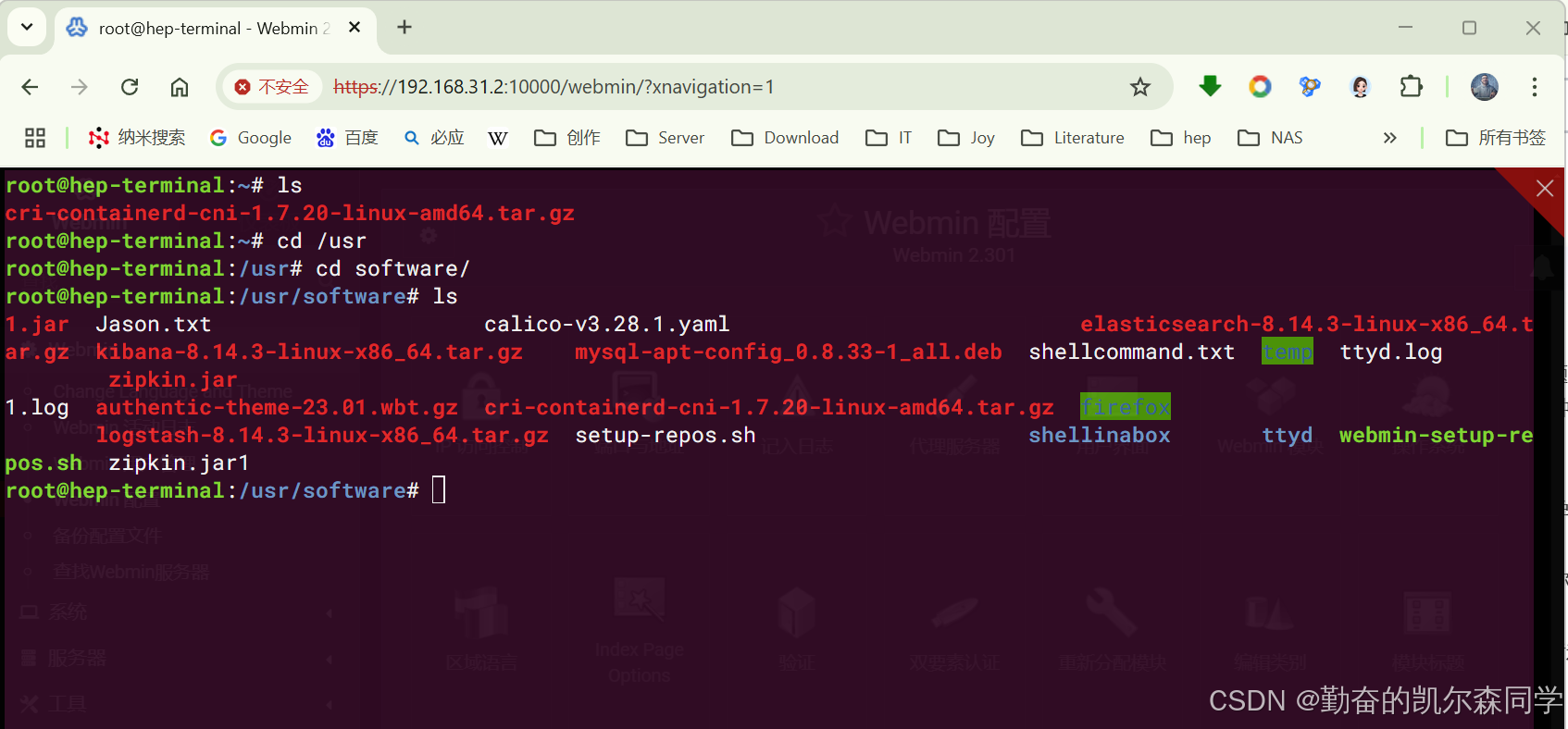
webmin配置终端显示样式,模仿UbuntuDesktop终端
webmin配置终端显示样式,模仿UbuntuDesktop终端 在webmin中,默认情况下是没有图形化桌面的,因此终端界面也不会像 Ubuntu Desktop 那样有预设的紫色背景和颜色主题。不过,你可以通过修改 ~/.bashrc 文件,并结合安装和…...

移动通信发展史
概念解释 第一代网络通信 1G 第二代网络通信 2G 第三代网络通信 3G 第四代网络通信 4G 4g网络有很高的速率和很低的延时——高到500M的上传和1G的下载 日常中的4G只是用到了4G技术 运营商 移动-从民企到国企 联通-南方教育口有人 电信 铁通:成立于 2000 年…...

OutOfMemoryError unable to create new native thread
现象 生产环境大量的报OutOfMemoryError: unable to create new native thread Caused by: java.lang.OutOfMemoryError: unable to create new native threadat java.lang.Thread.start0(Native Method) [na:1.8.0_291]at java.lang.Thread.start(Thread.java:717) [na:1.8.…...

探索无网用Deepseek+qwen来助力Solidworks二次开发
在本教程中,我们将详细介绍如何在本地环境中使用 DeepSeek 和 Qwen 模型,结合 AnythingLLM,构建一个用于 SolidWorks 二次开发的私有化智能知识库。 目录 前言 环境准备 2.1 安装 Ollama 2.2 安装 Docker Desktop DeepSeek 本地部署 3.1…...

MAC快速本地部署Deepseek (win也可以)
MAC快速本地部署Deepseek (win也可以) 下载安装ollama 地址: https://ollama.com/ Ollama 是一个开源的大型语言模型(LLM)本地运行框架,旨在简化大模型的部署和管理流程,使开发者、研究人员及爱好者能够高效地在本地环境中实验和…...