
使用Pygame做一个乒乓球游戏
项目介绍
使用Pygame做一个乒乓球游戏。左侧为电脑,右侧为玩家。

视频地址-YT
视频搬运-B站
视频教程约90分钟。
代码地址
环境:需要pygame库,可用pip安装:pip install pygame
1. 基础版本
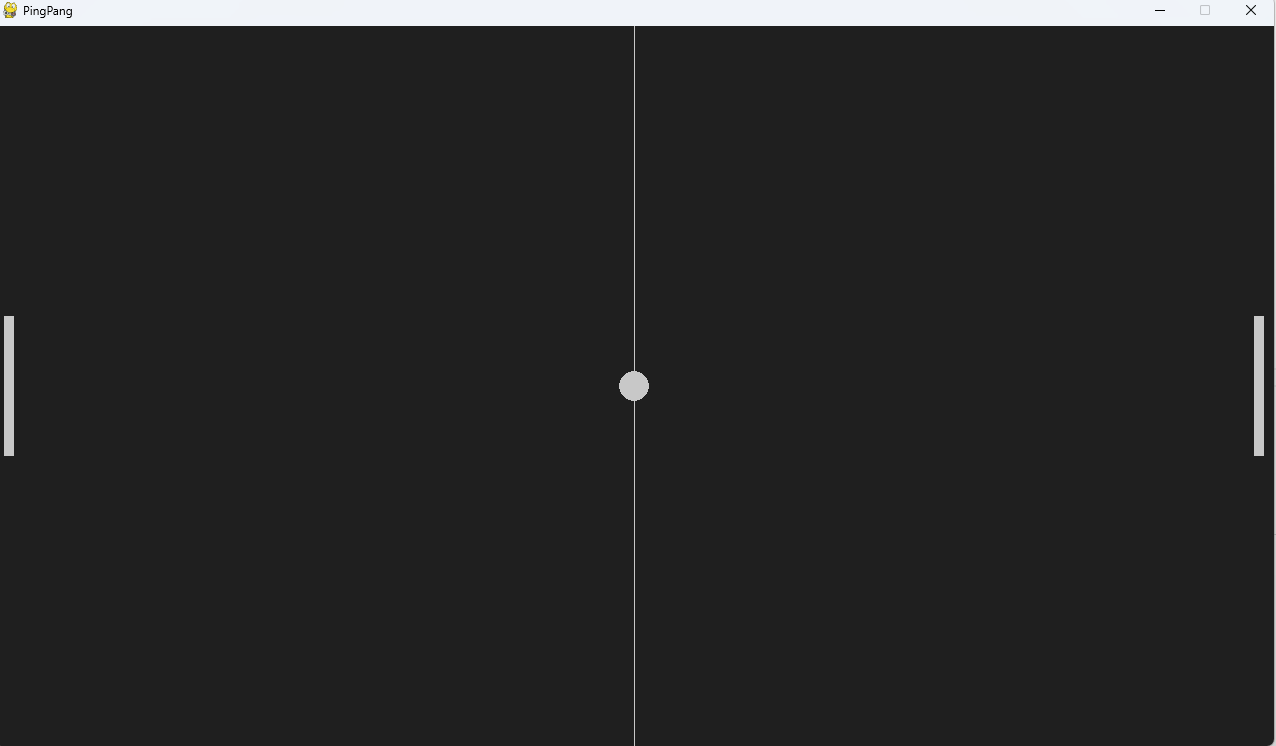
首先进行一些初始化,初始化pygame以及物体的初始状态。
然后是主循环,游戏的主循环主要包含3个内容
- 处理事件(这里主要是键盘按键)
- 更新物体的状态
- 在屏幕上绘制
# 基础 ping pang游戏
import sys
import random
import pygame# 初始化
pygame.init()
clock = pygame.time.Clock()screen_width = 1280
screen_height = 720
screen = pygame.display.set_mode((screen_width, screen_height))
pygame.display.set_caption("PingPang")
# 使用长方形表示球和球拍
ball = pygame.Rect(screen_width // 2 - 15, screen_height // 2 - 15, 30, 30)
player = pygame.Rect(screen_width - 20, screen_height // 2 - 70, 10, 140)
opponent = pygame.Rect(10, screen_height // 2 - 70, 10, 140)bg_color = pygame.Color('grey12')
light_grey = (200, 200, 200)ball_speed_x = 7 * random.choice((1, -1))
ball_speed_y = 7 * random.choice((1, -1))
player_speed = 0
opponent_speed = 7while True:for event in pygame.event.get():if event.type == pygame.QUIT:pygame.quit()sys.exit()if event.type == pygame.KEYDOWN:if event.key == pygame.K_DOWN:player_speed += 7if event.key == pygame.K_UP:player_speed -= 7if event.type == pygame.KEYUP:if event.key == pygame.K_DOWN:player_speed -= 7if event.key == pygame.K_UP:player_speed += 7# update#ball_animation()#player_animation()#opponent_animation()# drawscreen.fill(bg_color)pygame.draw.rect(screen, light_grey, player)pygame.draw.rect(screen, light_grey, opponent)pygame.draw.ellipse(screen, light_grey, ball)pygame.draw.aaline(screen, light_grey, (screen_width / 2, 0), (screen_width / 2, screen_height))pygame.display.flip()clock.tick(60)
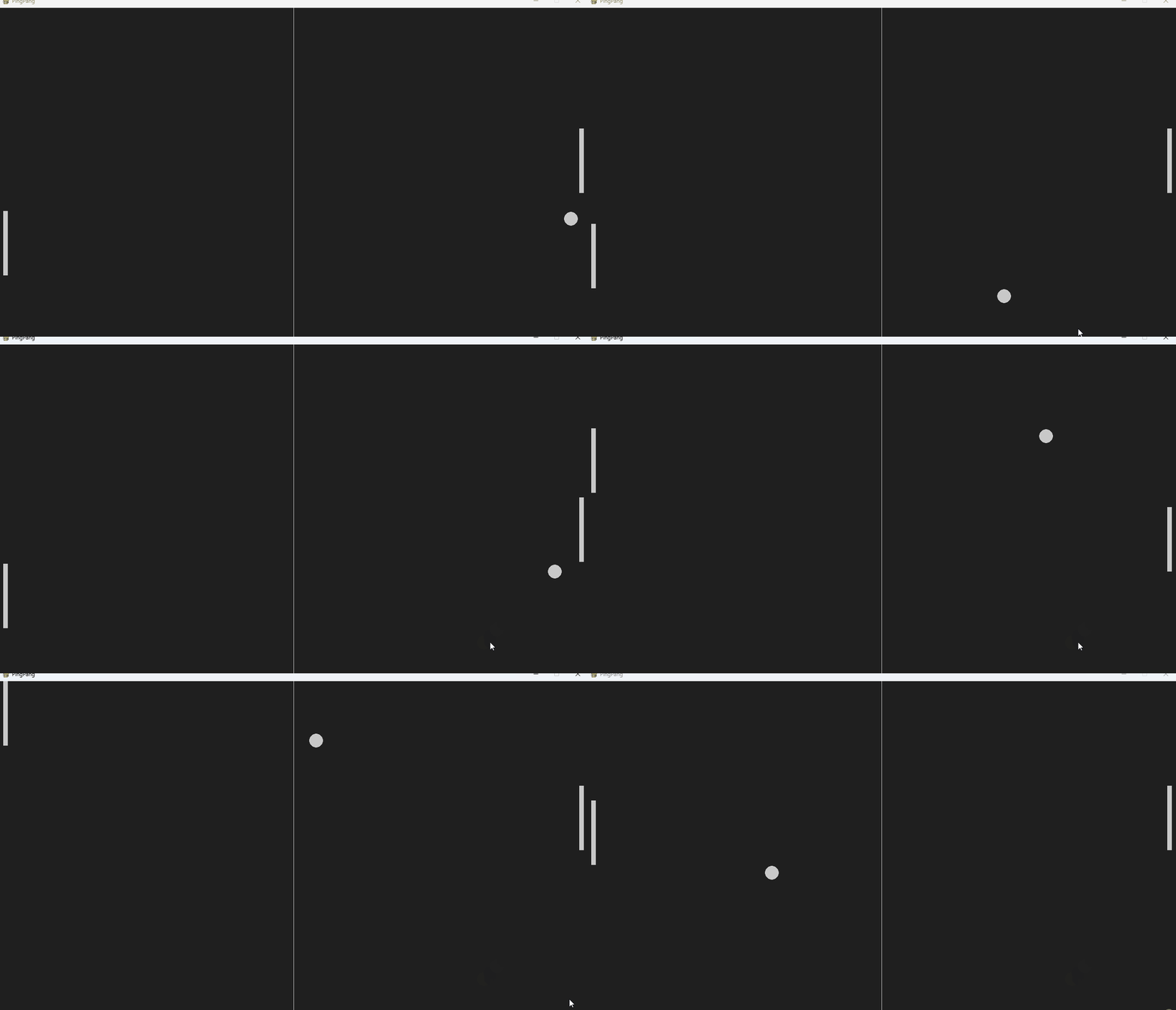
然后我们实现上面的三个更新逻辑,更新物体状态。
ball_animation()player_animation()opponent_animation()
def ball_animation():"""更新球的运动"""global ball_speed_x, ball_speed_yball.x += ball_speed_xball.y += ball_speed_yif ball.top <= 0 or ball.bottom >= screen_height:ball_speed_y *= -1if ball.left <= 0 or ball.right >= screen_width:ball_speed_x *= -1ball_restart()if ball.colliderect(player) or ball.colliderect(opponent):ball_speed_x *= -1def player_animation():"""更新玩家的运动"""player.y += player_speedif player.top <= 0:player.top = 0if player.bottom >= screen_height:player.bottom = screen_heightdef opponent_animation():"""更新对手的运动"""if opponent.top < ball.y:opponent.top += opponent_speedif opponent.bottom > ball.y:opponent.bottom -= opponent_speedif opponent.top <= 0:opponent.top = 0if opponent.bottom >= screen_height:opponent.bottom = screen_heightdef ball_restart():"""重置球的位置"""global ball_speed_x, ball_speed_yball.center = (screen_width // 2, screen_height // 2)ball_speed_y *= random.choice((1, -1))ball_speed_x *= random.choice((1, -1))
实现了这3个函数后,记得在主循环中的# update 处调用这个三个函数。
2. 添加分数和时间
- 为游戏添加分数显示:添加字体并渲染出分数。
- 发球时有3秒倒计时:通过
pygame.time.get_ticks()获得时间。
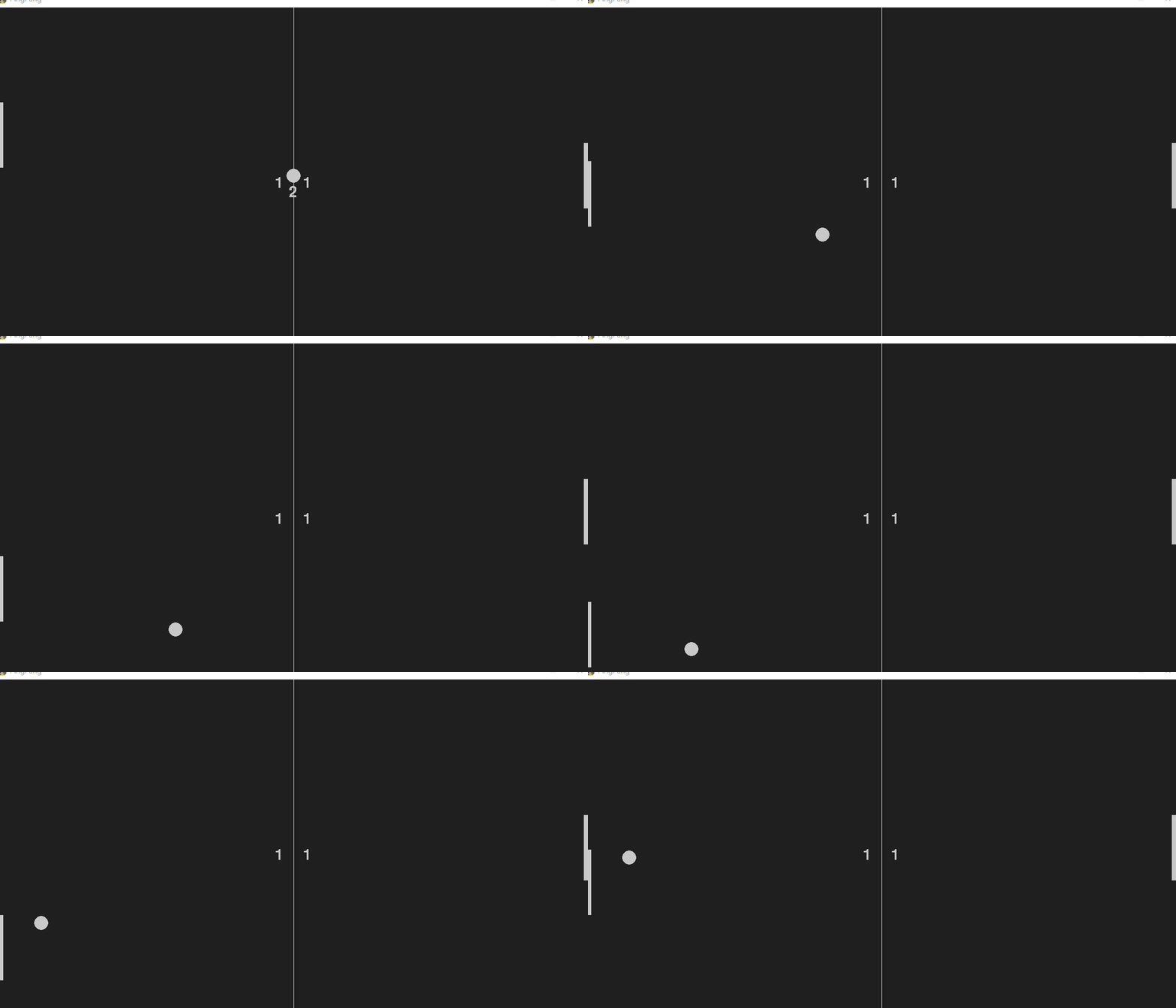
# 添加得分和计时器
import sys
import random
import pygamepygame.init()
clock = pygame.time.Clock()screen_width = 1280
screen_height = 720
screen = pygame.display.set_mode((screen_width, screen_height))
pygame.display.set_caption("PingPang")ball = pygame.Rect(screen_width // 2 - 15, screen_height // 2 - 15, 30, 30)
player = pygame.Rect(screen_width - 20, screen_height // 2 - 70, 10, 140)
opponent = pygame.Rect(10, screen_height // 2 - 70, 10, 140)bg_color = pygame.Color('grey12')
light_grey = (200, 200, 200)ball_speed_x = 7 * random.choice((1, -1))
ball_speed_y = 7 * random.choice((1, -1))
player_speed = 0
opponent_speed = 7# Text Variables
player_score = 0
opponent_score = 0
# 创建字体
game_font = pygame.font.Font("freesansbold.ttf", 32)# Timer
score_time = Truedef ball_animation():global ball_speed_x, ball_speed_yglobal player_score, opponent_scoreglobal score_timeball.x += ball_speed_xball.y += ball_speed_yif ball.top <= 0 or ball.bottom >= screen_height:ball_speed_y *= -1if ball.left <= 0 or ball.right >= screen_width:    if ball.left <= 0:player_score += 1if ball.right >= screen_width:opponent_score += 1score_time = pygame.time.get_ticks()if ball.colliderect(player) or ball.colliderect(opponent):ball_speed_x *= -1def player_animation():player.y += player_speedif player.top <= 0:player.top = 0if player.bottom >= screen_height:player.bottom = screen_heightdef opponent_animation():if opponent.top < ball.y:opponent.top += opponent_speedif opponent.bottom > ball.y:opponent.bottom -= opponent_speedif opponent.top <= 0:opponent.top = 0if opponent.bottom >= screen_height:opponent.bottom = screen_heightdef ball_restart():global ball_speed_x, ball_speed_yglobal score_timeball.center = (screen_width // 2, screen_height // 2)# 计算耗时,并显示剩余时间# 获得当前时间current_time = pygame.time.get_ticks()# 与上次得分时间比较if current_time - score_time < 700:number_three = game_font.render("3", False, light_grey)screen.blit(number_three, (screen_width // 2 - 10, screen_height // 2 + 20))if 700 < current_time - score_time < 1400:number_two = game_font.render("2", False, light_grey)screen.blit(number_two, (screen_width // 2 - 10, screen_height // 2 + 20))if 1400 < current_time - score_time < 2100:number_one = game_font.render("1", False, light_grey)screen.blit(number_one, (screen_width // 2 - 10, screen_height // 2 + 20))if current_time - score_time < 2100:ball_speed_x, ball_speed_y = 0, 0else:ball_speed_y = 7 * random.choice((1, -1))ball_speed_x = 7 * random.choice((1, -1))score_time = Nonewhile True:for event in pygame.event.get():if event.type == pygame.QUIT:pygame.quit()sys.exit()if event.type == pygame.KEYDOWN:if event.key == pygame.K_DOWN:player_speed += 7if event.key == pygame.K_UP:player_speed -= 7if event.type == pygame.KEYUP:if event.key == pygame.K_DOWN:player_speed -= 7if event.key == pygame.K_UP:player_speed += 7ball_animation()player_animation()opponent_animation()# update# drawscreen.fill(bg_color)pygame.draw.rect(screen, light_grey, player)pygame.draw.rect(screen, light_grey, opponent)pygame.draw.ellipse(screen, light_grey, ball)pygame.draw.aaline(screen, light_grey, (screen_width / 2, 0), (screen_width / 2, screen_height))# 显示得分player_text = game_font.render(f"{player_score}", False, light_grey)screen.blit(player_text, (660, 360))opponent_text = game_font.render(f"{opponent_score}", False, light_grey)screen.blit(opponent_text, (600, 360))if score_time:ball_restart()pygame.display.flip()clock.tick(60)
3. 优化碰撞逻辑、添加声音
如果你运行了第2节的程序,你会发现有时候球的反弹有时很奇怪,比如有时候会黏在球拍上。
本节我们将
- 优化碰撞逻辑:在
ball_animation()通过判断球与球拍的位置,修改球的运动。 - 添加碰撞和得分音效:
pygame.mixer.Sound
# 添加得分和计时器
# 基础 ping pang游戏
import sys
import random
import pygame# setup
pygame.init()
pygame.mixer.pre_init(44100, -16, 2, 512)
clock = pygame.time.Clock()screen_width = 1280
screen_height = 720
screen = pygame.display.set_mode((screen_width, screen_height))
pygame.display.set_caption("PingPang")# Reactangles
ball = pygame.Rect(screen_width // 2 - 15, screen_height // 2 - 15, 30, 30)
player = pygame.Rect(screen_width - 20 , screen_height // 2 - 70, 10, 140)
opponent = pygame.Rect(10, screen_height // 2 - 70, 10, 140)bg_color = pygame.Color('grey12')
light_grey = (200, 200, 200)ball_speed_x = 7 * random.choice((1, -1))
ball_speed_y = 7 * random.choice((1, -1))
player_speed = 0
opponent_speed = 7# Text Variables
player_score = 0
opponent_score = 0
game_font = pygame.font.Font("freesansbold.ttf", 32)# Timer
score_time = True# Sound
pong_sound = pygame.mixer.Sound("pong.ogg")
score_sound = pygame.mixer.Sound("score.ogg")def ball_animation():global ball_speed_x, ball_speed_yglobal player_score, opponent_scoreglobal score_timeball.x += ball_speed_xball.y += ball_speed_yif ball.top <= 0 or ball.bottom >= screen_height:pong_sound.play()ball_speed_y *= -1# score if ball.left <= 0 or ball.right >= screen_width:    score_sound.play()if ball.left <= 0:player_score += 1if ball.right >= screen_width:opponent_score += 1score_time = pygame.time.get_ticks()if ball.colliderect(player) and ball_speed_x > 0: pong_sound.play()if abs(ball.right - player.left) < 10 :ball_speed_x *= -1elif abs(ball.bottom - player.top) < 10 and ball_speed_y > 0:ball_speed_y *= -1elif abs(ball.top - player.bottom) < 10 and ball_speed_y < 0:ball_speed_y *= -1if ball.colliderect(opponent) and ball_speed_x < 0:pong_sound.play()if abs(ball.left - opponent.right) < 10:ball_speed_x *= -1elif abs(ball.bottom - opponent.top) < 10 and ball_speed_y > 0:ball_speed_y *= -1     elif abs(ball.top - opponent.bottom) < 10 and ball_speed_y < 0:ball_speed_y *= -1def player_animation():player.y += player_speedif player.top <= 0:player.top = 0if player.bottom >= screen_height:player.bottom = screen_heightdef opponent_animation():if opponent.top < ball.y:opponent.top += opponent_speedif opponent.bottom > ball.y:opponent.bottom -= opponent_speedif opponent.top <= 0:opponent.top = 0if opponent.bottom >= screen_height:opponent.bottom = screen_heightdef ball_restart():global ball_speed_x, ball_speed_yglobal score_timeball.center = (screen_width // 2, screen_height // 2)current_time = pygame.time.get_ticks()if current_time - score_time < 700:number_three = game_font.render("3", False, light_grey)screen.blit(number_three, (screen_width // 2 - 10, screen_height // 2 + 20))if 700 < current_time - score_time < 1400:number_two = game_font.render("2", False, light_grey)screen.blit(number_two, (screen_width // 2 - 10, screen_height // 2 + 20))if 1400 < current_time - score_time < 2100:number_one = game_font.render("1", False, light_grey)screen.blit(number_one, (screen_width // 2 - 10, screen_height // 2 + 20))if current_time - score_time < 2100:ball_speed_x, ball_speed_y = 0, 0else:ball_speed_y = 7 * random.choice((1, -1))ball_speed_x = 7 * random.choice((1, -1))score_time = Nonewhile True:for event in pygame.event.get():if event.type == pygame.QUIT:pygame.quit()sys.exit()if event.type == pygame.KEYDOWN:if event.key == pygame.K_DOWN:player_speed += 7if event.key == pygame.K_UP:player_speed -= 7if event.type == pygame.KEYUP:if event.key == pygame.K_DOWN:player_speed -= 7if event.key == pygame.K_UP:player_speed += 7ball_animation()player_animation()opponent_animation()# update# drawscreen.fill(bg_color)pygame.draw.rect(screen, light_grey, player)pygame.draw.rect(screen, light_grey, opponent)pygame.draw.ellipse(screen, light_grey, ball)pygame.draw.aaline(screen, light_grey, (screen_width / 2, 0), (screen_width / 2, screen_height))player_text = game_font.render(f"{player_score}", False, light_grey)screen.blit(player_text, (660, 360))opponent_text = game_font.render(f"{opponent_score}", False, light_grey)screen.blit(opponent_text, (600, 360))if score_time:ball_restart()pygame.display.flip()clock.tick(60)
相关文章:
使用Pygame做一个乒乓球游戏
项目介绍 使用Pygame做一个乒乓球游戏。左侧为电脑,右侧为玩家。 视频地址-YT 视频搬运-B站 视频教程约90分钟。 代码地址 环境:需要pygame库,可用pip安装:pip install pygame 1. 基础版本 首先进行一些初始化,初始…...
力扣---完全平方数
思路: 还是比较好想的,g[i]定义为和为 i 的完全平方数的最少数量。那么递推关系式是g[i]min(g[i-1],g[i-4],g[i-9],...)1,数组初始化是g[0]0,g[1]1。注意这里要对g[0]初始化,(举个例子)因为在遍历到g[4]时&…...
接口测试、postman、测试点提取【主】
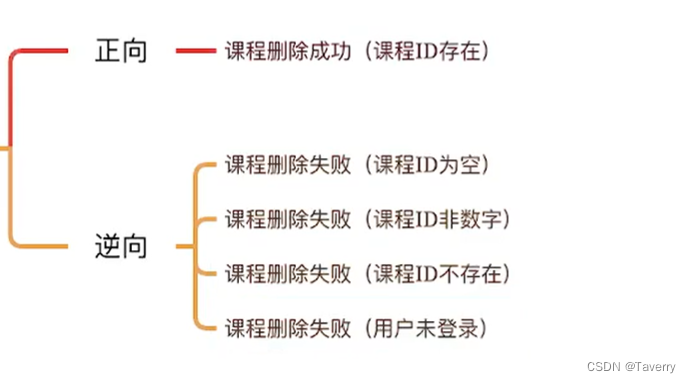
接口测试是测试系统组件间接口的一种测试 接口测试主要用于检测外部系统与系统之间以及内部各个子系统之间的交互点 测试的重点是要检查数据的交换,传递和控制管理过程,以及系统间的相互逻辑依赖关系 文章目录 HTTP接口 & Web Service接口RESTful接口…...
C++ list详解及模拟实现
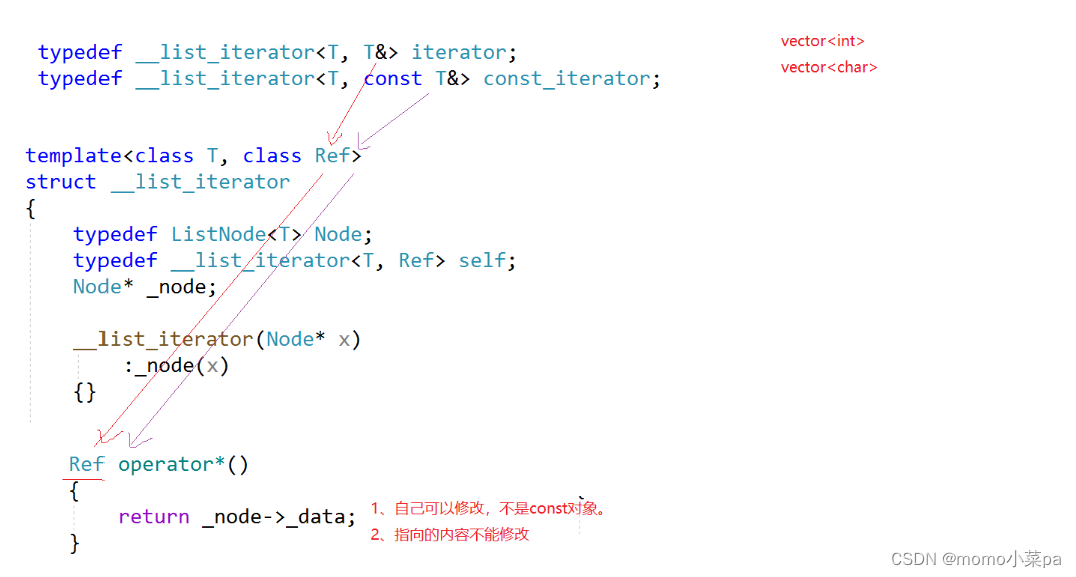
目录 本节目标 1. list的介绍及使用 1.2 list的使用 2.list的模拟实现 1.对list进行初步的实现 2.头插和任意位置的插入 3.pos节点的删除,头删,尾删 4.销毁list和析构函数 5.const迭代器 6.拷贝构造和赋值操作 3.完整代码 本节目标 1. list的…...
【tls招新web部分题解】
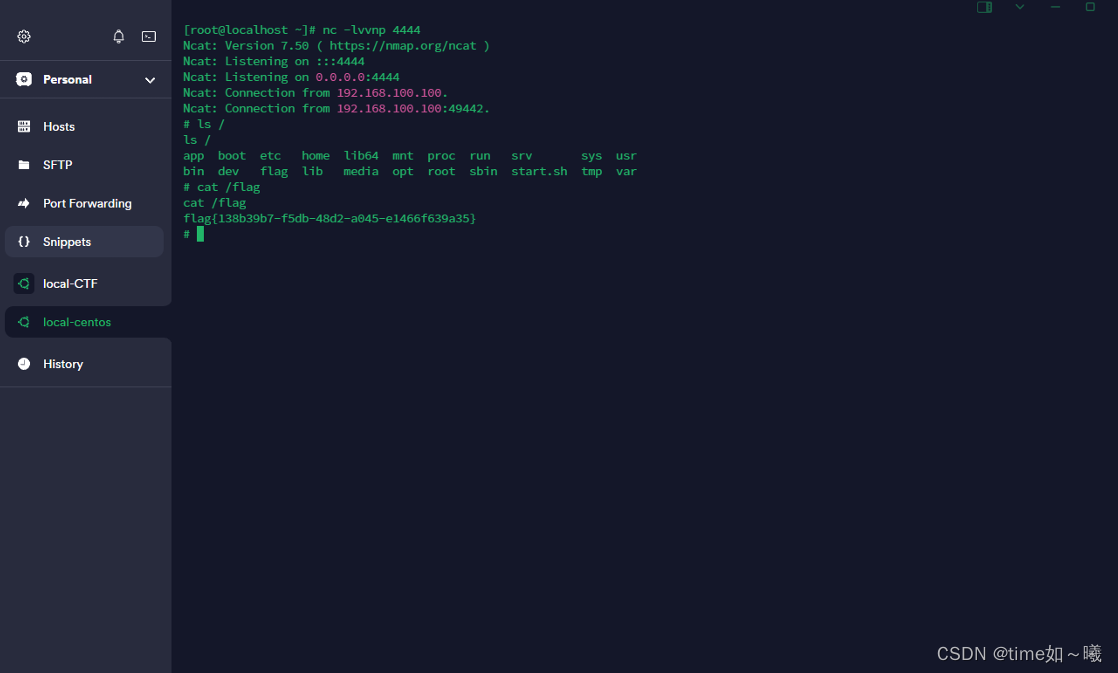
emowebshell (php7.4.21版本漏洞) 非预期 题目提示webshell,就直接尝试一下常见的后门命名的规则 如 shell.php这里运气比较好,可以直接shell.php就出来 要是不想这样尝试的话,也可以直接dirsearch进行目录爆破 然后在phpinfo中直接搜素c…...
力扣热门算法题 52. N 皇后 II,53. 最大子数组和,54. 螺旋矩阵
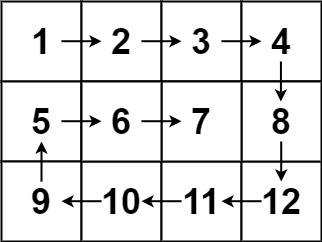
52. N 皇后 II,53. 最大子数组和,54. 螺旋矩阵,每题做详细思路梳理,配套Python&Java双语代码, 2024.03.20 可通过leetcode所有测试用例。 目录 52. N 皇后 II 解题思路 完整代码 Python Java 53. 最大子数组…...

【OpenVINO】解决OpenVINO在GPU推理中报错的方法
1. 问题描述 使用OpenVINO进行深度学习推理时,通常会借助GPU以提升计算速度。然而,有时候运行程序时候会出现如下错误: <kernel>:8153:2: error: expected identifier or (unroll_for (int i 0; i < TILE_SIZE; i) {^ <kernel…...

AES加密的中文乱码与Java默认编码
0. 背景 win11环境下 java8 idea 开发的项目接口有加密需求,暂时使用AES完成,AES工具类代码如下 public static String aesEncrypt(String content, String key) throws Exception {//指定加密算法Cipher cipher Cipher.getInstance("AES");//创建加密规则&#…...
浏览器和服务器)
Node.js笔记 (二)浏览器和服务器
Ajax Ajax是什么 全称:Asynchronous Javascript And Xml. 用javascript执行异步网络请求,可以说是定义了一种编程行为/习惯。 通信双方:浏览器 和 服务器 特点:异步,所以可以在异步请求服务器,在不刷新页…...

面试经典-32-判断子序列
题目 给定字符串 s 和 t ,判断 s 是否为 t 的子序列。 字符串的一个子序列是原始字符串删除一些(也可以不删除)字符而不改变剩余字符相对位置形成的新字符串。(例如,"ace"是"abcde"的一个子序列…...

windows使用知识
提示:文章写完后,目录可以自动生成,如何生成可参考右边的帮助文档 文章目录 前言windows使用知识 一、cmd鼠标选中后,程序不运行的解决方案总结 前言 提示:这里可以添加本文要记录的大概内容: windows使用…...

用python如何实现智能合约?如何使用remix编写solidity智能合约并部署上链
目录 用python如何实现智能合约? 直接展示下成功界面 下面分步骤说: remix代码 python链接remix代码...

Electron窗口管理详解:使用BrowserWindow API打造个性化界面
Electron窗口管理详解:使用BrowserWindow API打造个性化界面 创建和初始化窗口窗口定制化窗口操作与事件监听多窗口管理和工作区布局结语 在当今跨平台桌面应用开发领域,Electron 凭借其 JavaScript 与 HTML5 技术栈结合原生操作系统 API 的能力…...
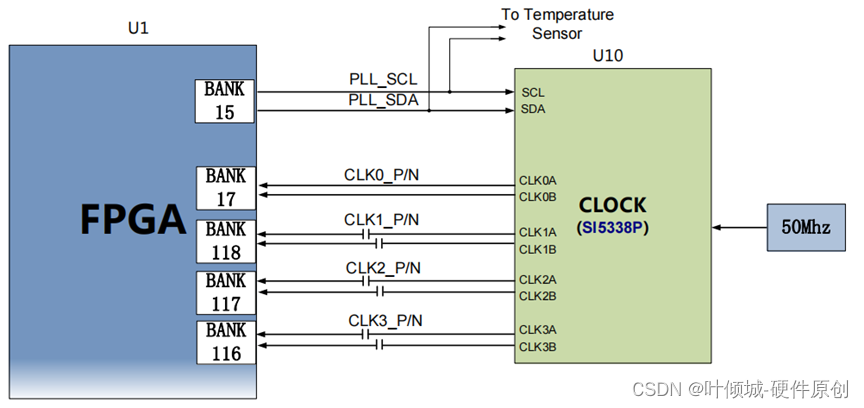
19---时钟电路设计
视频链接 时钟硬件电路设计01_哔哩哔哩_bilibili 时钟电路设计 晶振是数字电路的心脏,数字电路需要一个稳定的工作时钟信号,时钟电路至关重要! 1、晶振概述 晶振一般指晶体振荡器。晶体振荡器是指从一块石英晶体上按一定方位角切下薄片&…...
)
PSNR/SSIM/LPIPS图像质量评估三件套(含代码)
在图像质量评估上,有三个重要指标:PSNR,SSIM,LPIPS。本文提供简易脚本分别实现。 PSNR,峰值信噪比,是基于MSE的像素比较低质量评估,一般30dB以上质量就不错,到40dB以上肉眼就很难分…...
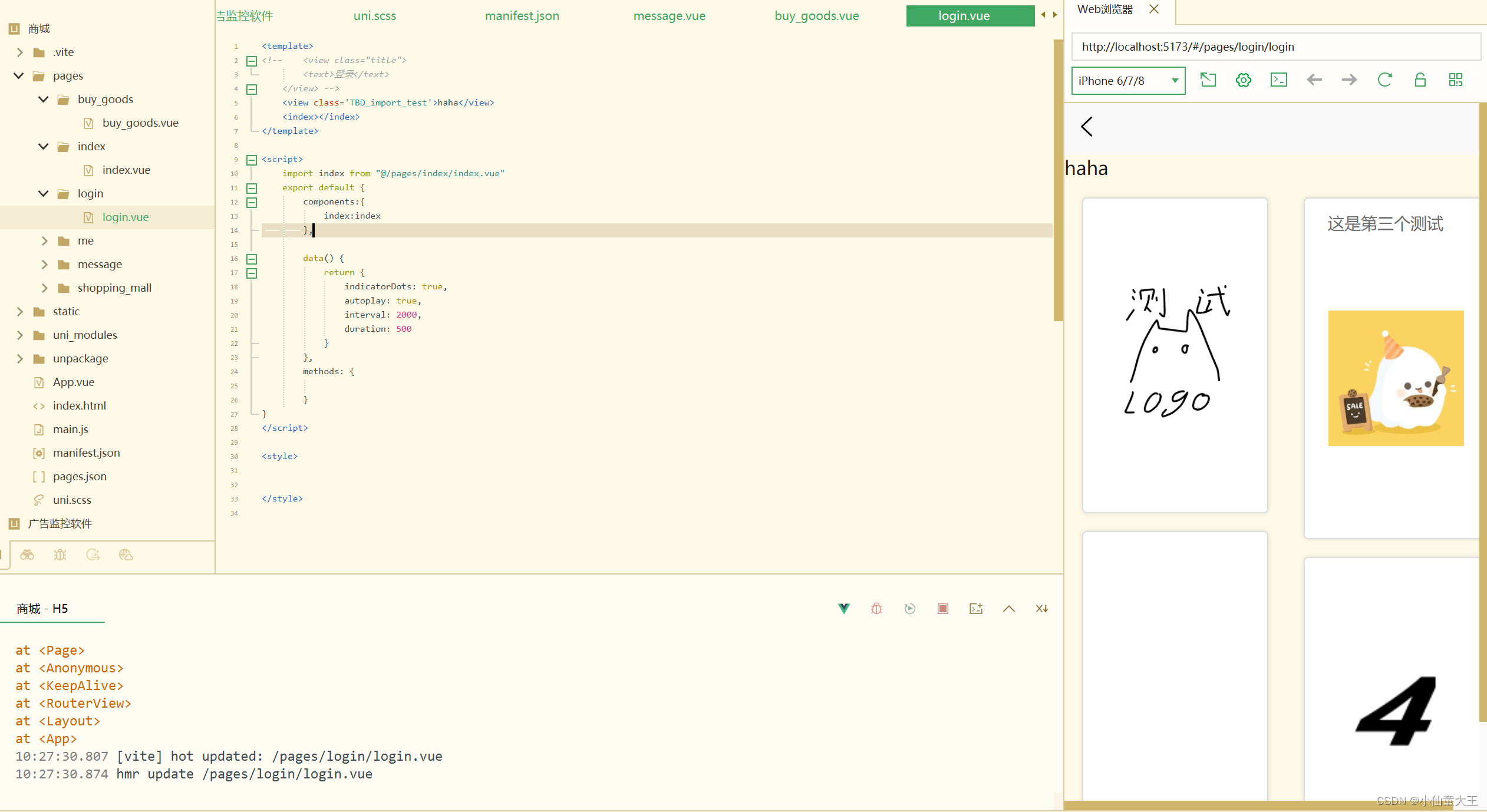
20240318uniapp怎么引用组件
在script中增加 import index from "/pages/index/index.vue" 把index直接整个作为一个组件引入 然后注册组件 在export default中增加 components: {index:index }, 注册了index组件,内容为import的index 然后就可以在template里使用 <index&…...
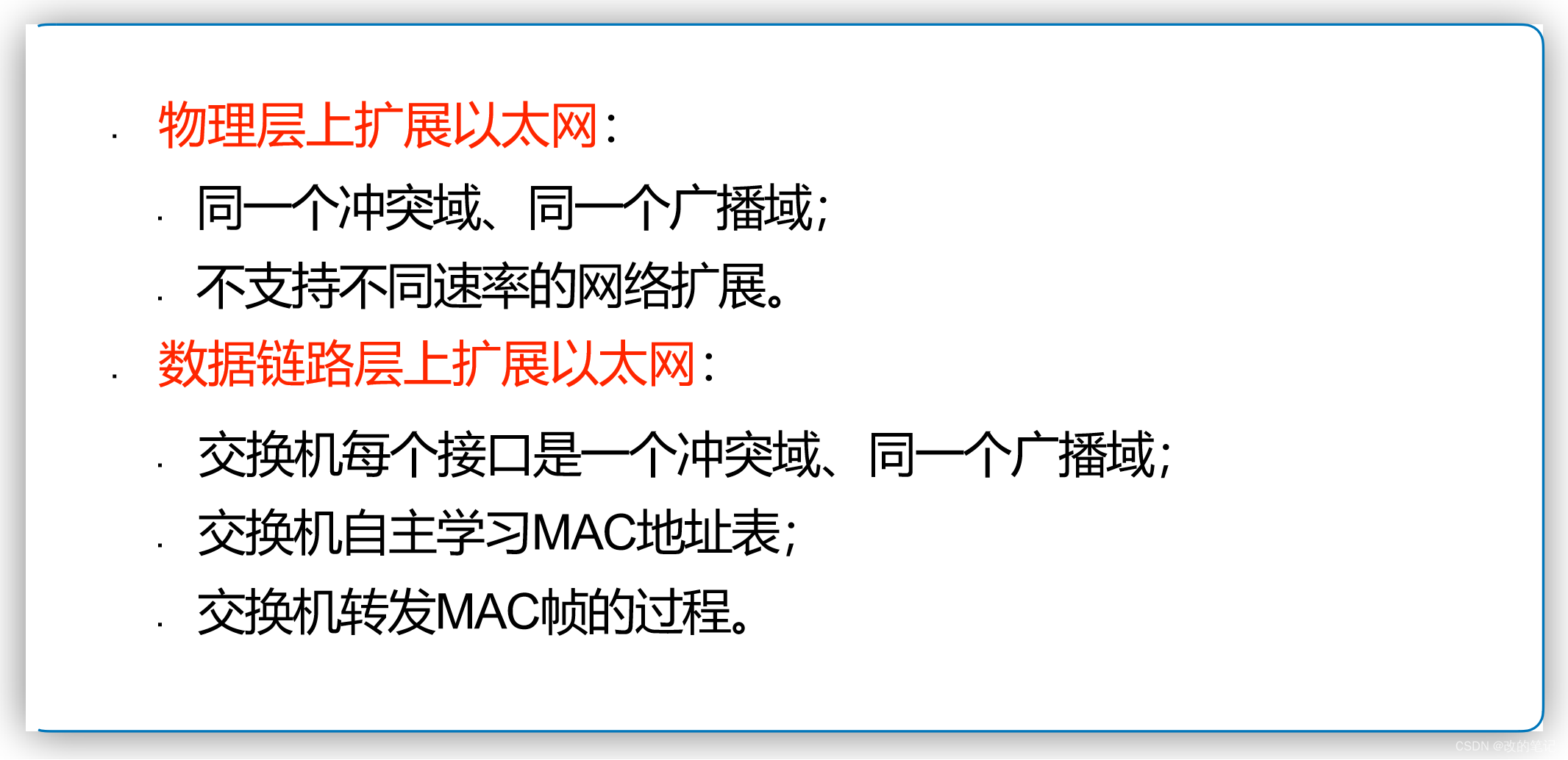
扩展以太网(数据链路层)
目录 一、在物理层扩展以太网 二、在数据链路层扩展以太网 三、以太网交换机的特点 四、以太网交换机的交换方式 五、以太网交换机的自学习功能 六、小结 一、在物理层扩展以太网 使用光纤扩展: • 主机使用光纤(通常是一对光纤)和…...

每日一练 | 华为认证真题练习Day202
1、在组播网络环境中,如果IGMPv2主机和IGMP V1路由器(以下简称版本2主机和版本1路由器)共同处于同一局域网当中,那他们是如何协同工作的?(多选) A. 版本1路由器把IGMPv2报告看作无效的IGMP信息…...
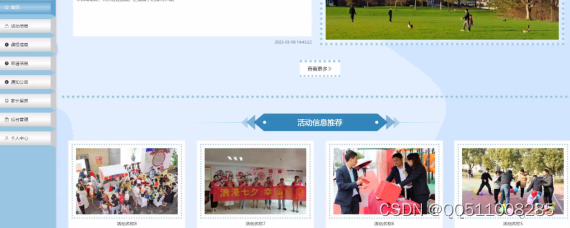
基于python+vue的幼儿园管理系统flask-django-php-nodejs
随着信息时代的来临,过去的传统管理方式缺点逐渐暴露,对过去的传统管理方式的缺点进行分析,采取计算机方式构建幼儿园管理系统。本文通过课题背景、课题目的及意义相关技术,提出了一种活动信息、课程信息、菜谱信息、通知公告、家…...
【java】java环境变量分类
测试代码: public class TestSys {public static void main(String[] args) {/*** 获取所有的系统环境变量*/Map<String, String> map System.getenv();map.forEach((key, value) -> System.out.printf("env:key:%s->value:%s%n"…...

告别沉浸式白屏!UniApp中iOS/Android底部安全区与顶部状态栏颜色自定义全攻略
告别沉浸式白屏!UniApp中iOS/Android底部安全区与顶部状态栏颜色自定义全攻略当开发者尝试在UniApp中实现沉浸式设计时,往往会遇到一个令人头疼的问题——默认的白色安全区和状态栏导致界面元素(如电池图标、信号强度)几乎不可见。…...

量子计算中Loschmidt回声相位测量的创新方法
1. 量子计算中的Loschmidt回声相位测量方法概述Loschmidt回声是量子动力学中一个重要的概念,它描述了量子系统在时间反演演化后与初始状态的相似程度。在量子计算领域,精确测量Loschmidt回声的相位信息对于理解量子系统的非平衡态行为、计算能量本征值以…...

从入门到上岗,Java+AI 复合型人才养成攻略
当下编程行业格局正在悄然改变,纯 Java 后端岗位内卷日趋严重,薪资增长逐步放缓;纯粹的 AI 算法岗门槛居高不下,对学历、数理功底要求严苛,普通开发者很难入局。 而Java+AI 复合型开发顺势成为行业刚需岗位,既依托成熟的 Java 体系承接业务开发,又能融入人工智能技术实…...

Hirschmann RS20-0800M4M4SDAE工业以太网交换机
Hirschmann RS20-0800M4M4SDAE 工业以太网交换机产品特点:端口配置:共8个端口,含6个RJ45电口和2个ST光纤接口。端口速率:所有端口均为100Mbps快速以太网。光纤类型:2个光纤端口为多模、ST接头。管理类型:二…...
)
别再只用鼠标了!用Leap Motion手势控制Unity游戏,保姆级配置避坑指南(2024版)
2024年Unity手势交互开发实战:Leap Motion从配置到游戏逻辑全解析在游戏开发领域,交互方式的创新往往能带来全新的体验。想象一下,玩家不再需要键盘鼠标,仅凭自然的手部动作就能操控游戏角色——这正是Leap Motion手势识别技术为U…...

3个实用场景教你轻松解锁网易云音乐NCM加密文件:ncmdumpGUI完整指南
3个实用场景教你轻松解锁网易云音乐NCM加密文件:ncmdumpGUI完整指南 【免费下载链接】ncmdumpGUI C#版本网易云音乐ncm文件格式转换,Windows图形界面版本 项目地址: https://gitcode.com/gh_mirrors/nc/ncmdumpGUI 你是否曾经下载了网易云音乐的…...

Taotoken的稳定性与低延迟在实时对话应用中的实际体验
🚀 告别海外账号与网络限制!稳定直连全球优质大模型,限时半价接入中。 👉 点击领取海量免费额度 Taotoken的稳定性与低延迟在实时对话应用中的实际体验 在开发需要快速响应的AI聊天应用时,后端API的稳定性和延迟表现是…...

ComfyUI-WanVideoWrapper深度解析:构建专业级AI视频生成工作流的完整方案
ComfyUI-WanVideoWrapper深度解析:构建专业级AI视频生成工作流的完整方案 【免费下载链接】ComfyUI-WanVideoWrapper 项目地址: https://gitcode.com/GitHub_Trending/co/ComfyUI-WanVideoWrapper 在AI视频生成技术快速发展的今天,ComfyUI-WanVi…...

Unity动态植被系统:实时天气与自然现象耦合方案
1. 这不是“贴图堆砌”,而是一套可交互的自然系统你有没有试过在Unity里拖进几棵树、铺点草地,结果运行起来——风一吹,所有树叶像被钉在空中一样纹丝不动;下雨时,雨滴垂直砸进地面,连个水花都没有…...
)
独家首发|DeepSeek官方未公开的IP检查API接口文档(含沙箱环境调用密钥获取路径)
更多请点击: https://kaifayun.com 第一章:DeepSeek知识产权检查 DeepSeek系列大模型(如DeepSeek-V2、DeepSeek-Coder、DeepSeek-MoE)由深度求索(DeepSeek)公司自主研发,其权重、训练代码、推…...