
C# WPF编程-布局
C# WPF编程-布局
- 布局
- WPF布局原则
- 布局过程
- 布局容器
- 布局属性
- Border控件
- 常用布局
- StackPanel布局
- WrapPanel布局
- DockPanel布局
- Grid布局
- UniformGrid布局
- Canvas布局
- InkCanvas布局
布局
WPF布局原则
WPF窗口只能包含单个元素。为在WPF窗口中放置多个元素并创建更贴近实用的用户界面,需要在窗口上放置一个容器,然后在这个容器中添加其他元素。
造成这一限制的原因是Window类继承自ContentControl类。
在WPF窗口布局需要遵循以下几条重要原则:
- 不应显示设定元素的尺寸:元素应当可以改变尺寸以适合他们的内容。可通过设置最大和最小尺寸来限制可以接受的控件尺寸范围。
- 不应使用屏幕坐标指定元素的位置:元素应当由它们的容器根据它们之间的尺寸、顺序以及其他特定于具体布局容器的信息进行排列。元素之间添加空白空间,可使用Margin属性。
- 布局容器的子元素“共享”可用的空间:如果空间允许,布局容器会根据每个元素的内容尽可能为元素设置更合理的尺寸。
- 可嵌套的布局容器:典型的用户界面使用Grid面板作为开始,Grid面板是WPF中功能最强大的容器,Grid面板可包含其他布局容器,包含的这些容器以更小的分组排列元素,如带有标题的文本框、列表框中的项、工具栏上的图标以及一列按钮等。
布局过程
WPF布局包括两个阶段:测量(measure)阶段和排列(arrange)阶段。测量阶段容器遍历所有子元素,并询问子元素它们所期望的尺寸。排列阶段,容器在合适的位置放置子元素。
注意:布局容器不能提供任何滚动支持。滚动是由特定的内容控件-ScrollViewer提供。
布局容器
所有WPF布局容器都是派生自System.Windows.Controls.Panel抽象类的面板。Panel类添加了少量成员,包括三个共有属性。
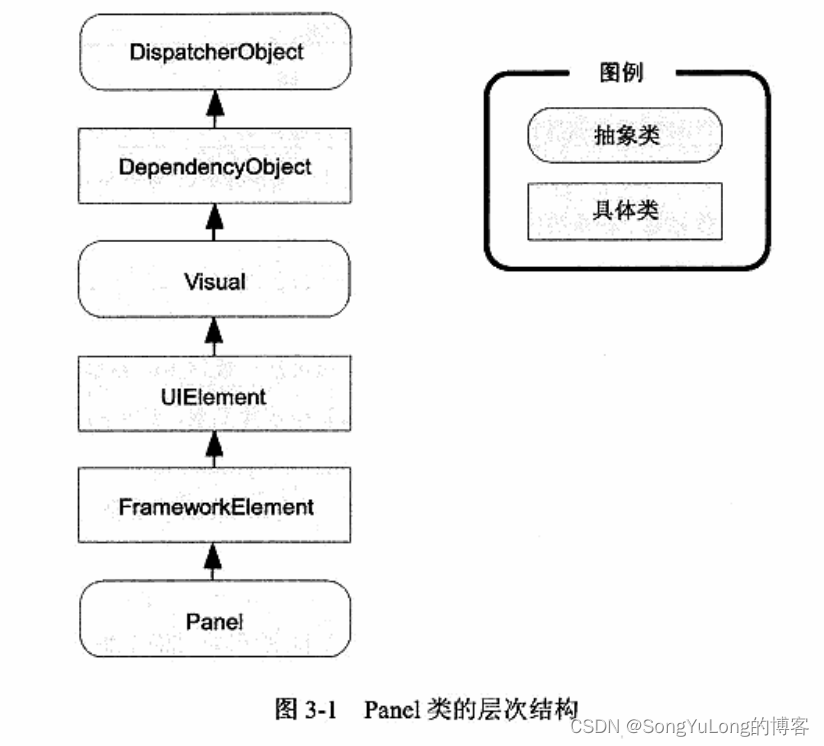
Panel类的共有属性:
- Background:该属性是用于为面板背景着色的画刷。
- Children:该属性是在面板中存储的条目集合。
- IsItemsHost:该属性是一个布尔值,如果面板用于显示与ItemsControls控件关联的项,该属性值为true。
核心布局面板:
- StackPanel:在水平或垂直的堆栈中放置元素。
- WrapPanel:在一系列可换行的行中放置元素。水平方向,从左到右放置元素。垂直方向,从上到下放置元素。
- DockPanel:更加容器的整个边界调整元素。
- Grid:根据不可见的表格在行个列中排列元素,这是最灵活、最常用的容器之一。
- UniformGrid:在不可见但是强制所有单元格具有相同尺寸的表中放置元素。
- Canvas:使用固定坐标绝对定位元素。对于尺寸可变的窗口,不适合使用该布局容器。
StackPanel和WrapPanel面板主要用来控制用户界面中一小部分的布局细节,并非用于控制整个窗口布局。
更专业的面板:
- TabPanel:在TabPanel面板中包含多个选项卡。
- ToolbarPanel:工具栏中的多个按钮。
- ToolbarOverflowPanel:Toolbar控件的溢出菜单中的多个命令。
- VirtualizingStackPanel:数据绑定列表控件使用该面板以大幅降低开销。
- InkCanvas:该控件和Canvas控件类似,但该控件支持处理平板电脑上的手写笔输入。
布局属性
| 名称 | 说明 |
|---|---|
| HorizontalAlignment | 当水平方向上有额外的空间时,该属性决定了子元素在布局中如何定位。可选值:Center、Left、Right或Stretch等属性值 |
| VerticalAlignment | 当垂直方向上有额外的空间时,该属性决定了子元素在布局中如何定位。可选值:Center、Top、Bottom或Stretch等属性值 |
| Margin | 该属性用于在元素的周围添加一定的空间。顶部、底部、左边、右边添加空间 |
| MinWidth和MinHeight | 这两个属性用于设置元素的最小尺寸 |
| MaxWidth和MaxHeight | 这两个属性用于设置元素的最打尺寸 |
| Width和Height | 这两个属性用于设置元素的尺寸 |
Border控件
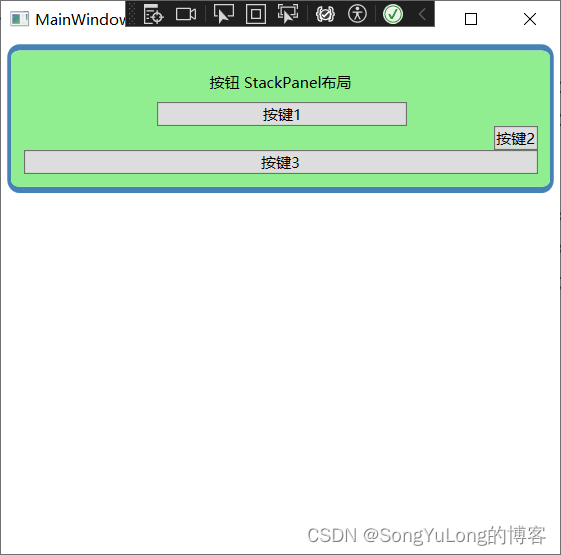
Border控件不是布局面板,而是非常便于使用的元素,经常与布局面板一起使用。
Border类的属性:
| Background | 使用Brush对象设置边框中所有内容后面的背景。 |
| BorderBrush和BroderThickness | 使用Brush对象设置位于Border对象边缘的边框的颜色,并设置边框的宽度。为显示边框必须设置这两个属性 |
| CornerRadius | 该属性设置边框圆角 |
| Padding | 该属性在边框和内部的内容之间添加空间 |
<Window x:Class="WpfHelloWorld.MainWindow"xmlns="http://schemas.microsoft.com/winfx/2006/xaml/presentation"xmlns:x="http://schemas.microsoft.com/winfx/2006/xaml"xmlns:d="http://schemas.microsoft.com/expression/blend/2008"xmlns:mc="http://schemas.openxmlformats.org/markup-compatibility/2006"xmlns:sys="clr-namespace:System;assembly=mscorlib"xmlns:local="clr-namespace:WpfHelloWorld"mc:Ignorable="d"Title="MainWindow" Height="450" Width="800"><Grid Name="grid1"><Border Margin="5" Padding="5" Background="LightGreen"BorderBrush="SteelBlue" BorderThickness="3,5,3,5"CornerRadius="8" VerticalAlignment="Top"><StackPanel Orientation="Vertical" Margin="5"><Label Margin="3" HorizontalAlignment="Center">按钮 StackPanel布局</Label><Button Margin="3,0,0,0" MaxWidth="200" MinWidth="100">按键1</Button><Button HorizontalAlignment="Right">按键2</Button><Button HorizontalAlignment="Stretch">按键3</Button></StackPanel></Border></Grid>
</Window>
常用布局
StackPanel布局
<Window x:Class="WpfHelloWorld.Window1"xmlns="http://schemas.microsoft.com/winfx/2006/xaml/presentation"xmlns:x="http://schemas.microsoft.com/winfx/2006/xaml"xmlns:d="http://schemas.microsoft.com/expression/blend/2008"xmlns:mc="http://schemas.openxmlformats.org/markup-compatibility/2006"xmlns:local="clr-namespace:WpfHelloWorld"mc:Ignorable="d"Title="Window1" Height="450" Width="800"><StackPanel><Label>按钮 StackPanel布局</Label><Button>按键1</Button><Button>按键2</Button><Button>按键3</Button></StackPanel>
</Window>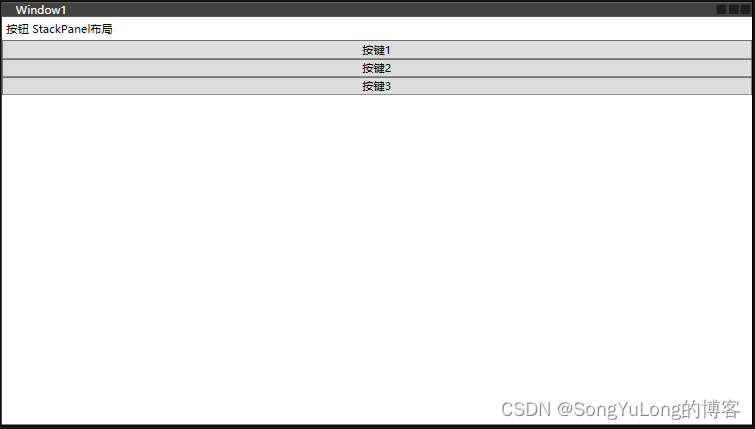
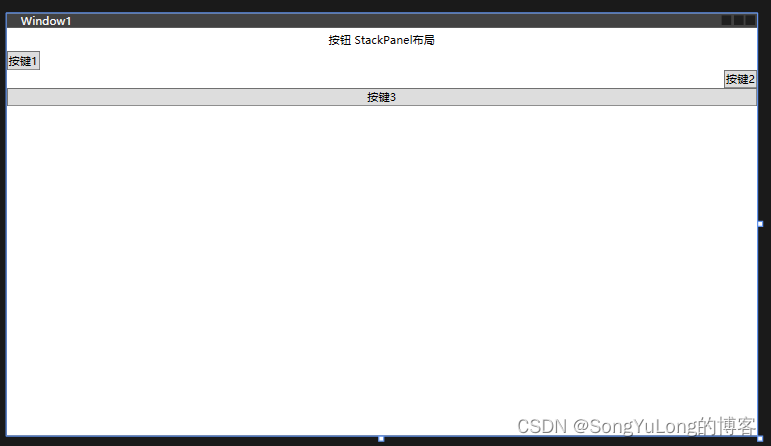
通过设置Orientation属性,改变排列方向
< StackPanel Orientation=“Horizontal”> 水平方向
< StackPanel Orientation=“Vertical”> 垂直方向
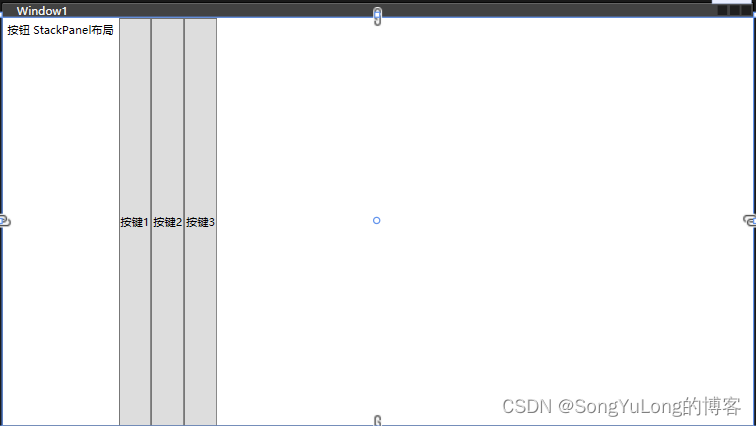
<StackPanel Orientation="Vertical"><Label HorizontalAlignment="Center">按钮 StackPanel布局</Label><Button HorizontalAlignment="Left">按键1</Button><Button HorizontalAlignment="Right">按键2</Button><Button HorizontalAlignment="Stretch">按键3</Button>
</StackPanel>
WrapPanel布局
WrapPanel面板在可能得空间中,以一次一行或一列的方式布局控件。
<Window x:Class="WpfHelloWorld.MainWindow"xmlns="http://schemas.microsoft.com/winfx/2006/xaml/presentation"xmlns:x="http://schemas.microsoft.com/winfx/2006/xaml"xmlns:d="http://schemas.microsoft.com/expression/blend/2008"xmlns:mc="http://schemas.openxmlformats.org/markup-compatibility/2006"xmlns:sys="clr-namespace:System;assembly=mscorlib"xmlns:local="clr-namespace:WpfHelloWorld"mc:Ignorable="d"Title="MainWindow" Height="450" Width="800"><Grid Name="grid1"><WrapPanel Margin="10"><Button VerticalAlignment="Top">Top Button</Button><Button MinHeight="80" >Tall Button</Button><Button VerticalAlignment="Bottom">Bottom Button</Button><Button>Stretch Button</Button><Button VerticalAlignment="Center">Centered Button</Button></WrapPanel></Grid>
</Window>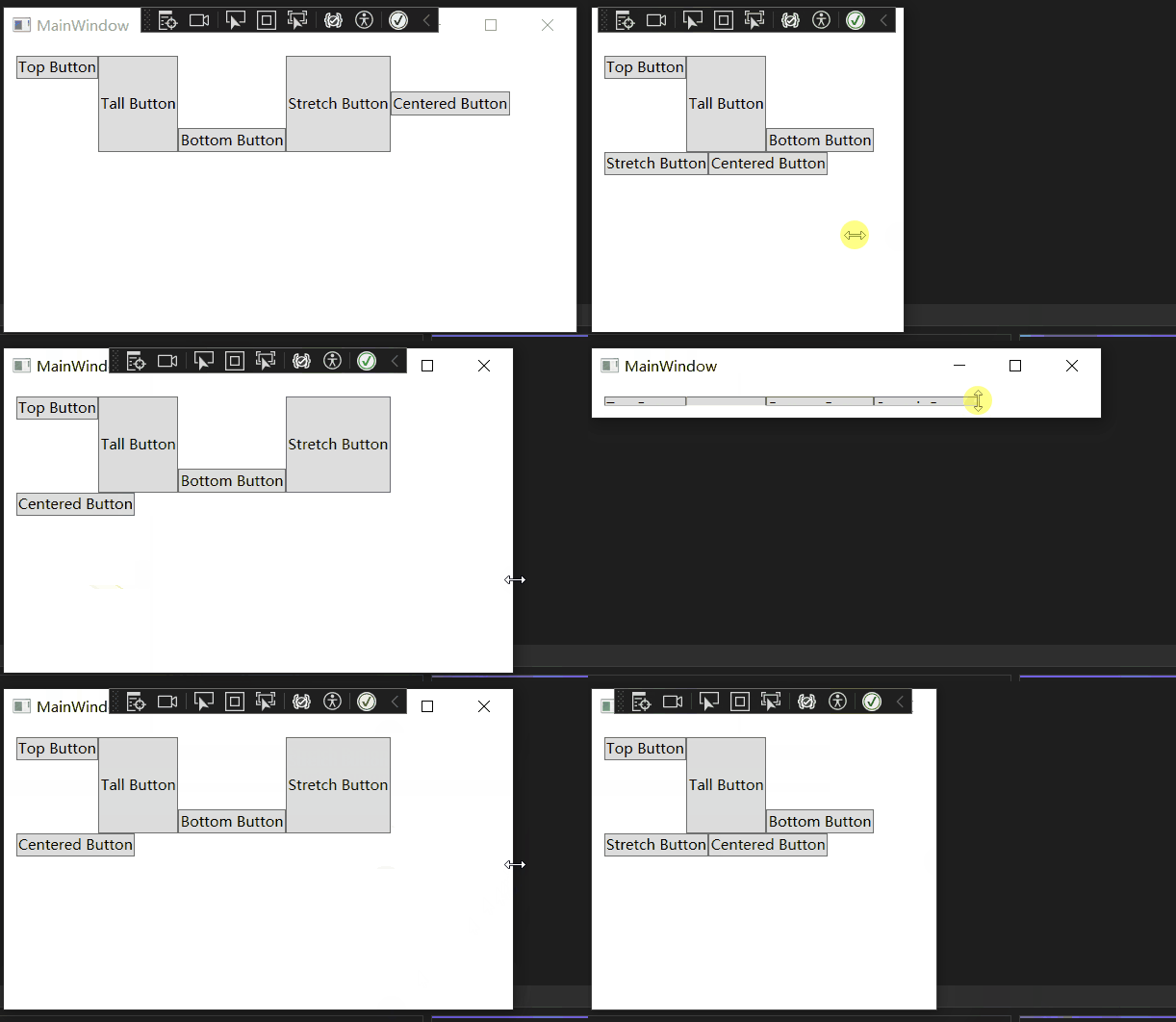
DockPanel布局
DockPanel面板,沿着一条外边缘来拉伸所包含的控件。
<Window x:Class="WpfHelloWorld.MainWindow"xmlns="http://schemas.microsoft.com/winfx/2006/xaml/presentation"xmlns:x="http://schemas.microsoft.com/winfx/2006/xaml"xmlns:d="http://schemas.microsoft.com/expression/blend/2008"xmlns:mc="http://schemas.openxmlformats.org/markup-compatibility/2006"xmlns:sys="clr-namespace:System;assembly=mscorlib"xmlns:local="clr-namespace:WpfHelloWorld"mc:Ignorable="d"Title="MainWindow" Height="450" Width="800"><Grid Name="grid1"><DockPanel LastChildFill="True"><Button DockPanel.Dock="Top">Top Button</Button><Button DockPanel.Dock="Bottom">Bottom Button</Button><Button DockPanel.Dock="Left">Left Button</Button><Button DockPanel.Dock="Right">Right Button</Button><Button>Remaining Space</Button></DockPanel></Grid>
</Window>
Grid布局
Grid面板是WPF中功能最强大的布局容器。Grid面板也是将窗口分割成更小区域的理想工具。Grid面板常作为窗口的顶级容器。Grid.ShowGridLines属性设置为true,可以显示面板网格线。
Grid面板通过使用对象填充Grid.ColumnDefinitions和Grid.RowDefinitions集合来创建网格。
Grid布局定义:
<Window x:Class="WpfHelloWorld.MainWindow"xmlns="http://schemas.microsoft.com/winfx/2006/xaml/presentation"xmlns:x="http://schemas.microsoft.com/winfx/2006/xaml"xmlns:d="http://schemas.microsoft.com/expression/blend/2008"xmlns:mc="http://schemas.openxmlformats.org/markup-compatibility/2006"xmlns:sys="clr-namespace:System;assembly=mscorlib"xmlns:local="clr-namespace:WpfHelloWorld"mc:Ignorable="d"Title="MainWindow" Height="450" Width="800"><Grid ShowGridLines="True" Name="grid1"><Grid.RowDefinitions><!-- 两行 --><RowDefinition></RowDefinition><RowDefinition></RowDefinition></Grid.RowDefinitions><Grid.ColumnDefinitions><!-- 三列 --><ColumnDefinition></ColumnDefinition><ColumnDefinition></ColumnDefinition><ColumnDefinition></ColumnDefinition></Grid.ColumnDefinitions></Grid>
</Window>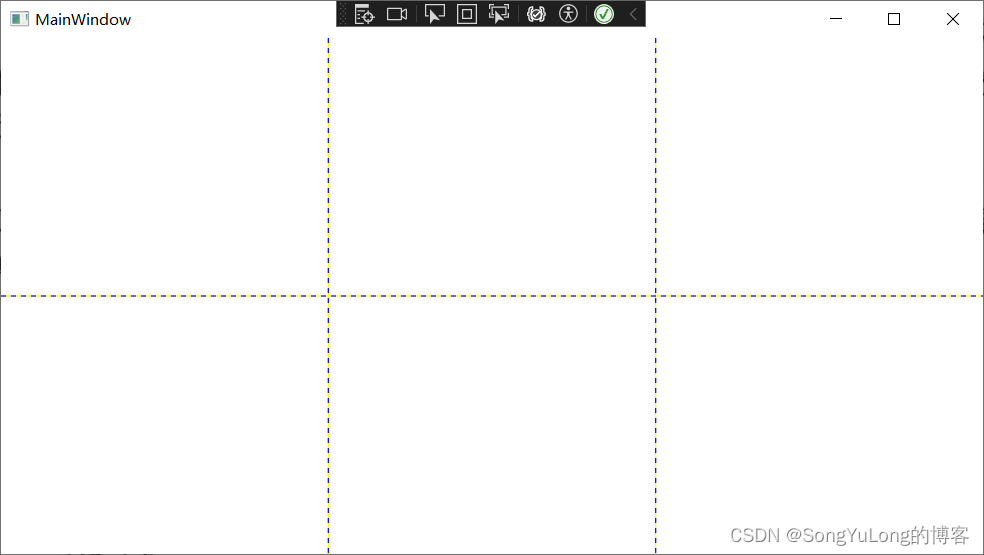
Grid布局添加元素
<Window x:Class="WpfHelloWorld.MainWindow"xmlns="http://schemas.microsoft.com/winfx/2006/xaml/presentation"xmlns:x="http://schemas.microsoft.com/winfx/2006/xaml"xmlns:d="http://schemas.microsoft.com/expression/blend/2008"xmlns:mc="http://schemas.openxmlformats.org/markup-compatibility/2006"xmlns:sys="clr-namespace:System;assembly=mscorlib"xmlns:local="clr-namespace:WpfHelloWorld"mc:Ignorable="d"Title="MainWindow" Height="450" Width="800"><Grid ShowGridLines="True" Name="grid1"><Grid.RowDefinitions><!-- 两行 --><RowDefinition></RowDefinition><RowDefinition></RowDefinition></Grid.RowDefinitions><Grid.ColumnDefinitions><!-- 三列 --><ColumnDefinition></ColumnDefinition><ColumnDefinition></ColumnDefinition><ColumnDefinition></ColumnDefinition></Grid.ColumnDefinitions><!-- 网格布局添加元素 --><Button Grid.Row="0" Grid.Column="0">Top Left</Button><Button Grid.Row="0" Grid.Column="1">Middle Left</Button><Button Grid.Row="1" Grid.Column="2">Bottom Right</Button><Button Grid.Row="1" Grid.Column="1">Bottom Middle</Button></Grid>
</Window>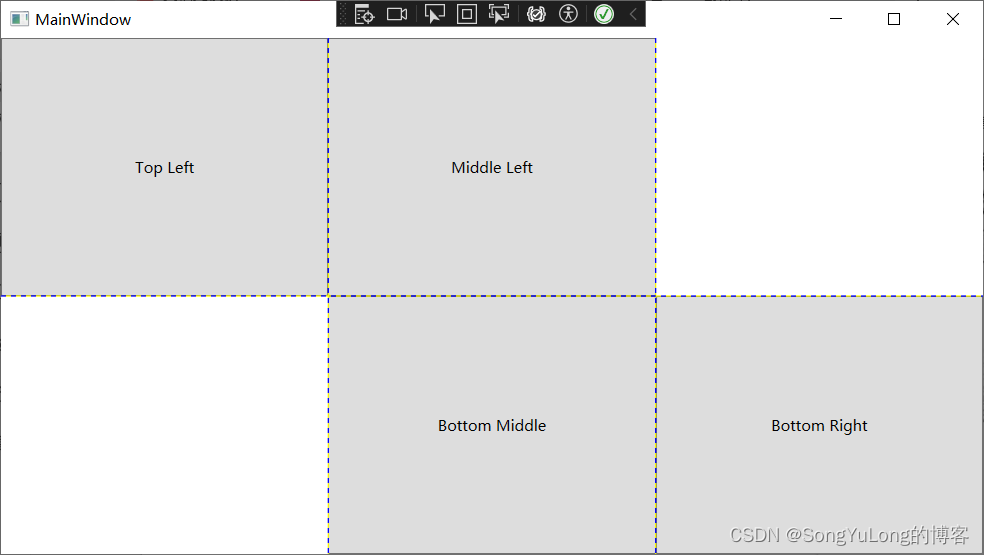
调整行和列
Grid面板支持一次三种设置尺寸的方式:
- 绝对设置尺寸方式:使用设备无关点位的准确地设置尺寸。难以适应内容大小和容器大小的改变。
- 自动设置尺寸方式:每行和每列的尺寸刚好满足需要。这是最有用的尺寸设置方式。
- 按比例设置尺寸方式:按比例将空间分割到一组行和列中。这是对所有行和列的标准设置。
- 绝对宽度:
< ColumnDefinition Width=“100”>< /ColumnDefinition> - 自动尺寸:
< ColumnDefinition Width=“Auto”>< /ColumnDefinition> - 比例尺寸:
< ColumnDefinition Width=“*”>< /ColumnDefinition>
如有两行时按比例设置尺寸,第一行的高度是第二行高度的一半:
< RowDefinition Height=“*”>< /RowDefinition>
< RowDefinition Height=“2*”>< /RowDefinition>
<Window x:Class="WpfHelloWorld.MainWindow"xmlns="http://schemas.microsoft.com/winfx/2006/xaml/presentation"xmlns:x="http://schemas.microsoft.com/winfx/2006/xaml"xmlns:d="http://schemas.microsoft.com/expression/blend/2008"xmlns:mc="http://schemas.openxmlformats.org/markup-compatibility/2006"xmlns:sys="clr-namespace:System;assembly=mscorlib"xmlns:local="clr-namespace:WpfHelloWorld"mc:Ignorable="d"Title="MainWindow" Height="450" Width="800"><Grid ShowGridLines="True" Name="grid1"><Grid.RowDefinitions><!-- 两行 --><RowDefinition Height="*"></RowDefinition><RowDefinition Height="2*"></RowDefinition></Grid.RowDefinitions><Grid.ColumnDefinitions><!-- 三列 --><ColumnDefinition Width="100"></ColumnDefinition><ColumnDefinition Width="Auto"></ColumnDefinition><ColumnDefinition Width="*"></ColumnDefinition></Grid.ColumnDefinitions><!-- 网格布局添加元素 --><Button Grid.Row="0" Grid.Column="0">Top Left</Button><Button Grid.Row="0" Grid.Column="1">Middle Left</Button><Button Grid.Row="1" Grid.Column="2">Bottom Right</Button><Button Grid.Row="1" Grid.Column="1">Bottom Middle</Button></Grid>
</Window>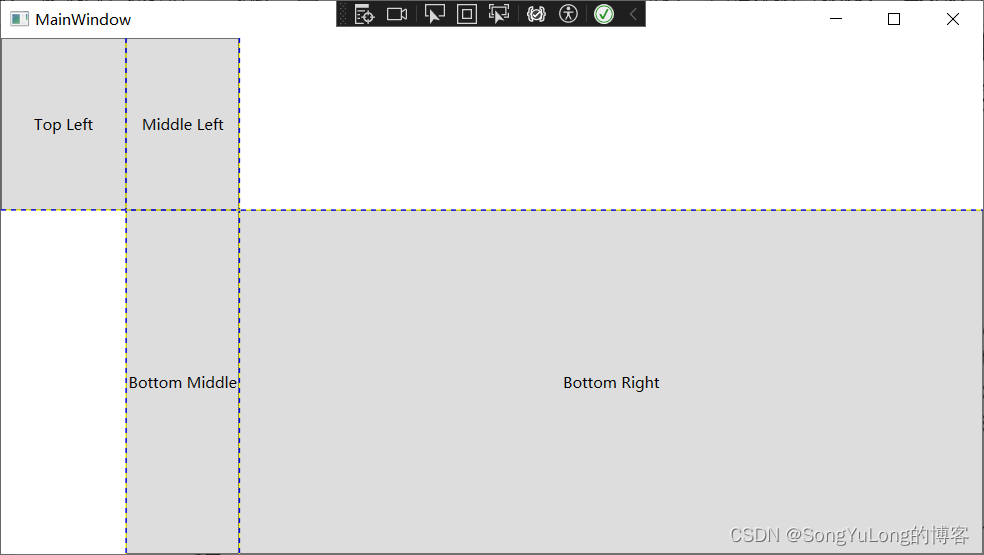
<Window x:Class="WpfHelloWorld.MainWindow"xmlns="http://schemas.microsoft.com/winfx/2006/xaml/presentation"xmlns:x="http://schemas.microsoft.com/winfx/2006/xaml"xmlns:d="http://schemas.microsoft.com/expression/blend/2008"xmlns:mc="http://schemas.openxmlformats.org/markup-compatibility/2006"xmlns:sys="clr-namespace:System;assembly=mscorlib"xmlns:local="clr-namespace:WpfHelloWorld"mc:Ignorable="d"Title="MainWindow" Height="450" Width="800"><Grid ShowGridLines="True" Name="grid1"><Grid.RowDefinitions><!-- 两行 --><RowDefinition Height="*"></RowDefinition><RowDefinition Height="Auto"></RowDefinition></Grid.RowDefinitions><TextBox Margin="10" Grid.Row="0">测试文本</TextBox><StackPanel Grid.Row="1" HorizontalAlignment="Right" Orientation="Horizontal"><Button Margin="10,20,2,20" Padding="3">确认</Button><Button Margin="2,10,10,10" Padding="5">取消</Button></StackPanel></Grid>
</Window>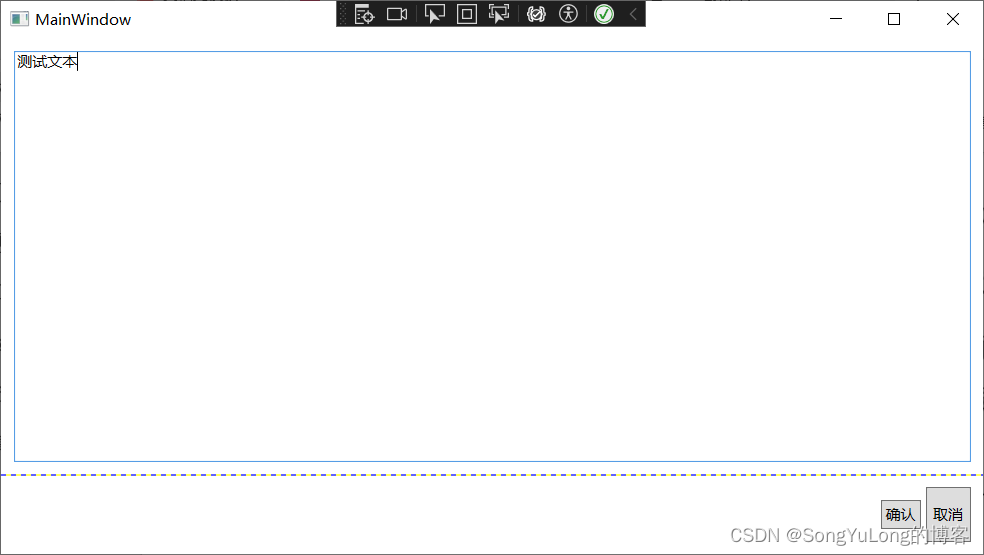
跨越行和列
使元素跨越多个单元格的属性RowSpan和ColumnSpan。
<Window x:Class="WpfHelloWorld.MainWindow"xmlns="http://schemas.microsoft.com/winfx/2006/xaml/presentation"xmlns:x="http://schemas.microsoft.com/winfx/2006/xaml"xmlns:d="http://schemas.microsoft.com/expression/blend/2008"xmlns:mc="http://schemas.openxmlformats.org/markup-compatibility/2006"xmlns:sys="clr-namespace:System;assembly=mscorlib"xmlns:local="clr-namespace:WpfHelloWorld"mc:Ignorable="d"Title="MainWindow" Height="450" Width="800"><Grid ShowGridLines="True" Name="grid1"><Grid.RowDefinitions><!-- 两行 --><RowDefinition Height="*"></RowDefinition><RowDefinition Height="Auto"></RowDefinition></Grid.RowDefinitions><Grid.ColumnDefinitions><ColumnDefinition Width="*"></ColumnDefinition><ColumnDefinition Width="Auto"></ColumnDefinition><ColumnDefinition Width="Auto"></ColumnDefinition></Grid.ColumnDefinitions><TextBlock Margin="10" Grid.Row="0" Grid.Column="0" Grid.ColumnSpan="3" Background="Green">测试文本</TextBlock><Button Margin="10,10,10,10" Padding="3" Grid.Row="1" Grid.Column="1">OK</Button><Button Margin="2,20,20,20" Padding="5" Grid.Row="1" Grid.Column="2">Cancel</Button></Grid>
</Window>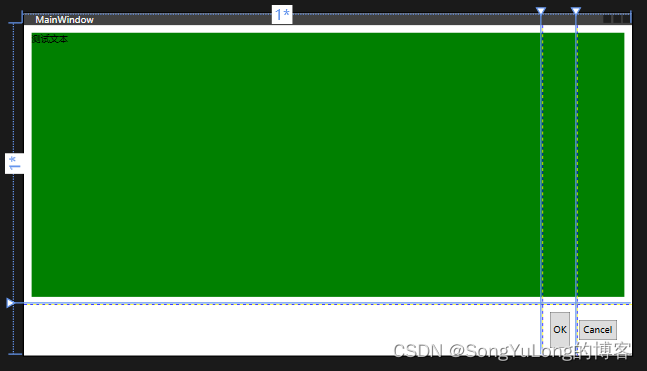
分割窗口:
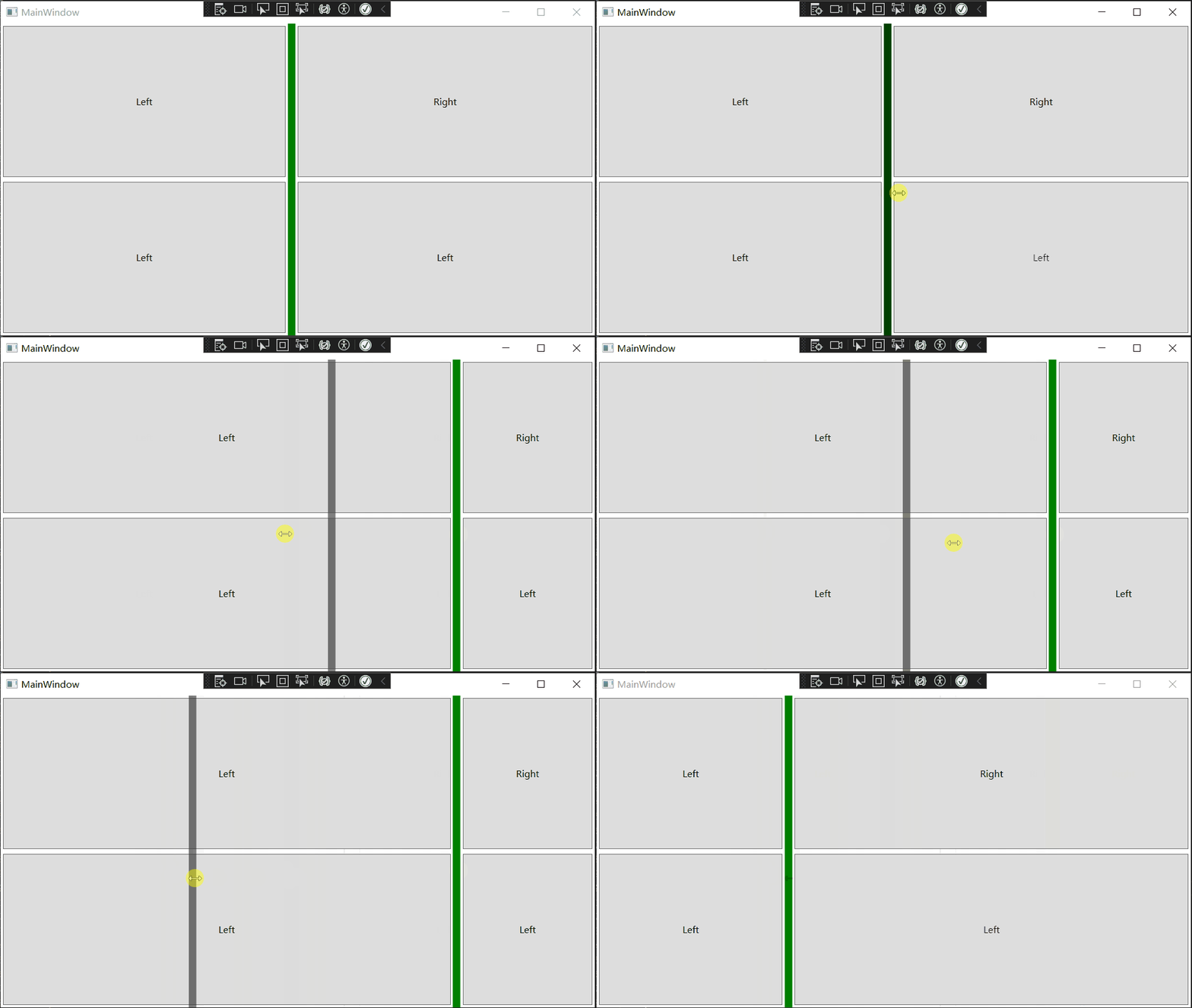
在WPF中,分割条由GridSplitter类表示,它是Grid面板的功能之一。
- GridSplitter对象必须放在Grid单元格中。
- GridSpliiter对象,总是改变整行或整列的尺寸。
- 最初,GridSplitter对象很小不易看见。对于垂直分割条需要将VerticalAlignment属性设为Stretch,并将Width设置为固定值。对于水平分割条,需要设置HorizontalAlignment属性来拉伸,并将Height属性设置为固定值。
- GridSplitter对齐方式还决定了分割条是水平的还垂直的。
<Window x:Class="WpfHelloWorld.MainWindow"xmlns="http://schemas.microsoft.com/winfx/2006/xaml/presentation"xmlns:x="http://schemas.microsoft.com/winfx/2006/xaml"xmlns:d="http://schemas.microsoft.com/expression/blend/2008"xmlns:mc="http://schemas.openxmlformats.org/markup-compatibility/2006"xmlns:sys="clr-namespace:System;assembly=mscorlib"xmlns:local="clr-namespace:WpfHelloWorld"mc:Ignorable="d"Title="MainWindow" Height="450" Width="800"><Grid ShowGridLines="False" Name="grid1"><Grid.RowDefinitions><!-- 两行 --><RowDefinition></RowDefinition><RowDefinition></RowDefinition></Grid.RowDefinitions><Grid.ColumnDefinitions><ColumnDefinition MinWidth="100"></ColumnDefinition><ColumnDefinition Width="Auto"></ColumnDefinition><ColumnDefinition MinWidth="50"></ColumnDefinition></Grid.ColumnDefinitions><Button Grid.Row="0" Grid.Column="0" Margin="3">Left</Button><Button Grid.Row="0" Grid.Column="2" Margin="3">Right</Button><Button Grid.Row="1" Grid.Column="0" Margin="3">Left</Button><Button Grid.Row="1" Grid.Column="2" Margin="3">Left</Button><GridSplitter Background="Green" Grid.Row="0" Grid.Column="1" Grid.RowSpan="2"Width="10" VerticalAlignment="Stretch" HorizontalAlignment="Center"ShowsPreview="False" ></GridSplitter></Grid>
</Window>
ShowsPreview=“False”
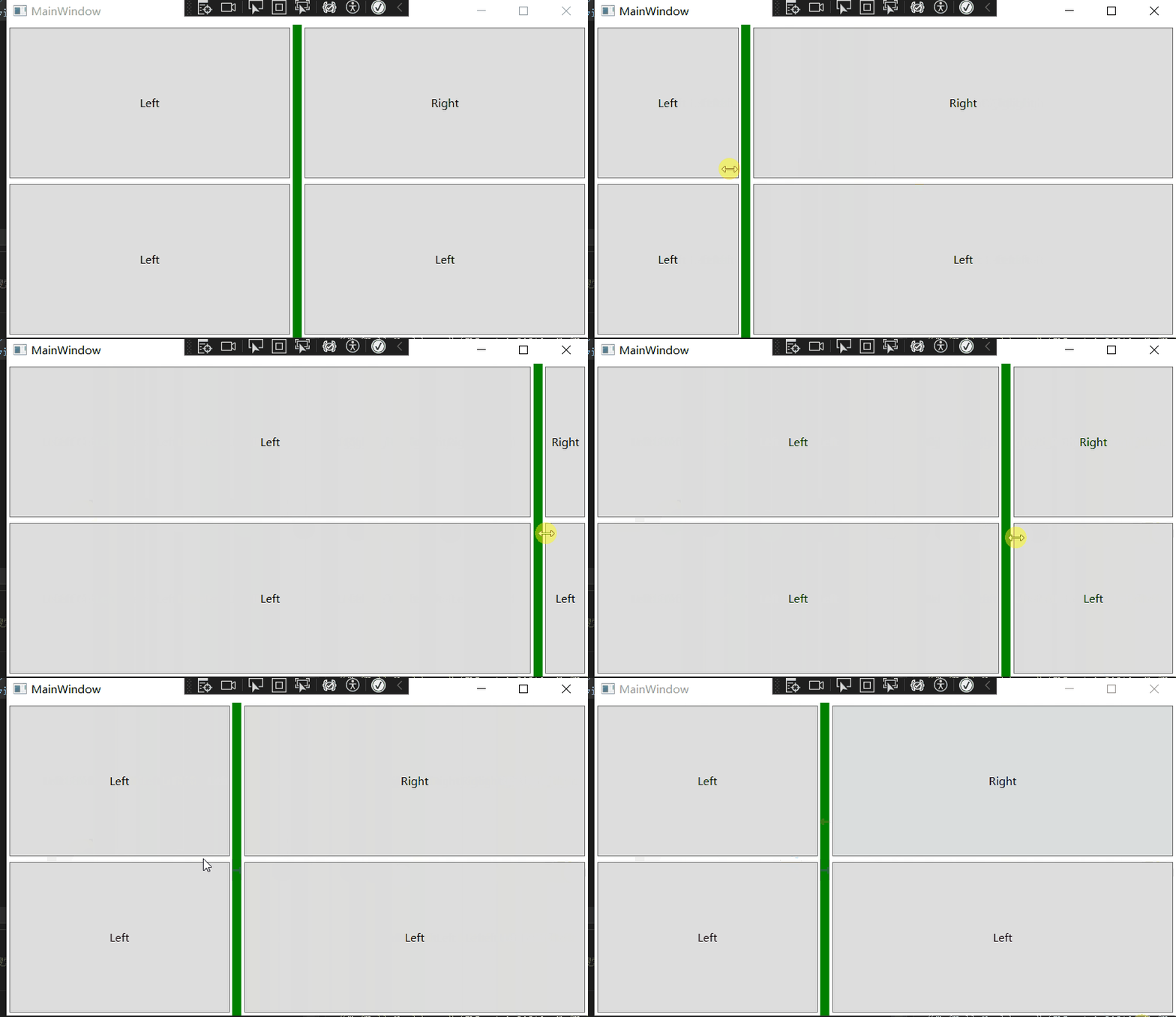
ShowsPreview=“True”
共享尺寸组
还有一种确定一行或一列尺寸的方法–与其他行或列的尺寸相匹配。共享尺寸的目标是保持用户界面独立部分的一致性。
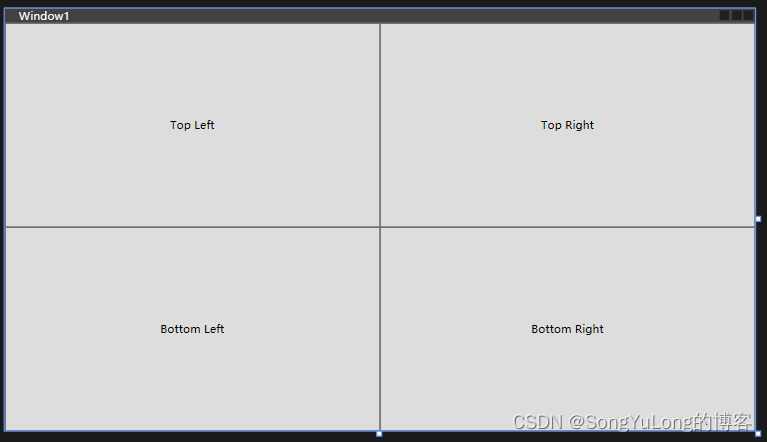
UniformGrid布局
<UniformGrid Rows="2" Columns="2"><Button>Top Left</Button><Button>Top Right</Button><Button>Bottom Left</Button><Button>Bottom Right</Button>
</UniformGrid>
Canvas布局
Canvas面板允许使用精确的坐标放置元素。可以构建如,为图形工具创建绘图表面。为在Canvas面板中定位元素,需要设置Canvas.Left和Canvas.Top附加属性(也可以设置Canvas.Right和 Canvas.Bottom附加属性)。
<Window x:Class="WpfHelloWorld.Window1"xmlns="http://schemas.microsoft.com/winfx/2006/xaml/presentation"xmlns:x="http://schemas.microsoft.com/winfx/2006/xaml"xmlns:d="http://schemas.microsoft.com/expression/blend/2008"xmlns:mc="http://schemas.openxmlformats.org/markup-compatibility/2006"xmlns:local="clr-namespace:WpfHelloWorld"mc:Ignorable="d"Title="Window1" Height="450" Width="800"><Canvas><Button Canvas.Left="10" Canvas.Top="10">(10,10)</Button><Button Canvas.Left="120" Canvas.Top="30">(120,30)</Button><Button Canvas.Left="60" Canvas.Top="80" Width="50" Height="50">(60,80)</Button><Button Canvas.Left="70" Canvas.Top="120" Width="100" Height="50">(70,120)</Button><Button Canvas.Right="200" Canvas.Bottom="200" Width="100" Height="100">(R200,B200)</Button></Canvas>
</Window>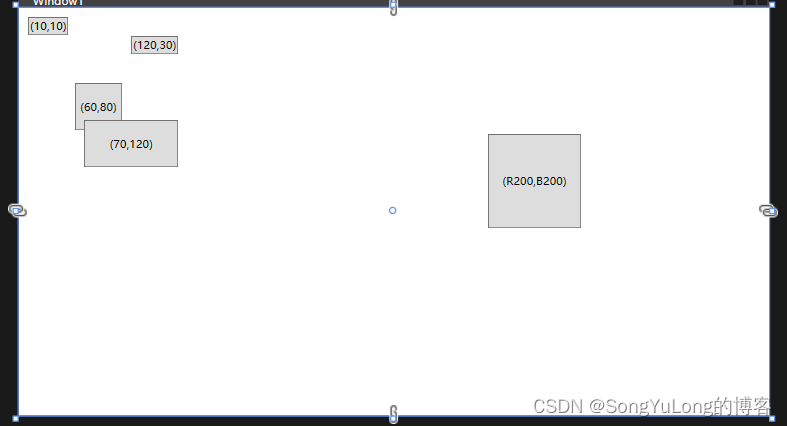
Z顺序:
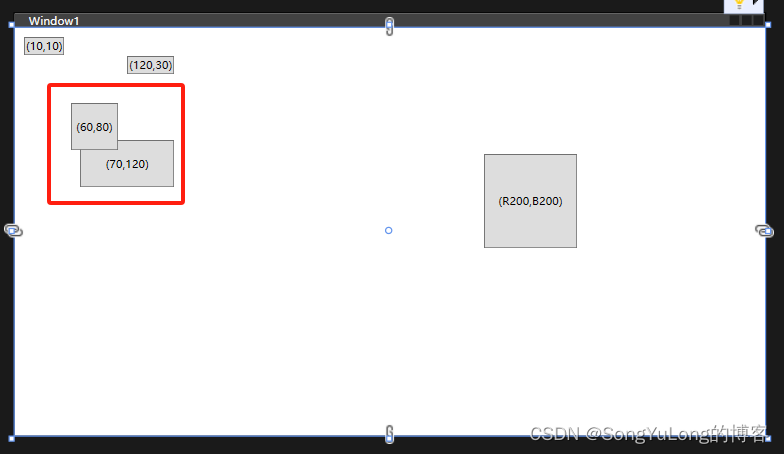
如果Canvas面板中有多个相互重叠的元素,可通过设置Canvas.ZIndex附加属性来控制它们的层叠方式。添加的元素通常默认具有相同的ZIndex值0。如果元素ZIndex值相同,就按他们在Canvas.Children集合中的顺序进行显示(依赖于元素在XAML标记中的定义顺序)。
代码调用Canvas.SetZIndex(val)方法,亦可设置新的ZIndex值。
<Button Canvas.Left="60" Canvas.Top="80" Canvas.ZIndex="1" Width="50" Height="50">(60,80)</Button>
InkCanvas布局
InkCanvas元素的主要目的是用于接收鼠标和手写笔输入。例如包含一幅图片的InkCanvas元素,可以通过鼠标或手写板进行涂鸦。
<Window x:Class="WpfHelloWorld.MainWindow"xmlns="http://schemas.microsoft.com/winfx/2006/xaml/presentation"xmlns:x="http://schemas.microsoft.com/winfx/2006/xaml"xmlns:d="http://schemas.microsoft.com/expression/blend/2008"xmlns:mc="http://schemas.openxmlformats.org/markup-compatibility/2006"xmlns:sys="clr-namespace:System;assembly=mscorlib"xmlns:local="clr-namespace:WpfHelloWorld"mc:Ignorable="d"Title="MainWindow" Height="600" Width="800"><InkCanvas Name="inkCanvas" Background="LightYellow" EditingMode="Ink"><Image Source="images/1.jpg" InkCanvas.Top="10" InkCanvas.Left="10" Width="500" Height="600"></Image></InkCanvas></Window>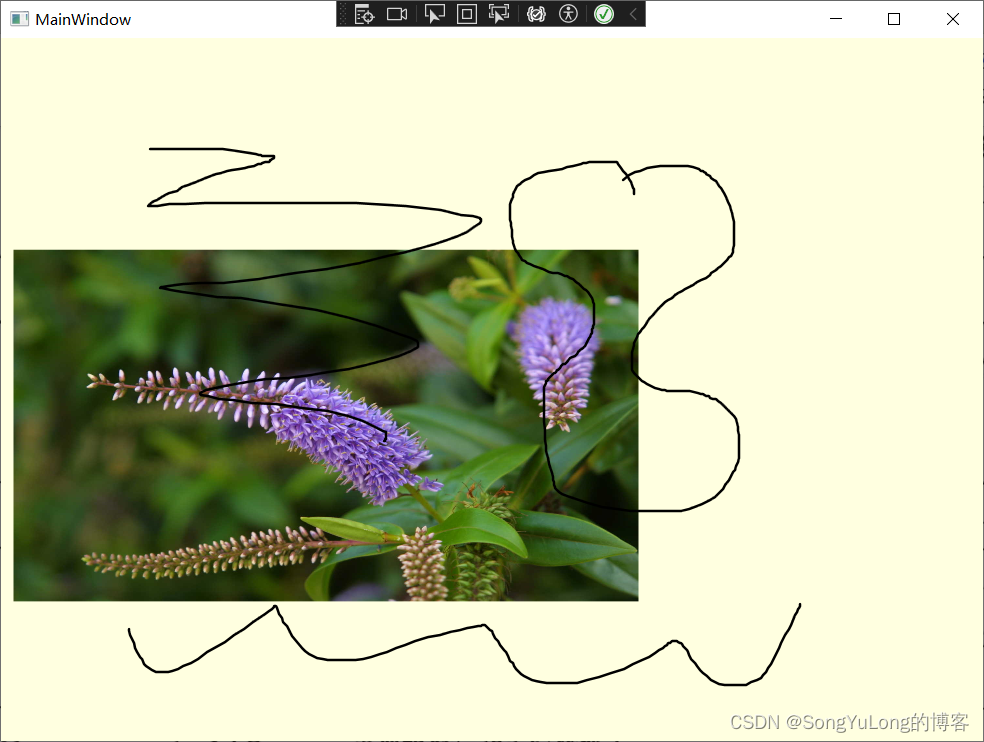
InkCanvasEditingMode枚举值
| 名称 | 说明 |
|---|---|
| Ink | InkCanvas元素允许用户绘制批注,默认。 |
| GestureOnly | InkCanvas元素不允许用户绘制画笔批注。但支持特定手势如,拖动。能识别的手势由System.Windos.Ink.ApplicationGesture枚举定义。 |
| InkAndGesture | 允许用户绘制画笔,也可也识别预定手势 |
| EraseByStroke | 当单击笔画时,InkCanvas元素会擦除画笔。 |
| EraseByPoint | 当单击笔画时,擦除笔画中被点击的部分(笔画上的一个点) |
| Select | 允许用户选择保存在Children集合中的元素。 |
| None | 忽略鼠标和手写板输入 |
相关文章:
C# WPF编程-布局
C# WPF编程-布局 布局WPF布局原则布局过程布局容器布局属性Border控件 常用布局StackPanel布局WrapPanel布局DockPanel布局Grid布局UniformGrid布局Canvas布局InkCanvas布局 布局 WPF布局原则 WPF窗口只能包含单个元素。为在WPF窗口中放置多个元素并创建更贴近实用的用户界面…...
上位机图像处理和嵌入式模块部署(qmacvisual点线测量)
【 声明:版权所有,欢迎转载,请勿用于商业用途。 联系信箱:feixiaoxing 163.com】 上面一篇文章,我们完成了直线的拟合操作。在实际场景中,拟合之后更多地是需要进行长度的测量。既然是测量,那么…...
yolov5训练并生成rknn模型部署在RK3588开发板上,实现NPU加速推理
简介 RK3588是瑞芯微(Rockchip)公司推出的一款高性能、低功耗的集成电路芯片。它采用了先进的28纳米工艺技术,并配备了八核心的ARM Cortex-A76和Cortex-A55处理器,以及ARM Mali-G76 GPU。该芯片支持多种接口和功能,适…...

SCI一区 | Matlab实现SSA-TCN-BiGRU-Attention麻雀算法优化时间卷积双向门控循环单元融合注意力机制多变量时间序列预测
SCI一区 | Matlab实现SSA-TCN-BiGRU-Attention麻雀算法优化时间卷积双向门控循环单元融合注意力机制多变量时间序列预测 目录 SCI一区 | Matlab实现SSA-TCN-BiGRU-Attention麻雀算法优化时间卷积双向门控循环单元融合注意力机制多变量时间序列预测预测效果基本介绍模型描述程序…...
javaSwing宿舍管理系统(三个角色)
一、 简介 宿舍管理系统是一个针对学校宿舍管理的软件系统,旨在方便学生、宿管和管理员进行宿舍信息管理、学生信息管理以及宿舍评比等操作。该系统使用 Java Swing 进行界面设计,分为三个角色:管理员、宿管和学生。 二、 功能模块 2.1 管…...
蓝桥杯day12刷题日记
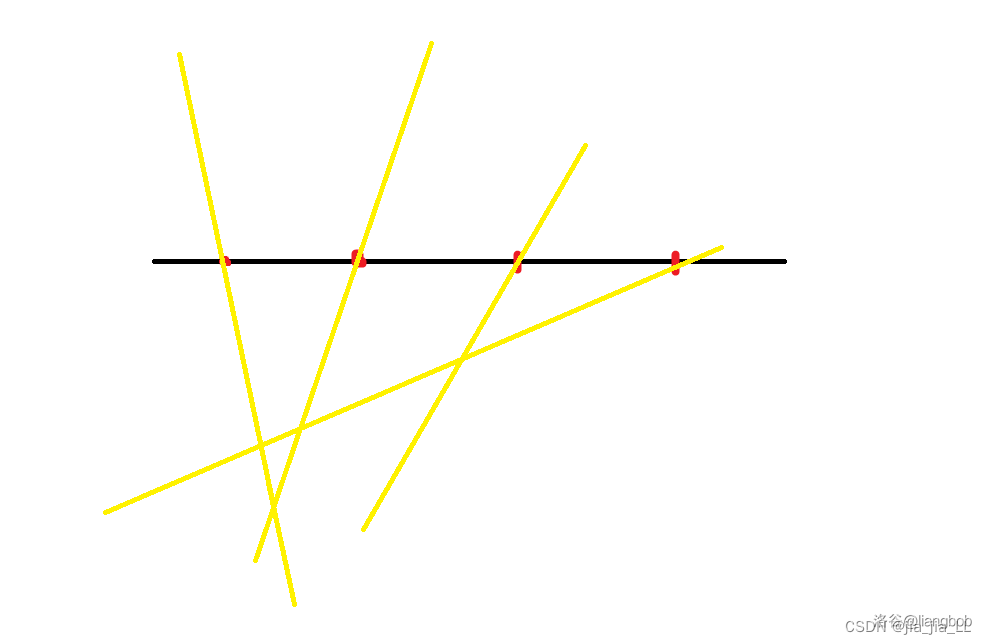
P8720 [蓝桥杯 2020 省 B2] 平面切分 思路:首先借用dalao的图解释一下,又多出一条与当前平面任意一条直线都不重合线时,多了的平面是交点数1,所以用双层循环每次往里面加一条直线,计算交点 #include <iostream>…...
深度学习pytorch——多分类问题(持续更新)
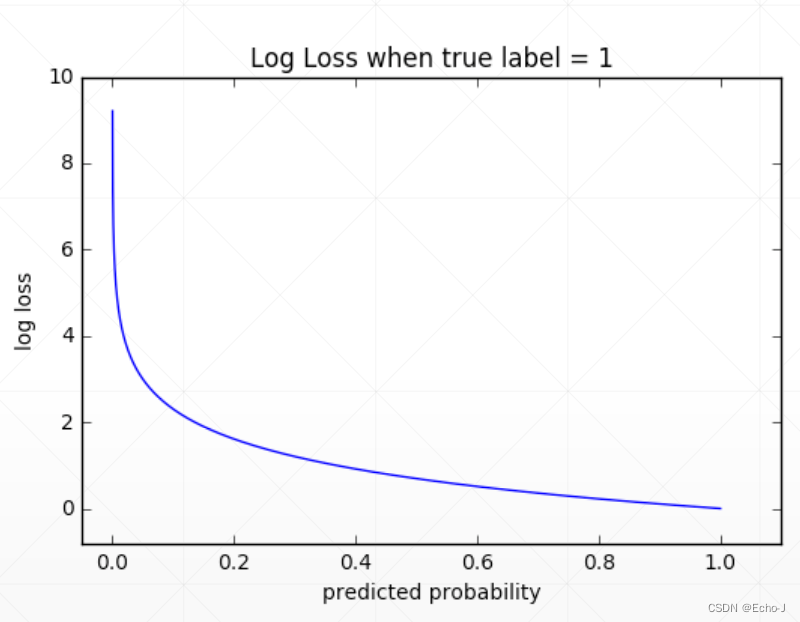
回归问题 vs 分类问题(regression vs classification) 回归问题(regression) 1、回归问题的目标是使预测值等于真实值,即predy。 2、求解回归问题的方法是使预测值和真实值的误差最小,即minimize dist(p…...
)
Flutter探索之旅:控制键盘可见性的神奇工具(flutter_keyboard_visibility)
随着移动应用的不断发展,用户体验的重要性愈发突显。而键盘的弹出和隐藏对于用户体验来说是至关重要的一环。在Flutter中,我们有幸拥有一个强大的工具——flutter_keyboard_visibility,它让我们能够轻松地监测键盘的可见性并做出相应的响应。…...
提升质量透明度,动力电池企业的数据驱动生产实践 | 数据要素 × 工业制造
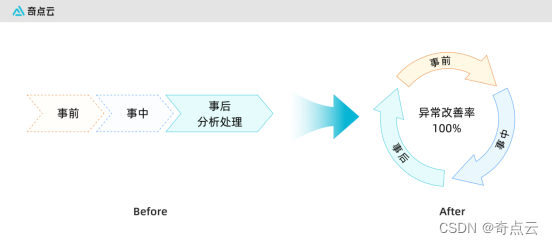
系列导读 如《“数据要素”三年行动计划(2024—2026年)》指出,工业制造是“数据要素”的关键领域之一。如何发挥海量数据资源、丰富应用场景等多重优势,以数据流引领技术流、资金流、人才流、物资流,对于制造企业而言…...

华为数通 HCIP-Datacom H12-831 题库补充
2024年 HCIP-Datacom(H12-831)最新题库,完整题库请扫描上方二维码,持续更新。 缺省情况下,PIM报文的IP协议号是以下哪一项? A:18 B:59 C:103 D:9 答案&a…...

tensorflow中显存分配
tensorflow中显存分配 问题:使用tensorflow-gpu训练模型,GPU的显存都是占满的。 # GPU 1的显存将占满 os.environ["CUDA_VISIBLE_DEVICES"] "1" 原因:默认情况下,tensorflow会把可用的显存全部占光&#…...
STM32--RC522学习记录
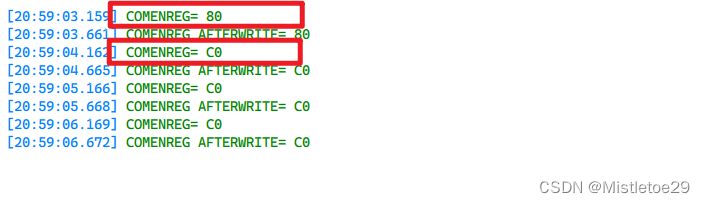
一,datasheet阅读记录 1.关于通信格式 2.读寄存器 u8 RC522_ReadReg(u8 address) {u8 addr address;u8 data0x00;addr((addr<<1)&0x7e)|0x80;//将最高位置一表示read,最后一位按照手册建议变为0Spi_Start();//选中从机SPI2_ReadWriteByte(ad…...

函数封装冒泡排序
大家好: 衷心希望各位点赞。 您的问题请留在评论区,我会及时回答。 一、冒泡排序 冒泡排序是最常见的一种排序算法,按照指定顺序比较相邻元素,如果顺序不同,就交换元素位置,每一趟比较,都会导致…...
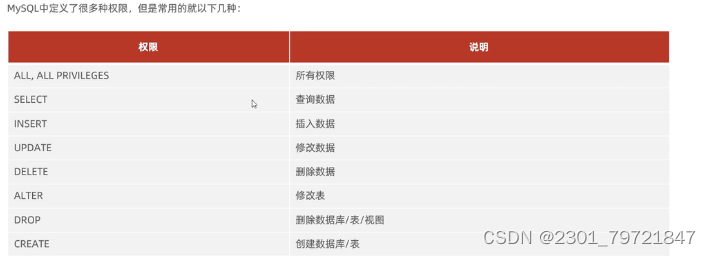
mysql基础学习
一、DML 介绍:DML(数据操作语言),用来对数据库中表的数据记录进行增删改操作。 1.添加数据 /*给指定字段添加数据*/ insert into user(id, name) values (1,小王); select *from user;/*查询该表的数据*/ /*给所有字段添数据*/ insert int…...

mybatisplus提示:Property ‘mapperLocations‘ was not specified.
1、问题概述? 在使用springboot整么mybatisPlus启动的使用提示信息: Property mapperLocations was not specified. 但是我确实写了相对应的配置: 【在pom文件中配置xml识别】 <resources><resource><directory>src/m…...
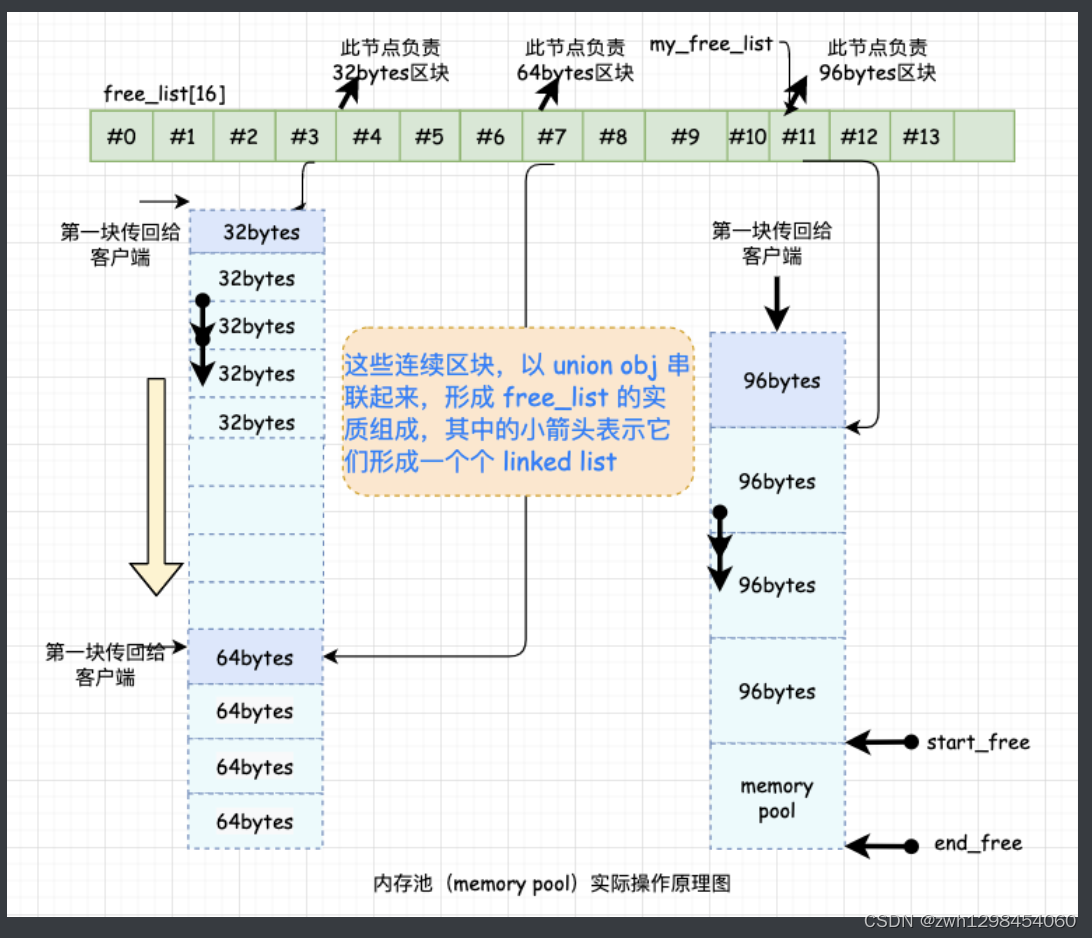
【STL源码剖析】【2、空间配置器——allocator】
文章目录 1、什么是空间配置器?1.1设计一个简单的空间配置器,JJ::allocator 2、具备次配置力( sub-allocation)的 SGI 空间配置器2.1 什么是次配置力2.2 SGI标准的空间配置器,std::allocator2.2 SGI特殊的空间配置器,std::alloc2.…...

机器人|逆运动学问题解决方法总结
如是我闻: 解决逆运动学(Inverse Kinematics, IK)问题的方法多样,各有特点。以下是一个综合概述: 1. 解析法(Analytical Solutions) 特点:直接使用数学公式计算关节角度࿰…...
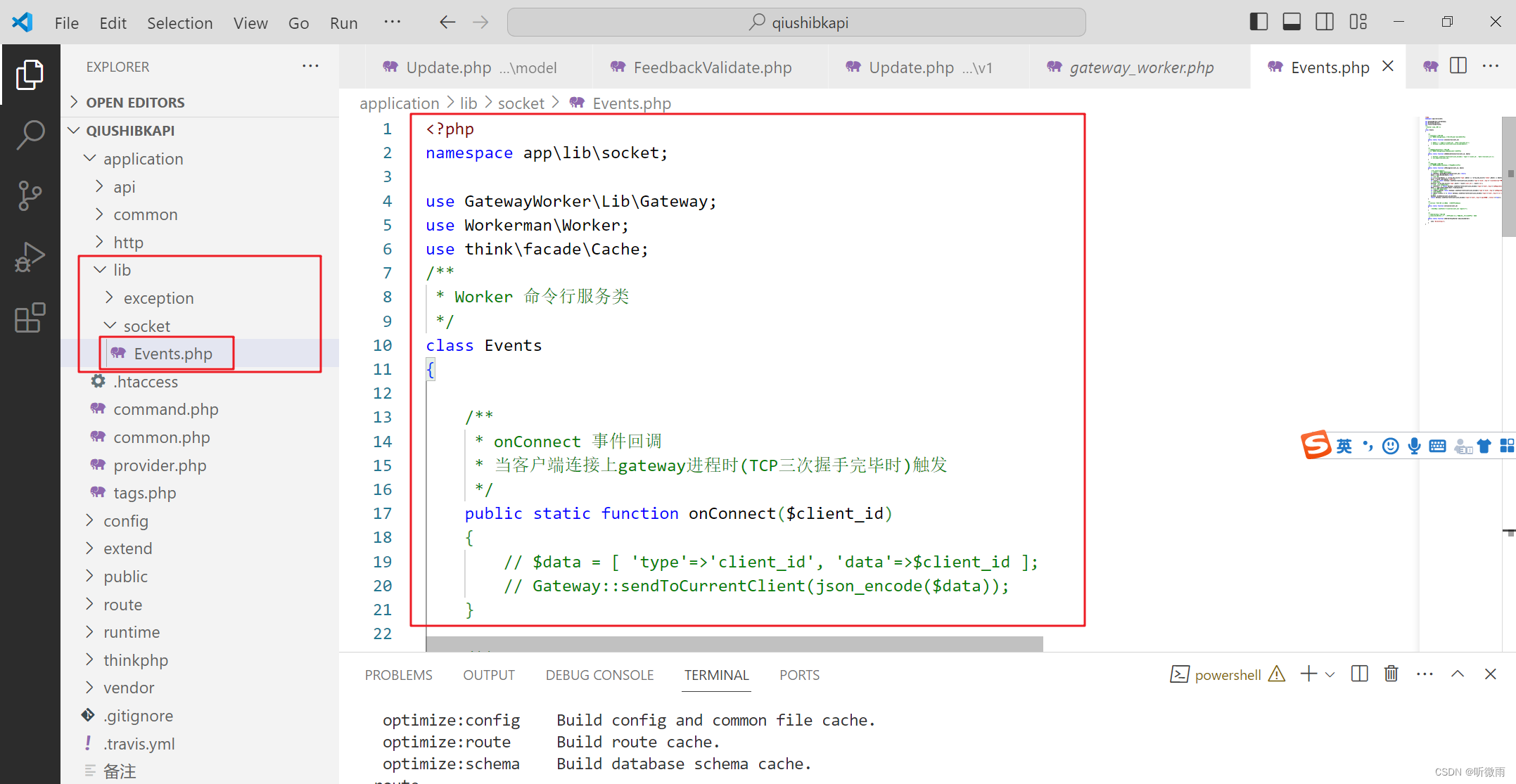
php搭建websocket
workerman文档:https://www.workerman.net/doc/gateway-worker/unbind-uid.html 1.项目终端执行命令:composer require topthink/think-worker 2.0.x 2.config多出三个配置文件: 3.当使用php think worker:gateway命令时,提示不…...

maven install报错原因揭秘:‘parent.relativePath‘指向错误的本地POM文件
哈喽,大家好,我是木头左! 今天我要和大家分享的是关于maven install时报错的一个常见原因:parent.relativePath’指向错误的本地POM文件。这个问题可能会影响到的开发效率,甚至导致项目构建失败。那么,该如…...
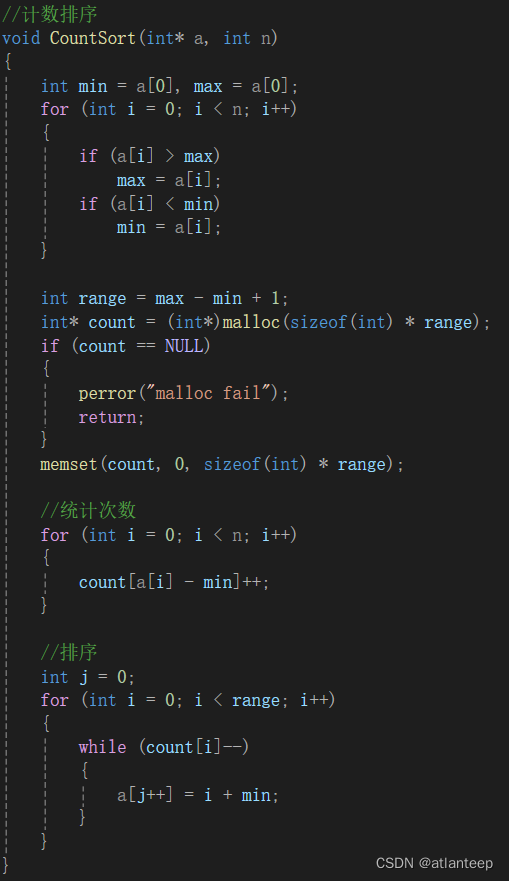
数据结构·排序
1. 排序的概念及运用 1.1 排序的概念 排序:排序是将一组“无序”的记录序列,按照某个或某些关键字的大小,递增或递减归零调整为“有序”的记录序列的操作 稳定性:假定在待排序的记录序列中,存在多个具有相同关键字的记…...

身份证OCR识别接口接入实战:Python/Java/PHP/C#四语言代码示例与踩坑指南
#身份证OCR, #OCR接口, #API接入, #Python示例, #Java示例, #PHP示例, #踩坑指南, #石榴智能, #实名认证, #图片识别 身份证OCR识别接口接入实战:Python/Java/PHP/C#四语言代码示例与踩坑指南 作者:石榴智能技术团队 一、前言 身份证OCR识别已经不是什…...
)
保姆级教程:在ROS2 Humble/Foxy的Gazebo中配置RGB-D相机(附解决点云颜色/坐标问题)
ROS2 Humble/Foxy中Gazebo深度相机仿真全攻略:从配置到点云问题解决在机器人仿真开发中,深度相机(RGB-D)是不可或缺的传感器之一。它能够同时提供彩色图像和深度信息,为SLAM、物体识别、避障等任务提供关键数据支持。本…...

Vulnhub-DC-1
1.信息收集 使用工具nmap扫描主机端口 这是Drupal是使用PHP语言编写的开源内容管理框架(CMF),它由内容管理系统(CMS)和PHP开发框架(Framework)共同构成 Web指纹扫描 发现是:drupal…...

FM3773 低功耗离线式恒流/恒压 PSR 控制器
概述 FM3773 是一种高性能的交流/直流用于电池充电器和适配器的电源控制器,内置 850V 功率三极管。该设备采用脉冲频率调制(PFM)的方法来建立非连续导通模式(DCM)反激式电源。 FM3773 提供精确的恒定电压,恒…...

【MySQL数据库 | 第一篇】 概述
数据库相关概念: 数据库(Database):数据库是指一组有组织的数据的集合,通过计算机程序进行管理和访问。数据库管理系统:操纵和管理数据库的大型软件SQL:操作关系型数据库的编程语言,定义了一套操作关系型数…...

Taotoken如何帮助教育科技产品实现个性化学习辅导
🚀 告别海外账号与网络限制!稳定直连全球优质大模型,限时半价接入中。 👉 点击领取海量免费额度 Taotoken如何帮助教育科技产品实现个性化学习辅导 1. 场景与挑战 教育科技公司在开发个性化学习助手时,常常面临一个核…...

十年以上经验的建站公司推荐|策划强、落地稳的网站制作公司盘点
互联网时代,企业官网已从单纯的信息展示窗口升级为集品牌价值传递、用户体验连接与业务高效转化于一体的核心数字阵地。行业报告显示,优质官网可帮助企业线上转化率提升35%-60%,而低效官网则可能导致潜在客户大量流失。面对市场上众多的网站建…...
)
在线文档协作工具选型必看:14款产品对比(2026版)
一、在线文档协作工具的概念解析及其核心功能 在线文档协作工具是基于云端的文档创建、编辑、共享与协同沟通平台,核心目标是让团队在同一份资料上“实时共同工作”,减少反复传文件、版本混乱与沟通成本。 企业常见的核心能力包括: 多人实…...
)
告别杂乱!用FileMenu Tools 8.4.2一键清理Windows 11右键菜单(附隐藏技巧)
Windows 11右键菜单精简指南:用FileMenu Tools打造高效工作流每次在文件上点击右键时,那个缓慢弹出的冗长菜单是否让你感到烦躁?随着安装的软件越来越多,Windows的右键菜单往往会变得臃肿不堪,严重影响工作效率。今天&…...

想深耕网络安全行业,这些必备条件缺一不可
网络空间的攻防对抗日益激烈,网络安全已成为企业生存和国家安全的命脉,它负责构筑数字世界的坚固防线,保护核心资产与用户隐私免受侵害。 想要成为一名优秀的网络安全专家,除了敏锐的安全意识和高度的责任感,更需要锤…...