
fastapp-微信开发GPT项目第一课
0. 开发说明
在学习开发本项目之前,必须保证有以下知识储备和环境工具。
| 技术栈 | 说明 |
|---|---|
| python>=3.9、pydantic>=2.7.1 | python基础,http协议 |
| fastapi>=0.111.0 | web协程异步框架,有web开发基础,异步编程,类型标注[python3.6提供的typing模块] |
| mysql>=8.0、Tortoise-ORM>=0.20.1 | mysql数据库相关 |
| redis>= 6.x | redis数据库相关 |
| 微信开发者工具、uni-app、HbuilderX编辑器 | 开发小程序项目的UI框架,有小程序开发基础 |
| vue>=3.x、vite | 前端web开发框架 |
| git | 代码版本管理工具 |
| docker、docker-compose | 镜像与容器基本操作 |
1. 项目构建
1.1 服务端构建
手动创建工程目录,路径不要使用中文或者特殊符号。
fastchat
创建虚拟环境,终端下执行命令如下:
conda create -n fastchat python=3.10
安装完成以后,需要激活当前虚拟环境[切换python解释器],终端执行如下命令:
conda activate fastchat
1.1.1 依赖安装
pip install -U python-dotenv -i https://pypi.tuna.tsinghua.edu.cn/simple
pip install -U fastapi -i https://pypi.tuna.tsinghua.edu.cn/simple
pip install -U uvicorn[standard] -i https://pypi.tuna.tsinghua.edu.cn/simple
pip install -U tortoise-orm[aiomysql] -i https://pypi.tuna.tsinghua.edu.cn/simple
pip install -U cryptography -i https://pypi.tuna.tsinghua.edu.cn/simple
1.1.2 项目目录
工程目录尽量和虚拟环境的名称保持一致,pycharm一般都可以自动识别。如果pycharm不能自动识别,则点击编辑器右下角选择自定义解释器即可。
fastchat/ # 工程目录
├─api/    # api服务端-基于fastAPI框架
│  ├─application/   # 项目代码存储目录
│  │  └─__init__.py  # 项目初始化文件【创建App应用对象的函数,各种模块初始化】
│  └─main.py # 服务端程序入口
api/main.py,代码:
import os
import uvicorn
from application import create_app, FastAPIapp: FastAPI = create_app()@app.get('/api')
async def api() -> dict:"""测试接口:return:"""return {'title': 'api测试接口'}if __name__ == '__main__':uvicorn.run('main:app',host='0.0.0.0',port=8000,reload=True)
api/application/__init__.py,代码:
from fastapi import FastAPIdef create_app() -> FastAPI:"""创建web应用对象"""app: FastAPI = FastAPI()return app通过api/main.py启动api服务端项目,访问地址:http://127.0.0.1:8000/api,效果如下:

1.1.3 项目配置
在原目录结构基础上增加settings.py与.env、.gitignore,效果如下:
fastchat/ # 工程目录
├─api/    # api服务端-基于fastAPI框架
│  ├─application # 项目代码存储目录
│  │  ├─settings.py # 项目配置文件
│  │  └─__init__.py  # 项目初始化文件【创建App应用对象的函数,各种模块初始化】
│  ├─.env       # 环境配置文件[被settings.py加载],不会被git记录
│  └─main.py # 服务端程序入口
└─.gitignore   # git忽略文件配置
api/.env,代码:
# -------- 常规配置 --------
APP_ENV=dev        # 当前开发环境
APP_NAME=fastchat  # 应用默认名称
APP_PORT=8000      # web服务器监听端口
APP_HOST=0.0.0.0   # web服务器监听地址,0.0.0.0表示监听任意指向当前服务器的地址
APP_VERSION=v0.0.1 # 项目版本
APP_DEBUG=true     # 调试模式,true表示开启
APP_TIMEZONE=Asia/Shanghai  # 时区
.gitignore,代码:
.env
.idea
__pycache__
api/application/__init__.py,代码:
from fastapi import FastAPI
from dotenv import load_dotenvdef create_app() -> FastAPI:"""创建web应用对象"""app: FastAPI = FastAPI()# 加载.env文件中的环境变量load_dotenv()return app
api/main.py,代码:
import os
import uvicorn
from application import create_app, FastAPIapp: FastAPI = create_app()@app.get('/api')
async def api() -> dict:"""测试接口:return:"""return {'title': f'{os.environ.get("APP_NAME")}测试接口'}if __name__ == '__main__':uvicorn.run('main:app',host=os.environ.get('APP_HOST'),port=int(os.environ.get('APP_PORT')),reload=True)
重启项目,如果项目运行正常,并刷新浏览器后效果如下,则表示配置正确:

1.1.3.1 数据库配置
在终端下创建数据库,执行命令如下:
# 先进入数据库交互终端
mysql -uroot -p
# 执行数据库创建语句
create database fastchat;
# 创建管理账户,格式:CREATE USER '用户名'@'允许账号连接的主机地址' IDENTIFIED BY '密码';
CREATE USER 'fastchat'@'%' IDENTIFIED BY 'fastchat';
# 给新账户分配管理数据库的权限,格式:GRANT 管理权限 ON 数据库名.数据表名 TO '用户名'@'允许账号连接的主机地址';
GRANT ALL PRIVILEGES ON fastchat.* TO 'fastchat'@'%';
执行效果如下:

api/.env,环境配置中新增配置项,代码如下:
# -------- 数据库配置 --------
DB_HOST=127.0.0.1    # 数据库地址
DB_PORT=3306           # 数据库端口
DB_USER=fastchat      # 用户名
DB_PASSWORD=fastchat   # 密码
DB_DATABASE=fastchat     # 数据库名
DB_CHARSET=utf8mb4      # 连接编码
DB_POOL_MINSIZE=10      # 连接池中的最小连接数
DB_POOL_MAXSIZE=30     # 连接池中的最大连接数
手动创建配置文件api/application/settings.py,编写tortoise-orm的配置信息,代码:
import os
"""tortoise-orm数据库配置"""
TORTOISE_ORM = {"connections": {"default": {'engine': 'tortoise.backends.mysql',  # MySQL or Mariadb'credentials': {  # 连接参数'host': os.environ.get('DB_HOST', '127.0.0.1'),  # 数据库IP/域名地址'port': int(os.environ.get('DB_PORT', 3306)),  # 端口'user': os.environ.get('DB_USER', 'root'),  # 连接账户'password': os.environ.get('DB_PASSWORD', '123'),  # 连接密码'database': os.environ.get('DB_DATABASE', 'fastchat'),  # 数据库'charset': os.environ.get('DB_CHARSET', 'utf8mb4'),  # 编码'minsize': int(os.environ.get('DB_POOL_MINSIZE', 1)),  # 连接池中的最小连接数'maxsize': int(os.environ.get('DB_POOL_MAXSIZE', 5)),  # 连接池中的最大连接数"echo": bool(os.environ.get('DEBUG', True))  # 执行数据库操作时,是否打印SQL语句}}},'apps': {  # 默认所在的应用目录'models': {  # 数据模型的分组名'models': [],  # 模型所在目录文件的导包路径[字符串格式]'default_connection': 'default',  # 上一行配置中的模型列表的默认连接配置}},# 时区设置# 当use_tz=True,当前tortoise-orm会默认使用当前程序所在操作系统的时区,# 当use_tz=False时,当前tortoise-orm会默认使用timezone配置项中的时区'use_tz': False,'timezone': os.environ.get('APP_TIMEZONE', 'Asia/Shanghai')
}注册Tortoise-ORM到FastAPI应用对象中。api/application/__init__.py,代码:
from fastapi import FastAPI
from dotenv import load_dotenv
from tortoise.contrib.fastapi import register_tortoise
from . import settingsdef create_app() -> FastAPI:"""创建web应用对象"""app: FastAPI = FastAPI()# 加载.env文件中的环境变量load_dotenv()# 把Tortoise-orm注册到App应用对象中register_tortoise(app,config=settings.TORTOISE_ORM,generate_schemas=False, # 是否自动生成表结构add_exception_handlers=True, # 是否启用自动异常处理)return app完成上面的配置以后,因为tortoise-orm默认并没有连接数据库,因此我们需要编写一个数据表模型进行数据库连接操作以测试连接配置是否正确,不过这块我们先放一放,因为项目开发过程中有可能数据库需要保存很多数据,自然也就需要创建对应很多的数据表模型,而不同的数据对应的功能业务是不同的,因此我们需要分开写在不同的文件或者目录下,所以我们得先配置应用分组,不同的功能分属于不同的应用下,每一个应用都属于自己的数据表模型、api视图接口、路由数据等。
1.1.3.2 应用分组
首先创建分组应用存储目录apps,并在apps目录下先创建2个应用分组目录,分别是common公共数据应用分组与users用户数据应用分组,目录结构如下:
fastchat/ # 工程目录
├─api/    # api服务端-基于fastAPI框架
│  ├─application # 项目代码存储目录
│  │  ├─apps/     # 分组应用存储目录
│  │  │  ├─__init__.py
│  │  │  ├─common/        # 公共数据的应用分组
│  │  │  │  ├─models.py   # 表模型文件
│  │  │  │  ├─views.py      # api视图接口文件
│  │  │  │  └─scheams.py # 请求与响应数据模型文件
│  │  │  └─users/              # 用户数据的应用分组
│  │  │      ├─models.py   # 表模型文件
│  │  │      ├─views.py      # api视图接口文件
│  │  │      └─scheams.py # 请求与响应数据模型文件
│  │  ├─settings.py # 项目配置文件
│  │  └─__init__.py  # 项目初始化文件【创建App应用对象的函数,各种模块初始化】
│  ├─.env       # 环境配置[被settings.py加载],不会被git记录
│  └─main.py # 服务端程序入口
└─.gitignore   # git忽略文件配置
接下来,我们可以把最初编写在入口程序的测试api视图接口,转移到common应用分组目录下的views.py接口视图文件中,api/application/apps/common/views.py,代码:
import os
from fastapi import APIRouterapp = APIRouter()@app.get('/api')
async def api() -> dict:"""测试接口:return:"""return {'title': f'{os.environ.get("APP_NAME")}测试接口'}入口程序文件api/main.py中不再编写api视图接口,代码:
import os
import uvicorn
from application import create_app, FastAPIapp: FastAPI = create_app()# @app.get('/api')
# async def api() -> dict:
#     """
#     测试接口
#     :return:
#     """
#     return {'title': f'{os.environ.get("APP_NAME")}测试接口'}if __name__ == '__main__':uvicorn.run('main:app',host=os.environ.get('APP_HOST'),port=int(os.environ.get('APP_PORT')),reload=True)
因为common应用分组是我们自定义的目录,所以FastAPI默认是不识别的,所以需要手动把应用分组下的路由注册到App应用对象中,api/application/__init__.py,代码:
from fastapi import FastAPI
from dotenv import load_dotenv
from tortoise.contrib.fastapi import register_tortoise
from . import settings
from .apps.common.views import app as common_appdef create_app() -> FastAPI:"""创建web应用对象"""app: FastAPI = FastAPI()# 加载.env文件中的环境变量load_dotenv()# 把Tortoise-orm注册到App应用对象中register_tortoise(app,config=settings.TORTOISE_ORM,generate_schemas=False,  # 是否自动生成表结构add_exception_handlers=True,  # 是否启用自动异常处理)# 注册各个应用分组下的路由信息,合并到App应用对象app.include_router(common_app, prefix='')return app
再次重启api服务端项目,访问http://127.0.0.1:8000/api,输出内容依旧则表示配置成功。
接下来,我们就可以在users分组应用中创建属于用户相关的数据表模型了,api/application/apps/users/models.py,代码:
from tortoise import models, fieldsclass User(models.Model):# 字段列表id = fields.IntField(pk=True, description='主键')username = fields.CharField(max_length=255, unique=True, description='账号')nickname = fields.CharField(max_length=255, index=True, description='昵称')password = fields.CharField(max_length=255, description='密码')openid = fields.CharField(max_length=255, unique=True, description='OpenID')mobile = fields.CharField(max_length=15, index=True, description='手机')avatar = fields.CharField(max_length=500, null=True, description='头像')country = fields.CharField(max_length=255, null=True, description='国家')province = fields.CharField(max_length=255, null=True, description='省份')city = fields.CharField(max_length=255, null=True, description='城市')sex = fields.BooleanField(default=True, null=True, description='性别')created_time = fields.DatetimeField(auto_now_add=True, description='创建时间')updated_time = fields.DatetimeField(auto_now=True, description="更新时间")deleted_time = fields.DatetimeField(null=True, description="删除时间")# 元数据class Meta:table = "user_info"description = "用户信息"def __repr__(self):return f"User (id={self.id}, username={self.username})"__str__ = __repr__完成模型创建以后,接下来只需要在api/application/settings.py中把当前新增模型的路径添加到models配置项中,代码:
import os
"""tortoise-orm数据库配置"""
DEBUG = os.environ.get('DEBUG', True)TORTOISE_ORM = {"connections": {.....},'apps': {  # 默认所在的应用目录'models': {  # 数据模型的分组名'models': ['application.apps.users.models'],  # 模型所在目录文件的导包路径[字符串格式],从main.py所在路径开始编写'default_connection': 'default',  # 上一行配置中的模型列表的默认连接配置}},.....
}注册模型到tortoise-orm中以后,在api/application/__init__.py初始化文件中,把generate_schemas的值改为True,让tortoise-orm自动根据模型建表。api/application/__init__.py,代码如下:
from fastapi import FastAPI
from dotenv import load_dotenv
from tortoise.contrib.fastapi import register_tortoise
from . import settings
from .apps.common.views import app as common_appdef create_app() -> FastAPI:"""创建web应用对象"""app: FastAPI = FastAPI()# 加载.env文件中的环境变量load_dotenv()# 把Tortoise-orm注册到App应用对象中register_tortoise(app,config=settings.TORTOISE_ORM,generate_schemas=True,  # 是否自动生成表结构add_exception_handlers=True,  # 是否启用自动异常处理)# 注册各个应用分组下的路由信息,合并到App应用对象app.include_router(common_app, prefix='')return app
OK,重启项目,查看终端如果正常启动,则表示上面的所有操作正确。继续登陆MySQL数据库,查看是否建表成功,效果如下:

建表成功表示tortoise-orm配置正确,接下来,我们可以考虑使用数据迁移来管理数据表模型与MySQL数据表的修改记录对应关系。所以先鼠标右键删除数据库中新建的user_info数据表,并在api/application/__init__.py初始化文件中,把generate_schemas的值改为False,操作与代码如下:

1.1.3.3 数据迁移
对Tortoise-ORM使用数据迁移根据模型创建数据表会更加友好更加方便,安装aerich数据迁移工具,执行命令如下:
pip install -U aerich -i https://pypi.tuna.tsinghua.edu.cn/simple
把aerich注册到Tortoise-ORM中,api/application/settings.py,代码:
# TORTOISE ORM的数据库连接配置
TORTOISE_ORM = {....'apps': {  # 默认所在的应用目录'models': {  # 数据模型的分组名'models': ['application.apps.users.models', 'aerich.models'],  # 模型所在目录文件的导包路径[字符串格式]'default_connection': 'default',  # 上一行配置中的模型列表的默认连接配置}},...
}
使用aerich进行迁移初始化,打开终端,执行命令如下:
cd api/
aerich init -t application.settings.TORTOISE_ORM
生成数据迁移文件,终端命令执行如下:
aerich init-db
操作效果如下:

1.1.3.4 日志配置
api/application/utils/log.py,代码:
import logging
from logging import handlers, Loggerdef getLogger(name: str='root') -> Logger:"""获取日志器对象:param name: 日期器名字,默认为root:return: 日志器对象"""# 1、创建一个logger日期器对象logger: Logger = logging.getLogger(name)# 2、设置下logger的日志的等级logger.setLevel(logging.DEBUG)if not logger.handlers:# 3、创建合适的Handler(FileHandler要有保存路径)th: logging.StreamHandler = logging.StreamHandler()  # 终端处理器rf: handlers.RotatingFileHandler = handlers.RotatingFileHandler(  # 按文件大小分割日志filename=f"log/{name}.log", # 日志文件名,日志目录log需要手动创建mode='a',  # a=append 追加写入maxBytes=300*1024*1024,  # 单个日志文件大小的最大值backupCount=10,  # 备份日志文件的数量,所有日志数量 = backupCount+filenameencoding='utf-8' # 日志文件内容的编码)# 4、设置下每个Handler的日志等级【Handler的日志等级会覆盖上面logger的日志的等级】th.setLevel(logging.DEBUG)rf.setLevel(logging.INFO)# 5、创建下日志的格式器对象formattersimple_formatter: logging.Formatter = logging.Formatter(fmt="{levelname} {asctime} {pathname}:{lineno} {message}",style="{")verbose_formatter: logging.Formatter = logging.Formatter(fmt="【{name}】{levelname} {asctime} {pathname}:{lineno} {message}",datefmt="%Y-%m-%d %H:%M:%S",style="{")# 6、向Handler中添加上面创建的格式器对象th.setFormatter(simple_formatter)rf.setFormatter(verbose_formatter)# 7、将上面创建的Handler处理器添加到logger日志器中logger.addHandler(th)logger.addHandler(rf)return loggerif __name__ == '__main__':# 8. 调用日志器对象logger打印输出日志logger = getLogger('dl')logger.info("这里是常规运行日志")logger.debug("开发人员在调试程序时自己手动打印的日志")logger.warning("这里是程序遇到未来会废弃的函数/方法时,输出的警告日志")logger.error("这里是程序发生错误时输出的日志")logger.critical("这是致命级别的日志,需要紧急修复的")# 多次调用实例化出来的日志对象,如果name相同,则得到的是同一个日志器对象(单例模式)logger1 = getLogger('dl')print(id(logger1), id(logger))
api/application/utils/middleware.py,代码:
import os, time
from .log import getLoggerasync def log_requests(request, call_next):"""日志中间件"""logger = getLogger(os.environ.get('APP_NAME'))start_time = time.time()response = await call_next(request)process_time = (time.time() - start_time) * 1000formatted_process_time = '{0:.2f}'.format(process_time)logger.info(f"path={request.url.path} timer={formatted_process_time}ms status_code={response.status_code}")return response
注册中间件到App应用对象,代码:
from fastapi import FastAPI
from dotenv import load_dotenv
from tortoise.contrib.fastapi import register_tortoise
from . import settings
from .apps.common.views import app as common_app
from .utils import middlewaredef create_app() -> FastAPI:"""创建web应用对象"""app: FastAPI = FastAPI()# 加载.env文件中的环境变量load_dotenv()# 把Tortoise-orm注册到App应用对象中register_tortoise(app,config=settings.TORTOISE_ORM,generate_schemas=False,  # 是否自动生成表结构add_exception_handlers=True,  # 是否启用自动异常处理)# 注册各个应用分组下的路由信息,合并到App应用对象app.include_router(common_app, prefix='')# 注册中间件函数http_middleware = app.middleware('http')http_middleware(middleware.log_requests)return app
1.1.3.5 异常处理
1.定义四个文件,exception.py(全局处理), main.py(主程序文件), user/user.py(业务模块), user/exception.py(用户模块自己的错误处理)2.exception.py文件
# from fastapi.exceptions import HTTPException
from starlette.exceptions import HTTPException  # 官方推荐注册异常处理器时,应该注册到来自 Starlette 的 HTTPException
from fastapi.exceptions import RequestValidationError
from fastapi.responses import JSONResponse# 全局异常
async def global_exception_handler(request, exc):if exc.status_code == 500:err_msg = 'Server Internal Error'else:err_msg = exc.detailreturn JSONResponse({'code': exc.status_code,'err_msg': err_msg,'status': 'Failed'})# 请求数据无效时的错误处理
"""
example: http://127.0.0.1/user/{user_id}
success: http://127.0.0.1/user/1
failed: http://127.0.0.1/user/d
"""
async def validate_exception_handler(request, exc):err = exc.errors()[0]return JSONResponse({'code': 400,'err_msg': err['msg'],'status': 'Failed'})golbal_exception_handlers = {HTTPException: global_exception_handler,RequestValidationError: validate_exception_handler
}class BaseAPIException(HTTPException):status_code = 400detail = 'api error'def __init__(self, detail: str = None, status_code: int = None):self.detail = detail or self.detailself.status_code = status_code or self.status_code3.定义user/exception.py
from exception import BaseAPIExceptionclass UserDoesNotExistsException(BaseAPIException):status_code = 10000detail = 'user does not exists'4.定义uers/user.py
from fastapi.routing import APIRouterfrom .exception import UserDoesNotExistsExceptionrouter_user = APIRouter(prefix='/user', tags=['用户模块'])@router_user.get("/{user_id}")
async def get_id_by_user(user_id: int):if user_id != 1:# 这里使用我们自定义的用户错误处理# 返回的统一响应格式{"code":10000,"err_msg":"user does not exists","status":"Failed"}raise UserDoesNotExistsExceptionreturn {"user_id": user_id}5.定义main.py
from fastapi import FastAPI
from exception import golbal_exception_handlers
from user.user import router_userapp = FastAPI(debug=True, exception_handlers=golbal_exception_handlers)app.include_router(router_user, prefix='/api/v1')if __name__ == '__main__':import uvicornuvicorn.run(app='main:app', host='0.0.0.0', port=9002, reload=True)6.响应
# example: http://127.0.0.1:9002/api/v1/user/2
{"code":10000,"err_msg":"user does not exists","status":"Failed"}
# example: http://127.0.0.1:9002/api/v1/user/d
{"code":400,"err_msg":"value is not a valid integer","status":"Failed"}
1.2 客户端构建
启动hbuilderX编辑器,点击文件→新建(N)→1.项目

选择uni-app类型,输入项目名称,选择模板,点击创建(N),即可成功创建uni-app项目。这里我的项目名称:uniapp。

1.2.1 运行项目
使用快捷键Ctrl+Alt+,打开设置窗口→运行设置→小程序运行设置,填写微信开发者工具路径。

注意:如果没有安装,点击蓝色链接去下载安装,并在安装完成以后启动微信开发者工具,进入设置窗口→安全,把服务端端口和自动化接口…信任项目等配置项打开如下:

小程序配置中,可以直接使用测试AppID也可以使用真实账户的AppID,设置→基本设置→账号信息:

进入uniapp项目,点击工具栏的运行 -> 运行到小程序模拟器 -> 微信开发者工具:
1.2.2 目录结构
fastchat/
├─
├─api/    # 服务端-基于fastAPI框架
│  └── main.py # 服务端程序入口
└─uniapp/├─unpackage          编译结果存储目录 (一般存放运行或发行的编译结果)├─pages/                代码文件存储目录 │   ├─index/│   │  └─index.vue      对话页面│   └─login/│        └─login.vue      登陆页面├─static/                 静态资源(如图片、视频等)的存储目录├─App.vue               应用配置,用来配置App全局样式以及监听、应用生命周期├─index.html           程序入口├─main.js                 Vue初始化入口文件├─manifest.json       配置应用名称、appid、logo、版本等打包信息├─pages.json           配置页面路由、导航条、选项卡等页面类信息└─uni.scss              内置的常用样式变量
pages.json ,配置页面路径和基本样式效果:
{"pages": [ //pages数组中第一项表示应用启动页,参考:https://uniapp.dcloud.io/collocation/pages{"path": "pages/index/index","style": {"navigationBarTitleText": "Chat"}},{"path" : "pages/login/login","style" : {"navigationBarTitleText" : "login"}}],"window": {"navigationBarBackgroundColor": "#ff00ff","navigationBarTextStyle": "black","navigationBarTitleText": "Chat"},"globalStyle": {"navigationBarTextStyle": "black","navigationBarTitleText": "Chat","navigationBarBackgroundColor": "#F8F8F8","backgroundColor": "#F8F8F8"},"uniIdRouter": {}
}
1.2.3 界面效果
1.2.3.1 登陆页面
uniapp/pages/login/login.vue,代码:
<template><view class="content">    <view class="loginBox"><h3 style="text-align: center;margin-bottom:120rpx;">欢迎登录</h3><view class="inputBox"><view class="ipt"><uni-icons type="contact" size="24" color="rgb(66,157,250)"></uni-icons><input type="text" value="" placeholder="请输入账号"/></view><view class="ipt"><uni-icons type="eye" size="24" color="rgb(66,157,250)"></uni-icons><input type="passsword" value="" placeholder="请输入密码"/></view><view class="ipt"><uni-icons type="checkmarkempty" size="24" color="rgb(66,157,250)"></uni-icons><input type="text" value="" placeholder="请输入验证码"/><view class="yzm">验证码</view></view><button class="login-btn">登录</button></view><view class="tipbox"><view class="txt"> —— 其他账号登录 —— </view><view class="otherUser"><button><uni-icons type="qq" size="40" color="rgb(66,157,250)"></uni-icons></button><button open-type="getUserInfo" @getuserinfo="wxLogin"><uni-icons type="weixin" size="40" color="rgb(2,187,17)"></uni-icons></button></view></view></view></view>
</template><script setup></script><style scoped>svg {position: absolute;bottom: 0;left: 0;width: 100%;height:40%;box-sizing: border-box;display: block;background-color: #ffffff;}.loginBox{position: absolute;top: 50%;left: 50%;transform: translate(-50%,-60%);width: 90%;border-radius: 20rpx;padding: 60rpx;box-sizing: border-box;}h3{color:rgb(66,157,250);font-size: 40rpx;letter-spacing: 10rpx;margin-bottom: 40rpx;}.inputBox{}.ipt{height: 86rpx;display: flex;justify-content: flex-start;align-items: center;margin-bottom: 40rpx;background-color: #f5f5f5;border-radius: 10rpx;padding-left: 10rpx;}.ipt input{margin-left: 20rpx;font-size: 28rpx;}.ipt input{margin-left: 20rpx;}.forgetPwd{margin-top: 30rpx;font-size: 26rpx;color: #b5b5b5;text-align: end;padding:0 10rpx;display: flex;justify-content: space-between;}.login-btn{margin-top: 20rpx;line-height: 85rpx;text-align: center;background: rgb(66,157,250);border-radius: 40rpx;color: #fff;margin-top: 40rpx;}.tip{text-align: center;font-size: 28rpx;position: fixed;bottom: 50rpx;left: 50%;transform: translate(-50%,-50%);color: #f4f4f4;}.tipbox {text-align: center;margin-top: 100rpx;}.otherUser {margin-top: 30rpx;display: flex;justify-content: center;}.otherUser button{margin: 0 10px;padding: 0;height: 42px;line-height: 42px;background: transparent;border: 1px solid transparent;outline: none;}.txt {font-size: 28rpx;color: #cbcbcb;}.otherUser .uni-icons {margin-left: 20rpx;}.yzm{text-align: end;font-size: 24rpx;background: rgb(66,157,250);height: 60rpx;width: 150rpx;line-height: 60rpx;text-align: center;border-radius: 10rpx;color: #fff;}
</style>
展示效果如下:

1.2.3.2 聊天页面
uniapp/pages/index/index.vue,代码:
<template>
<view class="page-layout"><view class="page-body" id="x_chat"><view :key="index" v-for="(message, index) in messages"><view class="chat-item-body"><view class="chat-item-time">{{message.time}}</view><view key="index" v-if="message.type == 'ai'" class="chat-item-layout chat-left"><view class="chat-inner-layout"><view class="chat-item-name">{{message.sender}}</view><view class="chat-item-msg-layout"><image class="chat-item-photo" v-if="message.photoUrl" :src="message.photoUrl" mode="aspectFit"></image><view class="chat-inner-msg-left" v-html="message.text"></view></view></view></view></view><view :key="index" v-if="message.type == 'sender'" class="chat-item-layout chat-right"><view class="chat-inner-layout"><view class="chat-item-name-right">{{message.sender}}</view><view class="chat-item-msg-layout"><view class="chat-inner-msg-right" v-html="message.text"></view><image class="chat-item-photo" v-if="message.photoUrl" :src="message.photoUrl" mode="aspectFit"></image></view></view></view></view></view><view class="submit-layout"><input class="submit-input" placeholder="点击输入,开始聊天吧" v-model="userInput"/><view class="submit-submit" type="submit" size="mini" @click="sendMessage">发送</view></view>
</view>
</template><script setup>
import {ref} from "vue";
const userInput = ref("");
const messages = ref([{type: 'sender',text: '你是谁?',time: '2024-05-03 14:13:22',photoUrl: 'https://pic1.zhimg.com/80/v2-0aca47cf23db7047d051f03297312d64_720w.webp',},{type: 'ai',text: '我是ChatGPT,一个由OpenAI开发的大型语言模型。我基于GPT-4架构构建,旨在通过自然语言处理技术帮助用户解决各种问题、回答问题、提供建议和进行对话。<br><br>我能够理解和生成文本,处理从简单问题到复杂任务的广泛请求,包括但不限于编写代码、创建内容、提供解释和建议、以及进行翻译。我的知识库截止到2023年10月,这意味着我能提供的信息和回答基于我在那之前的训练数据。<br><br>我不是一个真人,而是一个由人工智能驱动的程序,旨在通过文本形式与用户进行互动。我的目的是帮助用户找到他们需要的信息,解决问题,或者提供有价值的对话。',time: '2024-01-26 13:43:15',photoUrl: 'https://www.lulinux.com/d/file/bigpic/az/234906/xldp0zb1vlw.png',}
])const pageScrollToBottom = ()=>{let that = this;wx.createSelectorQuery().select('#x_chat').boundingClientRect(function (rect) {let top = rect.height * messages.value.length;wx.pageScrollTo({scrollTop: top,duration: 100})}).exec()
}
pageScrollToBottom();const sendMessage = ()=>{if (userInput.value.trim() === '') return;const userMessage = {type: 'sender',text: userInput.value,time: '2024-01-26 13:59:12',photoUrl: 'https://pic2.zhimg.com/80/v2-ab37ad93a61fc94135f1c67ea2412c55_720w.webp',};messages.value.push(userMessage);userInput.value = '';pageScrollToBottom();
}</script><style>
.page-layout {width: 100%;height: 100%;box-sizing: border-box;
}.page-body {width: 100%;display: flex;flex-direction: column;padding-bottom: 56px;
}.chat-item-body {display: flex;flex-direction: column;margin-top: 20rpx;
}.chat-item-time {width: 100vw;text-align: center;font-size: 28rpx;color: #ccc;border-radius: 10rpx;margin-top: 40rpx;
}.chat-item-layout {display: block;max-width: 82%;margin: 1rpx 5rpx;box-sizing: border-box;padding: 0 1rpx;
}.chat-right {float: right;
}.chat-left {float: left;
}.chat-inner-layout {display: flex;flex-direction: column;
}.chat-item-photo {width: 70rpx;height: 70rpx;min-width: 70rpx;min-height: 70rpx;border-radius: 50%;
}.chat-item-msg-layout {display: flex;flex-direction: row;
}.chat-item-name {display: flex;flex-direction: row;align-items: center;font-size: 28rpx;color: #999;border-radius: 10rpx;margin: 5rpx 0 0 80rpx;
}.chat-item-name-right {display: flex;flex-direction: row;align-items: center;font-size: 28rpx;color: #999;border-radius: 10rpx;margin: 5rpx 0 0 5rpx;
}.chat-inner-msg-left {display: inline-block;flex-direction: row;align-items: center;color: #000;font-size: 30rpx;border-radius: 10rpx;background: #eee;padding: 15rpx 15rpx 15rpx 25rpx;margin-left: 12rpx;
}.chat-inner-msg-right {display: inline-block;color: #000;font-size: 30rpx;border-radius: 10rpx;background: #87EE5F;padding: 15rpx 5rpx 15rpx 15rpx;margin-right: 12rpx;
}.submit-layout {position: absolute;bottom: 0;width: 100%;background: #eee;flex-direction: row;
}.submit-layout {width: 100%;position: fixed;bottom: 0;border-top: 1px solid #ddd;padding: 10rpx 0;display: flex;flex-direction: row;align-items: center;
}.submit-input {flex: 1;background: #fff;margin: 5rpx 10rpx;border-radius: 5rpx;padding: 15rpx 20rpx;color: #333;font-size: 30rpx;
}.submit-submit {background-color: rgb(66,157,250);color: #fff;font-weight: 700;font-size: 30rpx;border-radius: 10rpx;padding: 18rpx 30rpx;margin-right: 10rpx;text-align: center;
}
</style>
访问效果如下:

2. 登陆注册
2.1 登陆功能实现
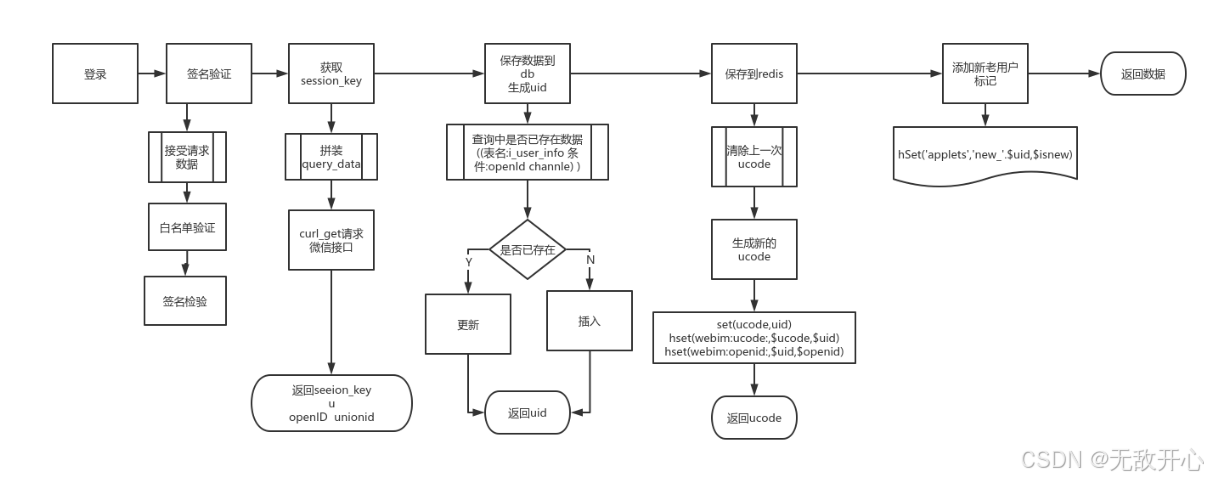
客户端用户点击获取用户登录需要的code,并把code和用户信息发送给服务端,服务端请求微信服务器,实现登陆流程如下:
2.1.1 服务端提供登陆接口
passlib 用于处理哈希密码的包,支持许多安全哈希算法以及配合算法使用的实用程序,推荐的算法是 Bcrypt,所以终端下执行命令如下:
pip install -U bcrypt==4.0.1
pip install -U passlib
api/utils.py,代码:
"""工具函数"""
from passlib.context import CryptContextclass Hashing(object):def __init__(self, schemes: str='bcrypt'):self.crypt = CryptContext(schemes=[schemes], deprecated="auto")def hash(self, raw_pwd: str) -> str:"""密码加密:param raw_pwd: 原始密码:return: 密码的哈希值"""return self.crypt.hash(raw_pwd)def verify(self, raw_pwd: str, hashed_pwd: str) -> bool:"""验证密码是否正确:param raw_pwd: 原始密码:param hashed_pwd: 密码的哈希值:return:"""return self.crypt.verify(raw_pwd, hashed_pwd)if __name__ == '__main__':hashing = Hashing()hashed_pwd = hashing.hash("123456")print(hashed_pwd) # 加密后要保存到数据库中的哈希串# 把原密码和加密后的哈希串进行配对,验证通过则返回结果为Trueret = hashing.verify("123456", hashed_pwd)print(ret)api/scheam.py,代码:
import utils
from typing import Optional
from datetime import datetime
from pydantic import BaseModel, Field, model_validatorclass UserIn(BaseModel):"""注册用户接口接受的数据格式"""username: str = Field(min_length=3, max_length=16)password: str = Field(min_length=6, max_length=16)mobile: str   = Field(min_length=11, max_length=15)re_password: str@model_validator(mode="after")def check_password(self):"""验证密码和确认密码是否一直:return: 务必返回当前对象"""if self.password != self.re_password:raise ValueError("密码与确认密码不一致!")# 对密码进行哈希加密hashing = utils.Hashing()self.password = hashing.hash(self.password)# 必须有数据返回,否则该数据就丢失了。return selfclass UserOut(BaseModel):"""注册成功返回数据格式"""id: intusername: stravatar: Optional[str] # 允许当前字段的值为None或者strsex: boolcreated_time: datetimeupdated_time: datetimeclass LoginIn(BaseModel):"""登录接口接受的数据格式"""account: str # 账号或手机号password: str # 密码class LoginOut(BaseModel):"""登录成功返回数据格式"""code: int  # 操作结果,数字表示msg: str   # 操作结果,文本表示token: str # 登录凭证,证明用户已经登录
视图文件中编写api接口,api/views.py,代码:
# 导入路由类
import scheams
import models
from utils import Hashing
from fastapi import APIRouter, status, HTTPException
from tortoise.expressions import Q
# 创建一个分组路由对象
router = APIRouter()@router.post('/login', status_code=status.HTTP_201_CREATED)
async def login(user_info: scheams.LoginIn) -> scheams.LoginOut:"""用户登录接口:param user_info: 用户登录信息:return: 登录凭证"""# 根据账号查询用户是否存在user = await models.User.filter(Q(username=user_info.account) | Q(mobile=user_info.account)).first()if not user:# 当前用户不存在raise HTTPException(status_code=status.HTTP_422_UNPROCESSABLE_ENTITY,detail="当前用户不存在或密码错误!")# 密码验证hashing = Hashing()print(user.password, user_info.password)if hashing.verify(user_info.password, user.password):# 密码正确return {'code': 1,'msg': '登录成功!','token': 'daskdasldasdasd;as;d;asd;as', # 根据一定的规则随机生成}# 来到这里表示密码错误raise HTTPException(status_code=status.HTTP_422_UNPROCESSABLE_ENTITY,detail="当前用户不存在或密码错误!")
2.1.2 客户端发送登陆请求
代码:
<template><view class="content">    <view class="loginBox"><h3 style="text-align: center;margin-bottom:120rpx;">欢迎登录</h3><view class="inputBox"><view class="ipt"><uni-icons type="contact" size="24" color="rgb(66,157,250)"></uni-icons><input type="text" value="" placeholder="请输入账号"/></view><view class="ipt"><uni-icons type="eye" size="24" color="rgb(66,157,250)"></uni-icons><input type="passsword" value="" placeholder="请输入密码"/></view><view class="ipt"><uni-icons type="checkmarkempty" size="24" color="rgb(66,157,250)"></uni-icons><input type="text" value="" placeholder="请输入验证码"/><view class="yzm">验证码</view></view><button class="login-btn">登录</button></view><view class="tipbox"><view class="txt"> —— 其他账号登录 —— </view><view class="otherUser"><button><uni-icons type="qq" size="40" color="rgb(66,157,250)"></uni-icons></button><button open-type="getUserInfo" @getuserinfo="wxLogin"><uni-icons type="weixin" size="40" color="rgb(2,187,17)"></uni-icons></button></view></view></view></view>
</template><script setup>
const wxLogin = (e)=>{console.log(e);console.log("微信登陆,获取session_key与openid");uni.login({provider: 'weixin',success(response) {console.log(response);let app_id = 'wx3ed3b5aa5674f9ca';let app_secret = 'c49648af2a1659eb1711844dec39e565';let code = response.code;let url = `https://api.weixin.qq.com/sns/jscode2session?appid=${app_id}&secret=${app_secret}&js_code=${code}&grant_type=authorization_code`;uni.request({url,success(response){console.log(response.data);}});}})
}
</script><style scoped>svg {position: absolute;bottom: 0;left: 0;width: 100%;height:40%;box-sizing: border-box;display: block;background-color: #ffffff;}.loginBox{position: absolute;top: 50%;left: 50%;transform: translate(-50%,-60%);width: 90%;border-radius: 20rpx;padding: 60rpx;box-sizing: border-box;}h3{color:rgb(66,157,250);font-size: 40rpx;letter-spacing: 10rpx;margin-bottom: 40rpx;}.inputBox{}.ipt{height: 86rpx;display: flex;justify-content: flex-start;align-items: center;margin-bottom: 40rpx;background-color: #f5f5f5;border-radius: 10rpx;padding-left: 10rpx;}.ipt input{margin-left: 20rpx;font-size: 28rpx;}.ipt input{margin-left: 20rpx;}.forgetPwd{margin-top: 30rpx;font-size: 26rpx;color: #b5b5b5;text-align: end;padding:0 10rpx;display: flex;justify-content: space-between;}.login-btn{margin-top: 20rpx;line-height: 85rpx;text-align: center;background: rgb(66,157,250);border-radius: 40rpx;color: #fff;margin-top: 40rpx;}.tip{text-align: center;font-size: 28rpx;position: fixed;bottom: 50rpx;left: 50%;transform: translate(-50%,-50%);color: #f4f4f4;}.tipbox {text-align: center;margin-top: 100rpx;}.otherUser {margin-top: 30rpx;display: flex;justify-content: center;}.otherUser button{margin: 0 10px;padding: 0;height: 42px;line-height: 42px;background: transparent;border: 1px solid transparent;outline: none;}.txt {font-size: 28rpx;color: #cbcbcb;}.otherUser .uni-icons {margin-left: 20rpx;}.yzm{text-align: end;font-size: 24rpx;background: rgb(66,157,250);height: 60rpx;width: 150rpx;line-height: 60rpx;text-align: center;border-radius: 10rpx;color: #fff;}
</style>
2.2 注册功能实现
2.2.1 服务端提供注册接口
基于pydantic提供的BaseModel定义接口的输入和输出的数据结构,api/scheam.py,代码:
from typing import Optional
from datetime import datetime
from pydantic import BaseModel, Field, model_validatorclass UserIn(BaseModel):username: str = Field(min_length=3, max_length=16)password: str = Field(min_length=6, max_length=16)mobile: str   = Field(min_length=11, max_length=15)re_password: str@model_validator(mode="after")def check_password(self):"""验证密码和确认密码是否一直:return: 务必返回当前对象"""if self.password != self.re_password:raise ValueError("密码与确认密码不一致!")# 必须有数据返回,否则该数据就丢失了。return selfclass UserOut(BaseModel):id: intusername: stravatar: Optional[str] # 允许当前字段的值为None或者strsex: boolcreated_time: datetimeupdated_time: datetime
创建API接口的视图文件,api/views.py,代码:
# 导入路由类
import scheams
import models
from fastapi import APIRouter, status
# 创建一个分组路由对象
router = APIRouter()@router.post('/', status_code=status.HTTP_201_CREATED)
async def register(user_info: scheams.UserIn) -> scheams.UserOut:"""用户注册接口:param user_info: 用户注册信息:return:"""user = await models.User.create(**dict(user_info))return user把views.py中的路由对象,注册到项目中,app.py,代码:
from fastapi import FastAPI
from tortoise.contrib.fastapi import register_tortoise
import settings
import viewsdef init_app():app = FastAPI()# 把Tortoise-orm注册到App应用对象中register_tortoise(app,config=settings.TORTOISE_ORM,generate_schemas=False, # 是否自动生成表结构add_exception_handlers=True, # 是否启用自动异常处理)# 注册api接口app.include_router(views.router, prefix='/user')return app
2.2.2 客户端实现注册功能
register/register.vue,代码:
<template><view class="content">    <view class="loginBox"><h3 style="text-align: center;margin-bottom:120rpx;">欢迎登录</h3><view class="inputBox"><view class="ipt"><uni-icons type="contact" size="24" color="rgb(66,157,250)"></uni-icons><input type="text" value="" placeholder="请输入账号"/></view><view class="ipt"><uni-icons type="eye" size="24" color="rgb(66,157,250)"></uni-icons><input type="passsword" value="" placeholder="请输入密码"/></view><view class="ipt"><uni-icons type="checkmarkempty" size="24" color="rgb(66,157,250)"></uni-icons><input type="text" value="" placeholder="请输入验证码"/><view class="yzm">验证码</view></view><button class="login-btn">登录</button></view><view class="tipbox"><view class="txt"> —— 其他账号登录 —— </view><view class="otherUser"><button><uni-icons type="qq" size="40" color="rgb(66,157,250)"></uni-icons></button><button open-type="getUserInfo" @getuserinfo="wxLogin"><uni-icons type="weixin" size="40" color="rgb(2,187,17)"></uni-icons></button></view></view></view></view>
</template><script setup></script><style scoped>svg {position: absolute;bottom: 0;left: 0;width: 100%;height:40%;box-sizing: border-box;display: block;background-color: #ffffff;}.loginBox{position: absolute;top: 50%;left: 50%;transform: translate(-50%,-60%);width: 90%;border-radius: 20rpx;padding: 60rpx;box-sizing: border-box;}h3{color:rgb(66,157,250);font-size: 40rpx;letter-spacing: 10rpx;margin-bottom: 40rpx;}.inputBox{}.ipt{height: 86rpx;display: flex;justify-content: flex-start;align-items: center;margin-bottom: 40rpx;background-color: #f5f5f5;border-radius: 10rpx;padding-left: 10rpx;}.ipt input{margin-left: 20rpx;font-size: 28rpx;}.ipt input{margin-left: 20rpx;}.forgetPwd{margin-top: 30rpx;font-size: 26rpx;color: #b5b5b5;text-align: end;padding:0 10rpx;display: flex;justify-content: space-between;}.login-btn{margin-top: 20rpx;line-height: 85rpx;text-align: center;background: rgb(66,157,250);border-radius: 40rpx;color: #fff;margin-top: 40rpx;}.tip{text-align: center;font-size: 28rpx;position: fixed;bottom: 50rpx;left: 50%;transform: translate(-50%,-50%);color: #f4f4f4;}.tipbox {text-align: center;margin-top: 100rpx;}.otherUser {margin-top: 30rpx;display: flex;justify-content: center;}.otherUser button{margin: 0 10px;padding: 0;height: 42px;line-height: 42px;background: transparent;border: 1px solid transparent;outline: none;}.txt {font-size: 28rpx;color: #cbcbcb;}.otherUser .uni-icons {margin-left: 20rpx;}.yzm{text-align: end;font-size: 24rpx;background: rgb(66,157,250);height: 60rpx;width: 150rpx;line-height: 60rpx;text-align: center;border-radius: 10rpx;color: #fff;}
</style>
3. AI助理
3.1 基于文生文实现AI会话
pip install -U langchain
pip install -U langchain-openai
3.1 服务端调用langchain对接ChatGPT
提供接口,chat/views.py代码:
import os, openai, gradio as gr
from langchain_openai import OpenAI
from langchain_openai import ChatOpenAI
from langchain.chains import ConversationChain
from langchain.memory import ConversationSummaryBufferMemory# 解决请求超时问题
os.environ["http_proxy"] = "http://localhost:7890"
os.environ["https_proxy"] = "http://localhost:7890"os.environ["OPENAI_API_KEY"] = "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"
openai.api_key = os.environ["OPENAI_API_KEY"]memory = ConversationSummaryBufferMemory(llm=ChatOpenAI(# openai_api_key="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", # 从OpenAI官方申请秘钥[可以是用户秘钥,也可以是项目秘钥]# model_name="gpt-3.5-turbo" # 默认是gpt-3.5-turbo),max_token_limit=2048
)conversation = ConversationChain(llm=OpenAI(# api_key="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",max_tokens=2048,temperature=0.5),memory=memory,
)"""基于记忆体实现对话的历史上下文管理"""
def chat(input, history=[]):history.append(input)response = conversation.predict(input=input)history.append(response)# history[::2] 切片语法,每隔两个元素提取一个元素,即提取出所有的输入,# history[1::2]表示从历史记录中每隔2个元素提取一个元素,即提取出所有的输出# zip函数把两个列表元素打包为元组的列表的方式responses = [(u, b) for u, b in zip(history[::2], history[1::2])]print("用户输入:", history[::2])print("AI回答:", history[1::2])print("上下文:", responses)return responses, history"""可视化界面中实现AI对话"""
with gr.Blocks(css="#chatbot{height:800px} .overflow-y-auto{height:800px}") as demo:chatbot = gr.Chatbot(elem_id="chatbot")state = gr.State([])with gr.Row():txt = gr.Textbox(show_label=False, placeholder="请输入你的问题.")txt.submit(chat, [txt, state], [chatbot, state])# 启动项目
demo.launch(share=True)
3.2 客户端请求服务端接口
<template><view class="content">    <view class="loginBox"><h3 style="text-align: center;margin-bottom:120rpx;">欢迎登录</h3><view class="inputBox"><view class="ipt"><uni-icons type="contact" size="24" color="rgb(66,157,250)"></uni-icons><input type="text" value="" placeholder="请输入账号"/></view><view class="ipt"><uni-icons type="eye" size="24" color="rgb(66,157,250)"></uni-icons><input type="passsword" value="" placeholder="请输入密码"/></view><view class="ipt"><uni-icons type="checkmarkempty" size="24" color="rgb(66,157,250)"></uni-icons><input type="text" value="" placeholder="请输入验证码"/><view class="yzm">验证码</view></view><button class="login-btn">登录</button></view><view class="tipbox"><view class="txt"> —— 其他账号登录 —— </view><view class="otherUser"><button><uni-icons type="qq" size="40" color="rgb(66,157,250)"></uni-icons></button><button open-type="getUserInfo" @getuserinfo="wxLogin"><uni-icons type="weixin" size="40" color="rgb(2,187,17)"></uni-icons></button></view></view></view></view>
</template><script setup></script><style scoped>svg {position: absolute;bottom: 0;left: 0;width: 100%;height:40%;box-sizing: border-box;display: block;background-color: #ffffff;}.loginBox{position: absolute;top: 50%;left: 50%;transform: translate(-50%,-60%);width: 90%;border-radius: 20rpx;padding: 60rpx;box-sizing: border-box;}h3{color:rgb(66,157,250);font-size: 40rpx;letter-spacing: 10rpx;margin-bottom: 40rpx;}.inputBox{}.ipt{height: 86rpx;display: flex;justify-content: flex-start;align-items: center;margin-bottom: 40rpx;background-color: #f5f5f5;border-radius: 10rpx;padding-left: 10rpx;}.ipt input{margin-left: 20rpx;font-size: 28rpx;}.ipt input{margin-left: 20rpx;}.forgetPwd{margin-top: 30rpx;font-size: 26rpx;color: #b5b5b5;text-align: end;padding:0 10rpx;display: flex;justify-content: space-between;}.login-btn{margin-top: 20rpx;line-height: 85rpx;text-align: center;background: rgb(66,157,250);border-radius: 40rpx;color: #fff;margin-top: 40rpx;}.tip{text-align: center;font-size: 28rpx;position: fixed;bottom: 50rpx;left: 50%;transform: translate(-50%,-50%);color: #f4f4f4;}.tipbox {text-align: center;margin-top: 100rpx;}.otherUser {margin-top: 30rpx;display: flex;justify-content: center;}.otherUser button{margin: 0 10px;padding: 0;height: 42px;line-height: 42px;background: transparent;border: 1px solid transparent;outline: none;}.txt {font-size: 28rpx;color: #cbcbcb;}.otherUser .uni-icons {margin-left: 20rpx;}.yzm{text-align: end;font-size: 24rpx;background: rgb(66,157,250);height: 60rpx;width: 150rpx;line-height: 60rpx;text-align: center;border-radius: 10rpx;color: #fff;}
</style>
相关文章:
fastapp-微信开发GPT项目第一课
0. 开发说明 在学习开发本项目之前,必须保证有以下知识储备和环境工具。 技术栈说明python>3.9、pydantic>2.7.1python基础,http协议fastapi>0.111.0web协程异步框架,有web开发基础,异步编程,类型标注[pyth…...

在双十一必买的好物有哪些?2024年双十一好物清单分享
一年一度的双十一购物狂欢节再次悄然临近,它不仅是一场购物的盛宴,更是我们提前规划生活、享受优惠的绝佳时机,在这个全民狂欢的日子里,各大品牌纷纷亮出杀手锏,推出年度最给力的优惠和新品,让人目不暇接&a…...
避免glibc版本而报错,CentOS等Linux安装node.js完美方法
概述 对于Node.js v18.x或更高,Node.js官方默认是在Ubuntu 20.04, Debian 10, RHEL 8,CentOS 8等高版操作系统上编译得到的,高版本操作系统的glibc版本≥2.28。所以,下载Node.js后,也需要glibc版本≥2.28才能使用。 而CentOS 7.x等…...

elasticsearch实战应用
Elasticsearch是一个基于Lucene的分布式、实时全文搜索引擎,广泛应用于日志收集和可视化、数据分析以及大规模数据检索等领域。其强大的搜索和分析能力,使得Elasticsearch成为许多企业和开发者在处理大规模数据时的首选工具。以下将从Elasticsearch的实战…...
STM32精确控制步进电机
目的:学习使用STM32电机驱动器步进电机,进行电机运动精确控制。 测试环境: MCU主控芯片STM32F103RCT6 ;A4988步进电机驱动器模块; 微型2相4线步…...

Qemu开发ARM篇-5、buildroot制作根文件系统并挂载启动
文章目录 1、 buildroot源码获取2、buildroot配置3、buildroot编译4、挂载根文件系统 在上一篇 Qemu开发ARM篇-4、kernel交叉编译运行演示中,我们编译了kernel,并在qemu上进行了运行,但到最后,在挂载根文件系统时候,挂…...

光控资本:10转10送10股有多少股?转股与送股又什么区别?
10转10送10股是投资者每10股转增10股并送10股,即每10股添加20股,变为30股。 例如,某投资者有1000股,上市公司10转10送10后,投资者将添加2000股,手中持有股票变为3000股。 上市公司进行10转10送10股之后&a…...

【音乐格式转换攻略】6个好用的音乐转换成mp3格式技巧!
现如今,不少用户在将手机下载的歌曲转移到其他设备,如MP3播放器、车载音响或智能音箱时,却遭遇了兼容性难题。尤其是面对一些特殊音频格式,只能在各自的平台播放器上正常播放,一旦尝试在其他设备上打开,往往…...
蓝桥杯15届C/C++B组省赛题目
问题描述 小蓝组织了一场算法交流会议,总共有 5050 人参加了本次会议。在会议上,大家进行了握手交流。按照惯例他们每个人都要与除自己以外的其他所有人进行一次握手 (且仅有一次)。但有 77 个人,这 77 人彼此之间没有进行握手 (但这 77 人与…...

感悟:糟糠之妻不下堂和现在女性觉醒的关系
古人说“糟糠之妻不下堂”真是害惨了中国女性,古代之所以有这一说法,大概是因为男子可以三妻四妾,妻子永远是正妻,也不需要讲究什么从一而终,更不会讲什么男德,只会要求女性学习女德、女训之类,…...

Linux网络之UDP与TCP协议详解
文章目录 UDP协议UDP协议数据报报头 TCP协议确认应答缓冲区 超时重传三次握手其他问题 四次挥手滑动窗口流量控制拥塞控制 UDP协议 前面我们只是说了UDP协议的用法,但是并没有涉及到UDP协议的原理 毕竟知道冰箱的用法和知道冰箱的原理是两个层级的事情 我们首先知道计算机网…...
K8S:开源容器编排平台,助力高效稳定的容器化应用管理
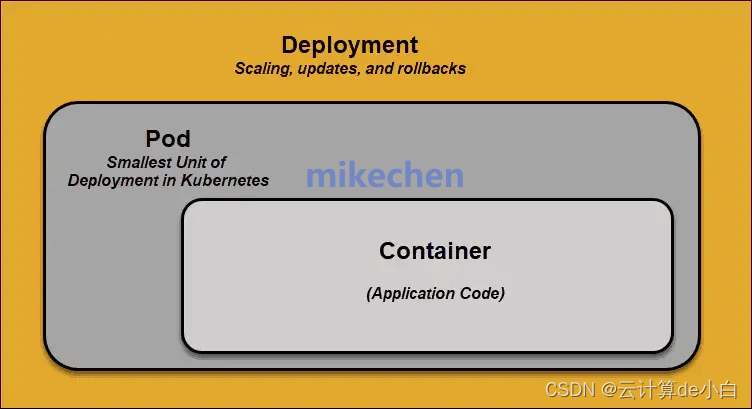
云计算de小白 Kubernetes(简称K8s)是一个开源容器编排平台,用于自动化部署、扩展和管理容器化应用程序。 K8S诞生于Google,基于其多年在生产环境运行容器的经验,目前已成为现代微服务架构和云原生应用的核心技术。 图…...

STM32嵌入式编程学习到提高:【4】UART串口打印
------------------------------------------------------------------------------------------------------------------------- 工程文件:放在百度云盘里,需要的自行下载!!! 链接: https://pan.baidu.com/s/14gRne…...

C 标准库 - <ctype.h>
C 标准库 - <ctype.h> 概述 <ctype.h> 是 C 语言标准库中的一个头文件,它提供了一系列用于测试和操作字符的函数。这些函数主要用于检查字符是否属于特定的字符类别,如字母、数字、标点符号等,以及进行字符的大小写转换。<ctype.h> 中的函数通常在处理文…...

linux:chown用法详解
文章目录 1. 描述2. 语法3. 参数4. 例子 1. 描述 chown 是 Linux 中用于更改文件或目录的所有者和所有者组的命令。 2. 语法 chown [选项] 所有者[:组] 文件名详细用法: Usage: chown [OPTION]... [OWNER][:[GROUP]] FILE...or: chown [OPTION]... --reference…...

介绍GPT-o1:一系列解决困难问题( science, coding, and math )的推理模型
openai o1介绍 一、官方技术报告要点剖析实验1 benchmark分析实验2:和phd比赛技术细节:Chain of Thought的使用人类偏好评估Human preference evaluationsatety技术细节:隐藏思维链为监控模型提供了机会:)openai的几点conclusion 二、官方介绍剖析 Intro…...

2024 Python3.10 系统入门+进阶(十六):正则表达式
目录 一、认识正则表达式二、正则表达式基本语法2.1 行界定符2.2 单词定界符2.3 字符类2.4 选择符2.5 范围符2.6 排除符2.7 限定符2.8 任意字符2.9 转义字符2.10 反斜杠2.11 小括号2.11.1 定义独立单元2.11.2 分组 2.12 反向引用2.13 特殊构造2.14 匹配模式 三、re模块3.1 comp…...

书生大模型实战营学习[7] InternLM + LlamaIndex RAG 实践
环境配置 选择30%A100做本次任务 conda create -n llamaindex python3.10 conda activate llamaindex conda install pytorch2.0.1 torchvision0.15.2 torchaudio2.0.2 pytorch-cuda11.7 -c pytorch -c nvidia pip install einops pip install protobuf安装Llamaindex cond…...

【MySQL】数据库--索引
索引 1.索引 在数据中索引最核心的作用就是:加速查找 1.1 索引原理 索引的底层是基于BTree的数据存储结构 如图所示: 很明显,如果有了索引结构的查询效率比表中逐行查询的速度要快很多且数据越大越明显。 数据库的索引是基于上述BTree的…...

[大语言模型-论文精读] ACL2024-长尾知识在检索增强型大型语言模型中的作用
ACL2024-长尾知识在检索增强型大型语言模型中的作用 On the Role of Long-tail Knowledge in Retrieval Augmented Large Language Models Authors: Dongyang Li, Junbing Yan, Taolin Zhang, Chengyu Wang, Xiaofeng He, Longtao Huang, Hui Xue, Jun Huang 1.概览 问题解决&…...

DLSS Swapper终极指南:一键切换游戏超采样版本,免费提升帧率30%+
DLSS Swapper终极指南:一键切换游戏超采样版本,免费提升帧率30% 【免费下载链接】dlss-swapper 项目地址: https://gitcode.com/GitHub_Trending/dl/dlss-swapper 你是否曾羡慕别人在《赛博朋克2077》里享受丝滑流畅的画面,而你的游戏…...

2026年主流抓娃娃App大对比,哪个才是你的“抓宝神器”?
在当今快节奏的生活中,年轻人面临着来自学业、工作、社交等多方面的压力。为了缓解这些压力,寻找适合的解压方式成为了大家的共同需求。抓娃娃App作为一种新兴的娱乐方式,正逐渐受到年轻人的喜爱。下面我们就从潮流趋势、科技前沿、行业洞察等…...

Flutter GetX实战:从Provider迁移到GetX,我的开发效率提升了多少?
Flutter GetX实战:从Provider迁移到GetX的效率革命 当Flutter开发团队面临状态管理方案的选择时,往往会陷入一种甜蜜的烦恼——官方推荐的Provider虽然稳定可靠,但第三方库GetX却以"全家桶"式的解决方案不断吸引开发者的目光。作为…...

构建动态技能图谱:从数据模型到自动化可视化的完整实践
1. 项目概述:一个技能图谱的诞生最近在GitHub上看到一个挺有意思的项目,叫dortort/skills。乍一看,这只是一个个人仓库,但点进去你会发现,它远不止是一个简单的代码集合。它更像是一张动态的、可视化的个人技能地图&am…...

基于RP2040与CircuitPython的HDMI倒计时器:RTC与DVI原生输出实践
1. 项目概述与核心价值如果你手头有一块带HDMI输出的微控制器开发板,比如Adafruit的Feather RP2040 DVI,又恰好需要一个能摆在桌面上、精确到秒的倒计时器,那么今天这个项目就是为你量身定做的。它不仅仅是一个简单的“Hello World”式显示应…...

DLP/SLA光固化3D打印技术解析与Ember打印机实战指南
1. DLP/SLA 3D打印技术深度解析:从光与树脂的对话说起如果你是从FDM(熔丝制造)打印转向树脂打印的,那感觉就像从开手动挡卡车换到了开精密数控机床。DLP(数字光处理)和SLA(立体光刻)…...

3步强力清理:Pearcleaner让你轻松解决Mac应用残留文件问题
3步强力清理:Pearcleaner让你轻松解决Mac应用残留文件问题 【免费下载链接】Pearcleaner A free, source-available and fair-code licensed mac app cleaner 项目地址: https://gitcode.com/gh_mirrors/pe/Pearcleaner 你是否曾删除Mac应用后,发…...

湿版摄影×AI生成革命:为什么93%的MJ用户调不出真实碘化银斑痕?——资深暗房师+AI训练师双视角深度拆解
更多请点击: https://intelliparadigm.com 第一章:湿版摄影AI生成革命:为什么93%的MJ用户调不出真实碘化银斑痕?——资深暗房师AI训练师双视角深度拆解 湿版火棉胶摄影术诞生于1851年,其不可复制的物理噪点——由碘化…...

如何在Windows 11上让经典游戏重获新生:DDrawCompat兼容性解决方案详解
如何在Windows 11上让经典游戏重获新生:DDrawCompat兼容性解决方案详解 【免费下载链接】DDrawCompat DirectDraw and Direct3D 1-7 compatibility, performance and visual enhancements for Windows Vista, 7, 8, 10 and 11 项目地址: https://gitcode.com/gh_m…...

MedAgentBench:大语言模型在医学诊断中的动态评估与智能体构建实践
1. 项目概述:当大语言模型成为医学诊断的“实习生”最近在医学人工智能的圈子里,一个名为MedAgentBench的项目引起了我的注意。它来自斯坦福大学机器学习组,这个名字本身就自带光环。简单来说,这不是一个直接看病的AI,…...