
qml入门
window
import QtQuick 2.15
import QtQuick.Window 2.15
import QtQuick.Controls 2.5Window { //root控件,父窗口是主界面width: 640height: 480visible: true//相对于父控件的偏移量x: 100y:100minimumWidth: 400   //最小宽度minimumHeight: 300  //最小高度maximumWidth: 600   //最大宽度maximumHeight: 450  //最大高度opacity: 0.9 //0-1,窗口透明度onWidthChanged: {console.log("width: ", width)}Button {id: btn1width: 80height: 80focus: trueobjectName: "btn1"background: Rectangle {border.color: btn1.focus ? "blue" : "red"}onClicked: {console.log("btn1 clicked")}Keys.onRightPressed: {btn2.focus = true}}Button {id: btn2x: 120width: 80height: 80objectName: "btn2"background: Rectangle {border.color: btn2.focus ? "blue" : "red"}onClicked: {console.log("btn2 clicked")}Keys.onLeftPressed: {btn1.focus = true}}//保存了整个窗口中当前获取焦点的控件onActiveFocusItemChanged: {console.log("active focus item changed", activeFocusItem, activeFocusItem.objectName)}title: qsTr("my qml")
}
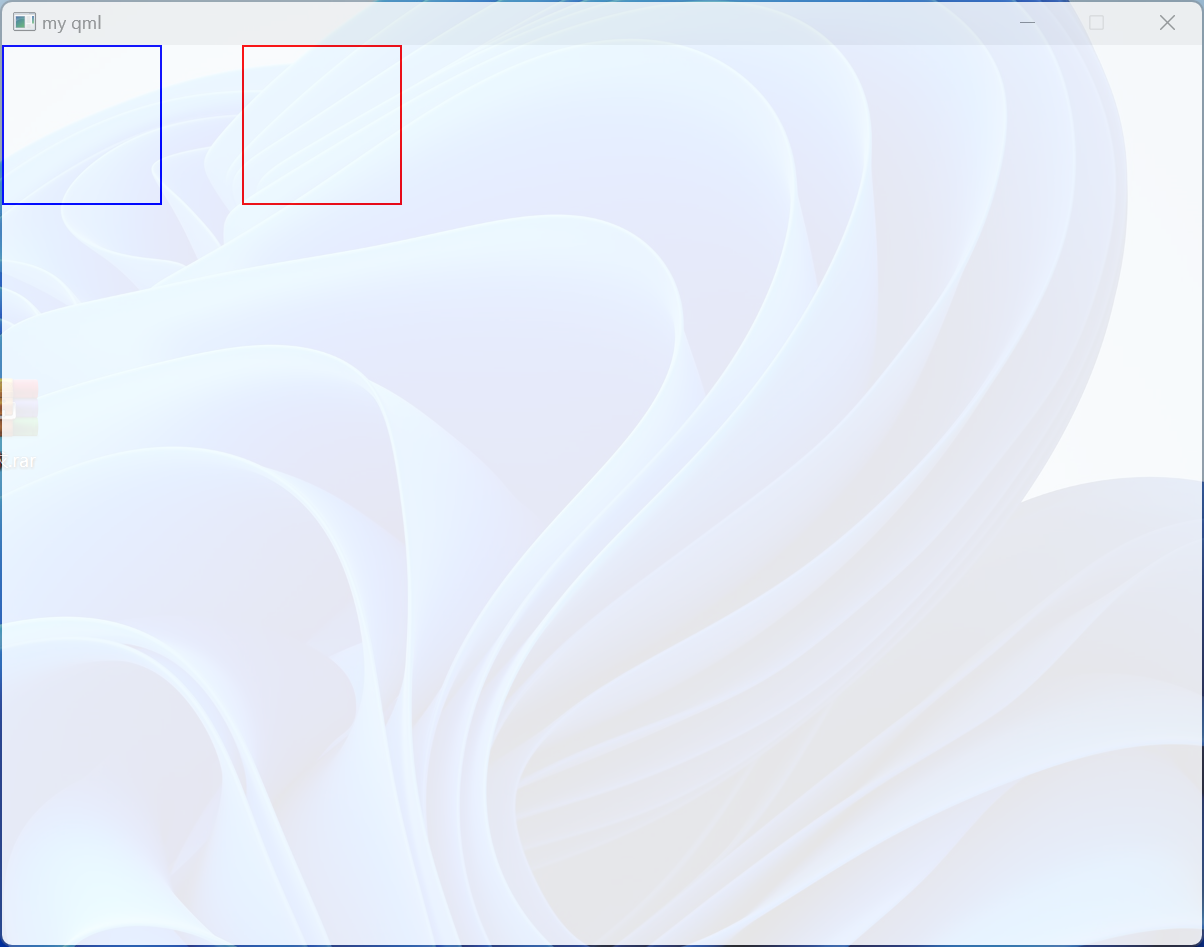
Item与Rectangle
Rectangle控件:自身属性不多,但它继承自Item,因此Item的诸多属性可以使用
focus属性
import QtQuick 2.15
import QtQuick.Window 2.15
import QtQuick.Controls 2.5Window {width: 640height: 480visible: truetitle: qsTr("my qml")Rectangle {x: 100y: 100z: 1width : 100height: 50color: "red"focus: false  //当前控件可获取焦点MouseArea {anchors.fill: parentonClicked: {console.log("on clicked")}}Keys.onReturnPressed: {console.log("on return pressed")}}Rectangle {x: 120y: 120width : 100height: 50color: "green"}
}
anchor属性
anchors.fill→ \to →填充父控件
import QtQuick 2.15
import QtQuick.Window 2.15
import QtQuick.Controls 2.5Window {width: 640height: 480visible: truetitle: qsTr("my qml")Rectangle {id: rect1anchors.fill: parentcolor: "red"}Rectangle {id: rect2width : 100height: 50color: "green"}
}
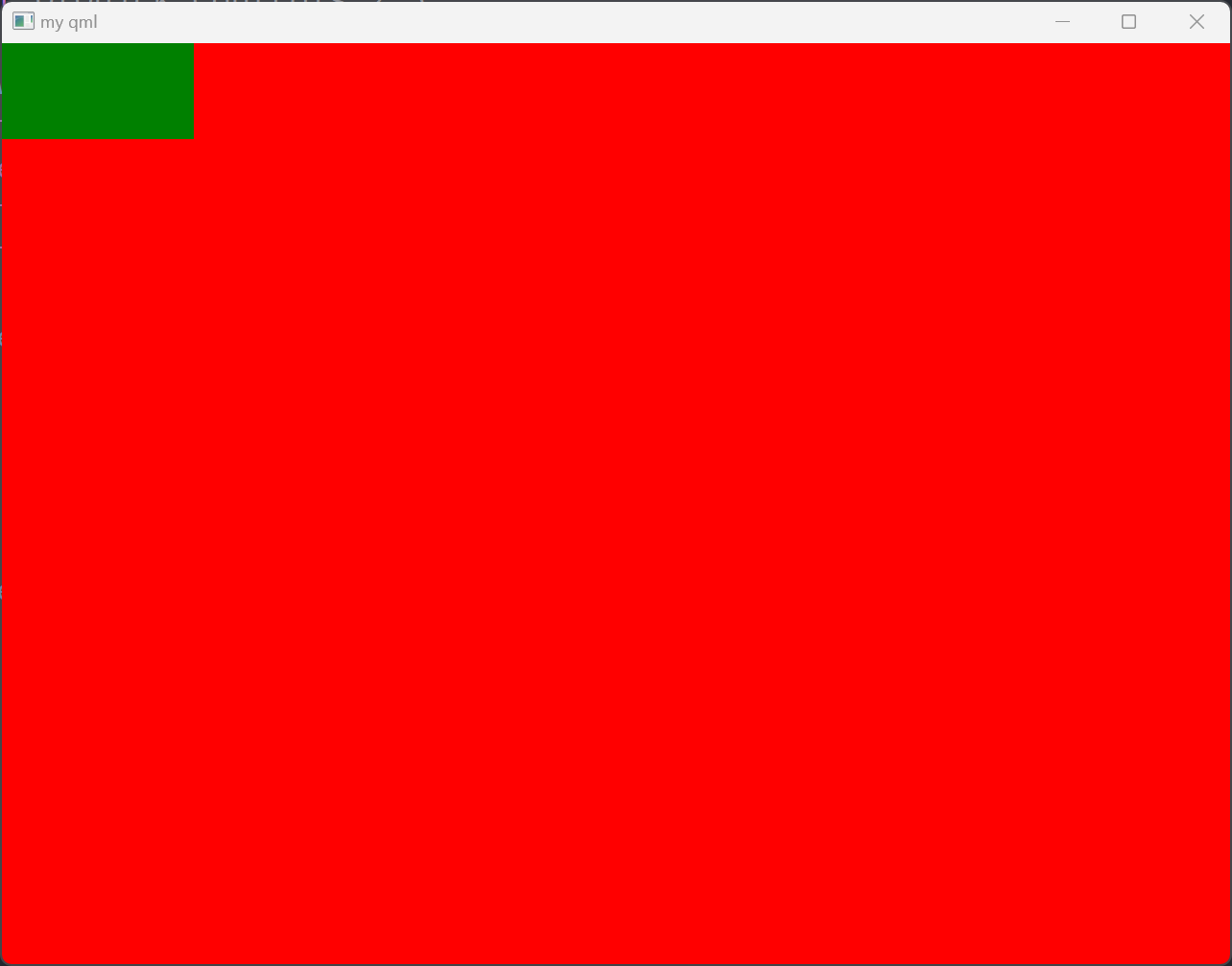
anchors.left、anchors.leftMargin、anchors.top、anchors.topMargin
import QtQuick 2.15
import QtQuick.Window 2.15
import QtQuick.Controls 2.5Window {width: 640height: 480visible: truetitle: qsTr("my qml")Rectangle {id: rect1width : 100height: 50color: "red"}Rectangle {id: rect2width : 100height: 50anchors.left: rect1.rightanchors.leftMargin: 20color: "green"}Rectangle {id: rect3width : 100height: 50anchors.top: rect1.bottomanchors.topMargin: 20color: "blue"}
}

3. anchors.centerIn、anchors.horizontalCenter、anchors.verticalCenter
import QtQuick 2.15
import QtQuick.Window 2.15
import QtQuick.Controls 2.5Window {width: 640height: 480visible: truetitle: qsTr("my qml")Rectangle {id: rect1width : 100height: 50color: "red"//anchors.centerIn: parentanchors.horizontalCenter: parent.horizontalCenteranchors.verticalCenter: parent.verticalCenter}
}
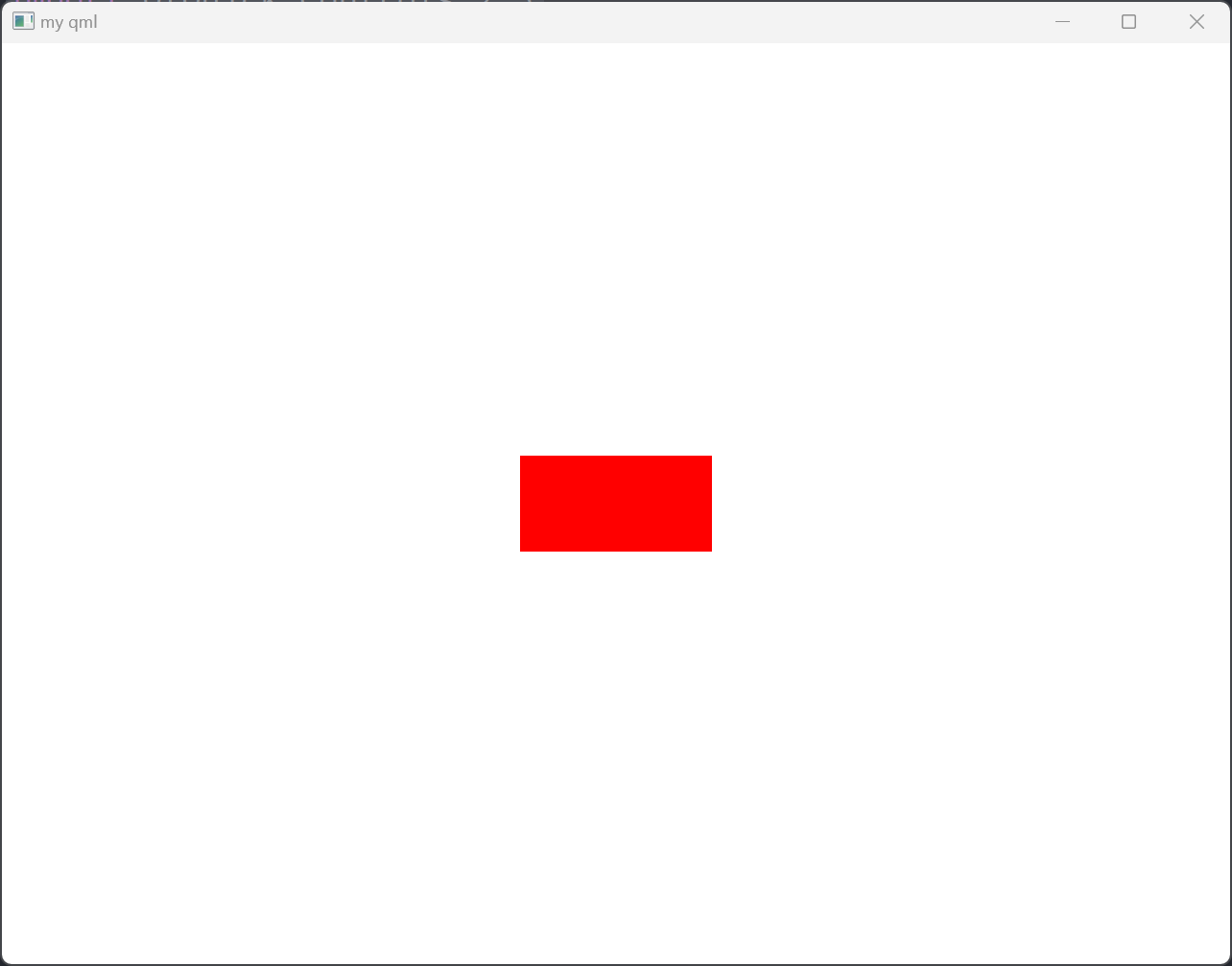
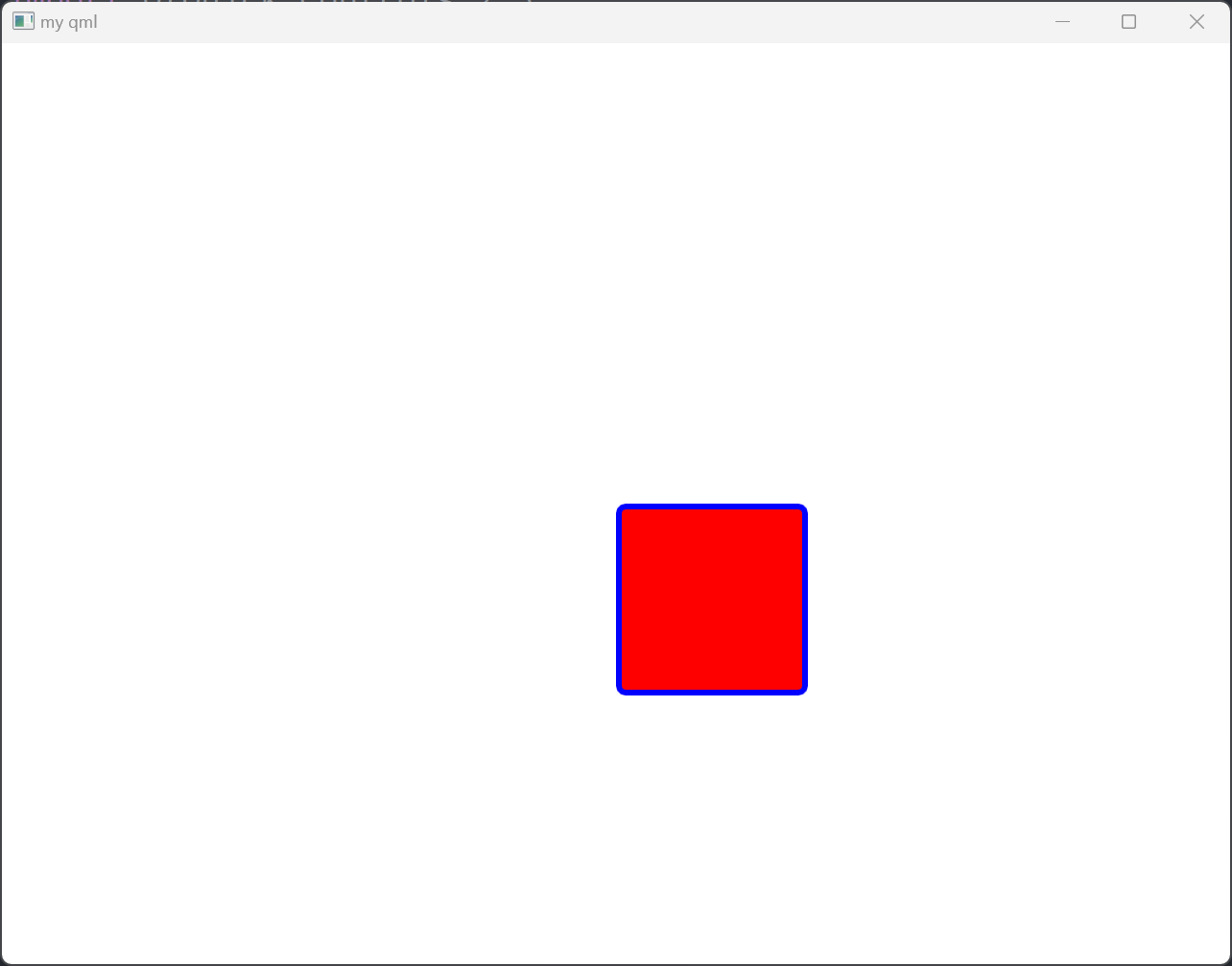
4. border
import QtQuick 2.15
import QtQuick.Window 2.15
import QtQuick.Controls 2.5Window {width: 640height: 480visible: truetitle: qsTr("my qml")Rectangle {id: rect1x: 320y: 240width : 100height: 100color: "red"border.color: "blue"border.width: 3radius: 5}
}
5. gradient
import QtQuick 2.15
import QtQuick.Window 2.15
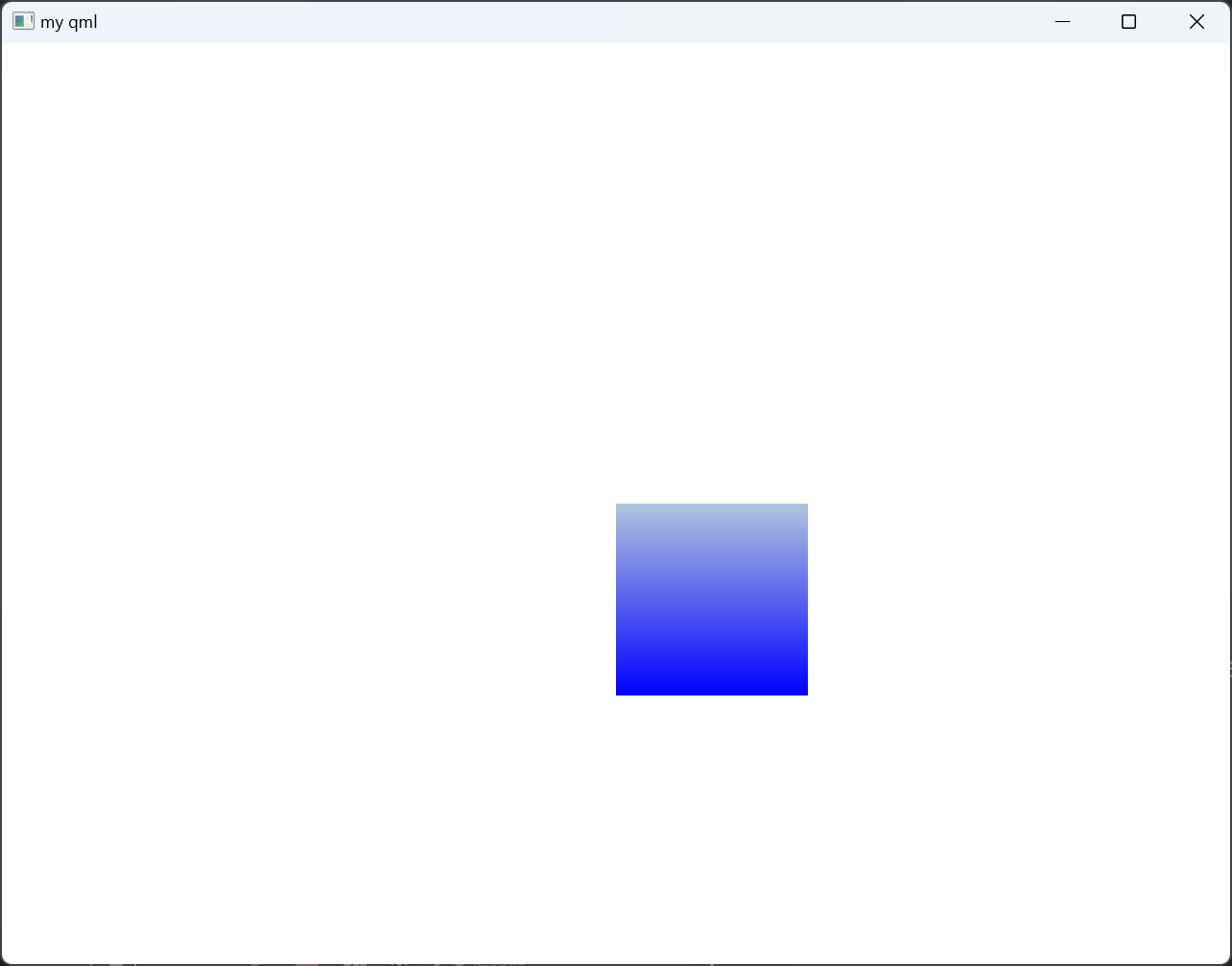
import QtQuick.Controls 2.5Window {width: 640height: 480visible: truetitle: qsTr("my qml")Rectangle {id: rect1x: 320y: 240width : 100height: 100color: "red"gradient: Gradient {GradientStop { position: 0.0; color: "lightsteelblue" }GradientStop { position: 1.0; color: "blue" }}}
}
Rectangle自定义边框
main.qml
import QtQuick 2.15
import QtQuick.Window 2.15
import QtQuick.Controls 2.5Window {width: 640height: 480visible: truetitle: qsTr("my qml")MyRectangle {x: 200y: 200myTop: 10myBottom: 10}
}
MyRectangle.qml
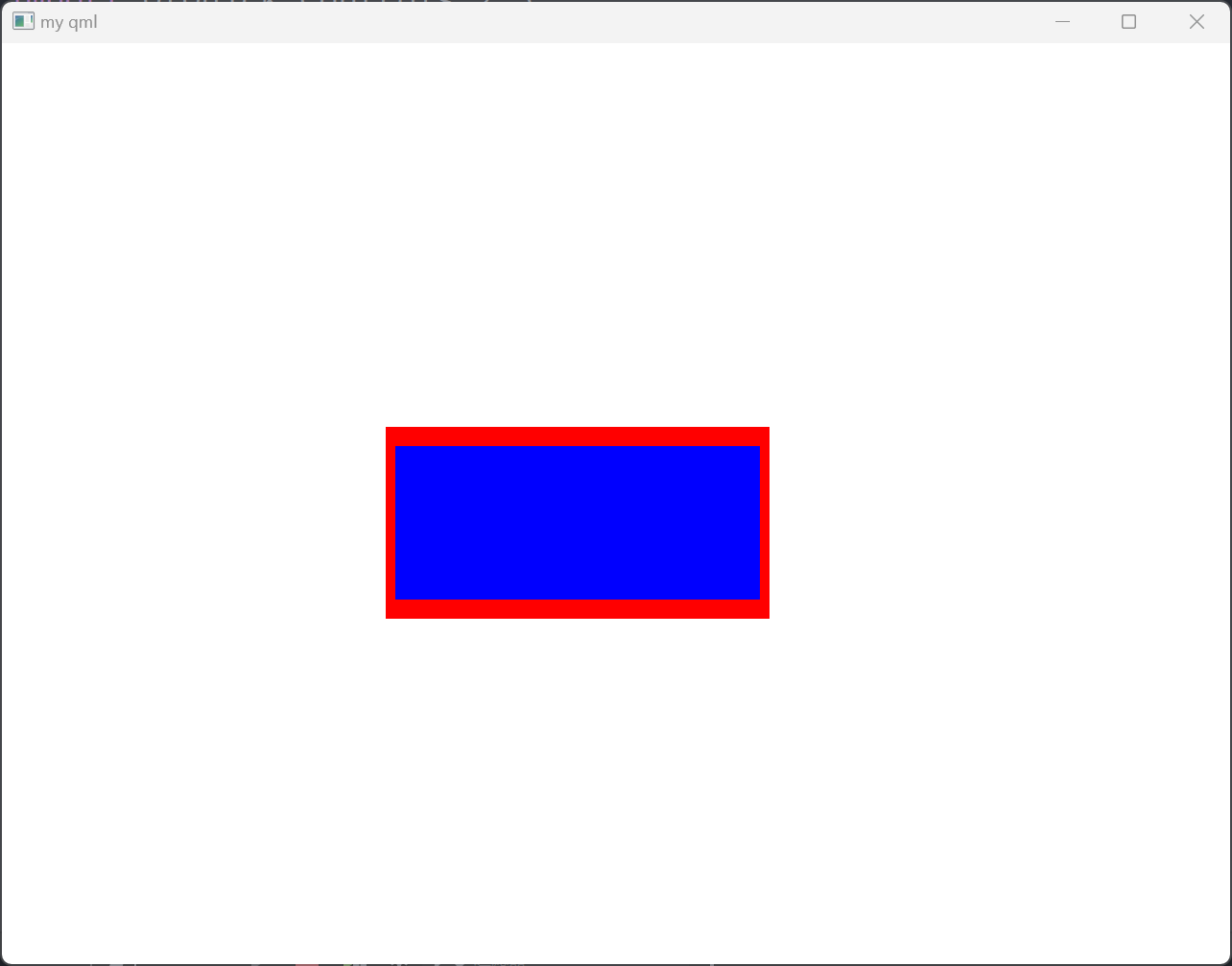
import QtQuick 2.15Rectangle {id: borderRectproperty int myTop: 0property int myBottom: 0width: 200height: 100color: "red"Rectangle {id: innerRectcolor: "blue"anchors.fill: parentanchors.topMargin: myTopanchors.bottomMargin: myBottomanchors.leftMargin: 5anchors.rightMargin: 5}
}
states与transitions
Item的两个重要属性:states与transitions
状态机states
import QtQuick 2.15
import QtQuick.Window 2.15
import QtQuick.Controls 2.5Window {width: 640height: 480visible: truetitle: qsTr("my qml")Rectangle {id: rootwidth: 100; height: 100color: "blue"state: "normal"states: [State {name: "red_color"PropertyChanges { target: root; color: "red"; width: 200 }},State {name: "blue_color"PropertyChanges { target: root; color: "blue"; height: 200 }},State {name: "normal"PropertyChanges { target: root; color: "black"; height: 200; width: 200 }}]MouseArea {anchors.fill: parentonPressed: {root.state = "red_color"}onReleased: {root.state = "blue_color"}}}
}
transitions
- 第一种方法:直接属性动画
点击控件产生渐变效果
import QtQuick 2.15
import QtQuick.Window 2.15
import QtQuick.Controls 2.5Window {width: 640height: 480visible: truetitle: qsTr("my qml")Rectangle {id: flashingblobwidth: 75; height: 75color: "blue"opacity: 1.0MouseArea {anchors.fill: parentonClicked: {animateColor.start()animateOpacity.start()}}PropertyAnimation {id: animateColortarget: flashingblobproperties: "color"to: "green"duration: 1000   //持续时间(ms)}NumberAnimation {id: animateOpacitytarget: flashingblobproperties: "opacity"from: 0.5to: 1.0duration: 1000   //持续时间(ms)}}
}
点击控件产生伸长效果
import QtQuick 2.15
import QtQuick.Window 2.15
import QtQuick.Controls 2.5Window {width: 640height: 480visible: truetitle: qsTr("my qml")Rectangle {id: flashingblobwidth: 75; height: 75color: "blue"opacity: 1.0MouseArea {anchors.fill: parentonClicked: {animateOpacity.start()}}NumberAnimation {id: animateOpacitytarget: flashingblobproperties: "width"from: 75to: 150duration: 3000   //持续时间(ms)}}
}
- 第二种方法:使用预定义的目标与属性
import QtQuick 2.15
import QtQuick.Window 2.15
import QtQuick.Controls 2.5Window {width: 640height: 480visible: truetitle: qsTr("my qml")Rectangle {id: rectwidth: 100; height: 100color: "red"PropertyAnimation on x { //修改当前控件的位置to: 100duration: 1000}PropertyAnimation on y {to: 100duration: 1000}}
}
还可以定义动画的执行顺序
import QtQuick 2.15
import QtQuick.Window 2.15
import QtQuick.Controls 2.5Window {width: 640height: 480visible: truetitle: qsTr("my qml")Rectangle {width: 100; height: 100color: "red"SequentialAnimation on color {ColorAnimation { to: "yellow"; duration: 1000 }ColorAnimation { to: "blue"; duration: 1000 }}}
}
- 第三种:在状态改变的时候做动画
import QtQuick 2.15
import QtQuick.Window 2.15
import QtQuick.Controls 2.5Window {width: 640height: 480visible: truetitle: qsTr("my qml")Rectangle {width: 75; height: 75id: buttonstate: "RELEASED"MouseArea {anchors.fill: parentonPressed: button.state = "PRESSED"onReleased: button.state = "RELEASED"}states: [State {name: "PRESSED"PropertyChanges { target: button; color: "lightblue"}},State {name: "RELEASED"PropertyChanges { target: button; color: "lightsteelblue"}}]transitions: [Transition {from: "PRESSED"to: "RELEASED"ColorAnimation { target: button; duration: 1000 }},Transition {from: "RELEASED"to: "PRESSED"ColorAnimation { target: button; duration: 1000 }}]}
}
- 第四种:预定好行为
import QtQuick 2.15
import QtQuick.Window 2.15
import QtQuick.Controls 2.5Window {width: 640height: 480visible: truetitle: qsTr("my qml")Rectangle {width: 75; height: 75; radius: widthid: ballcolor: "salmon"MouseArea {anchors.fill: parentonClicked: {ball.x += 50ball.y += 50}}Behavior on x {NumberAnimation {id: bouncebehavioreasing {type: Easing.OutElasticamplitude: 1.0period: 0.5}}}Behavior on y {animation: bouncebehavior}Behavior {ColorAnimation { target: ball; duration: 100 }}}
}
Component和Loader
qml中window组件也是一个Component
import QtQuick 2.15
import QtQuick.Window 2.15
import QtQuick.Controls 2.5Window {width: 640height: 480visible: truetitle: qsTr("my qml")Component.onCompleted: {console.log("onCompleted", width, height, color)}Component.onDestruction: {console.log("onDestruction")}
}
Component与Loader配合使用加载控件,在加载控件完成后想对控件进行修改,可使用loader.item属性对控件进行修改
import QtQuick 2.15
import QtQuick.Window 2.15
import QtQuick.Controls 2.5Window {width: 640height: 480visible: truetitle: qsTr("my qml")Button {id: btnx: 200; y:0width: 50; height: 50onClicked: {//loader.sourceComponent = nullloader.item.width = 50loader.item.height = 50loader.item.color = "blue"console.log("onClicked")}}Component {id: comRectangle {width: 100; height: 100color: "red"}}Loader {id: loaderasynchronous: true     //异步加载sourceComponent: comsource: "./MyRectangle.qml"onStatusChanged: {console.log("status: ", loader.status)}}
}
加载图片
import QtQuick 2.15
import QtQuick.Window 2.15
import QtQuick.Controls 2.5Window {width: 640height: 480visible: truetitle: qsTr("my qml")Component {id: comImage {id: imgsource: "./asset/image.png"}}Loader {id: loaderasynchronous: truesourceComponent: comsource: "./MyRectangle.qml"onStatusChanged: {console.log("status: ", loader.status)}}
}
加载动图
import QtQuick 2.15
import QtQuick.Window 2.15
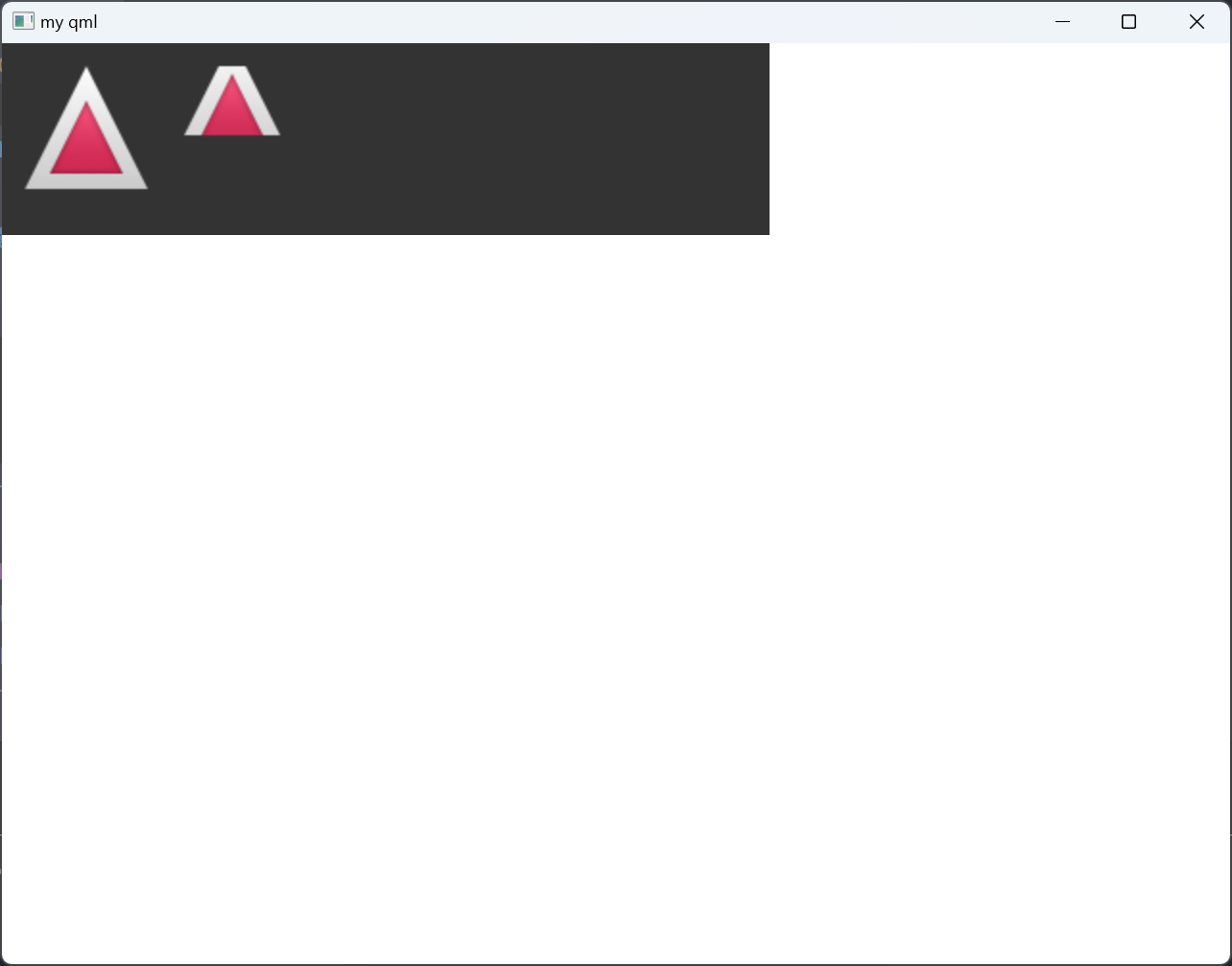
import QtQuick.Controls 2.5Window {width: 640height: 480visible: truetitle: qsTr("my qml")Component {id: comAnimatedImage {id: imgsource: "/asset/test.gif"width: 100height: 100}}Loader {id: loaderasynchronous: truesourceComponent: comsource: "./MyRectangle.qml"onStatusChanged: {console.log("status: ", loader.status)}}
}
MouseArea组件
MouseArea也是继承自Item
acceptedButtons属性
import QtQuick 2.15
import QtQuick.Window 2.15
import QtQuick.Controls 2.5Window {width: 640height: 480visible: truetitle: qsTr("my qml")MouseArea {id: mouseAreawidth: 100height: 100acceptedButtons: Qt.LeftButton | Qt.RightButton //支持左键和右键Rectangle {anchors.fill: parentcolor: "green"}onClicked: {console.log("onClicked")}onReleased: {console.log("onReleased")}onPressed: {var ret = pressedButtons & Qt.LeftButtonvar ret2 = pressedButtons & Qt.RightButtonconsole.log(ret ? "left" : ret2 ? "right" : "other")console.log("onPressed")}}
}
containsMouse属性、ContainsPress属性
import QtQuick 2.15
import QtQuick.Window 2.15
import QtQuick.Controls 2.5Window {width: 640height: 480visible: truetitle: qsTr("my qml")MouseArea {id: mouseAreawidth: 100height: 100acceptedButtons: Qt.LeftButton | Qt.RightButton //支持左键和右键hoverEnabled: true    cursorShape: Qt.CrossCursor   //十字光标Rectangle {anchors.fill: parentcolor: "green"}onClicked: {console.log("onClicked")}onHoveredChanged: {console.log("onHoveredChanged")}onContainsMouseChanged: {console.log("onContainsMouseChanged", containsMouse)}onContainsPressChanged: {console.log("onContainsPressed", containsPress)}}
}
drag属性
拖动控件移动
import QtQuick 2.15
import QtQuick.Window 2.15
import QtQuick.Controls 2.5Window {width: 640height: 480visible: truetitle: qsTr("my qml")Rectangle {id: containerwidth: 600; height: 200Rectangle {id: rectwidth: 50; height: 50color: "red"opacity: (600.0 - rect.x) / 600MouseArea {anchors.fill: parentdrag.target: rectdrag.axis: Drag.XAxisdrag.minimumX: 0drag.maximumX: container.width - rect.width}}}
}
连同子控件一起移动,由drag.filterChildren所控制
import QtQuick 2.15
import QtQuick.Window 2.15
import QtQuick.Controls 2.5Window {width: 640height: 480visible: truetitle: qsTr("my qml")Rectangle {width: 480height: 320Rectangle {x: 30; y: 30width: 300; height: 240color: "lightsteelblue"MouseArea {anchors.fill: parentdrag.target: parent;drag.axis: "XAxis"drag.minimumX: 30drag.maximumX: 150drag.filterChildren: trueRectangle {color: "yellow"x: 50; y : 50width: 100; height: 100MouseArea {anchors.fill: parentonClicked: console.log("Clicked")}}}}}
}
Button组件
Button控件继承自AbstractButton,AbstractButton继承自Control,Control继承自Item
autoExclusive属性
import QtQuick 2.15
import QtQuick.Window 2.15
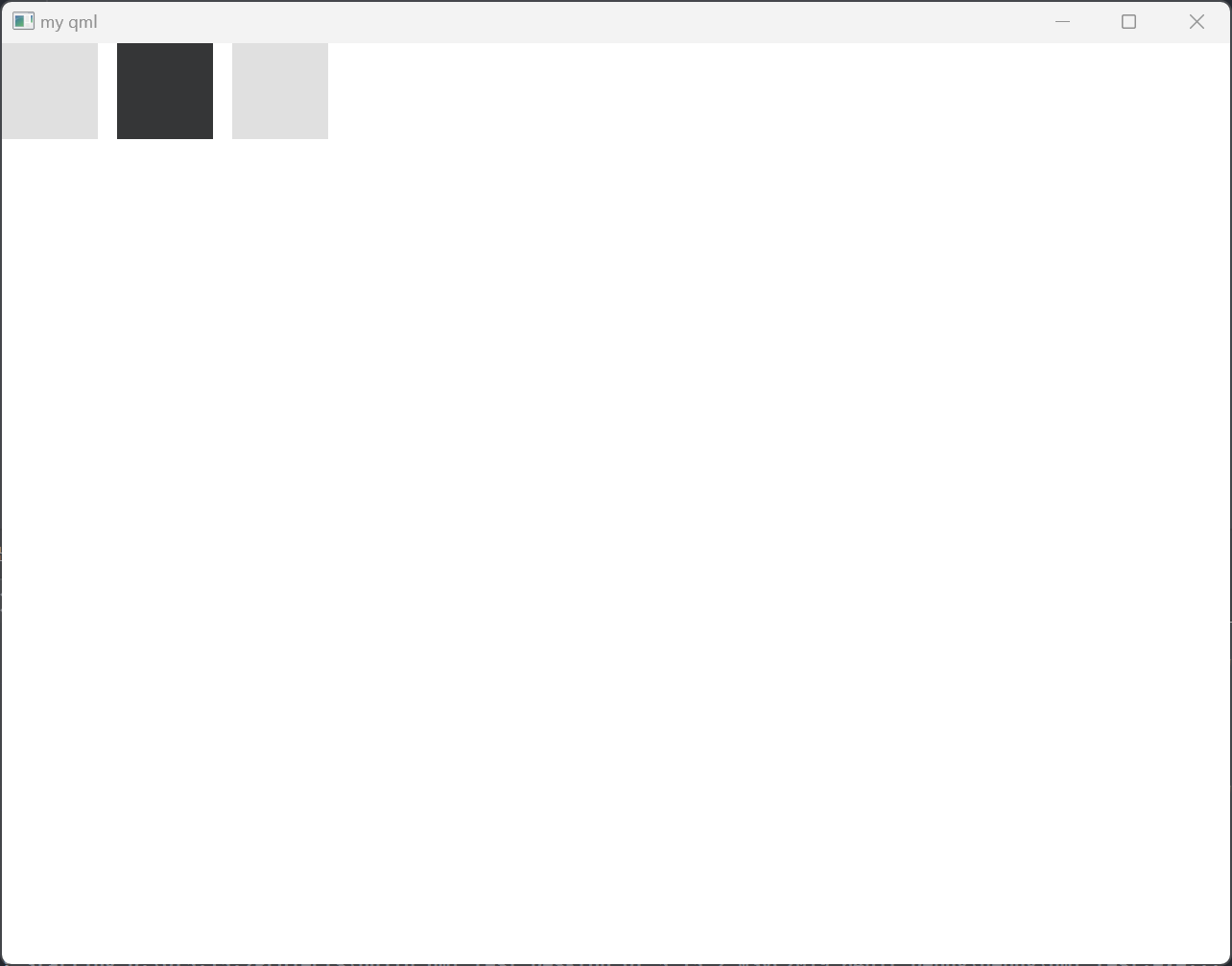
import QtQuick.Controls 2.5Window {width: 640height: 480visible: truetitle: qsTr("my qml")Button {id: btn1width: 50height: 50checkable: trueautoExclusive: true}Button {id: btn2x: 60width: 50height: 50checkable: trueautoExclusive: true}Button {id: btn3x: 120width: 50height: 50checkable: trueautoExclusive: true}
}
同一时间只有一个按钮处于checked状态
autoRepeat、autoRepeatDelay、autoRepeatInterval
import QtQuick 2.15
import QtQuick.Window 2.15
import QtQuick.Controls 2.5Window {width: 640height: 480visible: truetitle: qsTr("my qml")Button {id: btn1width: 50height: 50autoRepeat: trueautoRepeatDelay: 3000 //控制第一次重复触发的时间autoRepeatInterval: 1000 //重复触发的时间间隔onClicked: {console.log("onClicked")}onReleased: {console.log("onReleased")}onPressed: {console.log("onPressed")}}
}
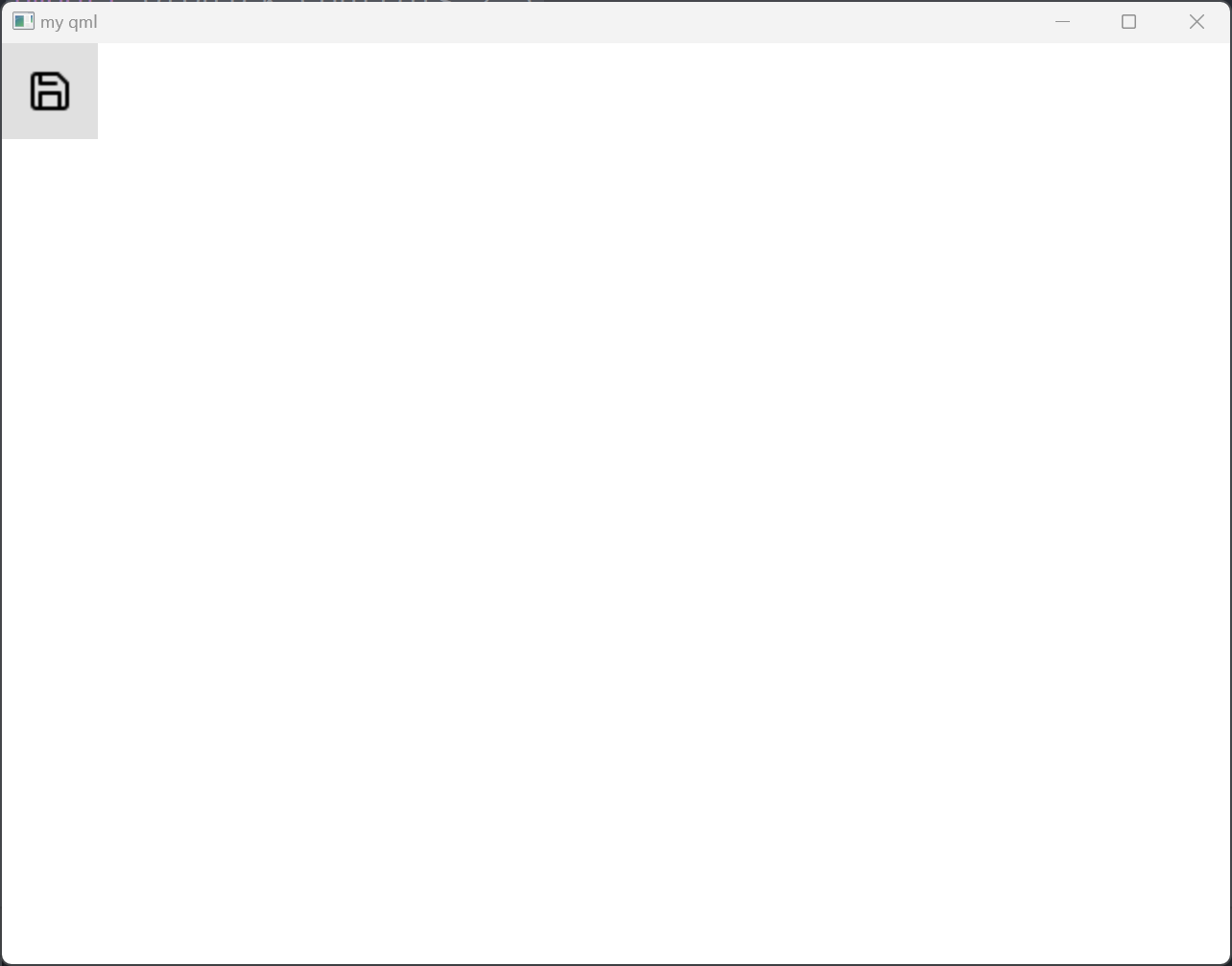
icon属性
import QtQuick 2.15
import QtQuick.Window 2.15
import QtQuick.Controls 2.5Window {width: 640height: 480visible: truetitle: qsTr("my qml")Button {id: btn1width: 50height: 50icon.source: "/asset/8666542_save_icon.png"icon.color: "black"}
}
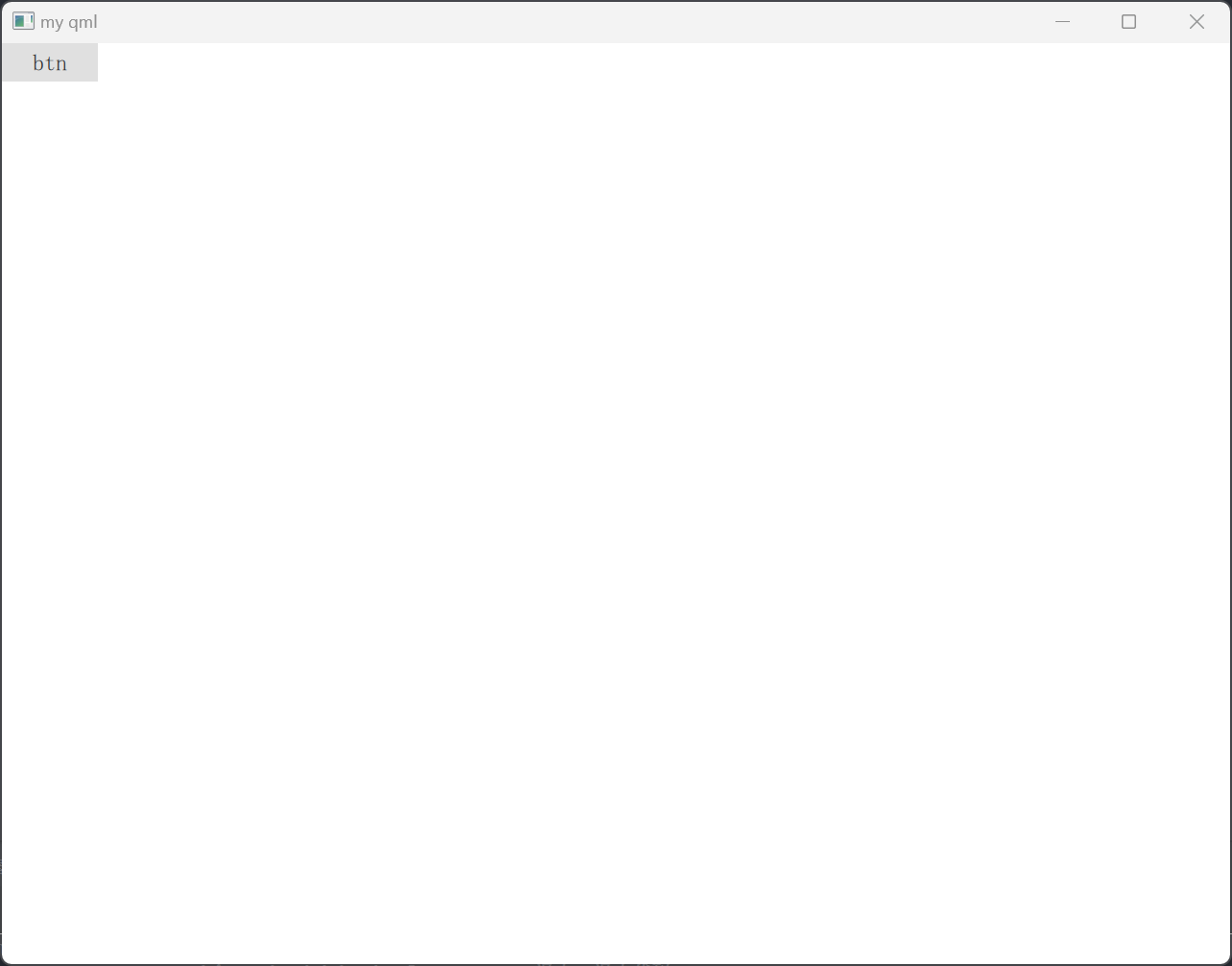
text属性
import QtQuick 2.15
import QtQuick.Window 2.15
import QtQuick.Controls 2.5Window {width: 640height: 480visible: truetitle: qsTr("my qml")Button {id: btn1width: 50height: 20text: "btn"}
}
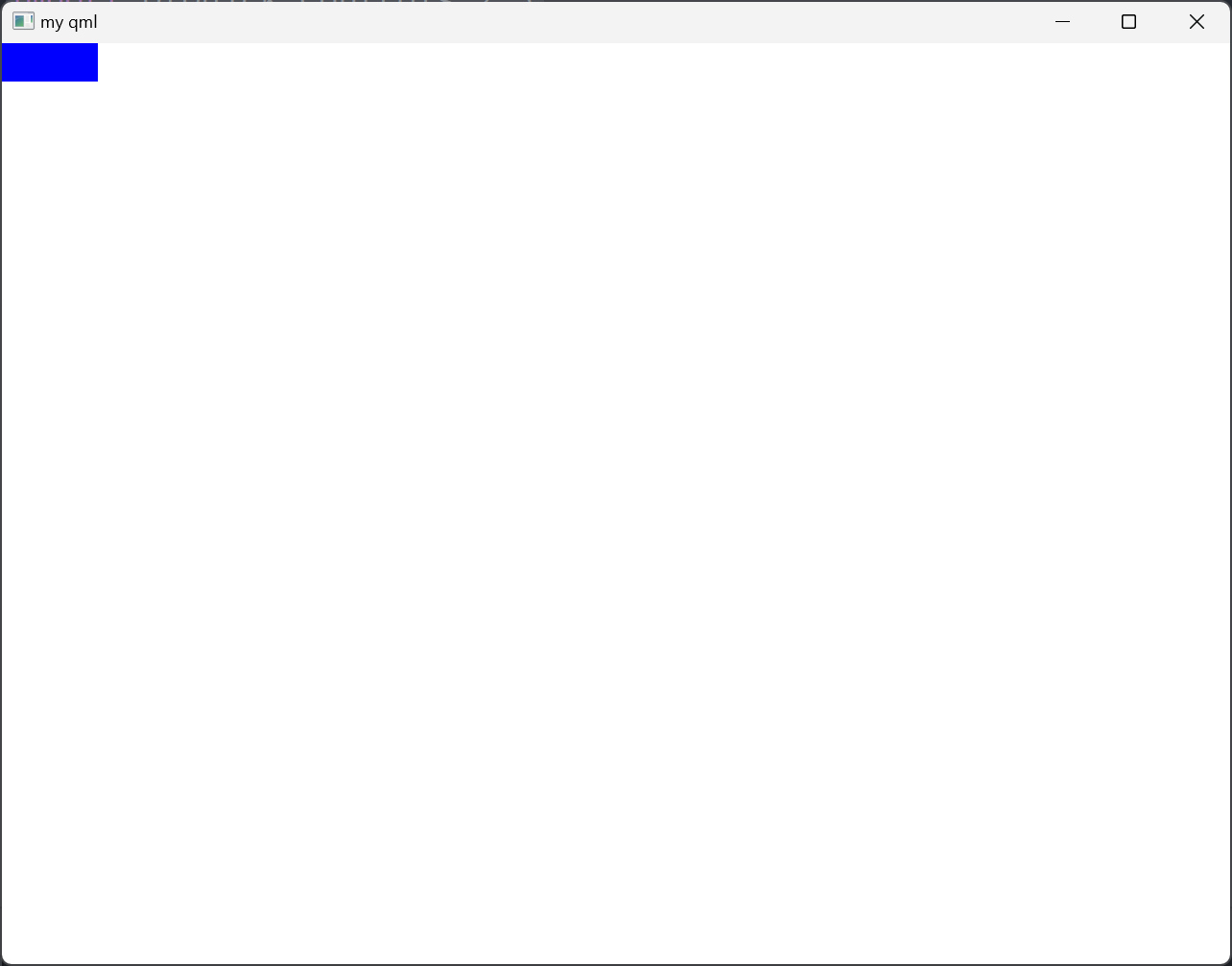
background属性
import QtQuick 2.15
import QtQuick.Window 2.15
import QtQuick.Controls 2.5Window {width: 640height: 480visible: truetitle: qsTr("my qml")Button {id: btn1width: 50height: 20background: Rectangle {anchors.fill: btncolor: "blue"}}
}
Property的使用
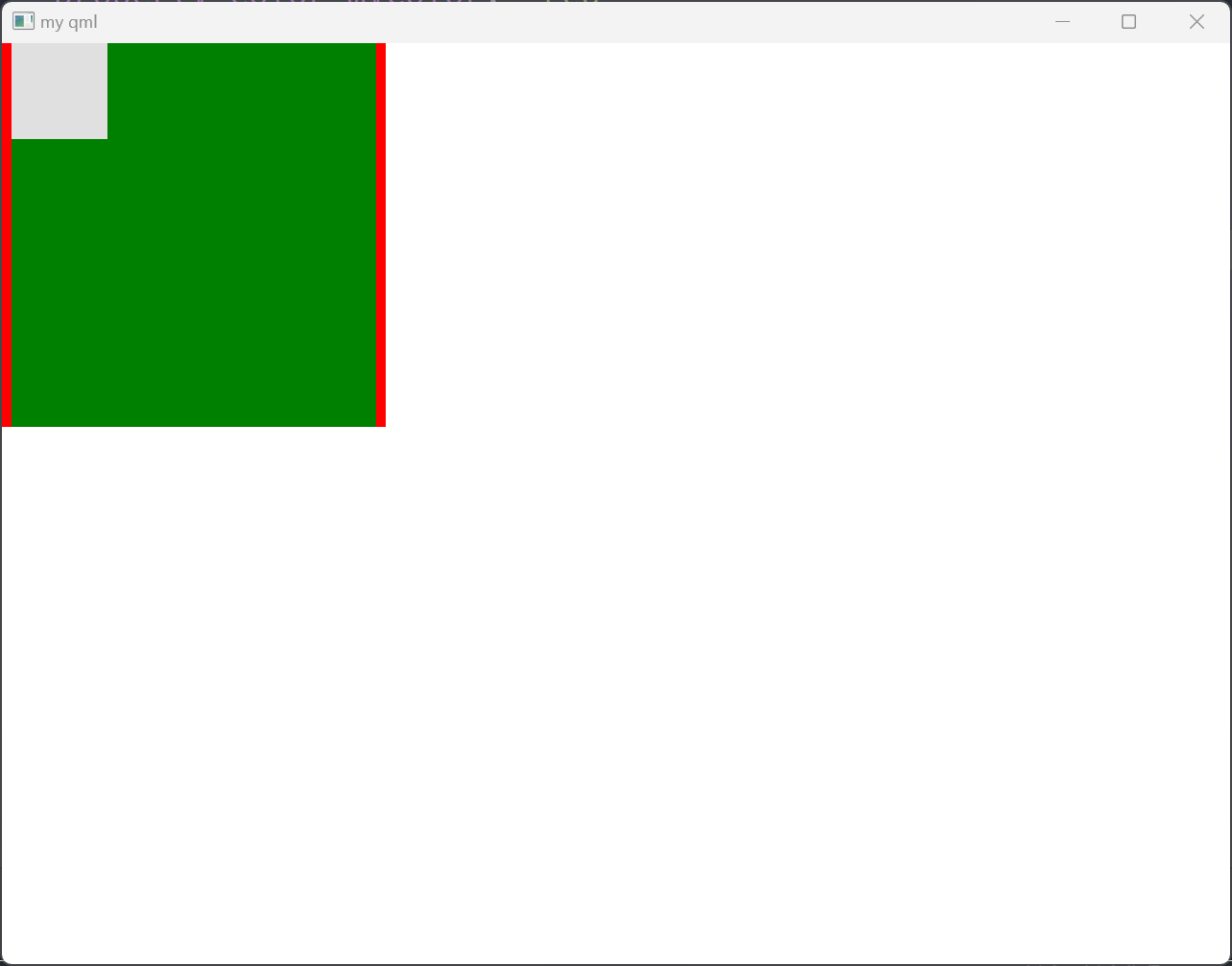
MyRectangle.qml
import QtQuick 2.15Rectangle {id: borderRectwidth: 200height: 200color: "red"property int myTop: 0property int myBottom: 0property real myReal: 0.0property string myString: "black"property color myColor: "red"property url myUrl: "/asset/test.jpg"required property Component myCom    //外界一定设置才行property Rectangle myRectproperty var myVar: "0.0"property list<Rectangle> myListreadonly property int rectWidth: width //外界不可修改property alias newInnerRect: innerRect //给子控件取别名Rectangle {id: innerRectLoader {id: loadersourceComponent: myCom}color: "blue"anchors.fill: parentanchors.topMargin: myTopanchors.bottomMargin: myBottomanchors.leftMargin: 5anchors.rightMargin: 5}
}
main.qml
import QtQuick 2.15
import QtQuick.Window 2.15
import QtQuick.Controls 2.5Window {width: 640height: 480visible: truetitle: qsTr("my qml")Component {id: comButton {width: 50height: 50}}MyRectangle {id: rectmyCom: comComponent.onCompleted: {newInnerRect.color = "green"console.log(rectWidth)}}
}
CheckBox控件
CheckBox继承自AbstractButton
tristate属性
import QtQuick 2.15
import QtQuick.Window 2.15
import QtQuick.Controls 2.5Window {width: 640height: 480visible: truetitle: qsTr("my qml")Column {CheckBox {checked: truetristate: truetext: qsTr("First")onCheckStateChanged: {console.log("checkState: ", checkState)}}CheckBox {text: qsTr("Second")}CheckBox {checked: truetext: qsTr("Third")}}
}
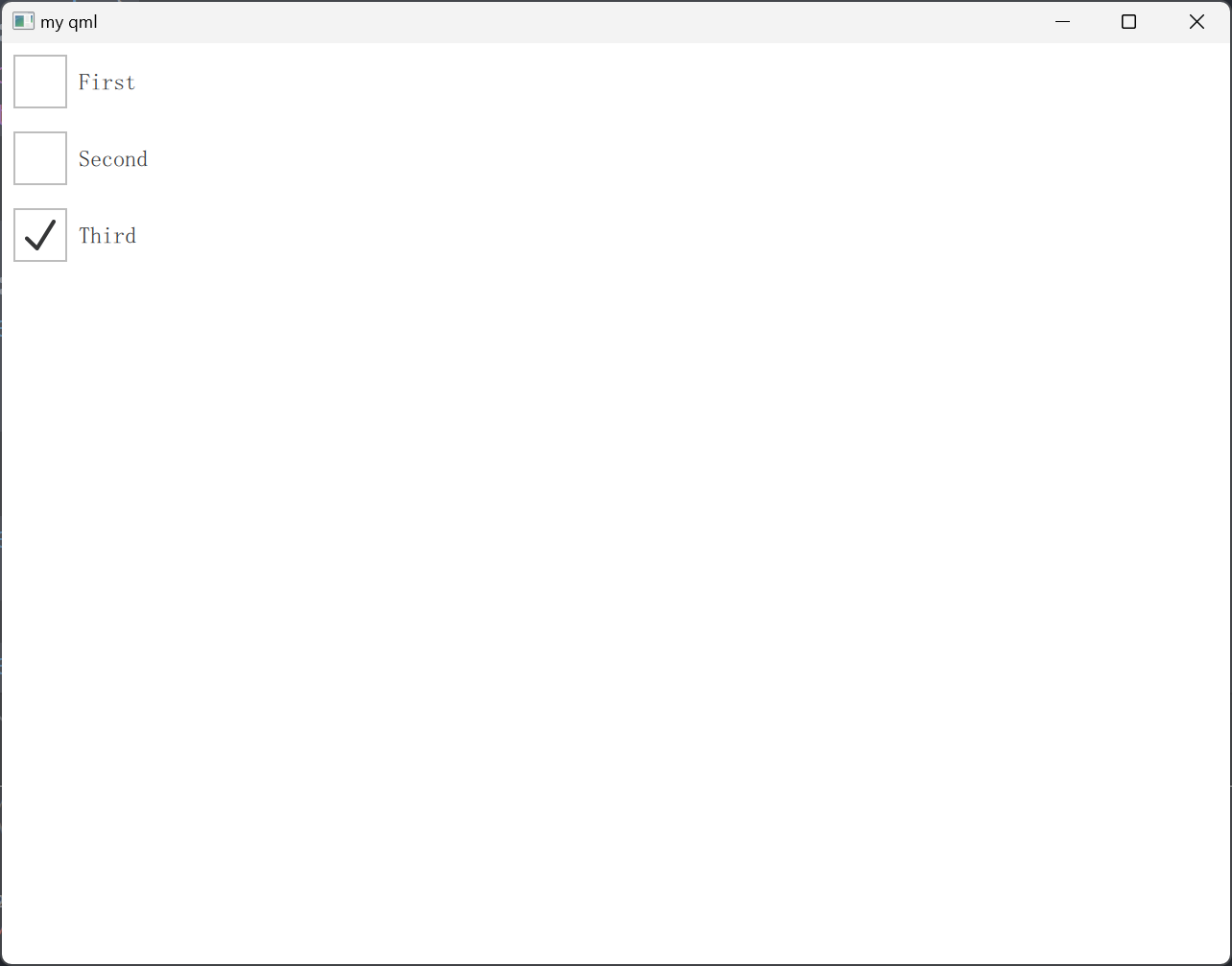
checkBox控件无法用autoExclusive属性实现单选框,但可用ButtonGroup来实现
import QtQuick 2.15
import QtQuick.Window 2.15
import QtQuick.Controls 2.5Window {width: 640height: 480visible: truetitle: qsTr("my qml")ButtonGroup {id: childGroupexclusive: truebuttons: column.children}Column {id: columnCheckBox {checked: truetext: qsTr("First")}CheckBox {text: qsTr("Second")}CheckBox {checked: truetext: qsTr("Third")}}
}
以下示例说明了如何将子项的组合检查状态绑定到父复选框的检查状态
import QtQuick 2.15
import QtQuick.Window 2.15
import QtQuick.Controls 2.5Window {width: 640height: 480visible: truetitle: qsTr("my qml")Column {ButtonGroup {id: childGroupexclusive: falsecheckState: parentBox.checkState}CheckBox {id: parentBoxtext: qsTr("Parent")checkState: childGroup.checkState}CheckBox {checked: truetext: qsTr("Child 1")leftPadding: indicator.widthButtonGroup.group: childGroup}CheckBox {text: qsTr("Child 2")leftPadding: indicator.widthButtonGroup.group: childGroup}}
}
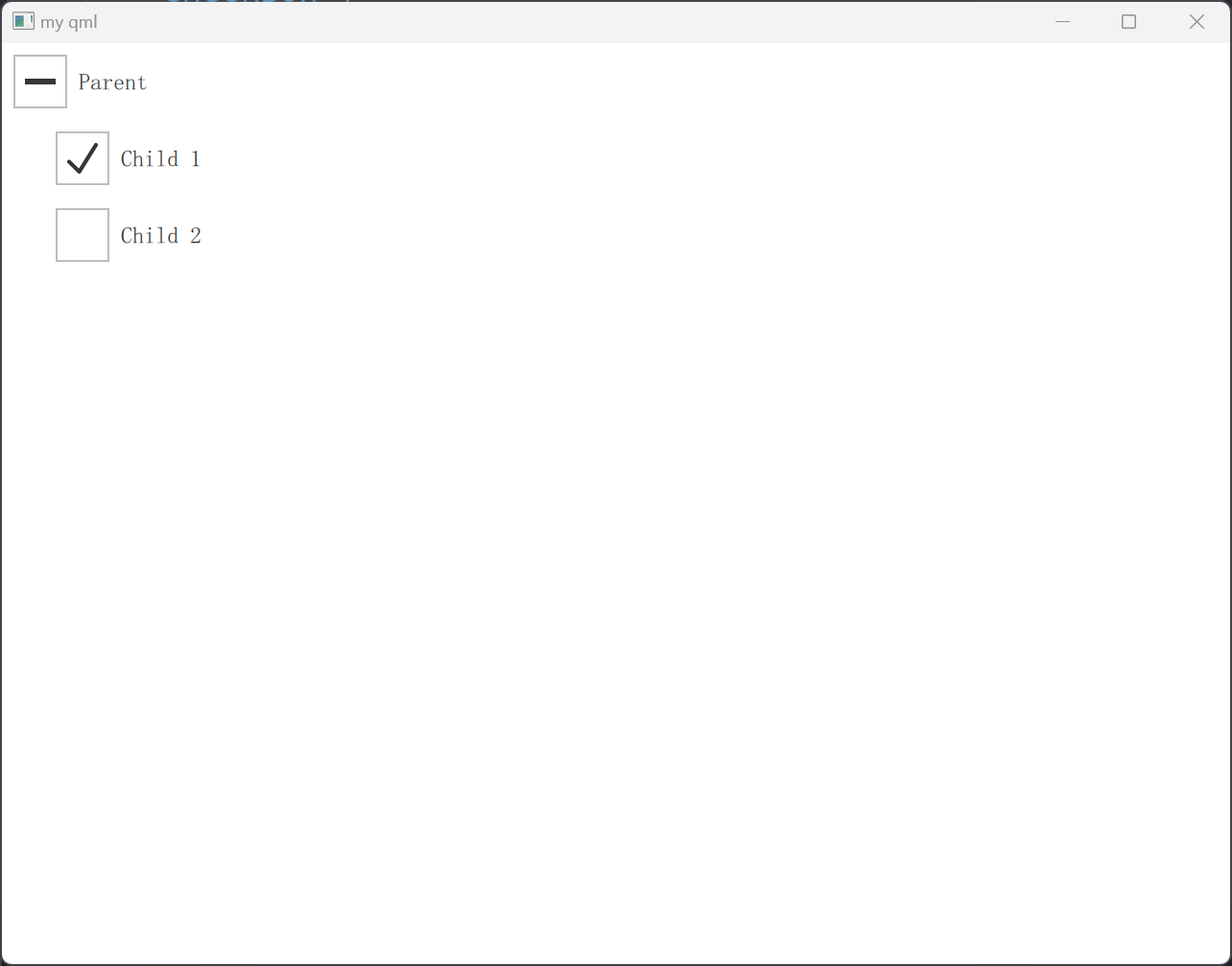
nextCheckState
import QtQuick 2.15
import QtQuick.Window 2.15
import QtQuick.Controls 2.5Window {width: 640height: 480visible: truetitle: qsTr("my qml")CheckBox {tristate: truenextCheckState: function() {if (checkState === Qt.Checked)return Qt.Uncheckedelsereturn Qt.Checked}}
}
DelayButton控件
import QtQuick 2.15
import QtQuick.Window 2.15
import QtQuick.Controls 2.5Window {width: 640height: 480visible: truetitle: qsTr("my qml")DelayButton {width: 150height: 50delay: 3000onPressedChanged: {console.log(progress)}}
}
RadioButton控件
import QtQuick 2.15
import QtQuick.Window 2.15
import QtQuick.Controls 2.5Window {width: 640height: 480visible: truetitle: qsTr("my qml")Column {RadioButton {checked: truetext: qsTr("First")}RadioButton {text: qsTr("Second")}RadioButton {text: qsTr("Third")}}
}
RadioButton控件具有自动排他性
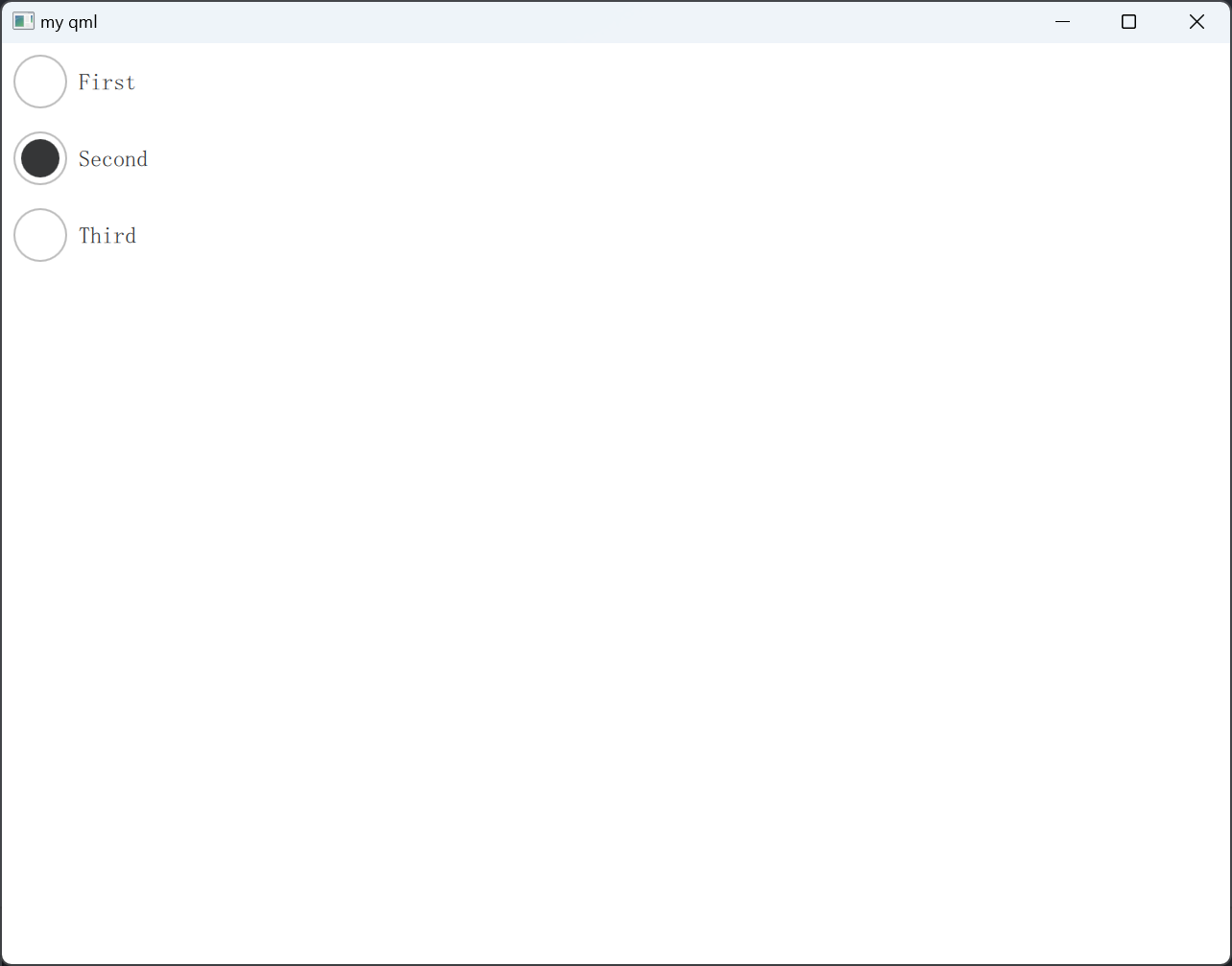
Switch控件
import QtQuick 2.15
import QtQuick.Window 2.15
import QtQuick.Controls 2.5Window {width: 640height: 480visible: truetitle: qsTr("my qml")ButtonGroup {id: btngrpexclusive: truebuttons: column.children}Column {id: columnSwitch {text: qsTr("Wi-Fi")onPositionChanged: {console.log("pos: ",position)}onVisualPositionChanged: {console.log("vis pos: ", visualPosition)}}Switch {text: qsTr("Bluetooth")}}
}
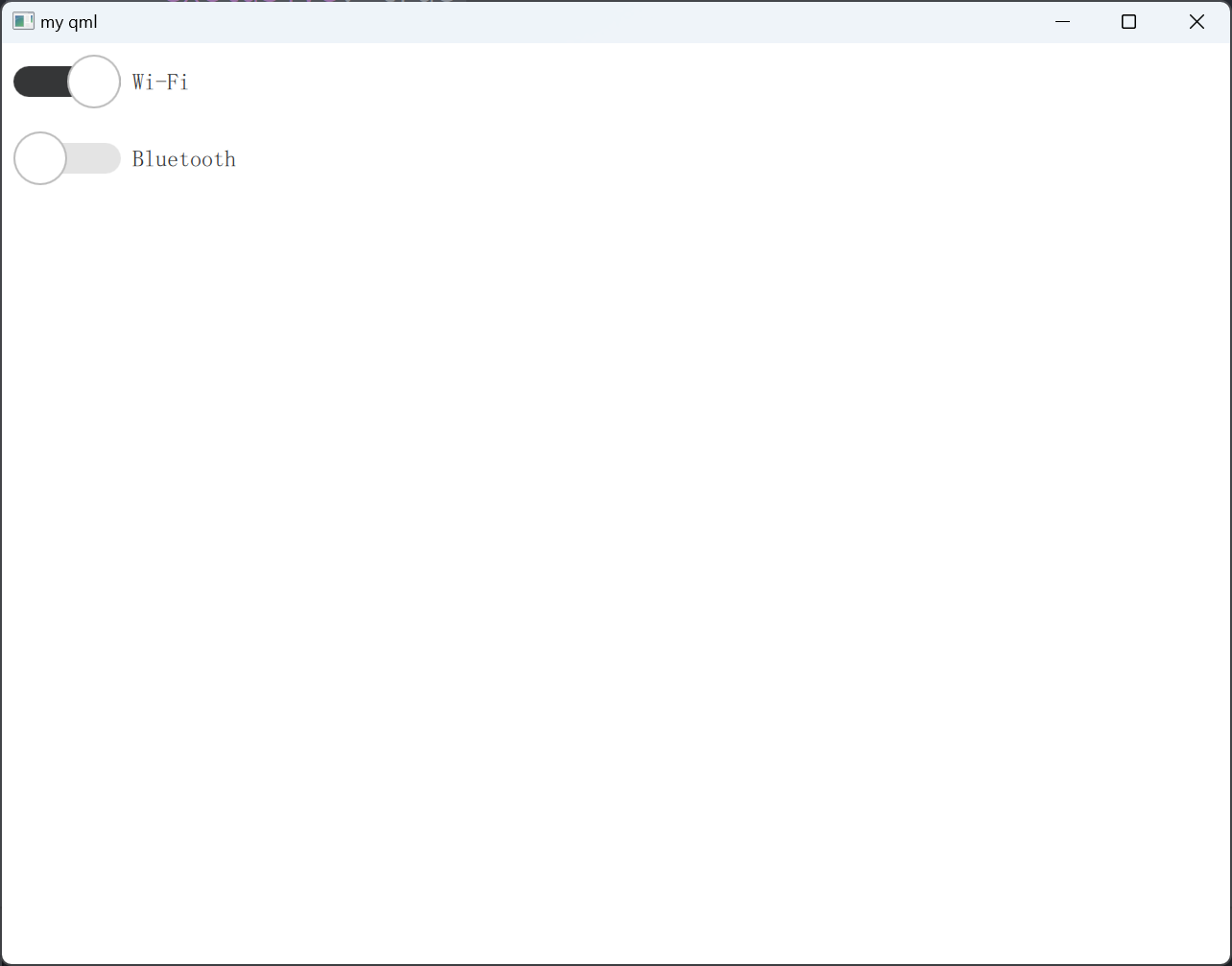
TabButton控件
一般用作切换界面的按钮
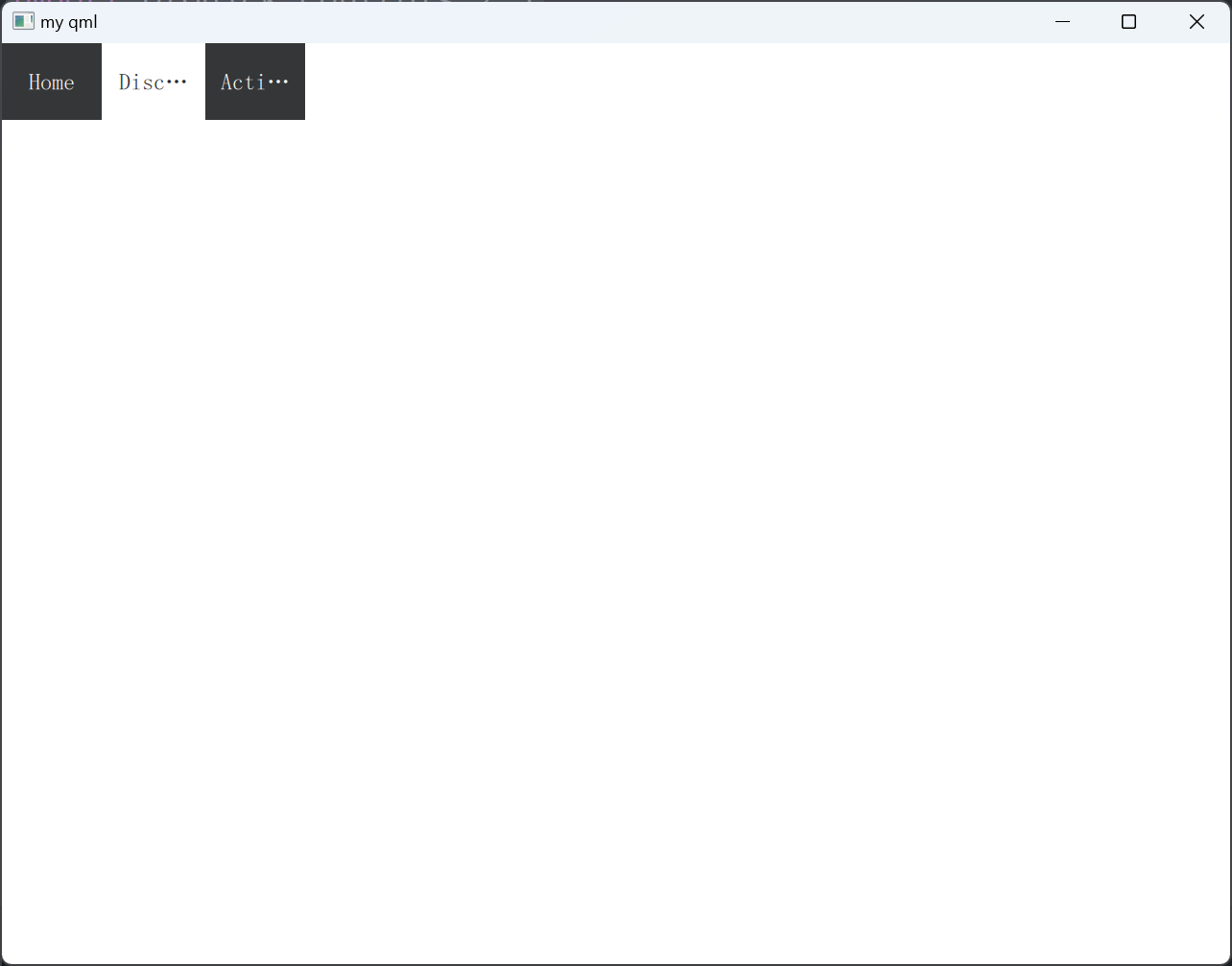
import QtQuick 2.15
import QtQuick.Window 2.15
import QtQuick.Controls 2.5Window {width: 640height: 480visible: truetitle: qsTr("my qml")TabBar {TabButton {text: qsTr("Home")}TabButton {text: qsTr("Discover")//width: 80}TabButton {text: qsTr("Activity")}}
}
Button扩展
import QtQuick 2.15
import QtQuick.Window 2.15
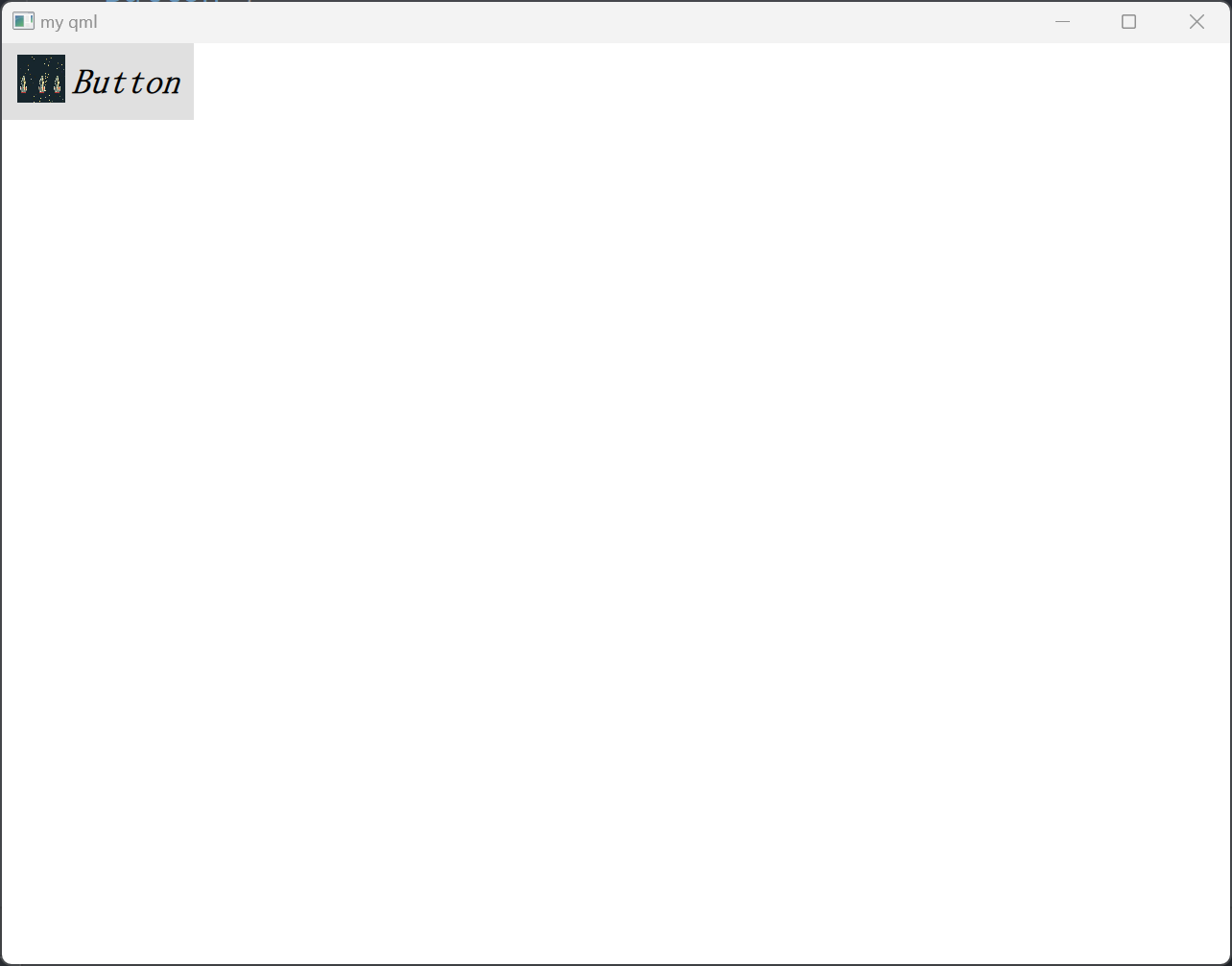
import QtQuick.Controls 2.5Window {width: 640height: 480visible: truetitle: qsTr("my qml")Button {id: controltext: qsTr("Button")contentItem: Rectangle {color: "transparent" //默认颜色是白色Text {text: control.textfont.pixelSize: 18font.bold: truefont.italic: truex: 28; y: 5}Image {id: imgsource: "/asset/rocket.png"width: 25height: 25}}}
}
Text控件
elide属性
import QtQuick 2.15
import QtQuick.Window 2.15
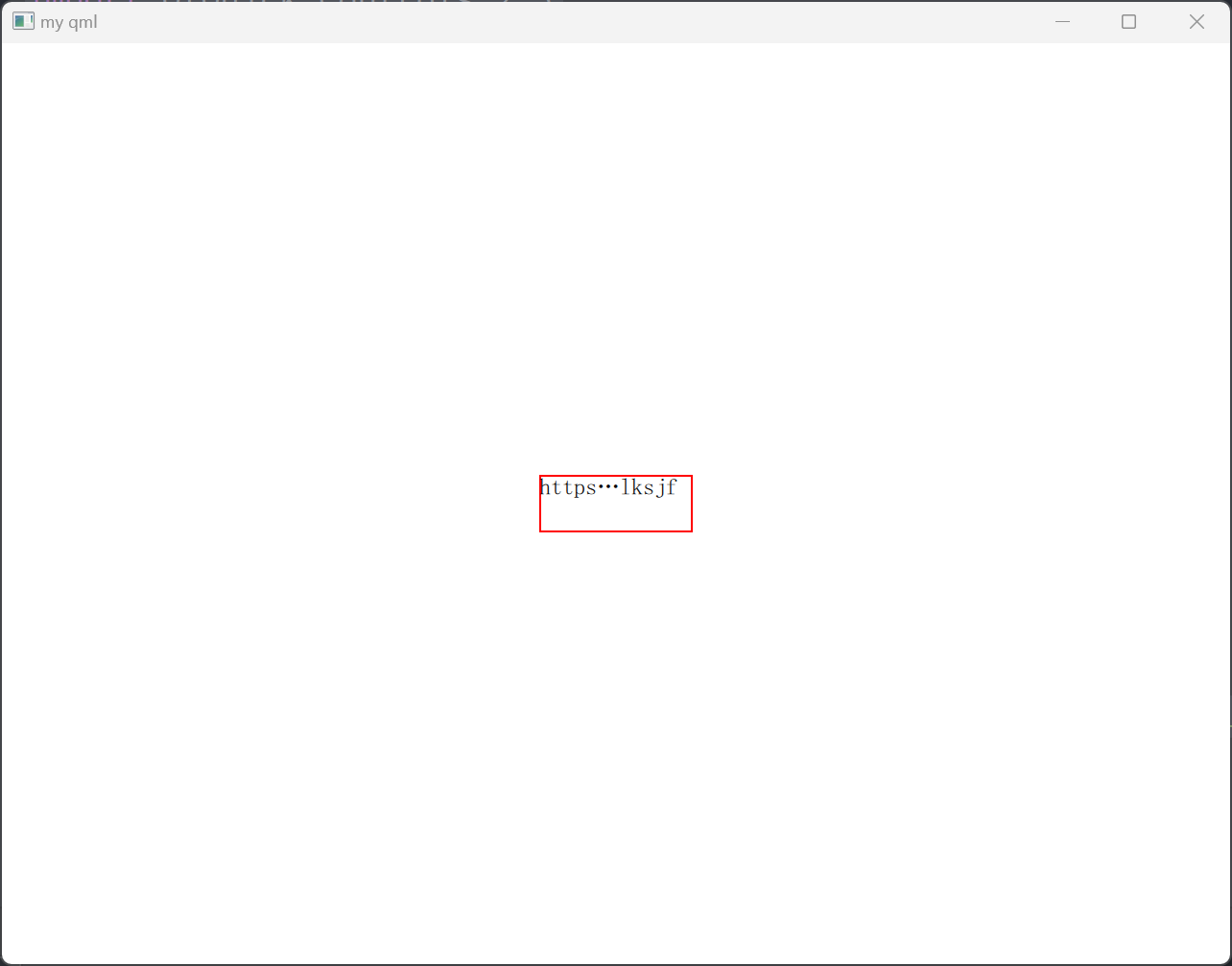
import QtQuick.Controls 2.5Window {width: 640height: 480visible: truetitle: qsTr("my qml")Rectangle {width: 80height: 30anchors.centerIn: parentborder.color: "red"Text {id: txtelide: Text.ElideMiddleanchors.fill: parenttext: qsTr("https://example.com/sjdflk/shdlsj/sdflksjf")}}
}
font属性
import QtQuick 2.15
import QtQuick.Window 2.15
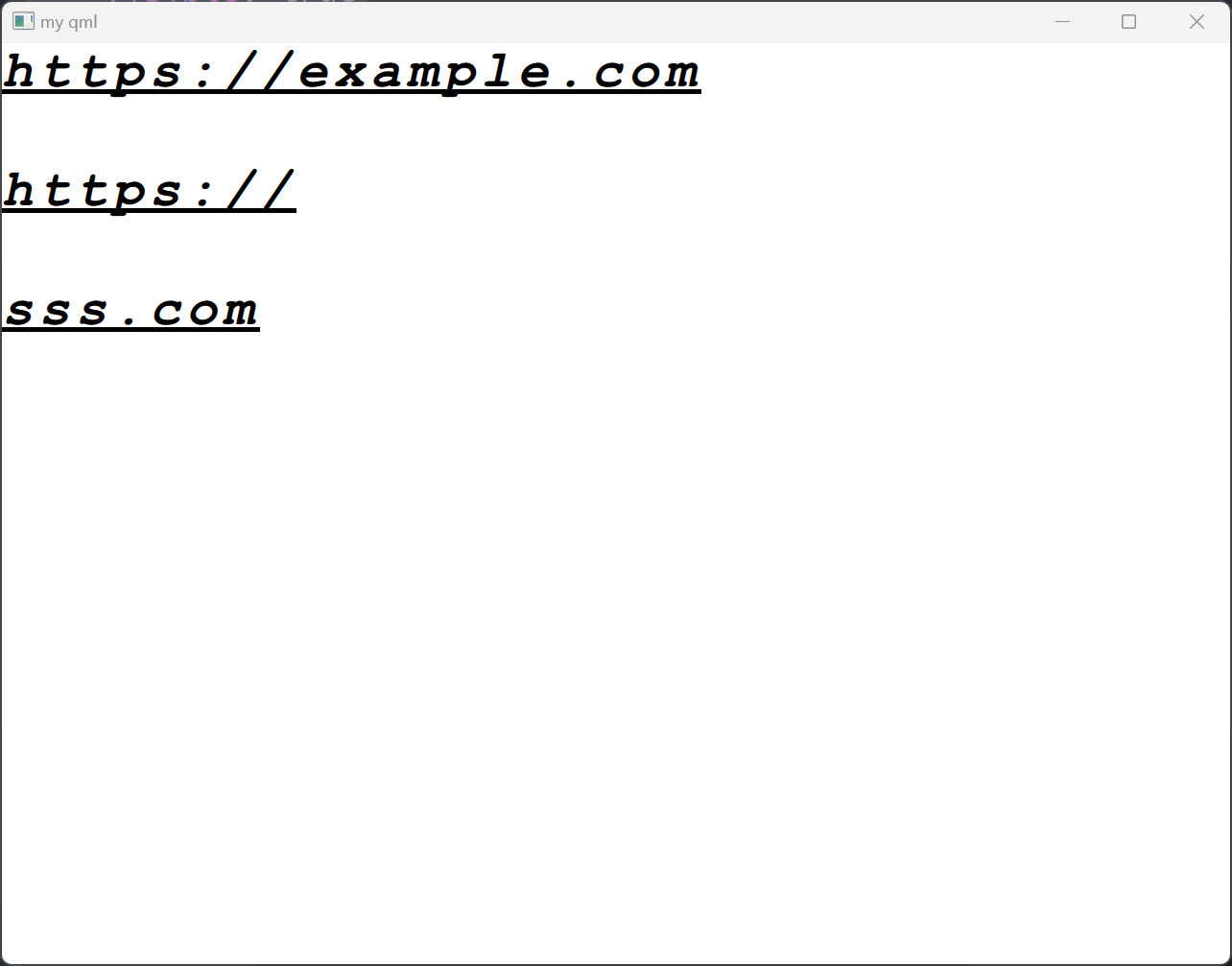
import QtQuick.Controls 2.5Window {width: 640height: 480visible: truetitle: qsTr("my qml")Text {id: txttext: qsTr("https://example.com\nhttps://\nsss.com")font.bold: true //粗体font.family: "Courier New"  //字体font.italic: true  //斜体font.letterSpacing: 3 //字体间距离//font.pixelSize: 36  //字体 像素为单位font.pointSize: 20  //字体 磅font.underline: truelineHeight: 2 //行间距Component.onCompleted: {console.log("lineCount: ", lineCount)}}
}
textFormat属性
import QtQuick 2.15
import QtQuick.Window 2.15
import QtQuick.Controls 2.5Window {width: 640height: 480visible: truetitle: qsTr("my qml")Column {Text {font.pointSize: 24text: "<b>Hello</b> <i>World!</i>"}Text {font.pointSize: 24textFormat: Text.RichTexttext: "<b>Hello</b> <i>World!</i>"}Text {font.pointSize: 24textFormat: Text.PlainTexttext: "<b>Hello</b> <i>World!</i>"}Text {font.pointSize: 24textFormat: Text.MarkdownTexttext: "**Hello** *World!*"}}
}

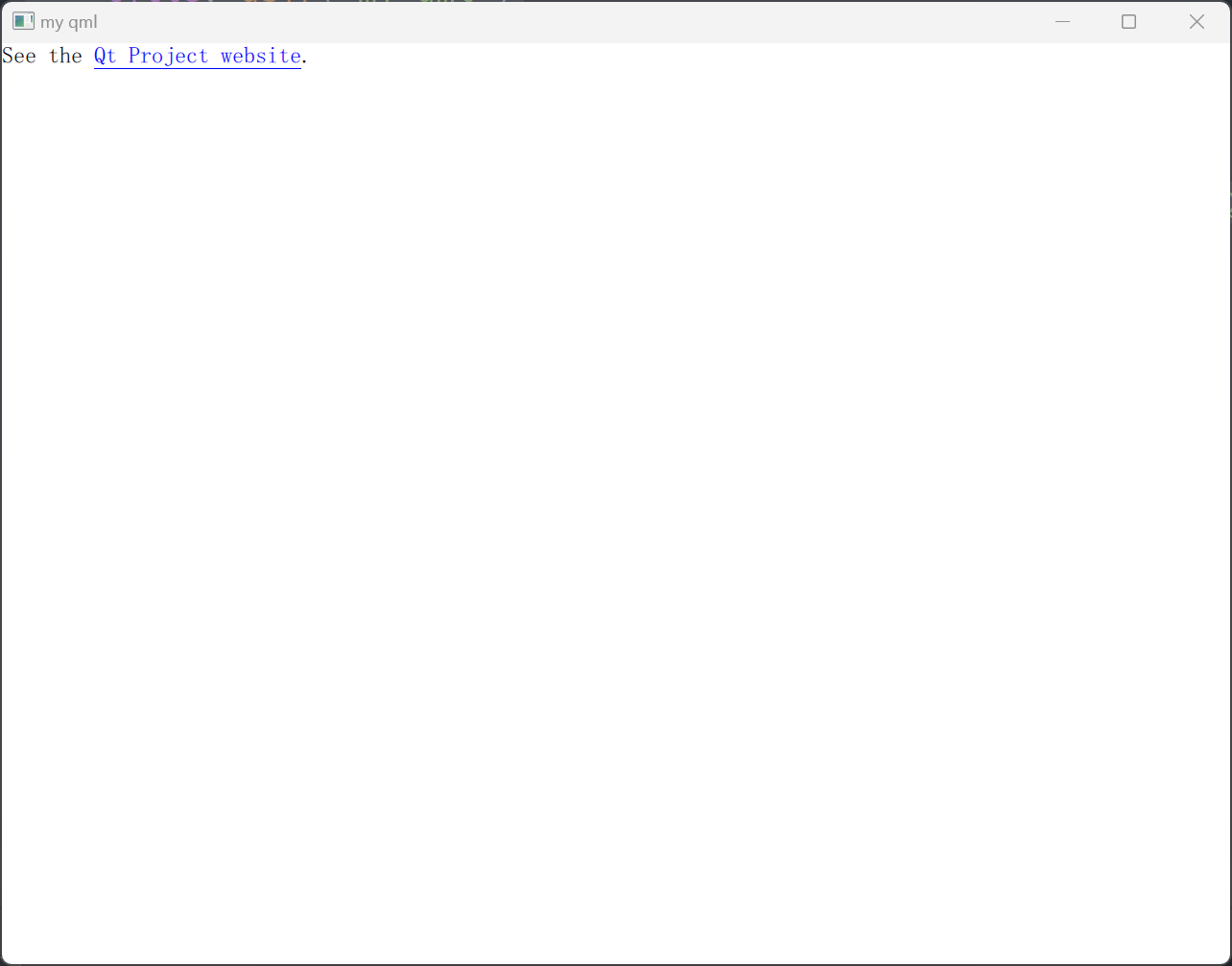
linkActivated信号
import QtQuick 2.15
import QtQuick.Window 2.15
import QtQuick.Controls 2.5Window {width: 640height: 480visible: truetitle: qsTr("my qml")Text {textFormat: Text.RichTexttext: "See the <a href=\"http://qt-project.org\">Qt Project website</a>."MouseArea {anchors.fill:  parentcursorShape: Qt.PointingHandCursorhoverEnabled: trueonClicked: {}}//将被MouseArea拦截失效onLinkActivated: {console.log(link + " link activated")}onLinkHovered: {console.log("hover", link)}onHoveredLinkChanged: {console.log("hover link changed: ", hoveredLink)}}
}
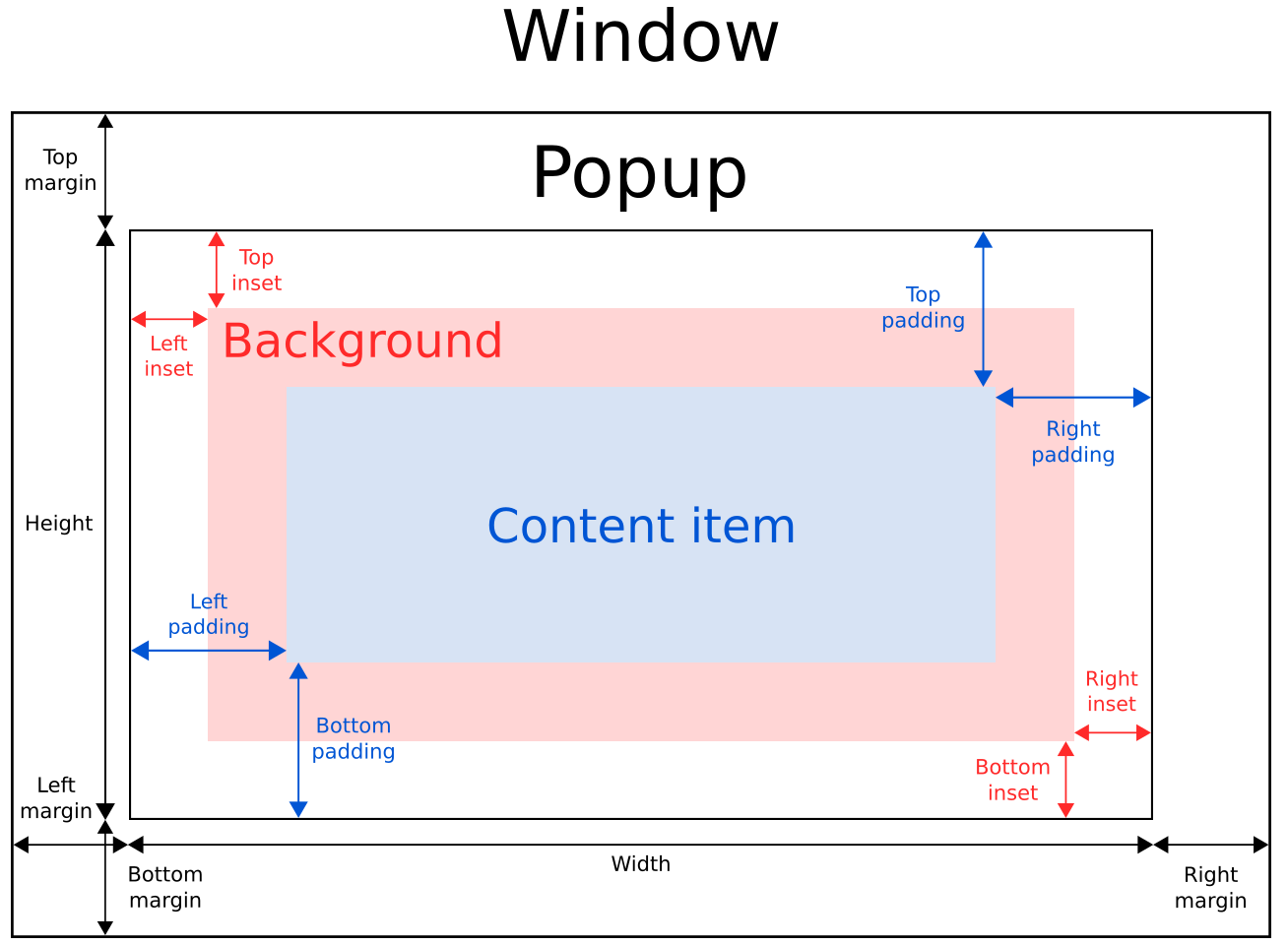
Popup和Overlay
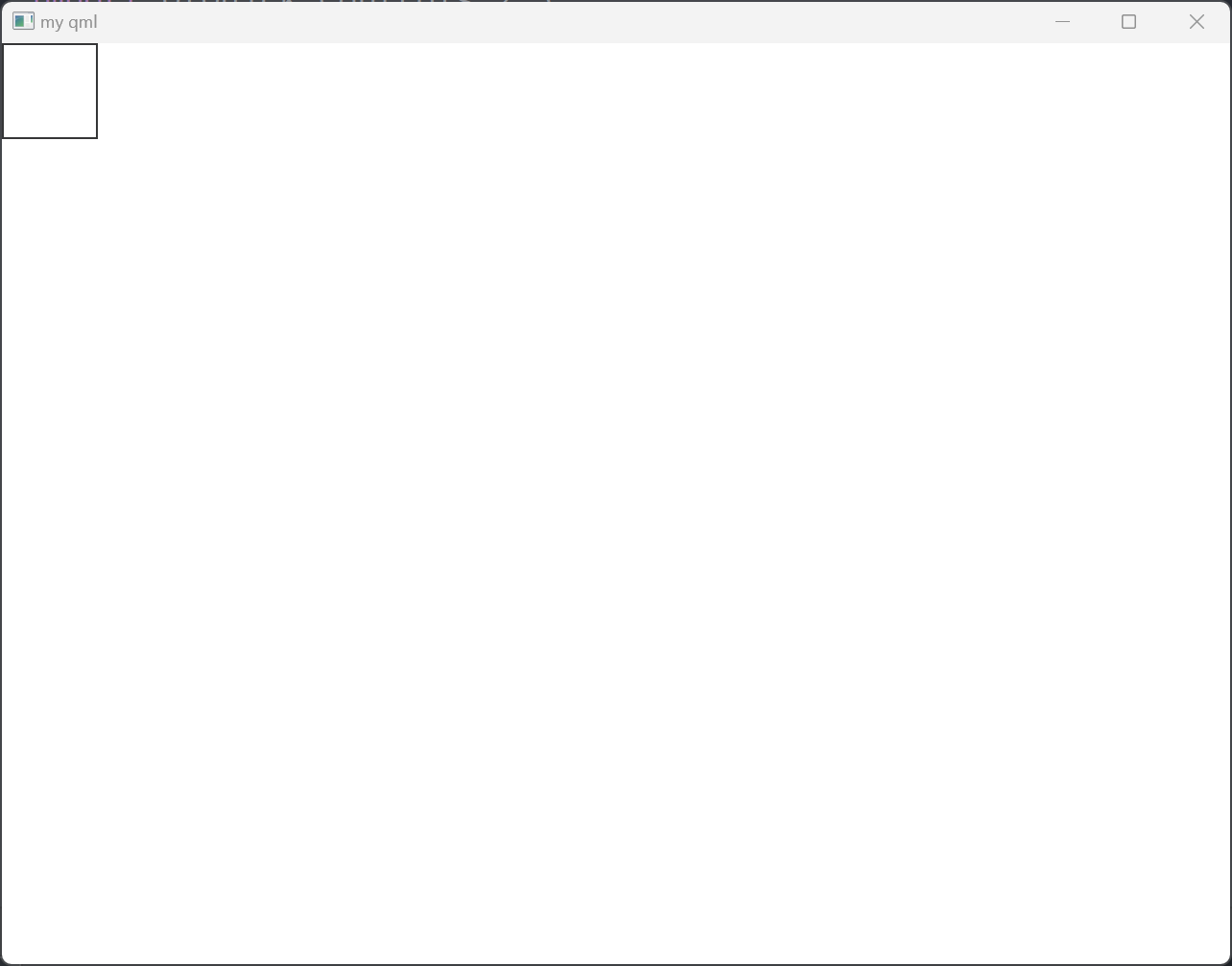
当Popup为子控件时,且设置visible为true时,仍然可以显示
import QtQuick 2.15
import QtQuick.Window 2.15
import QtQuick.Controls 2.5Window {width: 640height: 480visible: truetitle: qsTr("my qml")Rectangle {width: 100; height: 100color: "red"visible: falsePopup {width: 50; height: 50visible: true}}
}
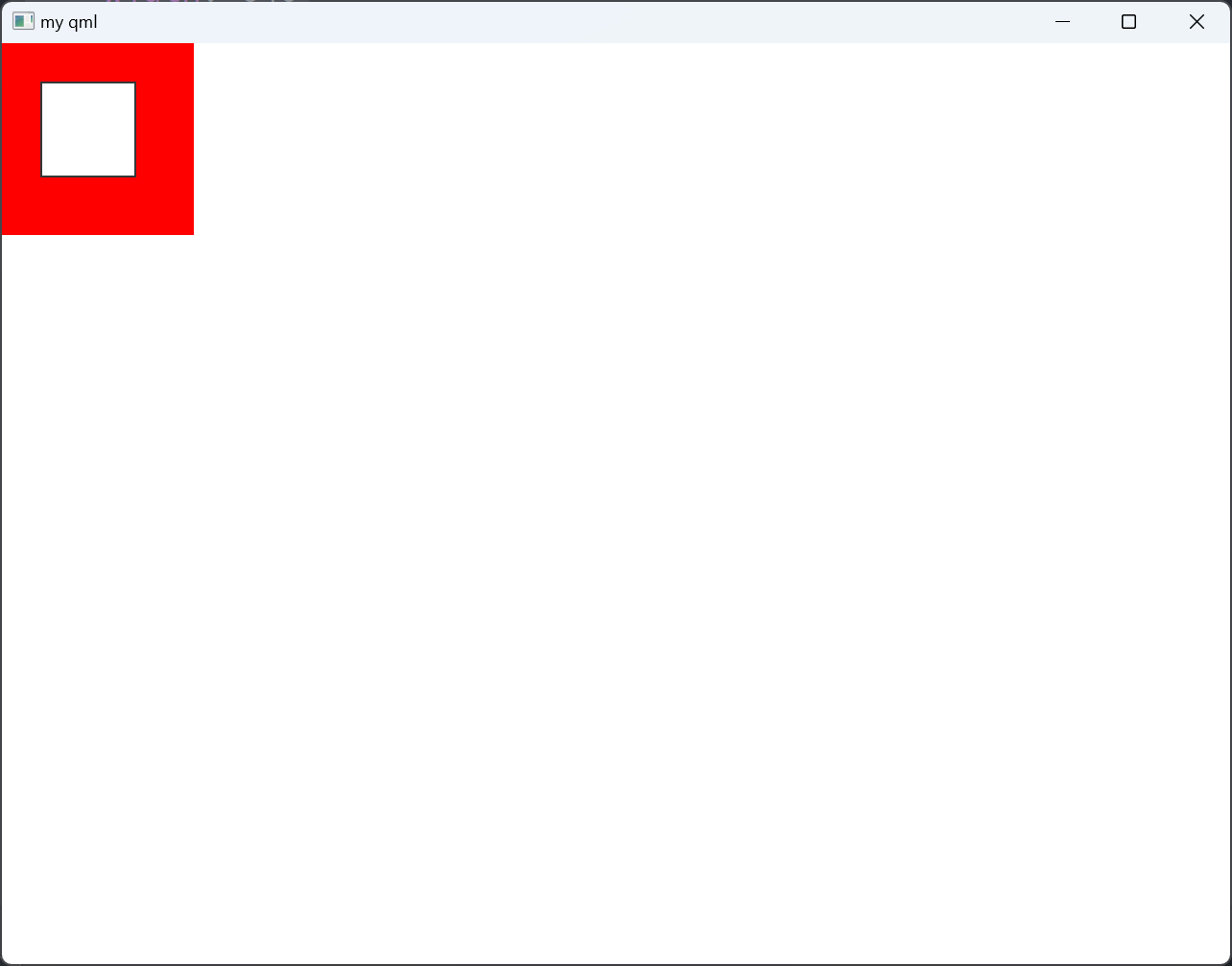
Popup的z顺序是个例外
import QtQuick 2.15
import QtQuick.Window 2.15
import QtQuick.Controls 2.5Window {width: 640height: 480visible: truetitle: qsTr("my qml")Rectangle {width: 100; height: 100color: "red"visible: true}//Popup的z顺序为例外Popup {width: 50; height: 50x: 20; y: 20//color: "blue"visible: truez: -1}
}
closePolicy属性:窗口关闭逻辑
MyPopup.qml
import QtQuick 2.15
import QtQuick.Controls 2.5Popup {id: popupx: 100y: 100width: 200height: 300visible: truemodal: trueclosePolicy: Popup.NoAutoClose
}
main.qml
import QtQuick 2.15
import QtQuick.Window 2.15
import QtQuick.Controls 2.5Window {width: 640height: 480visible: truetitle: qsTr("my qml")Popup {width: 50; height: 50x: 20; y: 20//color: "blue"visible: truez: -1}MyPopup {}
}
如此,按下Esc或者在Popup控件周围按下不会让控件消失
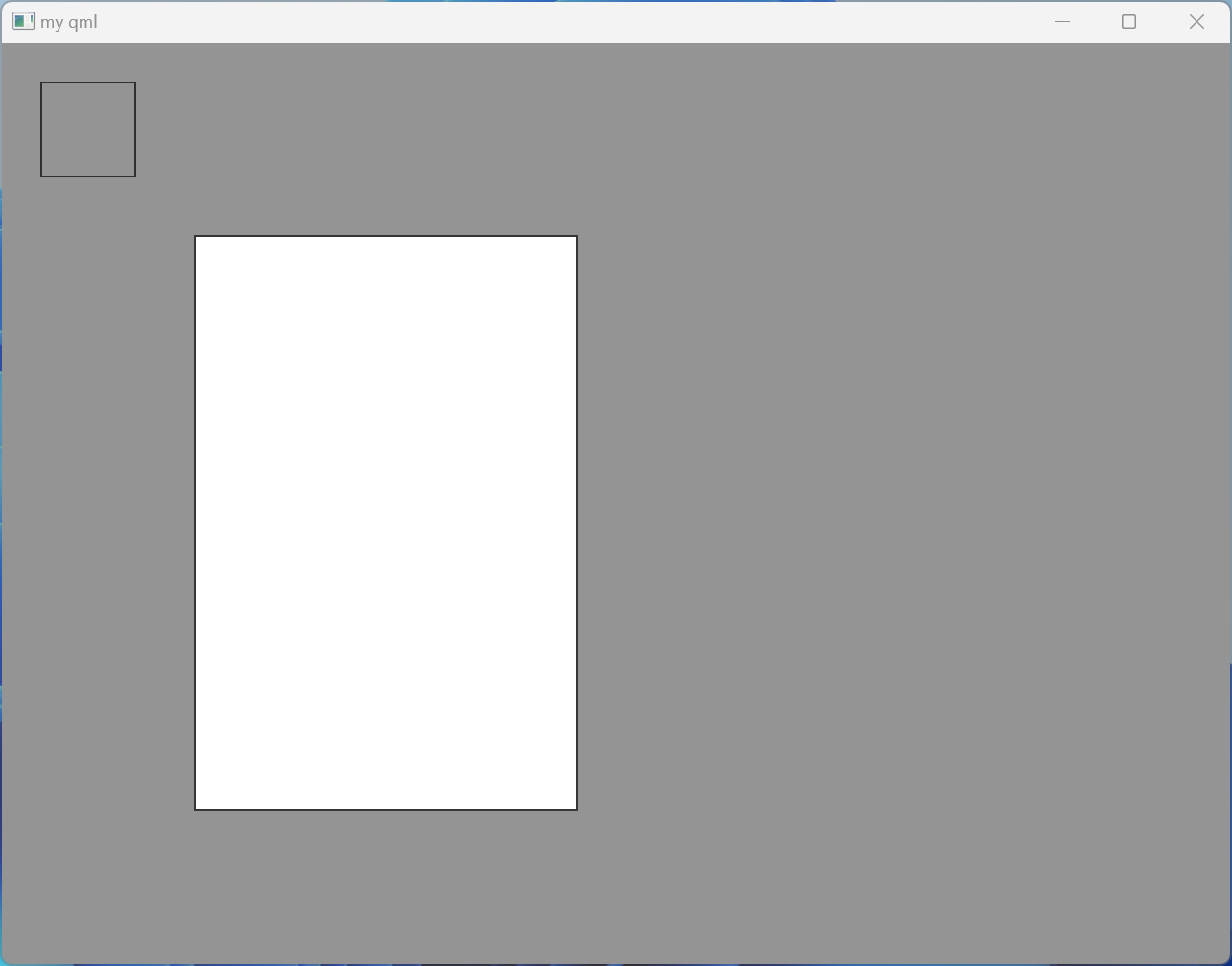
modal模态对话框属性dim:配合modal使用enter、exit属性
import QtQuick 2.15
import QtQuick.Controls 2.5Popup {id: popupx: 100y: 100width: 200height: 300visible: truemodal: truedim: true//closePolicy: Popup.NoAutoCloseenter: Transition { //打开的时候NumberAnimation { property: "opacity"; from: 0.0; to: 1.0 }}exit: Transition { //推出的时候NumberAnimation { property: "opacity"; from: 1.0; to: 0.0 }}
}
contentItem属性
import QtQuick 2.15
import QtQuick.Controls 2.5Popup {id: popupx: 100; y: 100width: 400; height: 300visible: truemodal: truedim: true//closePolicy: Popup.NoAutoCloseenter: Transition { //打开的时候NumberAnimation { property: "opacity"; from: 0.0; to: 1.0 }}exit: Transition { //推出的时候NumberAnimation { property: "opacity"; from: 1.0; to: 0.0 }}contentItem: Rectangle {anchors.fill: parentText {id: txttext: qsTr("Message Box popup")}}Button {anchors.bottom: parent.bottomanchors.bottomMargin: 30anchors.right: parent.rightanchors.rightMargin: 30text: "cancel"}Button {anchors.bottom: parent.bottomanchors.bottomMargin: 30anchors.right: parent.rightanchors.rightMargin: 150text: "ok"}
}
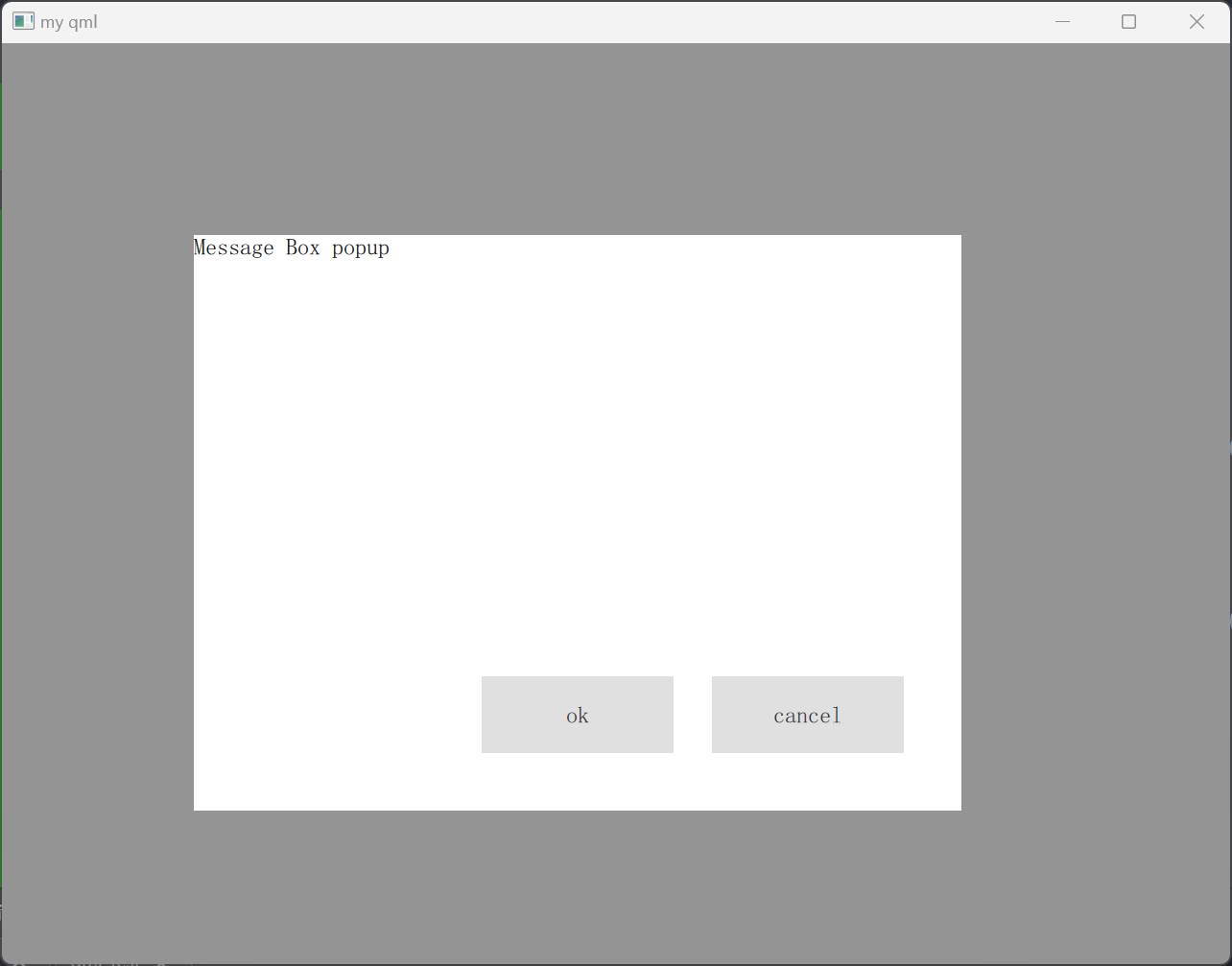
overlay属性
import QtQuick 2.15
import QtQuick.Controls 2.5Popup {id: popupx: 100; y: 100width: 400; height: 300visible: truemodal: truedim: true//closePolicy: Popup.NoAutoCloseenter: Transition { //打开的时候NumberAnimation { property: "opacity"; from: 0.0; to: 1.0 }}exit: Transition { //推出的时候NumberAnimation { property: "opacity"; from: 1.0; to: 0.0 }}contentItem: Rectangle {anchors.fill: parentText {id: txttext: qsTr("Message Box popup")}}Button {anchors.bottom: parent.bottomanchors.bottomMargin: 30anchors.right: parent.rightanchors.rightMargin: 30text: "cancel"}Button {anchors.bottom: parent.bottomanchors.bottomMargin: 30anchors.right: parent.rightanchors.rightMargin: 150text: "ok"}Overlay.modal: Rectangle {color: "#33000000"}Overlay.modeless: Rectangle {color: "blue"}
}
Reapter
model属性
import QtQuick 2.15
import QtQuick.Window 2.15
import QtQuick.Controls 2.5Window {width: 640height: 480visible: truetitle: qsTr("my qml")Row {Repeater {model: 3 //模型, 数字表示有几个控件Rectangle {width: 100; height: 40border.width: 1color: "yellow"}}}
}
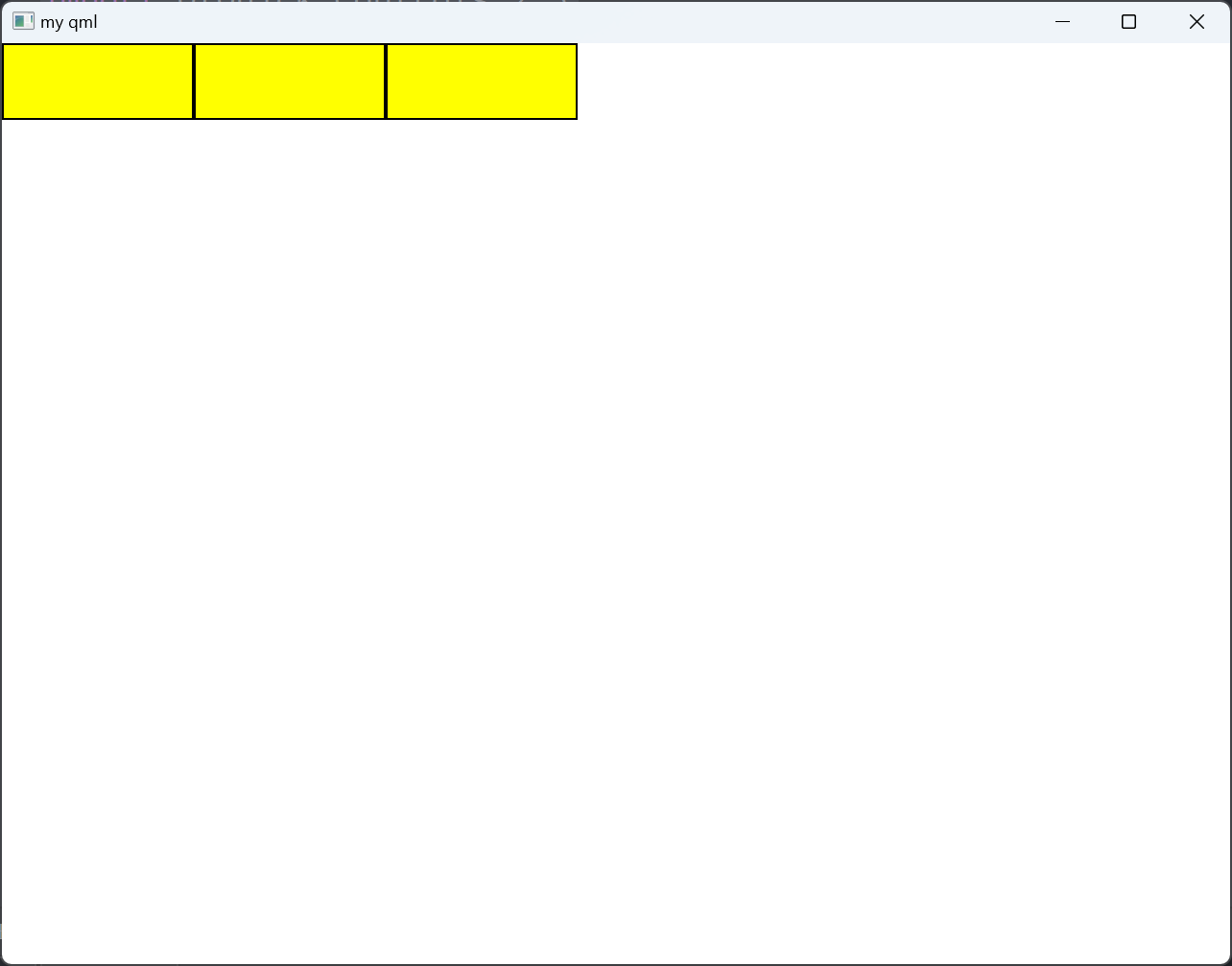
import QtQuick 2.15
import QtQuick.Window 2.15
import QtQuick.Controls 2.5Window {width: 640height: 480visible: truetitle: qsTr("my qml")Repeater {model: ["Button", "Rectangle", "MouseArea"]Button {y: index * 50width: 100; height: 40text: modelData}}
}
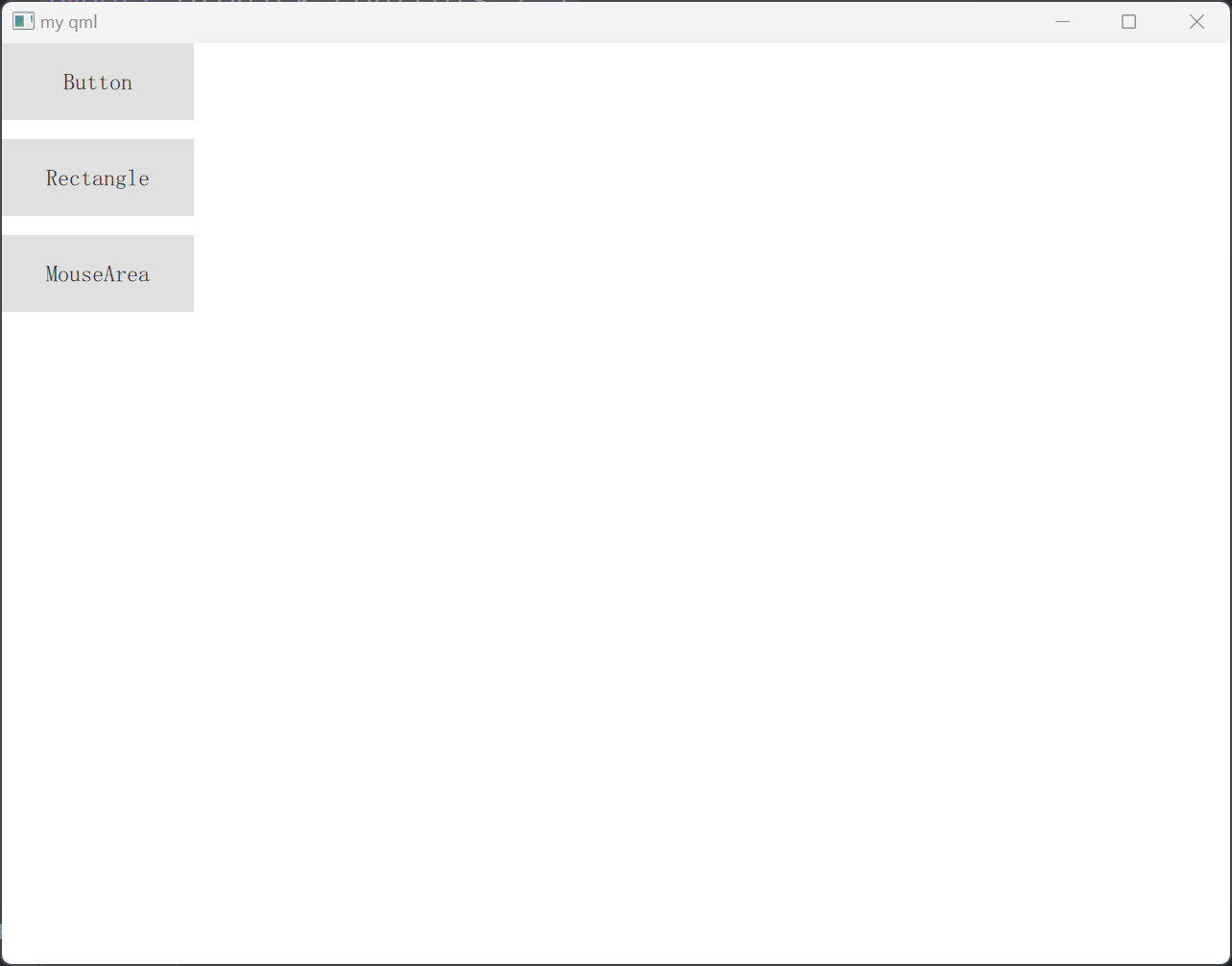
ListView控件
MyListView.qml
import QtQuick 2.15
import QtQuick.Controls 2.5ListView {width: 180; height: 200model: ['Button', 'Rectangle', "List", "CheckBox"]        //数字, 控制所有数据spacing: 10delegate: Button { //控制每一项数据如何绘制text: modelData}
}
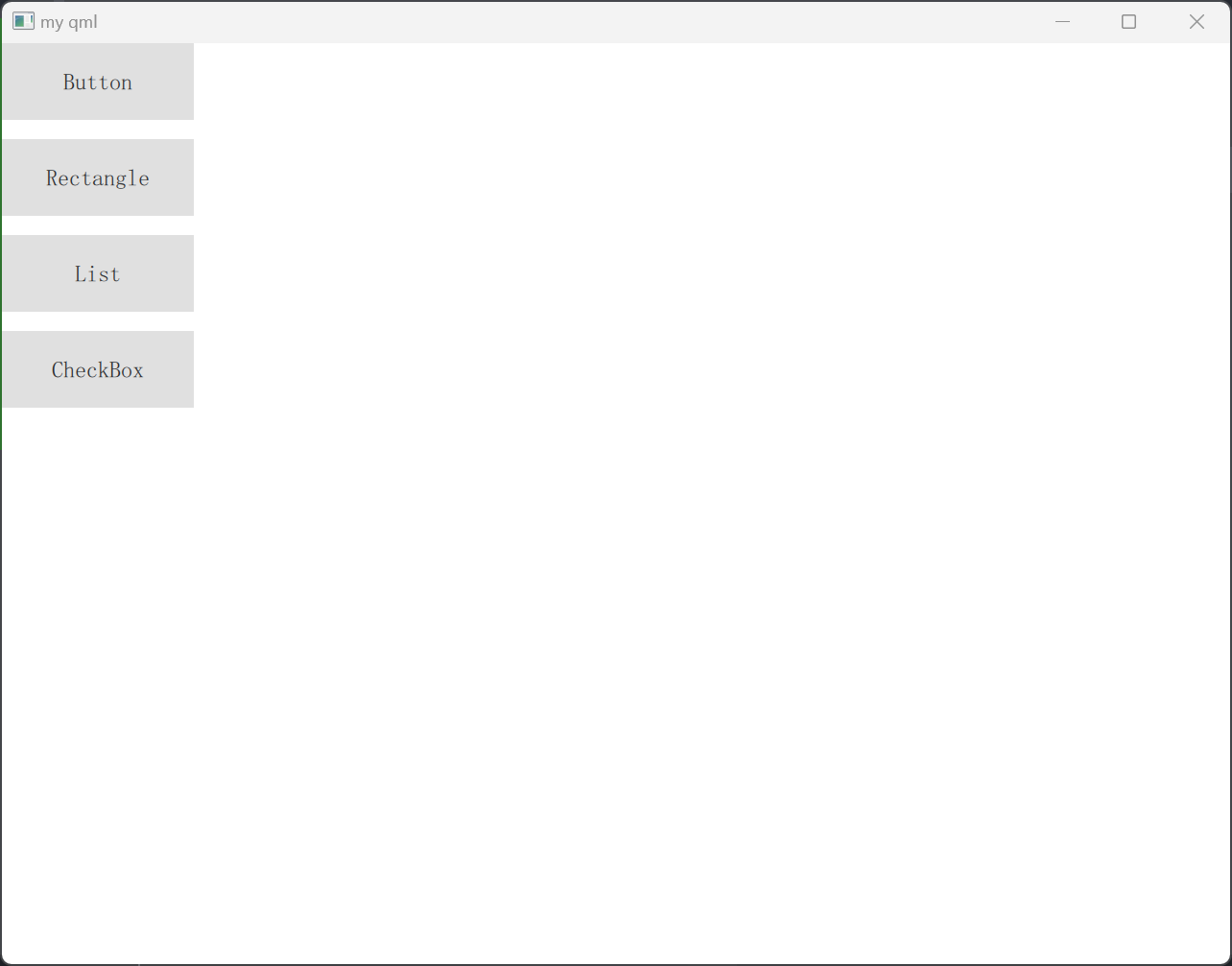
还可以用ListModel这么搞
import QtQuick 2.15
import QtQuick.Controls 2.5ListView {width: 180; height: 200model:  ListModel {ListElement {name: "Bill Smith"number: "555 3264"}ListElement {name: "John Brown"number: "555 8426"}ListElement {name: "Sam Wise"number: "555 0473"}}//控制所有数据spacing: 10delegate: Button { //控制每一项数据如何绘制text: name + ": " + number}
}
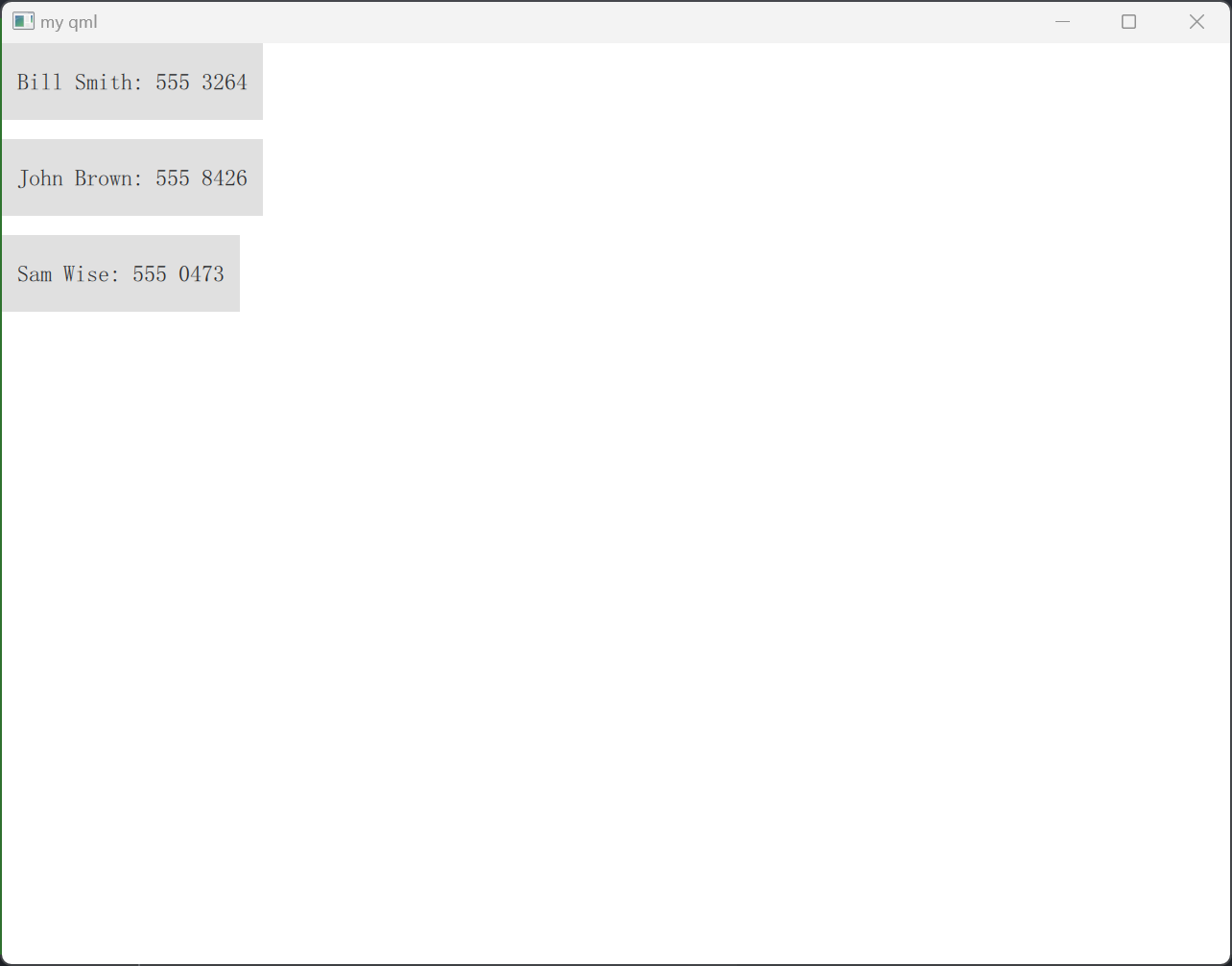
highlight属性
import QtQuick 2.5
import QtQuick.Controls 2.5ListView {id: listwidth: 180; height: 200model:  ListModel {ListElement {name: "Bill Smith"number: "555 3264"}ListElement {name: "John Brown"number: "555 8426"}ListElement {name: "Sam Wise"number: "555 0473"}}//控制所有数据spacing: 15highlight: Rectangle {color: "lightsteelblue"//radius: 5}delegate: Rectangle { //控制每一项数据如何绘制width: 80height: 15color: "transparent"Text {id: txttext: name}MouseArea {anchors.fill: parentonClicked: {currentIndex = indexconsole.log(index)}}}
}
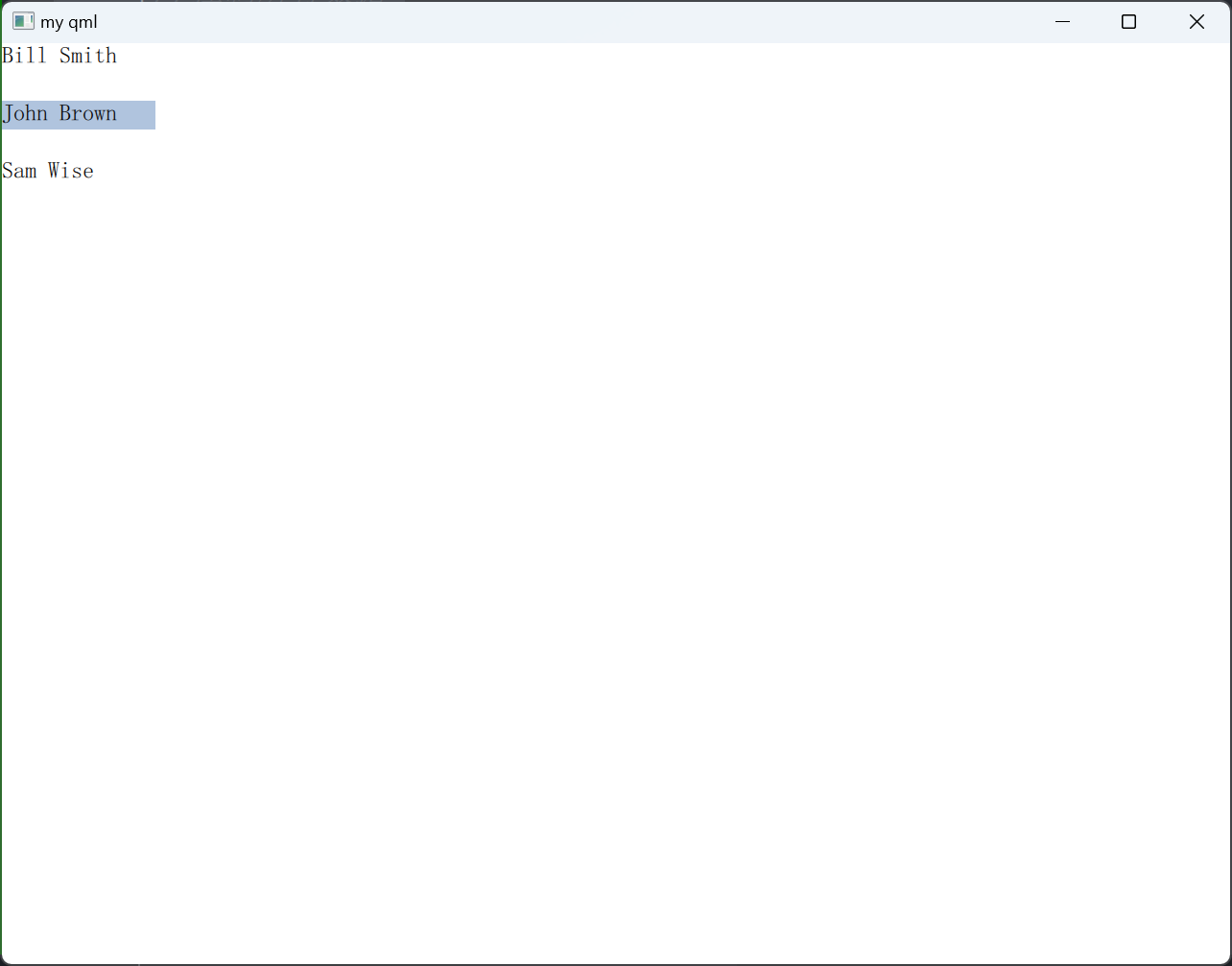
head和foot
import QtQuick 2.5
import QtQuick.Controls 2.5Rectangle {width: 400height: 200border.color: "black"anchors.centerIn: parentListView {id: listwidth: 180; height: 200model:  ListModel {ListElement {name: "Bill Smith"number: "555 3264"}ListElement {name: "John Brown"number: "555 8426"}ListElement {name: "Sam Wise"number: "555 0473"}}//控制所有数据header: Rectangle {width: 180height: 20color: "red"}footer: Rectangle {width: 180height: 20color: "blue"}spacing: 15highlight: Rectangle {color: "lightsteelblue"//radius: 5}delegate: Rectangle { //控制每一项数据如何绘制width: 80height: 15color: "transparent"Text {id: txttext: name}MouseArea {anchors.fill: parentonClicked: {list.currentIndex = indexconsole.log(index)}}}}
}
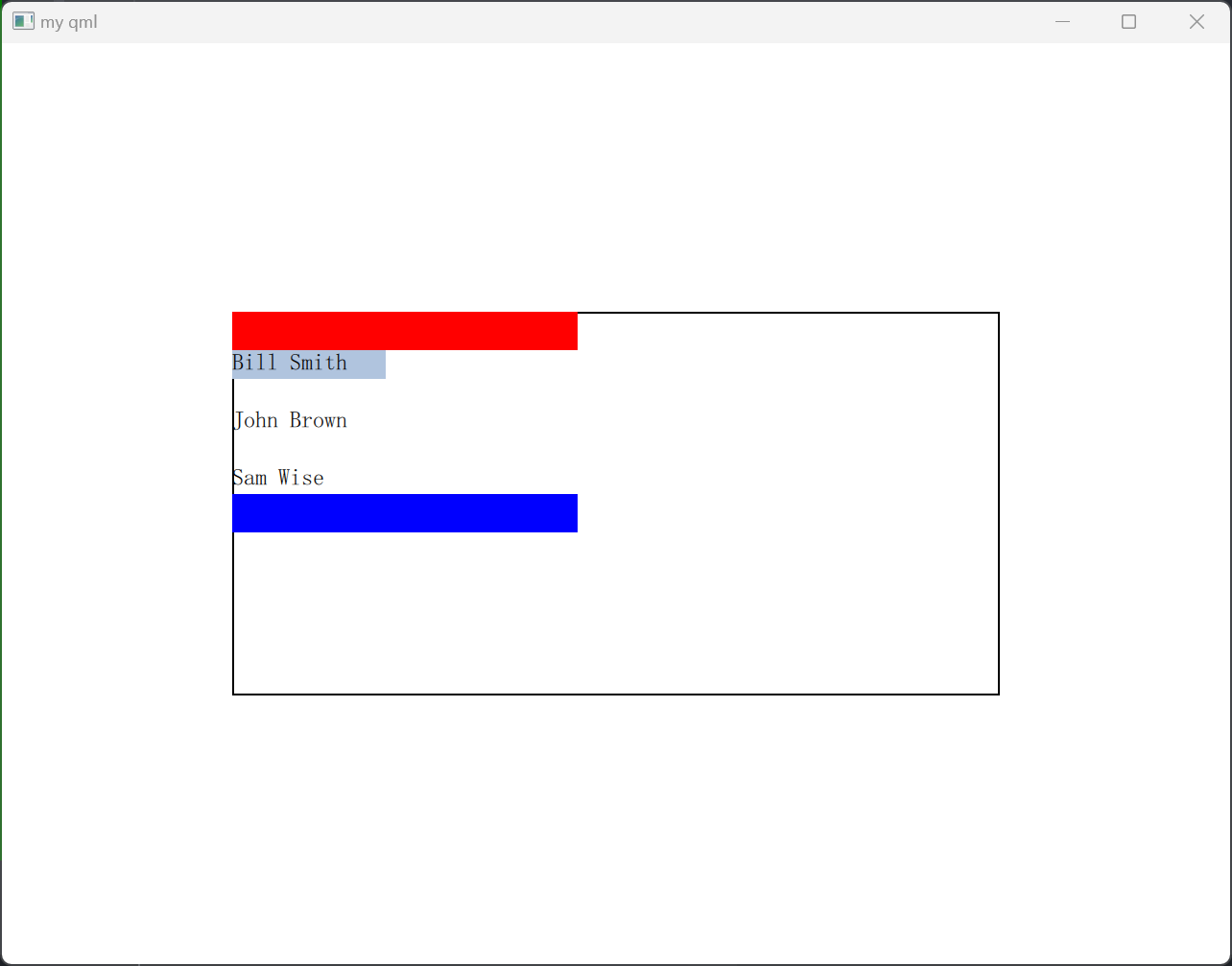
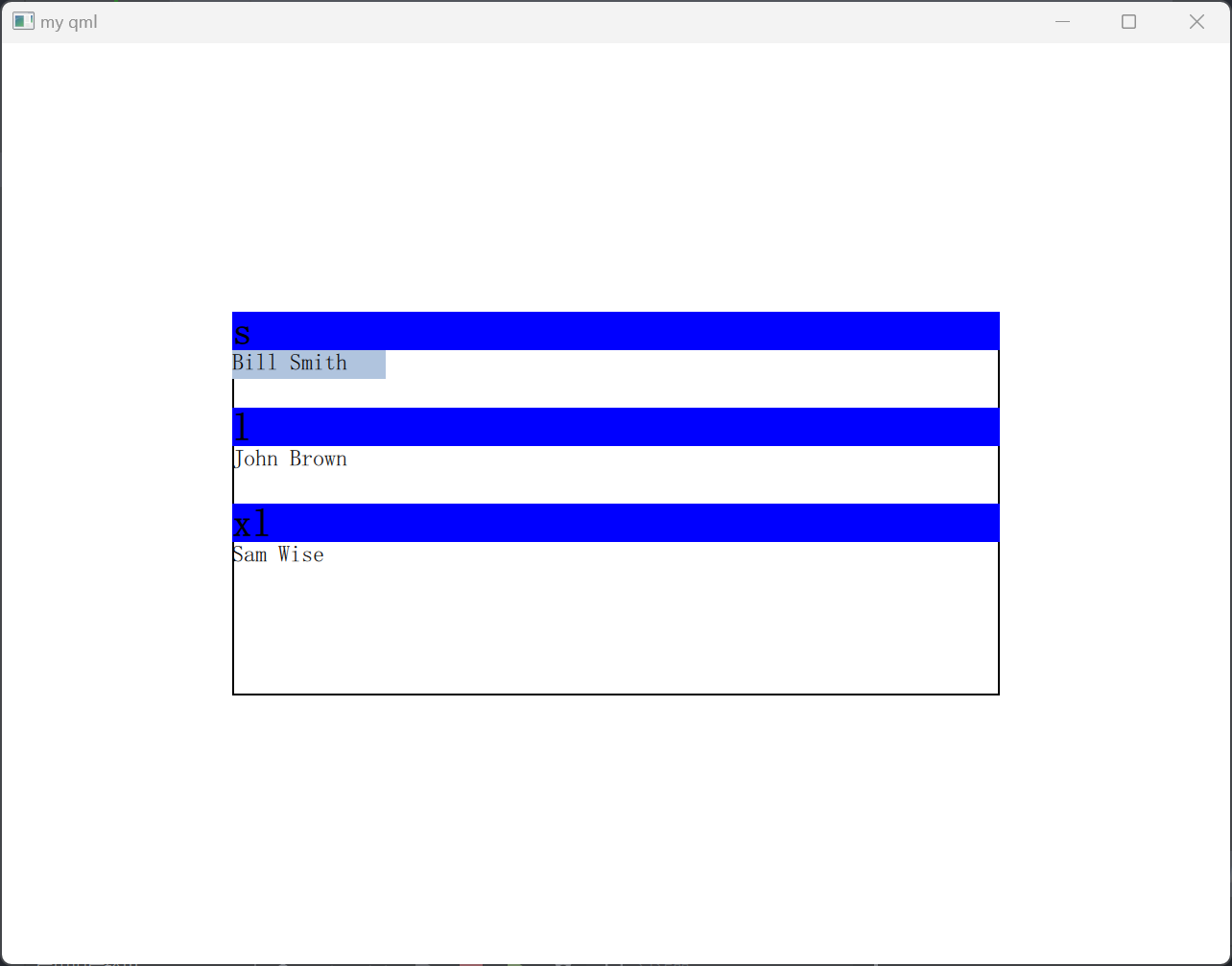
section
import QtQuick 2.5
import QtQuick.Controls 2.5Rectangle {width: 400height: 200border.color: "black"anchors.centerIn: parentListView {id: listwidth: 180; height: 200Component {id: sectionHeadingRectangle {width: 400height: childrenRect.heightcolor: "blue"required property string sectionText {text: parent.sectionfont.bold: truefont.pixelSize: 20}}}model:  ListModel {ListElement {name: "Bill Smith"number: "555 3264"size: "s"}ListElement {name: "John Brown"number: "555 8426"size: "l"}ListElement {name: "Sam Wise"number: "555 0473"size: "xl"}}//控制所有数据//        header: Rectangle {
//            width: 180
//            height: 20//            color: "red"
//        }//        footer: Rectangle {
//            width: 180
//            height: 20//            color: "blue"
//        }spacing: 15highlight: Rectangle {color: "lightsteelblue"//radius: 5}delegate: Rectangle { //控制每一项数据如何绘制width: 80height: 15color: "transparent"Text {id: txttext: name}MouseArea {anchors.fill: parentonClicked: {list.currentIndex = indexconsole.log(index)}}}section.property: "size"section.criteria: ViewSection.FullStringsection.delegate: sectionHeading  //每一个property如何绘制}
}
Combox控件
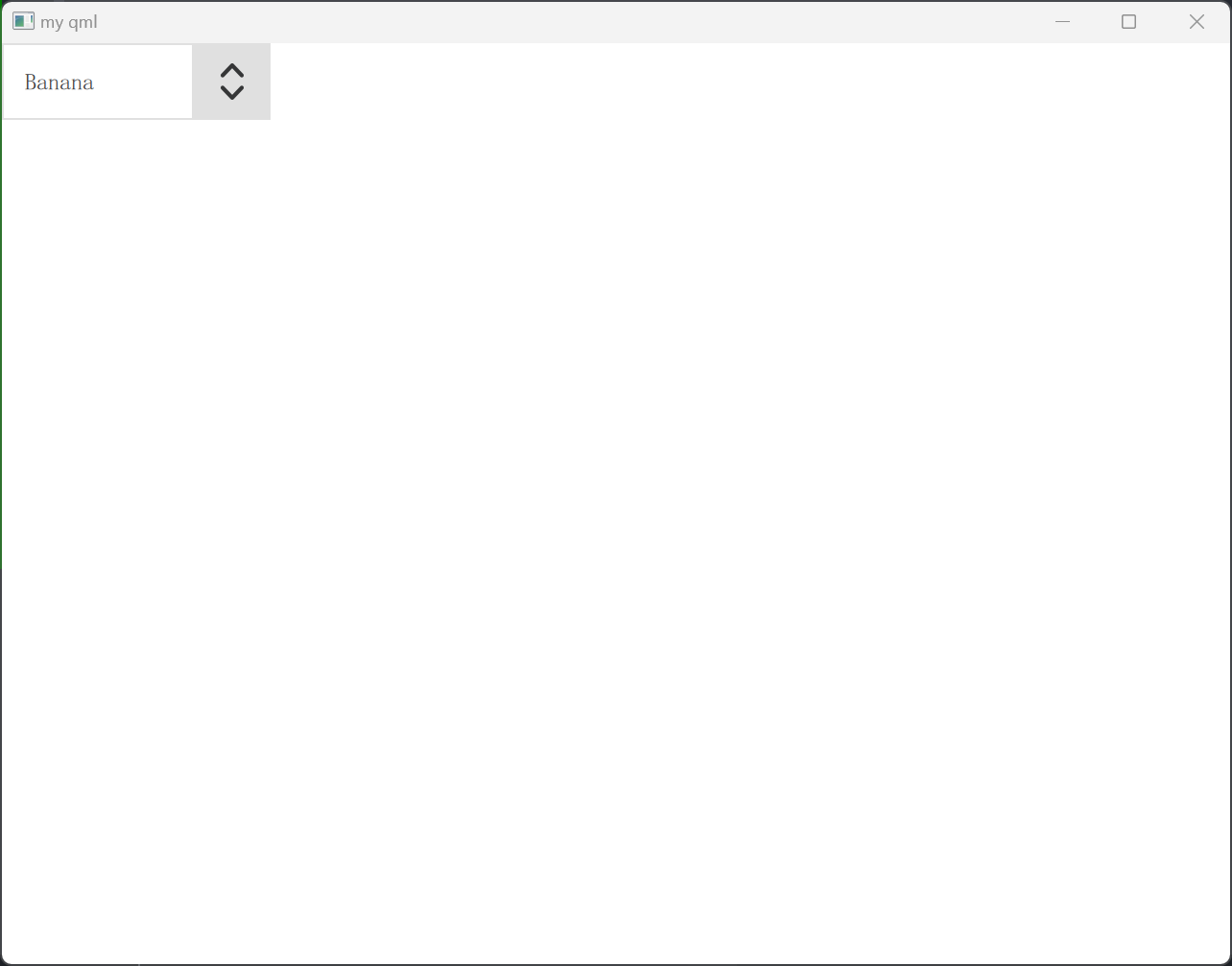
Combox控件继承自Control,Control继承自Item
MyComboBox.qml
import QtQuick 2.5
import QtQuick.Controls 2.5ComboBox {editable: truemodel: ListModel {id: modelListElement { text: "Banana" }ListElement { text: "Apple" }ListElement { text: "Coconut" }}onAccepted: {if (find(editText) === -1)model.append({text: editText})}
}
currentText、currentValue
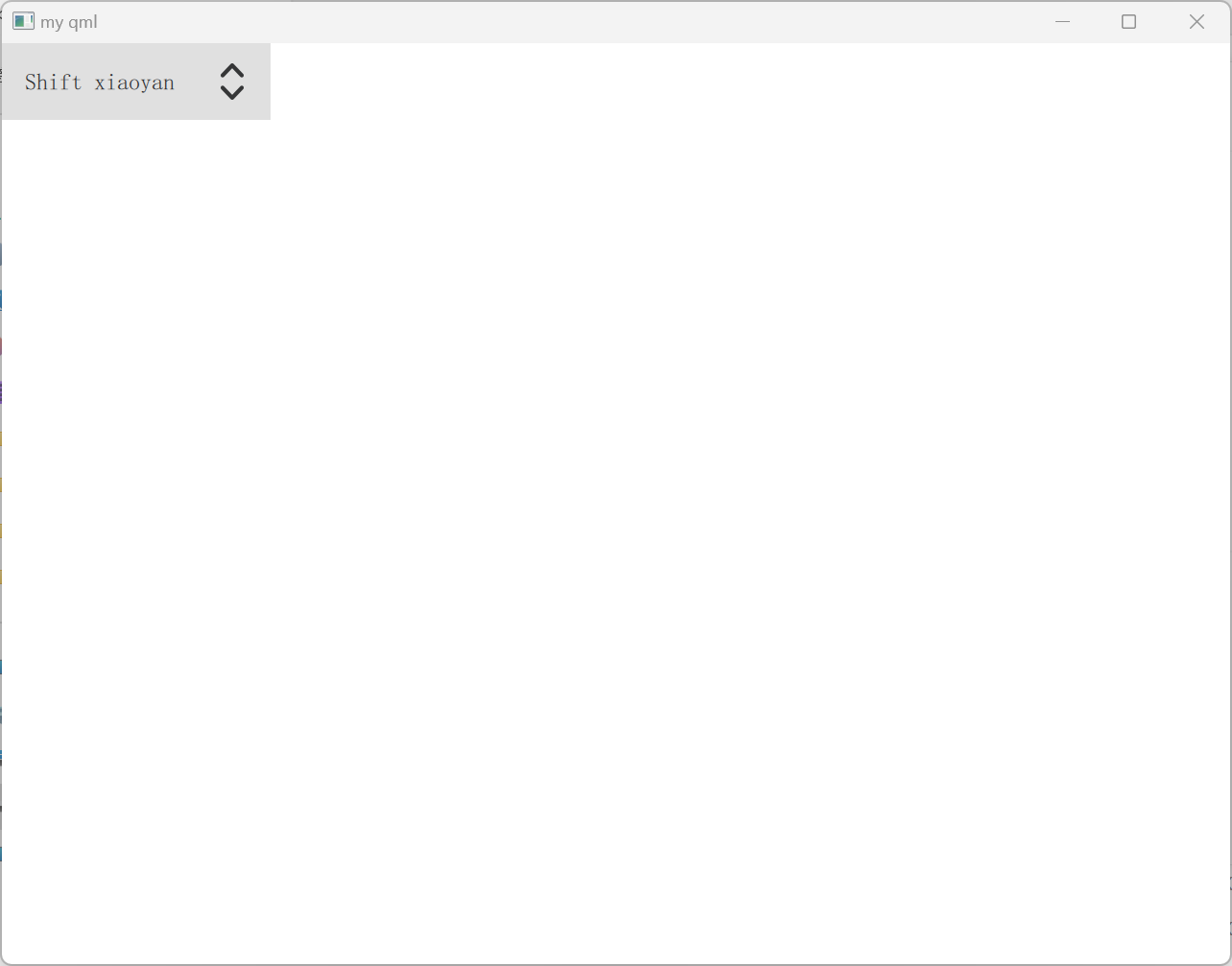
import QtQuick 2.5
import QtQuick.Controls 2.15ComboBox {textRole: "text"valueRole: "name"displayText: currentText + " " + currentValuemodel: [{ value: 100, text: qsTr("No modifier"), name: "lindong" },{ value: 200, text: qsTr("Shift") , name: "xiaoyan" },{ value: 300, text: qsTr("Control"), name: "muchen" }]onCurrentTextChanged: {console.log("text: ", currentText)}onCurrentValueChanged: {console.log("value: ", currentValue)}
}
validator
此属性保存可编辑组合框的输入文本验证器。设置验证器后,文本字段将仅接受使文本属性处于中间状态的输入。仅当按下 Return 或 Enter 键时文本处于可接受状态时,才会发出接受的信号。
import QtQuick 2.5
import QtQuick.Controls 2.15ComboBox {model: 10editable: true
//    validator: IntValidator {
//        top: 9
//        bottom: 0
//    }validator: RegExpValidator {regExp: /[0-9A-F]+/}onAcceptableInputChanged: {  //当前有没有匹配validator验证器console.log(acceptableInput)}
}
自定义ComboBox
indicator
此属性保存放置指示器项。
import QtQuick 2.12
import QtQuick.Controls 2.12ComboBox {id: controlmodel: ["First", "Second", "Third"]delegate: ItemDelegate { //针对model中 每一项的具体绘制width: control.widthcontentItem: Text {text: modelDatacolor: "red"font: control.fontelide: Text.ElideRightverticalAlignment: Text.AlignVCenter}highlighted: control.highlightedIndex === index}indicator: Canvas {id: canvasx: control.width - width - control.rightPaddingy: control.topPadding + (control.availableHeight - height) / 2width: 12height: 8contextType: "2d"Connections {target: controlfunction onPressedChanged() { canvas.requestPaint(); }}onPaint: {context.reset();context.moveTo(0, 0);context.lineTo(width, 0);context.lineTo(width / 2, height);context.closePath();context.fillStyle = control.pressed ? "#17a81a" : "#21be2b";context.fill();}}contentItem: Text { //控件显示内容leftPadding: 0rightPadding: control.indicator.width + control.spacingtext: control.displayTextfont: control.fontcolor: control.pressed ? "red" : "blue"verticalAlignment: Text.AlignVCenterelide: Text.ElideRight}background: Rectangle {  //控件背景implicitWidth: 120implicitHeight: 40border.color: control.pressed ? "#17a81a" : "#21be2b"border.width: control.visualFocus ? 2 : 1radius: 3}popup: Popup {  //绘制整个下拉控件y: control.height - 1width: control.widthimplicitHeight: contentItem.implicitHeightpadding: 1contentItem: ListView {clip: trueimplicitHeight: contentHeightmodel: control.popup.visible ? control.delegateModel : nullcurrentIndex: control.highlightedIndexScrollIndicator.vertical: ScrollIndicator { }}background: Rectangle {border.color: "gray"radius: 2}}
}
StackView控件
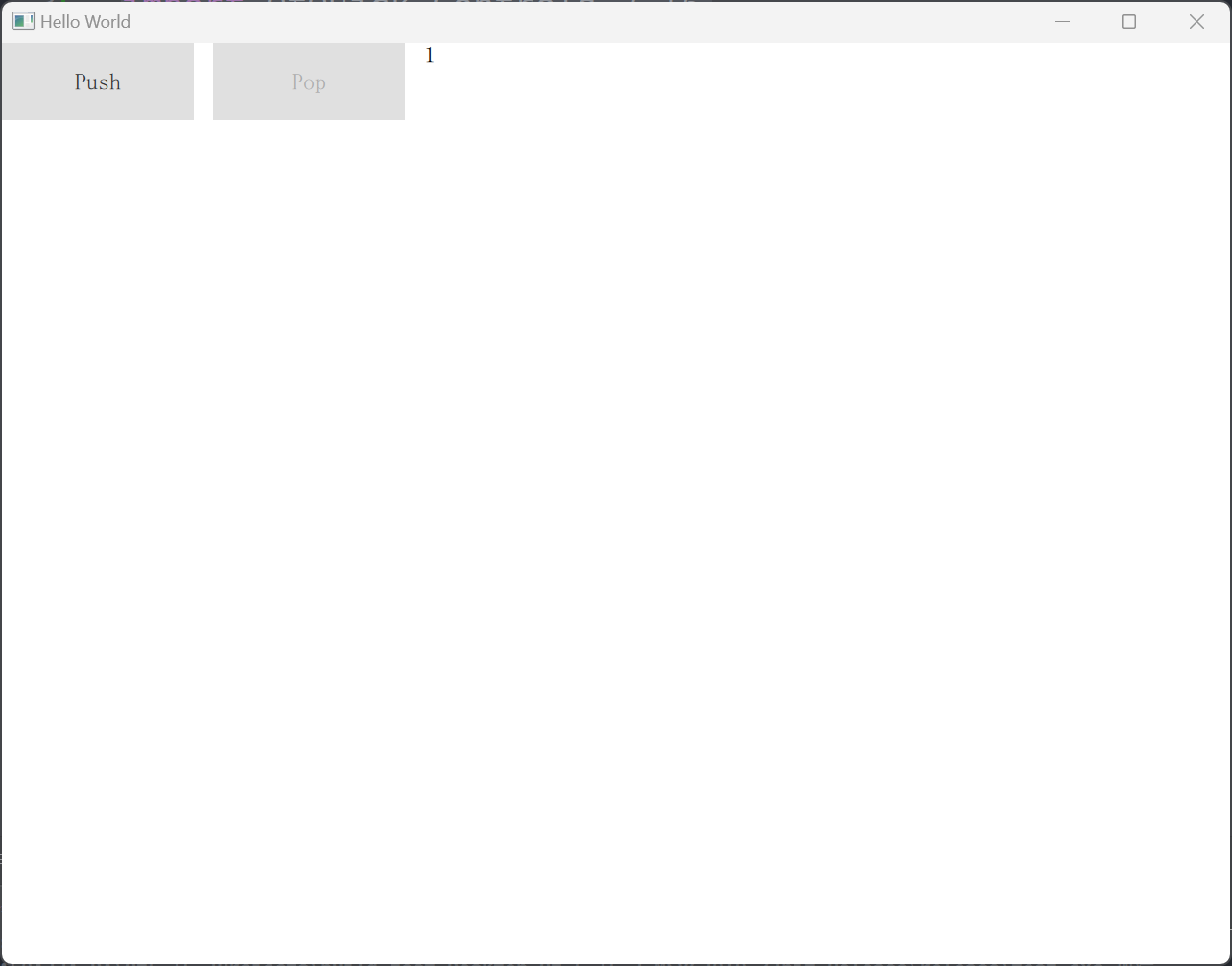
可用于管理具有多个页面的应用程序
import QtQuick 2.15
import QtQuick.Window 2.15
import QtQuick.Controls 2.15ApplicationWindow {title: qsTr("Hello World")width: 640height: 480visible: trueStackView {id: stackinitialItem: mainViewanchors.fill: parent}Component {id: mainViewRow {spacing: 10Button {text: "Push"onClicked: stack.push(mainView)}Button {text: "Pop"enabled: stack.depth > 1onClicked: stack.pop()}Text {text: stack.depth}}}}
自定义Model
ListView显示数据必须构造相应的模型类,继承自QAbstractListModel
mylistmodel.h
#ifndef MYLISTMODEL_H
#define MYLISTMODEL_H#include <QAbstractListModel>
#include <QJsonObject>
#include <QJsonArray>
#include <QJsonDocument>
#include <QJsonValue>class MyListModel : public QAbstractListModel
{Q_OBJECTpublic:enum MyRoleName {Name = Qt::DisplayRole + 1,};explicit MyListModel(QObject *parent = nullptr);static MyListModel* instance();// Basic functionality:int rowCount(const QModelIndex &parent = QModelIndex()) const override;QVariant data(const QModelIndex &index, int role = Qt::DisplayRole) const override;QHash<int, QByteArray> roleNames() const override;private:QList<QString> m_data;
};#endif // MYLISTMODEL_H
mylistmodel.cpp
#include "mylistmodel.h"MyListModel::MyListModel(QObject *parent): QAbstractListModel(parent)
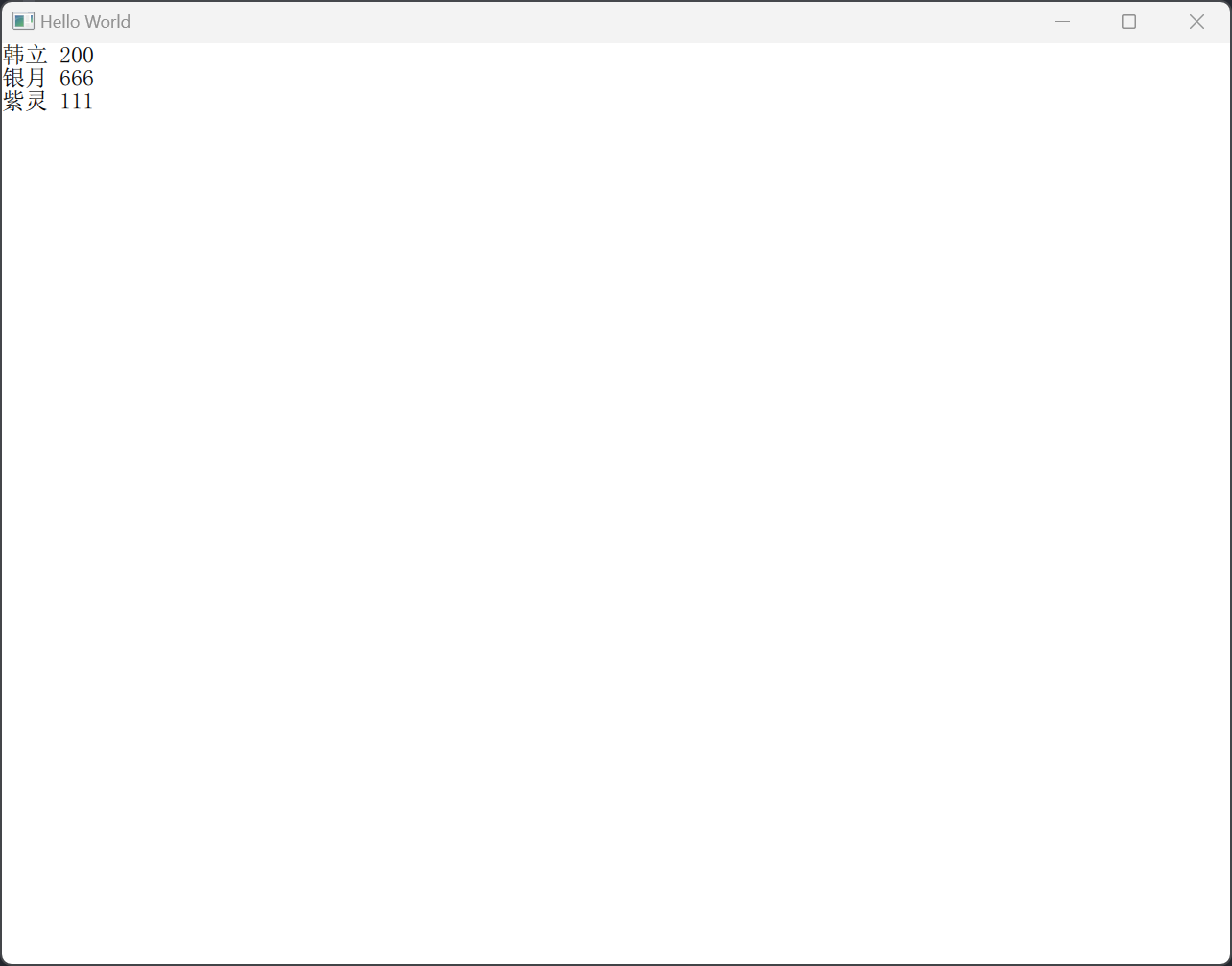
{m_data.append("韩立 200");m_data.append("银月 666");m_data.append("紫灵 111");
}MyListModel *MyListModel::instance()
{static MyListModel* obj = new MyListModel;return obj;
}int MyListModel::rowCount(const QModelIndex &parent) const
{// For list models only the root node (an invalid parent) should return the list's size. For all// other (valid) parents, rowCount() should return 0 so that it does not become a tree model.if (parent.isValid())return 0;return m_data.count();// FIXME: Implement me!
}QVariant MyListModel::data(const QModelIndex &index, int role) const
{if (!index.isValid())return QVariant();if (role == MyRoleName::Name) {return m_data[index.row()];}// FIXME: Implement me!return QVariant();
}QHash<int, QByteArray> MyListModel::roleNames() const
{QHash<int, QByteArray> roles;roles.insert(MyRoleName::Name, "name");return roles;
}
main.cpp中注册模型类
#include <QGuiApplication>
#include <QQmlApplicationEngine>
#include <QQmlContext>
#include "mylistmodel.h"int main(int argc, char *argv[])
{
#if QT_VERSION < QT_VERSION_CHECK(6, 0, 0)QCoreApplication::setAttribute(Qt::AA_EnableHighDpiScaling);
#endifQGuiApplication app(argc, argv);QQmlApplicationEngine engine;engine.rootContext()->setContextProperty("MyListModel", MyListModel::instance());const QUrl url(QStringLiteral("qrc:/main.qml"));QObject::connect(&engine, &QQmlApplicationEngine::objectCreated,&app, [url](QObject *obj, const QUrl &objUrl) {if (!obj && url == objUrl)QCoreApplication::exit(-1);}, Qt::QueuedConnection);engine.load(url);return app.exec();
}
qml当中用ListView显示
import QtQuick 2.15
import QtQuick.Window 2.15Window {width: 640height: 480visible: truetitle: qsTr("Hello World")ListView {width: 200height: 300model: MyListModeldelegate: Text {id: txt;text: name}}
}
相关文章:
qml入门
window import QtQuick 2.15 import QtQuick.Window 2.15 import QtQuick.Controls 2.5Window { //root控件,父窗口是主界面width: 640height: 480visible: true//相对于父控件的偏移量x: 100y:100minimumWidth: 400 //最小宽度minimumHeight: 300 //最小高度ma…...
一文熟练使用python修改Excel中的数据
使用python修改Excel中的内容 1.初级修改 1.1 openpyxl库的功能: openpyxl模块是一个读写Excel 2010文档的Python库,如果要处理更早格式的Excel文档,需要用到额外的库,例如Xlwings。openpyxl是一个比较综合的工具,能…...
java Spring Boot在配置文件中关闭热部署
之前更大家一起搭建了一个热部署的开发环境 但是 大家要清楚一个情况 我们线上程序运行突然内部发生变化这是不可能的。 所以 他就只会对我们开发环境有效 是否开启 我们可以通过 application配置文件来完成 我这里是yml格式的 参考代码如下 spring:devtools:restart:enabled…...
【物联网】Arduino+ESP8266物联网开发(一):开发环境搭建 安装Arduino和驱动
ESP8266物联网开发 1.开发环境安装 开发软件下载地址: 链接: https://pan.baidu.com/s/1BaOY7kWTvh4Obobj64OHyA?pwd3qv8 提取码: 3qv8 1.1 安装驱动 将ESP8266连接到电脑上,安装ESP8266驱动CP210x 安装成功后,打开设备管理器,…...

自定义UI对象转流程节点
自定义UI对象转流程节点 实体自定义对象转bpmn activitiy学习 (动态加签,动态流程图,指定节点跳转,指定多人节点跳转) 前端页面仿的这个 提供一个思路 实体 ActivitiValueVo import io.swagger.annotations.ApiModel; import io.swagger.a…...
P1-P5_动手学深度学习-pytorch(李沐版,粗浅的笔记)
目录 预告 1.学习深度学习的关键是动手 2.什么是《动手学深度学习》 3.曾经推出的版本(含github链接) 一、课程安排 1.目标 2.内容 3.上课形式 4.你将学到什么 5.资源 二、深度学习的介绍 1.AI地图 2.深度学习在一些应用上…...
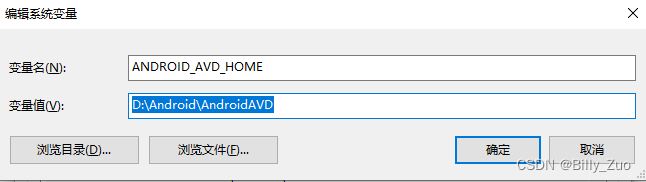
Android Studio修改模拟器AVD Manger目录
Android Studio修改虚拟机AVD Manger目录 1、在AS的设备管理器Device Manager中删除原来创建的所有虚拟机(Android Virtual Device); 2、新建一个自定义的AVD目录,例如:D:\Android\AndroidAVD 3、在高级系统设置中增加…...
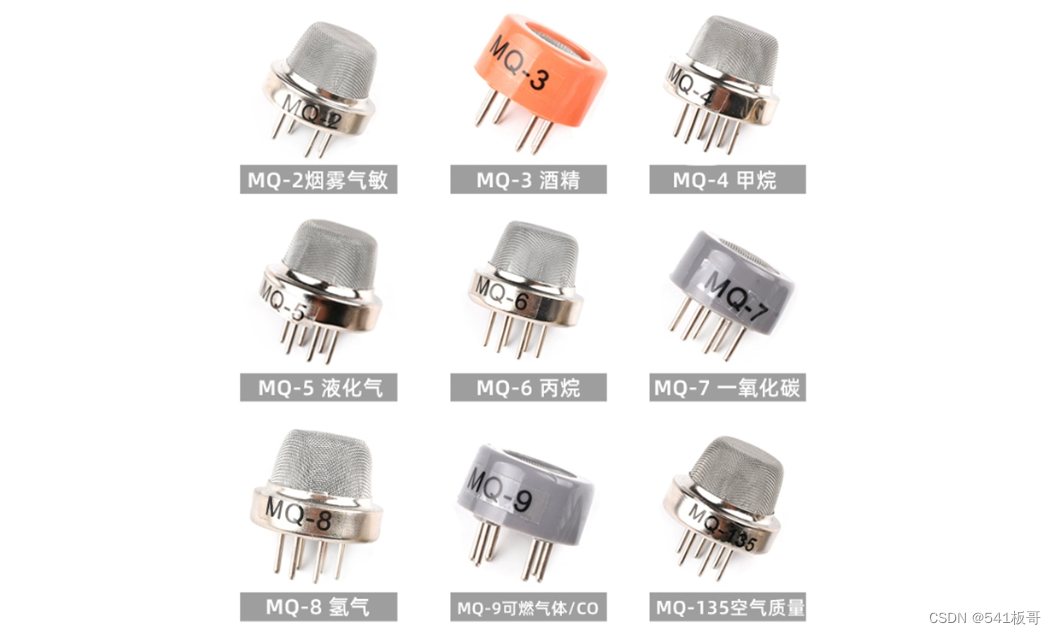
STM32--MQ2烟雾传感器
本文主要介绍STM32F103C8T6和烟雾传感器模块的控制算法 简介 烟雾模块选用MQ-2气体传感器,根据传感器的电导率随空气中可燃气体浓度的增加而增大的特性检测空气中可燃气体,然后将电导率的变化转换成对应的电信号 MQ系列烟雾传感分类如下: 该…...

GitHub要求开启2FA,否则不让用了。
背景 其实大概在一个多月前,在 GitHub 网页端以及邮箱里都被提示:要求开启 2FA ,即双因子认证;但是当时由于拖延症和侥幸心理作祟,直接忽略了相关信息,毕竟“又不是不能用”。。 只到今天发现 GitHub 直接…...

Python 编程基础 | 第三章-数据类型 | 3.6、元组
一、元组 Python 的元组与列表类似,不同之处在于元组的元素不能修改。元组使用小括号,列表使用方括号。 1、创建元组 元组创建很简单,只需要在括号中添加元素,并使用逗号隔开即可,例如: tup1 (physics, ch…...
2023/10/7 -- ARM
【程序状态寄存器读写指令】 1.指令码以及格式 mrs:读取CPSR寄存器的值 mrs 目标寄存器 CPSR:读取CPSR的数值保存到目标寄存器中msr:修改CPSR寄存器的数值msr CPSR,第一操作数:将第一操作数的数值保存到CPSR寄存器中//修改CPSR寄存器,也就表示程序的状…...

yolov5加关键点回归
文章目录 一、数据1)数据准备2)标注文件说明 二、基于yolov5-face 修改自己的yolov5加关键点回归1、dataloader,py2、augmentations.py3、loss.py4、yolo.py 一、数据 1)数据准备 1、手动创建文件夹: yolov5-face-master/data/widerface/tr…...
untitle
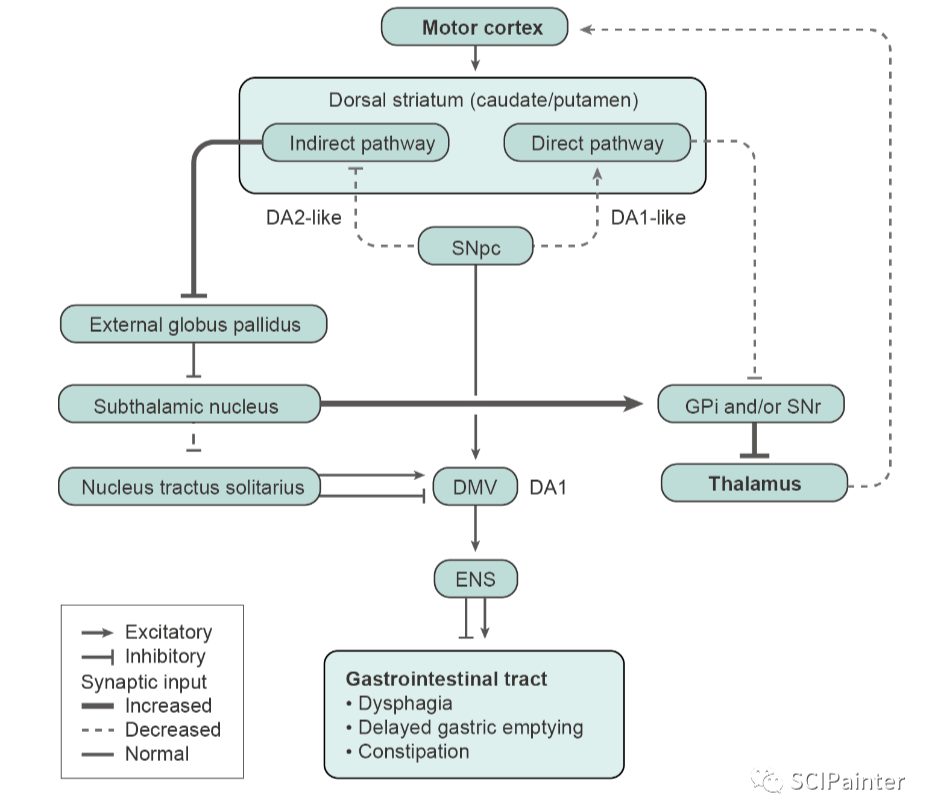
实用的科研图形美化处理教程分享 显微照片排版标记 除了统计图表之外,显微照片也是文章中必不可少的实验结果呈现方式。除了常规实验的各种组织切片照片,在空间转录组文章中显微照片更是常见。显微照片的呈现方式也是有讲究的,比如对照片…...

《论文阅读》监督对抗性对比学习在对话中的情绪识别 ACL2023
《论文阅读》监督对抗性对比学习在对话中的情绪识别 前言摘要相关知识最坏样本干扰监督对比学习生成式对抗网络纳什均衡琴森香农散度范式球模型架构监督对抗性对比学习模型结构图实验结果问题前言 你是否也对于理解论文存在困惑? 你是否也像我之前搜索论文解读,得到只是中文…...
2023-10-07 LeetCode每日一题(股票价格跨度)
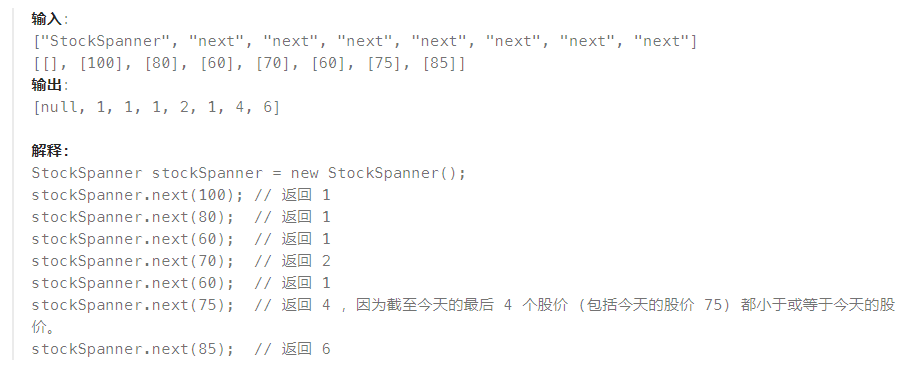
2023-10-07每日一题 一、题目编号 901. 股票价格跨度二、题目链接 点击跳转到题目位置 三、题目描述 设计一个算法收集某些股票的每日报价,并返回该股票当日价格的 跨度 。 当日股票价格的 跨度 被定义为股票价格小于或等于今天价格的最大连续日数(…...
聊聊分布式架构04——RPC通信原理
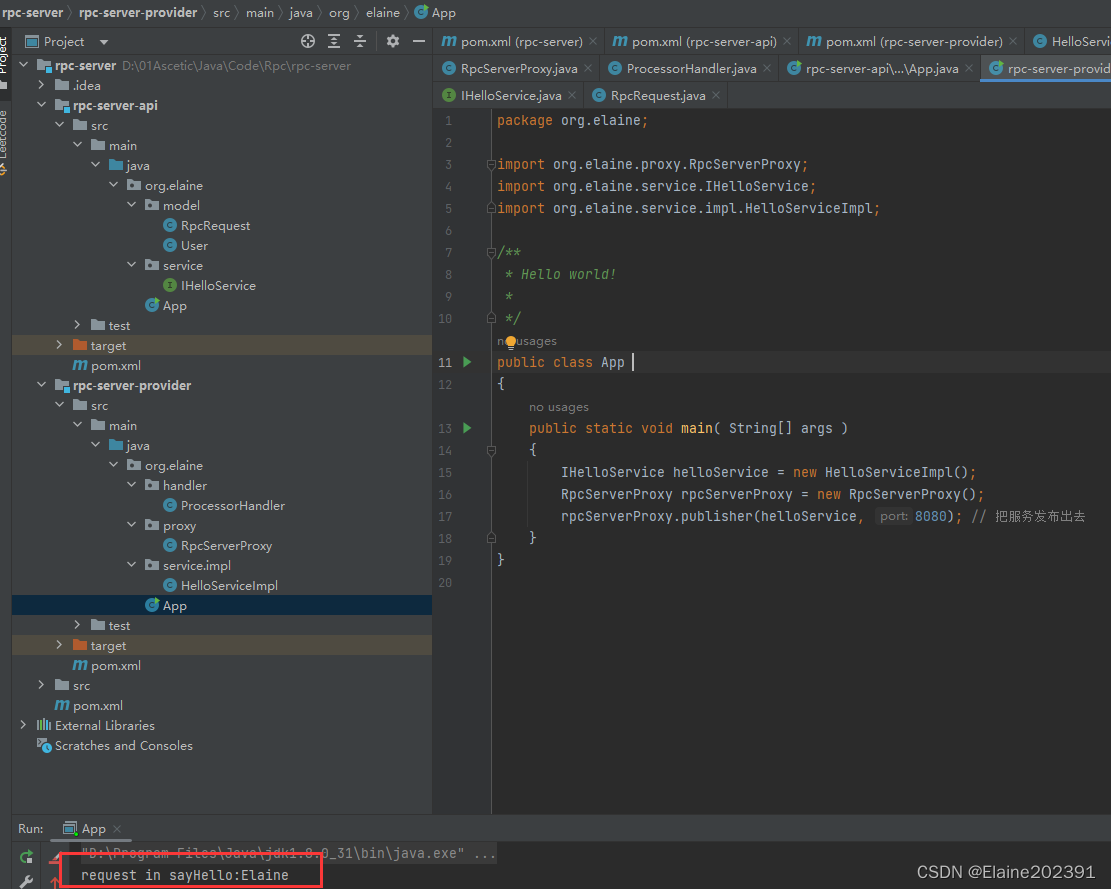
目录 RPC通信的基本原理 RPC结构 手撸简陋版RPC 知识点梳理 1.Socket套接字通信机制 2.通信过程的序列化与反序列化 3.动态代理 4.反射 思维流程梳理 码起来 服务端时序图 服务端—Api与Provider模块 客户端时序图 RPC通信的基本原理 RPC(Remote Proc…...
维吉尼亚密码
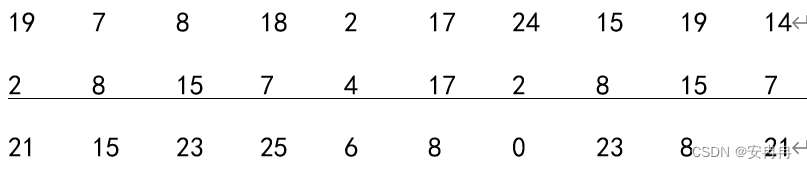
维吉尼亚密码属于多表代换密码 其中A<–>0,B<–>1,…,Z<–>25,则每个密钥K相当于一个长度为m的字母串,称为密钥字。维吉尼亚密码一次加密m个明文字母。 示例:设m6,密钥字为…...

ubuntu20.04挂载拓展盘保姆级流程
背景:跑模型玩时,发现机子硬盘太小了,搞个1t固态作为挂载盘。以下为操作全流程记录 1、开始root权限操作 sudo su若进不去,考虑是否给root设置过密码,新系统第一次进入需要设置密码。 进入成功: rooty:…...
)
顶顶通电话机器人接口对接开源ASR(语音识别)
前景介绍 目前大部分用户使用的都是在线ASR按照分钟或者按次付费,之前开源ASR效果太差不具备商用的条件,随着 阿里达摩院发布了大量开源数据集或者海量工业数据训练的模型,识别效果已经和商用ASR差距非常小,完全具备了很多场景代…...

windows消息机制
windows开发比较简单,首先要理解的就是消息机制。 Windows消息机制是指Windows操作系统中的消息传递机制。在Windows中,应用程序通过消息进行通信和交互。消息是一种轻量级的通信方式,用于在不同的窗口、线程或进程之间传递信息。 在Windows…...

技术博主都在悄悄用的Perplexity高级搜索语法,11个未公开符号组合全曝光
更多请点击: https://kaifayun.com 第一章:Perplexity高级搜索语法的底层逻辑与设计哲学 Perplexity 的高级搜索语法并非简单的关键词匹配扩展,而是基于语义意图建模与查询图谱重构的设计实践。其核心在于将用户自然语言查询实时编译为可执行…...

基于Adafruit CRICKIT与3D打印的水面机器人DIY全攻略
1. 项目概述:打造你的第一艘智能水面机器人 如果你对机器人、水上航行或者水下摄影感兴趣,但又觉得从零开始设计电路和结构太复杂,那么这个项目就是为你准备的。今天,我想分享一个我最近完成的、非常有趣且实用的创客项目&#x…...

Ubuntu下编译与测试libwebsockets:从x86环境验证到嵌入式移植
1. 项目概述与背景 在嵌入式开发中,尤其是涉及到网络通信模块时,我们常常会遇到一个典型的困境:直接在资源受限的目标板(比如ARM架构的开发板)上进行代码的编译、调试和功能验证,过程往往非常痛苦。编译速…...

深度解析nxdumptool:专业级Switch游戏卡带转储工具完全指南
深度解析nxdumptool:专业级Switch游戏卡带转储工具完全指南 【免费下载链接】nxdumptool Generates XCI/NSP/HFS0/ExeFS/RomFS/Certificate/Ticket dumps from Nintendo Switch gamecards and installed SD/eMMC titles. 项目地址: https://gitcode.com/gh_mirror…...

3步掌握CSDN博客下载器:革命性批量下载与智能离线阅读终极方案
3步掌握CSDN博客下载器:革命性批量下载与智能离线阅读终极方案 【免费下载链接】CSDNBlogDownloader 项目地址: https://gitcode.com/gh_mirrors/cs/CSDNBlogDownloader 在信息时代,技术博客是我们获取知识的重要窗口,但网络内容的不…...

点赞收藏功能修复
从昨天下午开始修复因为逻辑错误导致的系统性错误,开始了大规模的修改。。。。。。。。现在基本修复了:计划广场唯一性,点赞,收藏。理论上已经全都修复了,但是还需要测试剩下测试的功能:举报申述功能...

5步掌握代码绘图:Draw.io Mermaid插件高效指南
5步掌握代码绘图:Draw.io Mermaid插件高效指南 【免费下载链接】drawio_mermaid_plugin Mermaid plugin for drawio desktop 项目地址: https://gitcode.com/gh_mirrors/dr/drawio_mermaid_plugin 还在为技术文档中的图表绘制而烦恼吗?每次需求变…...
)
Labelme版本不兼容报错?手把手教你修改源码和JSON文件(附3.18.0与4.5.6对比)
Labelme版本兼容性实战:从源码修改到JSON批量处理的完整指南 当你正专注于一个重要的数据标注项目,突然遭遇"Error opening file lineColor"的红色报错框,整个团队的标注进度被迫停滞——这种场景对于使用Labelme进行图像标注的开发…...
项目推荐:深入理解与掌握正交频分复用技术)
OFDM仿真(Matlab)项目推荐:深入理解与掌握正交频分复用技术
OFDM仿真(Matlab)项目推荐:深入理解与掌握正交频分复用技术 【下载地址】OFDM仿真matlab完整可运行 本资源提供了一个完整的OFDM(正交频分复用)仿真代码,基于Matlab平台开发。该仿真代码包含了OFDM系统中的多个关键模块࿰…...

【亲测免费】 探索光谱与色谱数据分析的新利器:CARS-PLS MATLAB 源码
探索光谱与色谱数据分析的新利器:CARS-PLS MATLAB 源码 【下载地址】CARS-PLS用于光谱数据或色谱数据变量选择的MATLAB源码 本仓库提供了一个用于光谱数据或色谱数据变量选择的 MATLAB 源码,基于 CARS-PLS(Competitive Adaptive Reweighted S…...